Skip to content

Instead of typing the same note onto every Customer Invoice you may create templated wording and insert it into a Job's Invoice Notes and Job Card Notes field.
This article shows you how to create an Invoice Note or Job Card note template and add it to a Job or Booking.
Create a Note Template
Job Card Note and Invoice Note templates may be created in the Company Lists page. Job Card templates may only be added and printed with a Job Card, and similarly Invoice Notes with printed Customer Invoices.
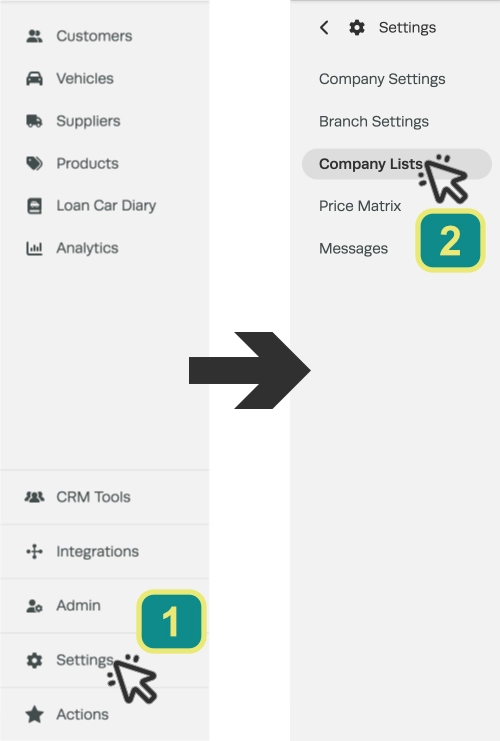
- Click Settings (1) in the left hand sidebar menu, then click Company Lists (2).
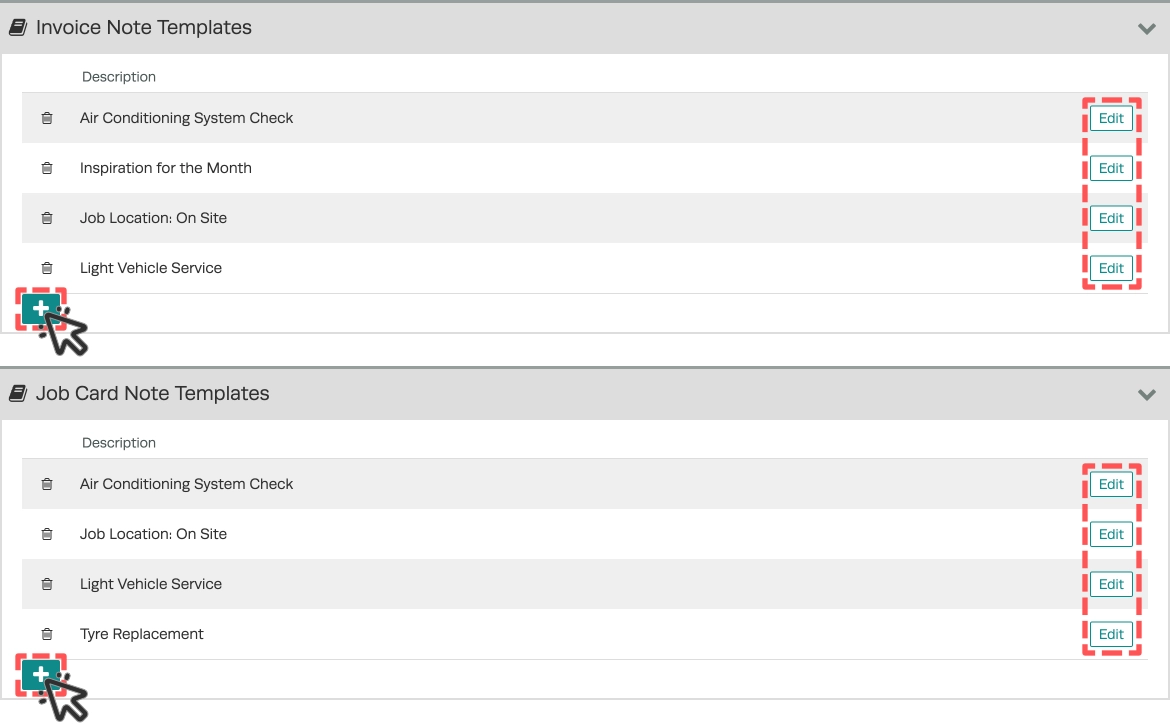
- In the Invoice Note Templates or Job Card Note Templates cards you may click the green + button in the bottom left to create a new template, or the Edit button to edit an existing template.
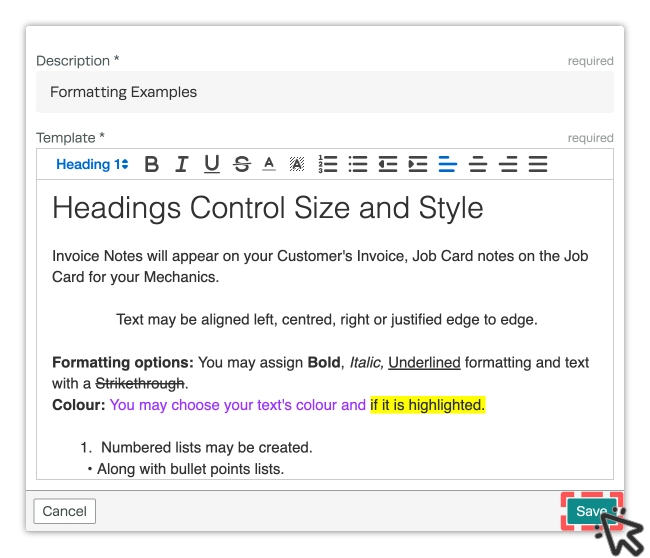
- Enter a Description that makes the template easy to identify, then enter the Template wording. You may format the text to suit your needs then click Save when you have finished.
Add a Template to an Invoice
You may add your templates to a Booking or Job / Customer Invoice.
- First access or create the Booking or Job / Customer Invoice you would like to add notes to.
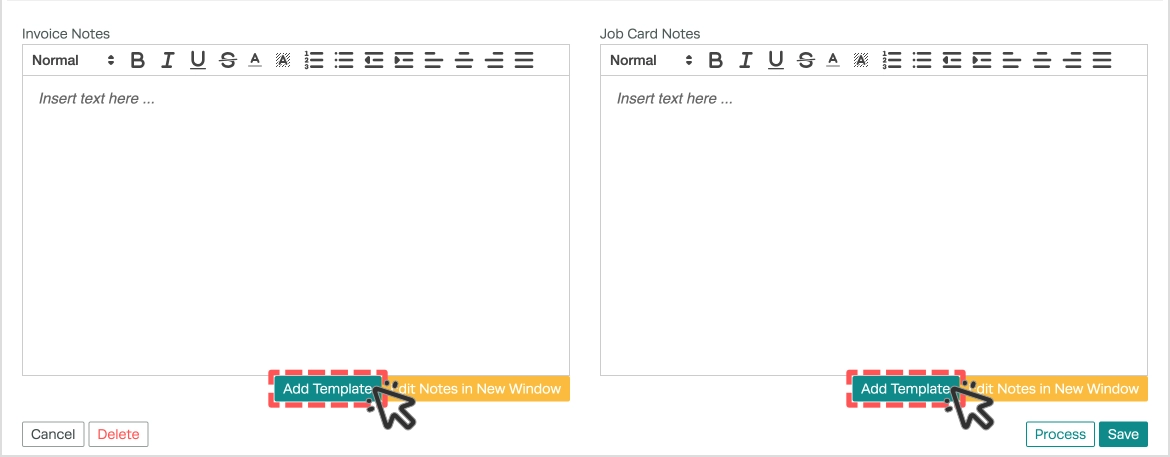
- Click the Add Template button below the appropriate Notes field.
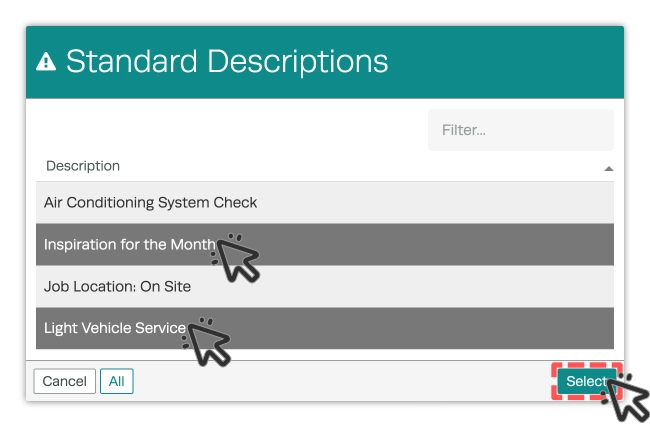
- Select one or more templates to insert, then click the Select button.
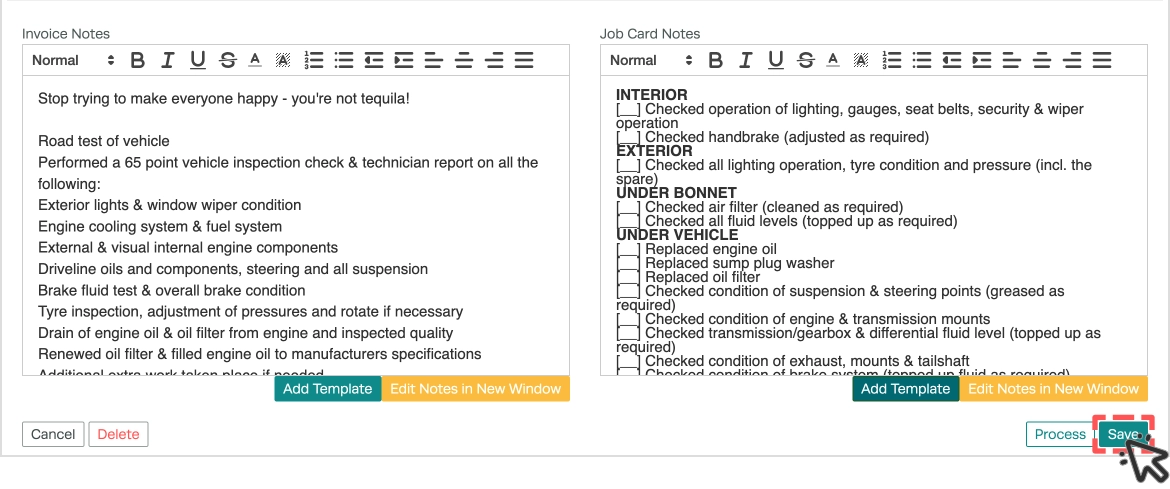
- Your templates will be used to fill the Notes field and may be edited if required, then click Save to keep your changes before navigating away.
Good to Know
- Templates are found in Settings > Company Lists.
- Invoice Note Templates are only available in Invoice Notes. Job Card Note Templates are created separately and are only available in Job Card Notes.
- Make sure you click Save after making your changes. If you navigate away before saving, your changes will be lost.
- Editing the wording on an Invoice does not change the saved template.
Frequently Asked Questions
Will the notes appear on the printed or emailed Invoice?
Yes. Invoice Notes appear on the Invoice your Customer receives.
Can I change the wording after adding a template to an Invoice?
Yes. The wording is added to the Invoice Notes field and can be edited for that Invoice. The saved template stays the same unless you edit it in Company Lists.
How do I change a saved template?
Go to Settings > Company Lists then click Edit beside the template you wish to edit.