Skip to content
Product groups keep related items together, for example all filters or all tyres, which makes reporting and searching easier. This article shows you how to add products to a group.
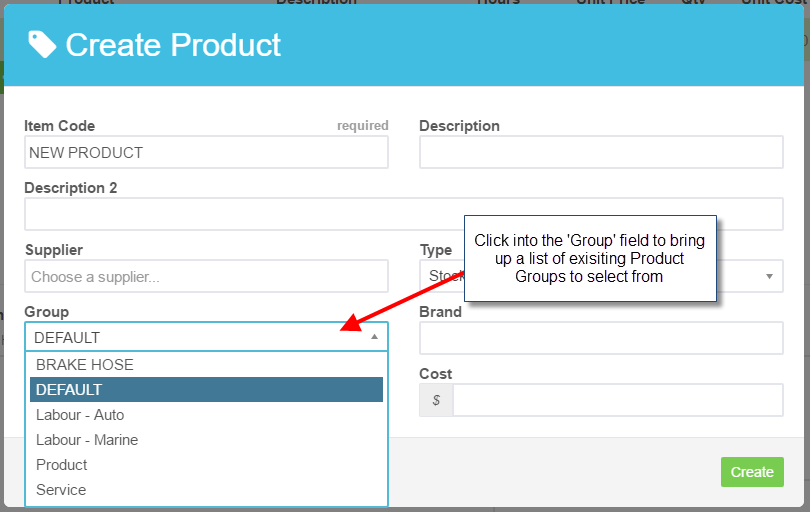
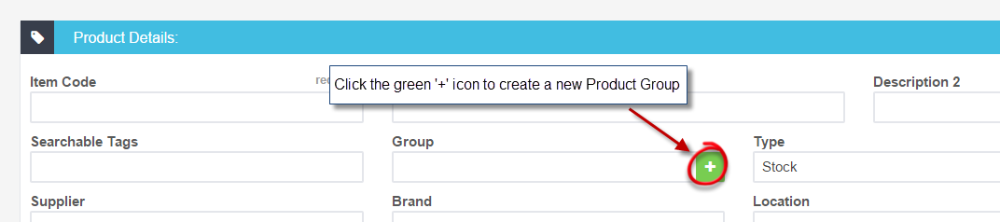
By adding products into groups you are then able to stocktake by group making it easier to stocktake groups more often or to keep track of smaller stock items. 1. To add a new or existing product to an existing product group click on into the Group field to bring up a list of existing product groups, select the correct one from the list;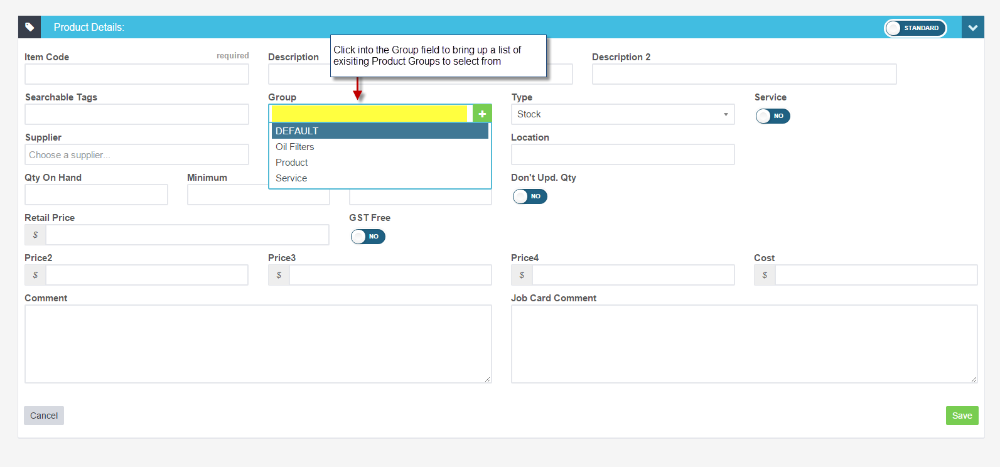 2. To create a new product group to add the product to click on the green '+' icon next to the Group field and enter a name and description for the new Product Group, once done click on the green Save icon;
 3. You can also add a product to an existing Product Group when entering it for the first time through a customer invoice. After clicking on the green +Add New Product icon in the customer invoice the New Product pop up appears, one of the options is Group, click into the field to bring up a list of existing groups to select from;