 Skip to content
Workshop Software allows you to add a footer to your job cards, customer invoices and customer statements. These footers are a great way to communicate with your customers and once created will appear at the bottom of every document.
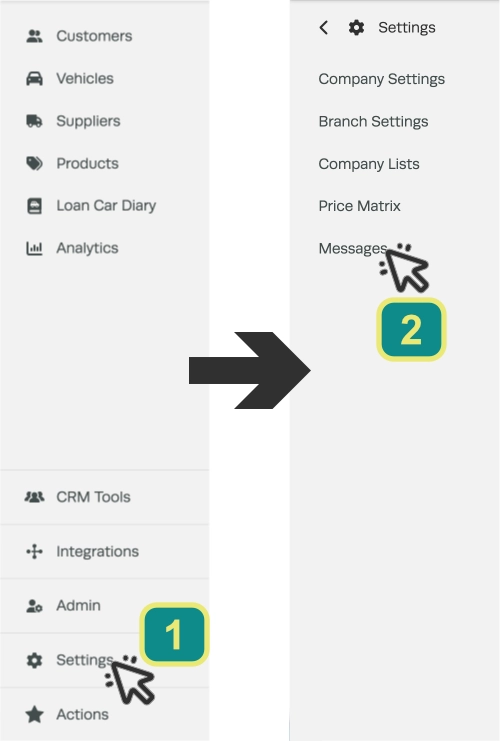
- Click on Settings (1) from the left hand sidebar menu and then click Messages (2).
- Enter the messages you would like to appear, you don’t have to create a message for all three if you will not use this document type. You may want to change the message at certain times of the year, for example in the lead up to Christmas you may want to change the Invoice Footer message to include you hours of operation over the holiday period.

- Once you have entered your message scroll down to the bottom of the screen and click the green Save button in the bottom right corner to save your changes.

Related Articles
- Footers on job card, invoice and statement
- Match job card and invoice numbers
- Add Vehicle Details to a Booking or Job Card - Customer Invoice
