 Skip to content
With the latest release of Workshop Software's Mobile App users may now use the same login credentials to access our Web App and Mobile App and associate a Mechanic to Clock On to Jobs.
This article explains the single login for Workshop Software's Web App and Mobile App, what it means for your existing Mobile users and how to control what each person can see in the app.

Warning: If an existing Mobile User login is already associated with a Mechanic this user must be Deleted before you may assign that Mechanic to a Web App user account.
Sign In with your Normal Login
After your Mobile App is updated to the latest version you will be able to log in with your Web App account.
- Open the Workshop Software app and sign in with the same email address and password you use for the Web App. You no longer need a separate Mobile User account.
- The first time you open the app after updating, a Your software is updated window tells you what is new. Tap Done to close it and open the Job Centre.
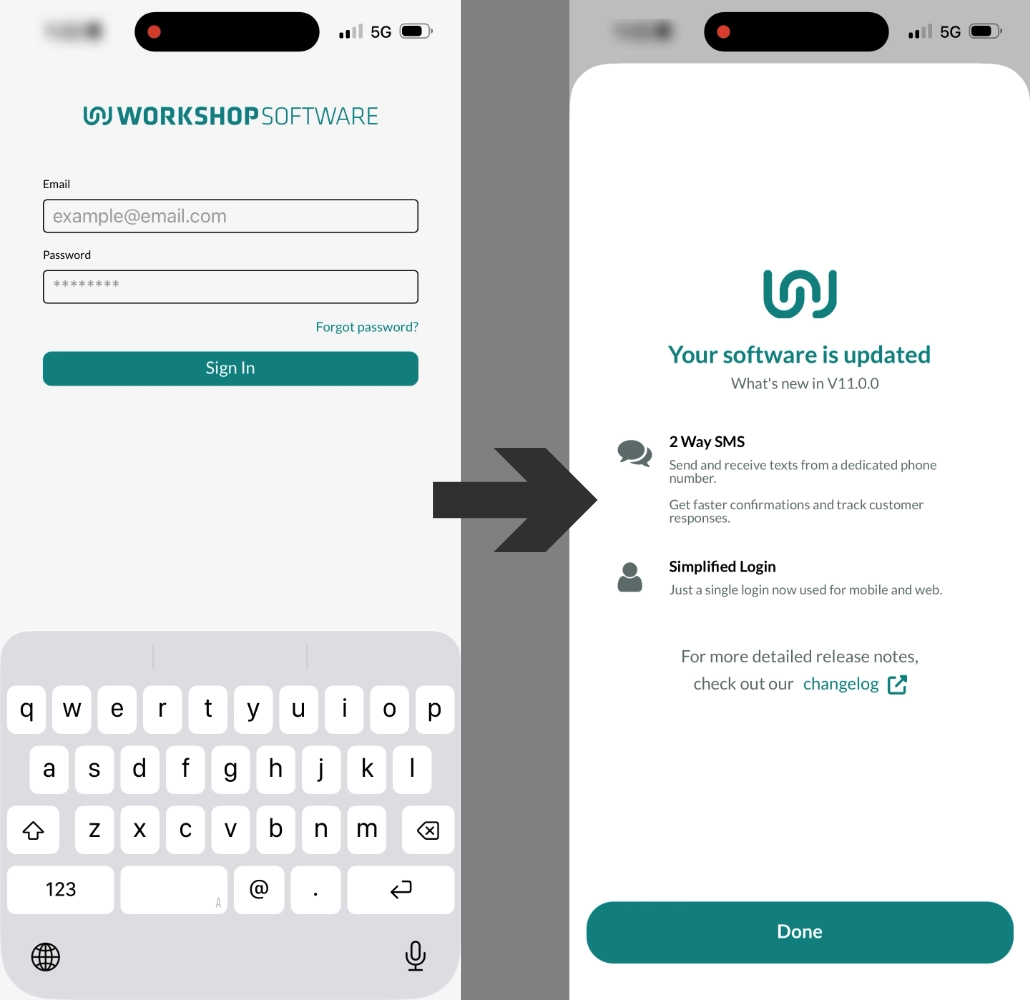
Set Access Controls
The same Access settings are available for Mobile and Web App user accounts, a User's Mobile App access Controls are explained below.
- In the Workshop Software Web App's left hand sidebar menu click Admin (1) then Users (2).
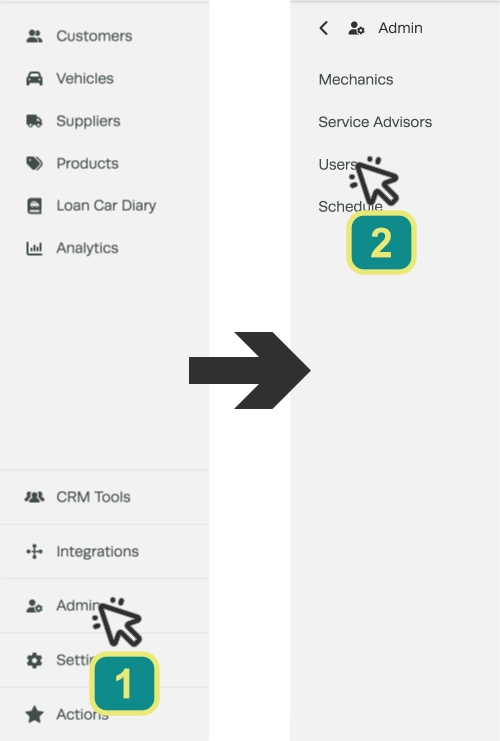
- ln the Users card click a Web App user or click the + icon to create a new user login.

- Scroll to the Mobile Access section then select which features to enable.
Web App User Mobile Settings Explained
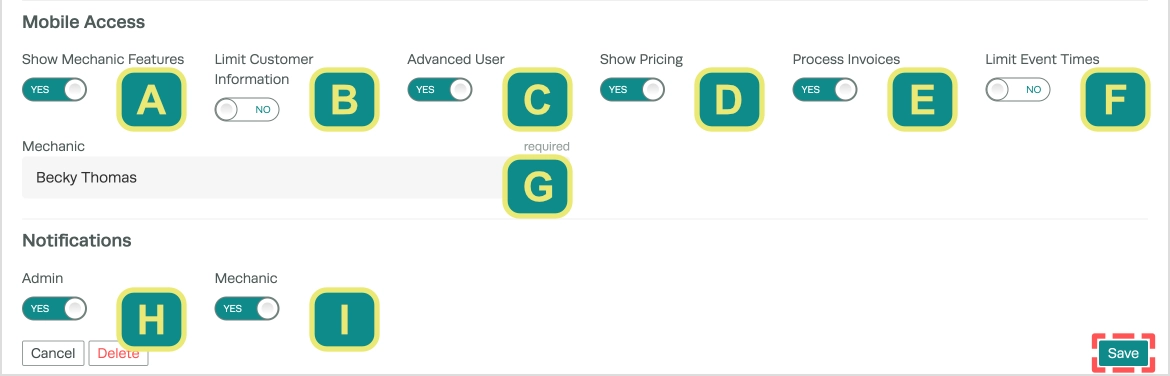
| Field | What it does |
|---|---|
| A. Show Mechanic Features | Enables the ability to Clock On and Off Jobs and receive Mechanic specific Notifications, you must also assign a Mechanic in |
| B. Limit Customer Information | Hides customer contact details in the app. |
| C. Advanced User | Unlocks Products and Invoices in the app, this feature is available to Gold subscribers and above. |
| D. Show Pricing | When enabled the user will see the retail price of Products in the Mobile App. |
| E. Process Invoices | When enabled the user is able to process Invoices and record Payment transactions. |
| F. Limit Event Times | When enabled the user cannot create new Bookings, assign Mechanics or modify Bookings. |
| G. Mechanic | Search for and select one of your Mechanics to associate with this user, each Mechanic may only be associate with one Web App or Mobile App user account. |
| H. Admin | The user will receive push notifications on the phone for New Booking Requests and Payments Received. |
| I. Mechanic | Only relevant when the user had an associated Mechanic, they will be notified of New Assigned Jobs and receive a Clock-out Reminder if clocked on after hours. A mechanic is only notified about jobs assigned to them. |
| Not Pictured. Show Dealership Features | Used by dealership businesses only. |
- Please click Save before navigating away from the User page.
Please note: If your business has renamed mechanics to something else, such as technicians, the first toggle would read as Show Technician Features instead.
Good to Know
- On a New user, choosing the ADMIN group switches Advanced User, Show Pricing and Process Invoices on for you, plus Show Dealership Features in a dealership business. These are starting points, so turn any of them back off if you do not want them. Set the user's Group first and then adjust the toggles, changing the Group again resets them.
- The Notifications section only appears once the user has been saved. Create the user, Save, then open them again to set their notifications.
- Turning Advanced User off also switches Show Pricing and Process Invoices off when you save.
- Turning Show Mechanic Features off releases that mechanic so you can give them to someone else.
- Your existing mobile-only users still work exactly as before. They can keep using the app with their mobile login, and they still cannot sign in to the web app.
Frequently Asked Questions
I am unable to assign a mechanic to my Web App user?
If a mechanic is already assigned to a Mobile user's login it cannot be assigned to a second account, you must delete this mobile user, then you will be able to assign this mechanic to your Web App account.
Do I still need to create a separate mobile user?
No. Anyone with a Workshop Software login can sign in to the Mobile App with it. A separate mobile user account is still supported for people who only ever need the Mobile App.
Will signing in on my phone log me out of my computer?
No. You can use both at once. Signing in on a second phone will end the session on the first phone and signing in on a second computer will end the session on the first computer.
Can a mobile only user sign in to the Web App?
No. If they try they see a message telling them Mobile App users cannot log in to Workshop Software online. Give them a normal Workshop Software login if they need the web app.
Why can't I save a user with Show Mechanic Features on?
You need to choose a mechanic in the box underneath. Save stays greyed out until you do, if the mechanic you want is already linked to another user you will see a message saying so.
Why can't I see Advanced User, Show Pricing or Process Invoices?
These options need a Gold subscription or higher. On Bronze or Silver they do not appear.
I changed a user's Group and their mobile toggles changed. Why?
On the New User form, choosing a group sets the suggested mobile toggles for that group. Set the group first, then set the toggles.
