Skip to content
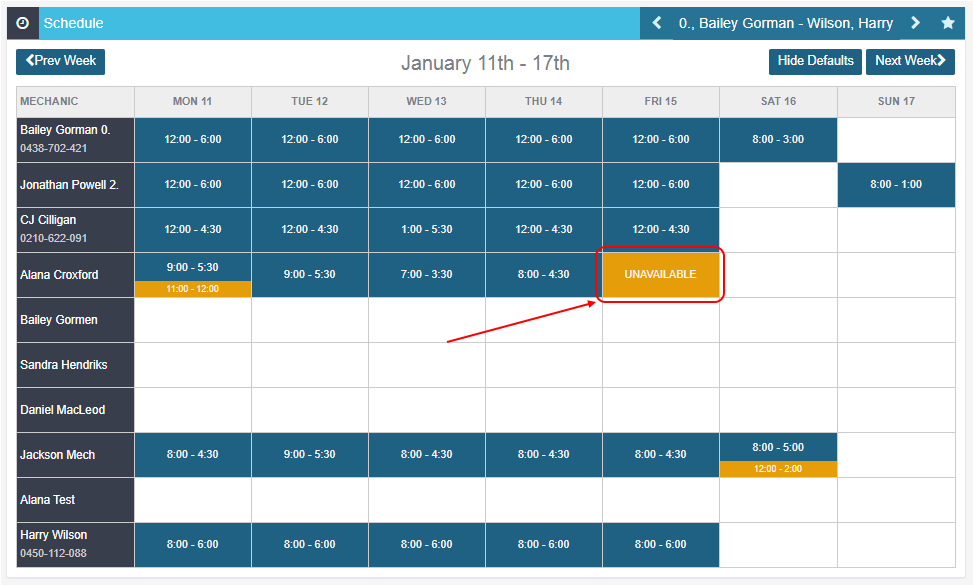
When a mechanic has a day off, blocking it in the schedule stops bookings being allocated to them for that day. This article shows you how to schedule a day off for a mechanic.
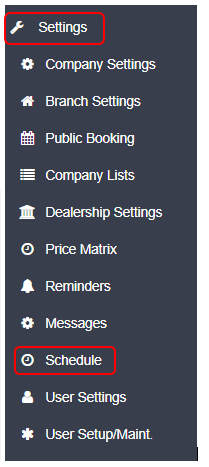
1. Select 'Settings' from the left hand navigation menu, and then select 'Schedule';
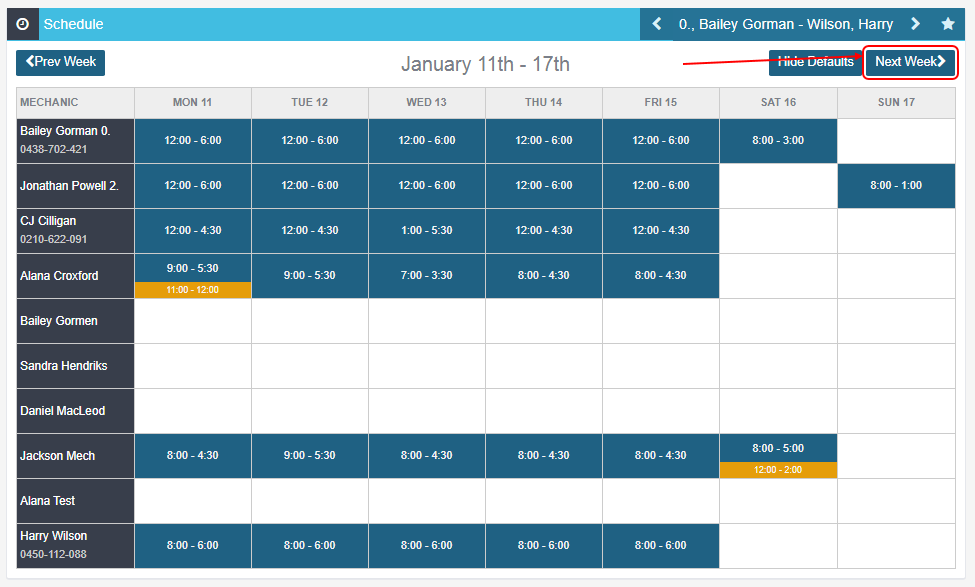
2. Choose the day(s) that need scheduling off, by clicking the 'Next Week' button, in the top right-hand side of the page:
3. Click on the day for the specific mechanic that needs to be scheduled of (in this example we will select Alana Croxford to have Friday 15th off)
Once you click on that cell a pop up box will appear.
To set a specific time to be off, click on the Start time field to set the start of the time period where they will be unavailable, then do the same for the end time. Then click the green 'Save' button.
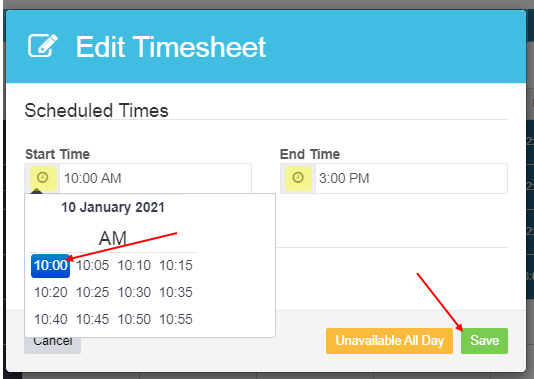
4. If the staff needs to have the whole day off, click on the yellow 'Unavailable All Day' button, this will automatically save and the schedule will now show that particular mechanic is now unavailable for the day.