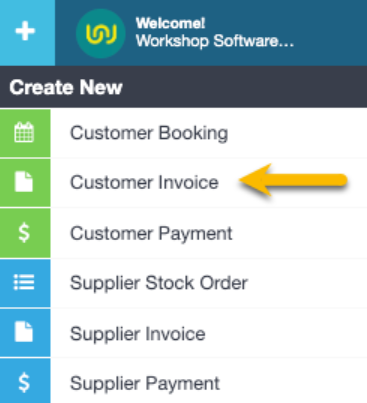
This guide explains how to manage your customers in Workshop Software’s Platinum Multi-Branch system. Below are the steps to add a customer who has used another branch.
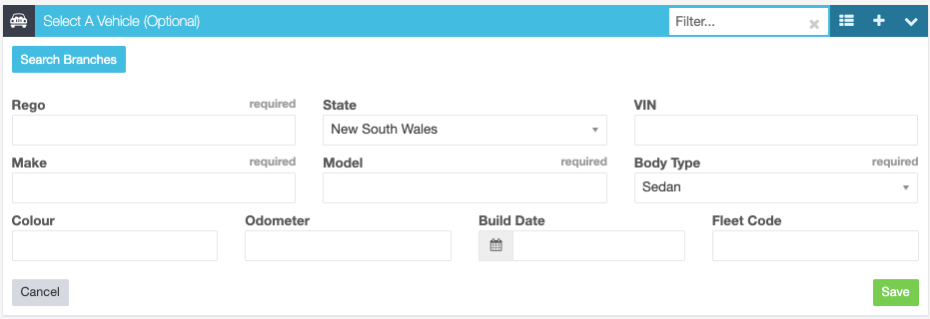
:Since this customer has used another branch, click the “+” button to add a new vehicle then click on ‘Search Branches to search their vehicle across branches.6.
:Click on ‘Create & Add‘ to add the customer to your branch's system and also to include them in the invoice or booking.Note:
If you search by mobile number or email, only the customer will be added.
If you search by Vehicle (VIN, Registration/Plate Number), both the customer and the vehicle will be added to your branch.
We greatly value your feedback and invite you to share any suggestions about this feature in our Feature/Change Suggestions Portal. You are welcome to vote for existing ideas and participate in discussions, helping us to continuously improve and better serve your needs.
 Skip to content

 6.
6. 