 Skip to content
This article explains how to take a customer deposit on an Invoice or Quote, take one through your WorkshopPay terminal and refund or remove a deposit in Workshop Software.
Please note: A deposit can be added to an open Invoice or Quote at any time before it is processed. Once the invoice is processed any deposits can no longer be changed.
Take a deposit
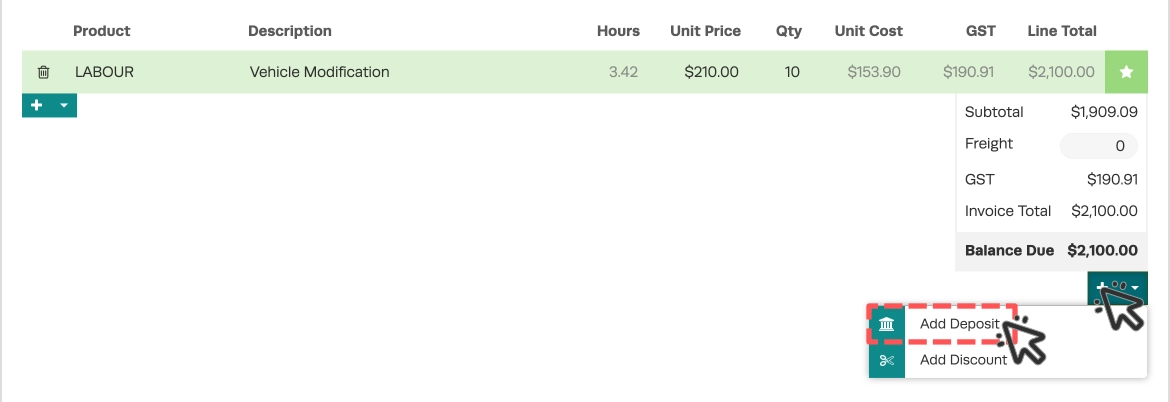
- On an open Invoice or Quote, click the + icon in the green box below Balance Due and choose Add Deposit.
- In the Create Deposit window choose a Payment Method, add a Reference if you want one, and enter the Amount. You may also update the Date Received field with the real day your customer made their payment.
- To split the deposit across more than one method, click the green + (Add Payment Method) and add another row.
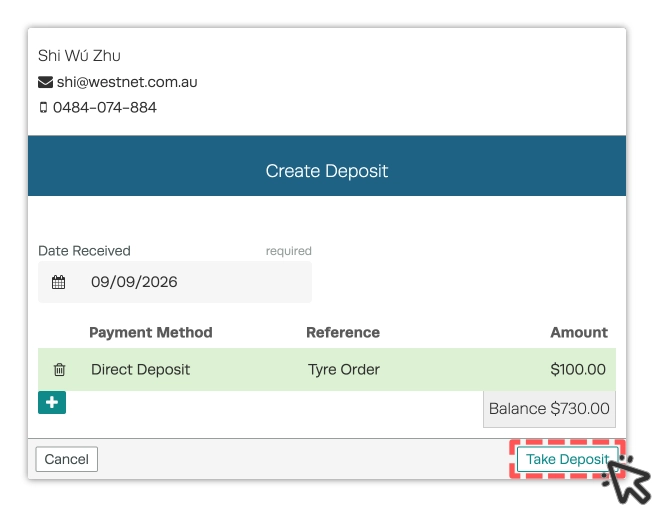
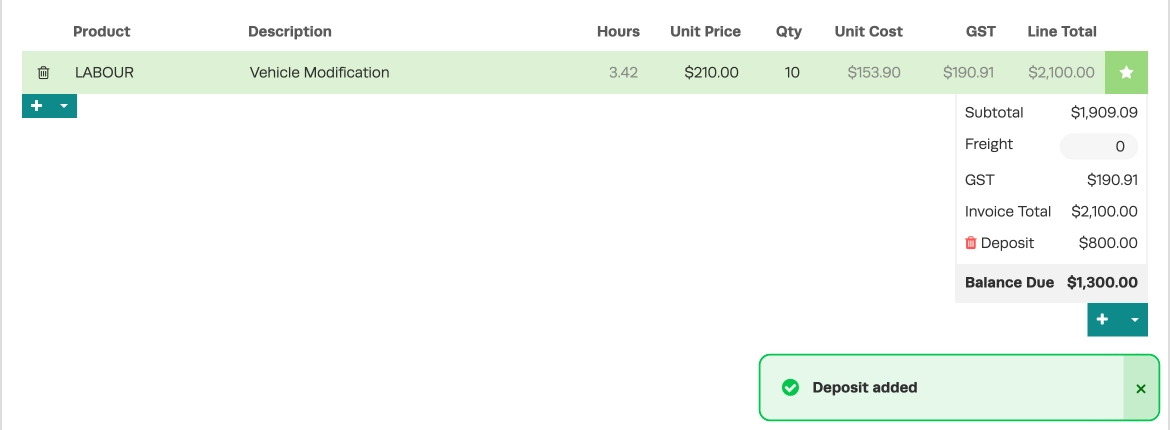
- Click Take Deposit. The deposit is added as a Deposit line in the footer and the Balance Due drops by that amount.
Take a deposit on your WorkshopPay terminal
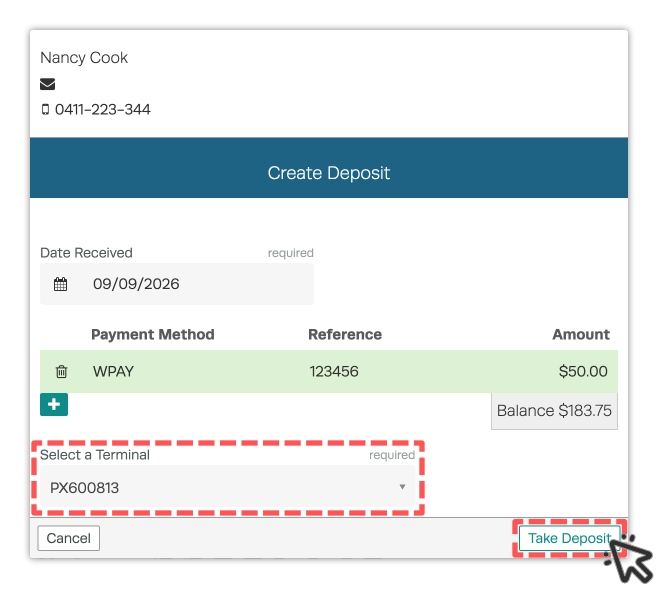
- In the Create Deposit window choose an EFTPOS payment method then pick your terminal under Select a Terminal.
- Click Take Deposit.
- The screen shows Waiting for terminal… while your customer taps or inserts their card.
- When the terminal approves the payment the deposit is saved automatically. If a card surcharge applies it is added to the invoice total and included in the deposit for you.
Please note: If you see Terminal not active. Please try again later check the terminal is switched on and connected then try again.
Refund or remove a deposit
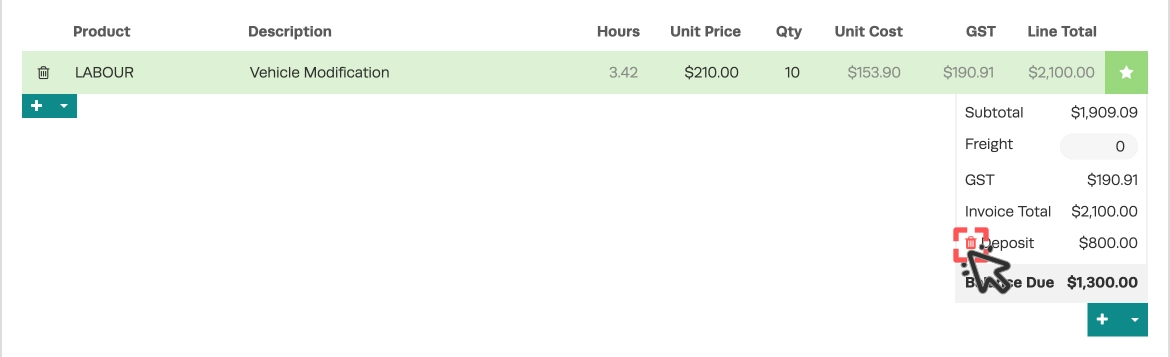
- In the Invoice footer click the red trash icon next to the deposit you want to remove.
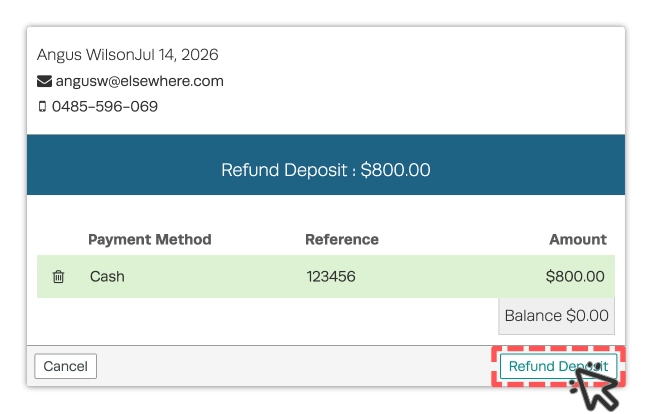
- The Refund Deposit window opens showing the amount. This window is your confirmation, click Refund Deposit to complete the refund. If it was a terminal deposit any card surcharge is reversed as well.
Please note: There is no longer an option to edit a Deposit's value. To change a Deposit remove it and take a new one.
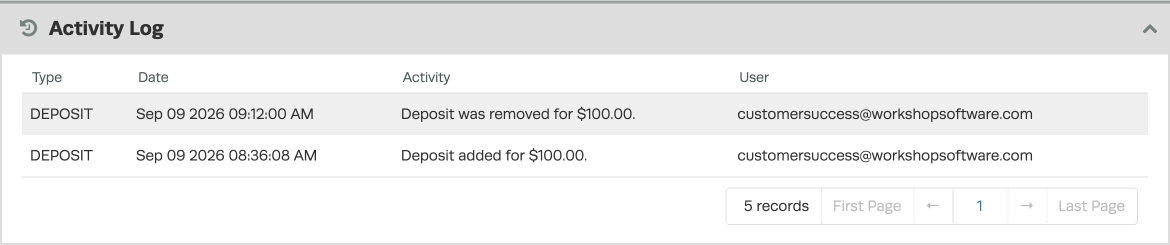
When you Create or Remove a Deposit this action is recorded in the Invoice's Activity Log card.
Good to Know
- You can add more than one deposit to the same Invoice, each one shows as its own line with its own amount.
- You can take deposits on the dealership sale screen in exactly the same way.
- The Balance figure in the deposit window turns red if you enter more than the amount owing and you will be unable to take this deposit.
- If you are Integrated with Xero refunding a Deposit does not remove it from your Xero transactions, it must be manually removed. Please see this article on How Deposits Sync to Xero for a full explanation
Frequently Asked Questions
Can I take a deposit on a Quote?
Yes. You can add a deposit to a Quote before it is turned into a Job Card. The deposit moves across to the Job Card automatically when you convert it.
What happens to a deposit when I turn a Quote into a Job?
It moves to the new Job Card for you, you do not need to re-enter it. The balance owing on the Job Card already accounts for the deposit.
Why can't I delete a Job or Invoice that has a deposit on it?
Workshop Software will not delete an Invoice while it still has a deposit attached. You will see a message telling you the deposit must be removed first, refund or remove the deposit then delete the Invoice.
Can I still edit a deposit after taking it?
No. The edit option has been removed. If the amount or method is wrong remove the deposit with the trash icon and take a new one.
Why do I see "Payment exceeds balance" or "Deposits cannot be greater than balance"?
A deposit cannot be larger than the amount owing on the Invoice (or on a Quote the Quote's total). Enter an amount up to the balance shown.
