 Skip to content
Azure Single Sign-On (SSO) lets your team sign in to Workshop Software with their Entra/Azure credentials. This article explains how an Admin user enables it and what to check before you turn it on.
Enhance your organisation's security with Azure Single Sign-On (SSO). By integrating with Azure SSO, you can use one set of credentials, reducing password fatigue and making it more convenient to sign in. Simplify access management and improve compliance by increasing control over your employee's access to Workshop Software.
Getting Started:
Before enabling this feature please ensure you have an Azure account to link with or you will be locked out of Workshop Software until support can remove the requirement. If you have enabled this feature and can not log back in please contact support at support@workshopsoftware.com or 02 8999 9384.
First you need to enable Azure SSO on your account to force all associated users to link their Azure credentials to their Workshop Software user. This setting can only be enabled or disabled by an Admin Workshop Software User. To do this login to your account using an Admin User, go to Settings > Company Settings and set the Require SSO toggle to YES.

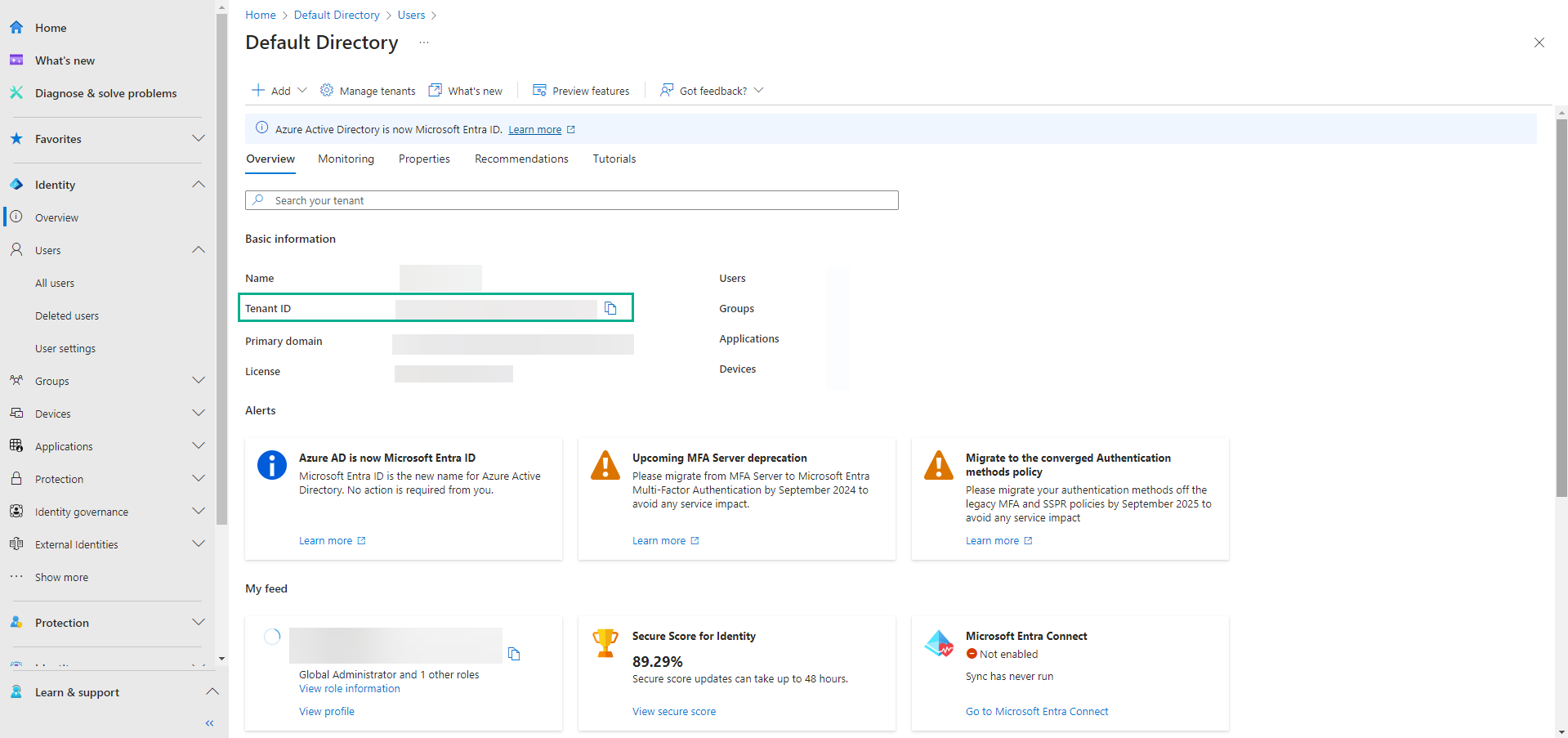
This will then reveal the Azure Tenant ID field, enter your tenant ID which can be found on the Overview page for your Azure directory. It may look like this:
Once this is done press save in the Company Settings and the next time any users login they will be required to authenticate with Azure before gaining access to Workshop Software.
