Skip to content
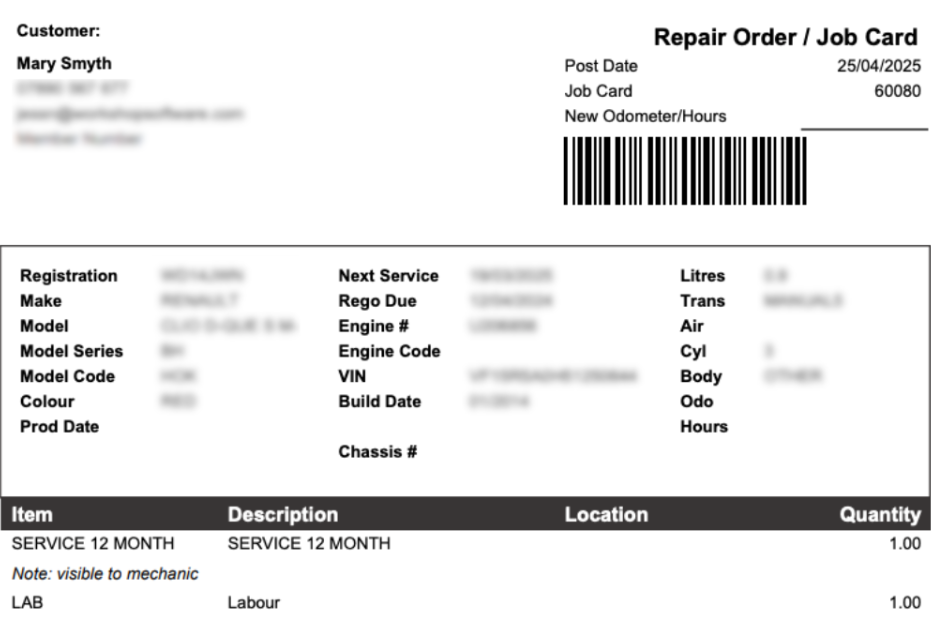
Printing a barcode on each job card lets mechanics scan the card with the mobile app and open the job instantly instead of searching for it. This article explains how to turn barcodes on.
Workshop Software allows you to add barcodes to Job Cards, making it even easier for mechanics to quickly access jobs using the Workshop Software Mobile App.
By scanning the barcode, mechanics can open the Job Card to Clock On / Clock Off on the Job Card, streamlining workshop operations and saving valuable time.
Follow the steps below to enable barcodes on your Job Cards:
How to Show Barcode on Job Cards
1. From the Workshop Software main menu, click on 'Settings' on the left-hand side.
2. Select 'Company Settings'.
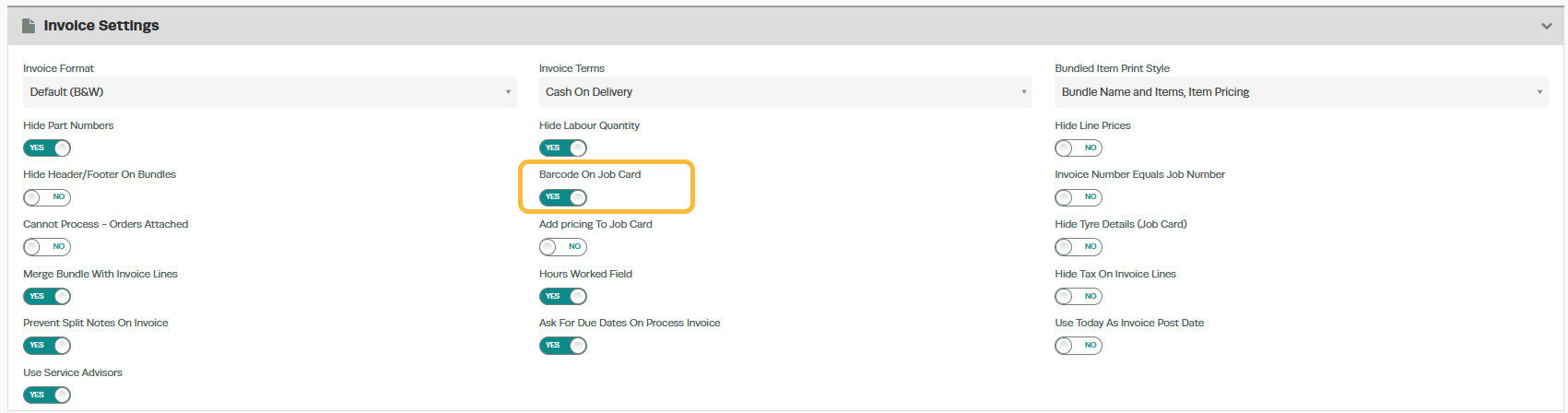
3. Scroll down to the 'Invoice Settings' section and click the arrow to expand it.
4. Locate the 'Barcode on Job Card' option.
5. Toggle the setting to 'Yes' to enable the barcode display.
6. Click 'Save' to apply the changes.
Important Information
- Once enabled, a barcode will be printed automatically on new Job Cards.
- Mechanics can then use the Workshop Software Mobile App to scan the barcode using the barcode icon next to the search bar, at the top of the app's main screen.
- Scanning the barcode allows the mechanic to either Clock In, Clock Out, or Open the Job Card directly within the app.
For more detailed instructions on how to clock on and clock off using the mobile app, please refer to our article: Mechanic Clock On and Clock Off in Workshop Software