Skip to content

The Burson integration lets you check part prices, add parts to a quote or Job and order them without leaving Workshop Software. This article walks through the Burson workflow from selecting parts in Burson Ezyparts to sending the order.
With the Burson Integration in Workshop Software, you can efficiently create quotes, check part prices, get customer approval, and order parts without leaving the system. Follow these steps to streamline your workflow.
Please note: The Burson Ezyparts Integration must be correctly configured before you may add parts from Burson, to Integrate please follow this guide.
Purchase Burson Parts
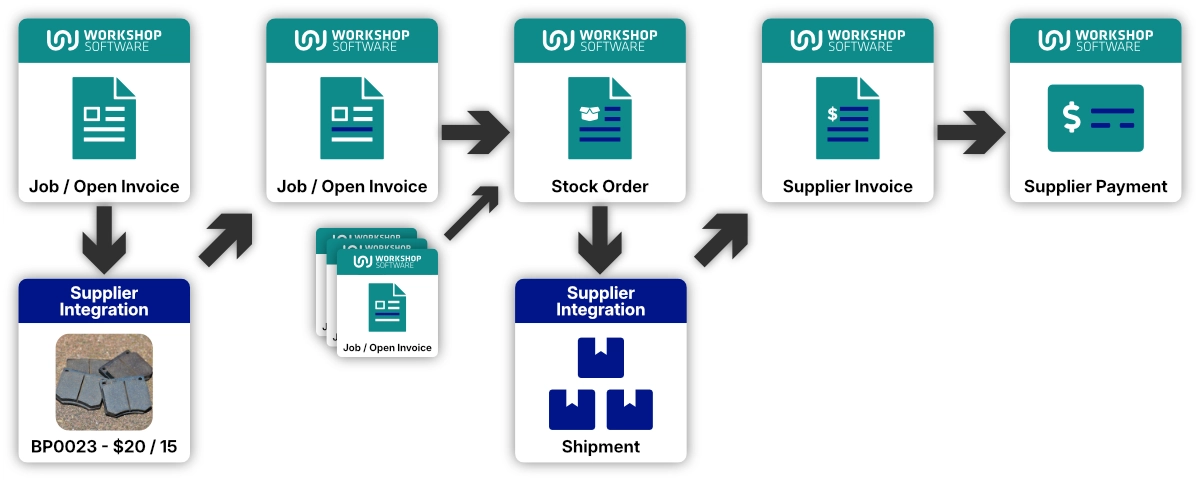
Supplier integrations are first used to visit a Supplier's web-store and return parts from that store to your Job Card and Products list.
Once you are ready to order parts you may create a Stock Order from one or more Jobs in Workshop Software, combining Supplier parts from each into a single order which is then returned to the Supplier web-store and purchased.
When the Shipment is received a Supplier Invoice and subsequent Payment complete the process.
Add Parts to an Invoice
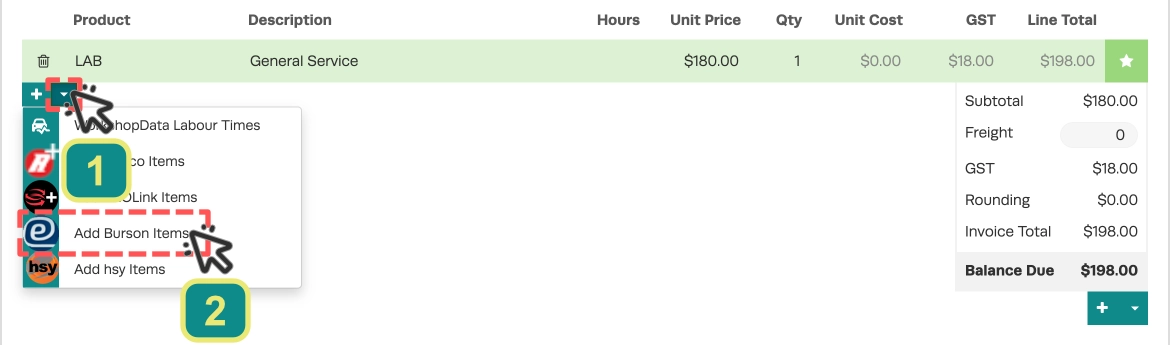
- Select an open Job that you wish to add parts to and scroll down to the product section. Click the Down Arrow (1) beneath the parts list then select Add Burson Items (2).
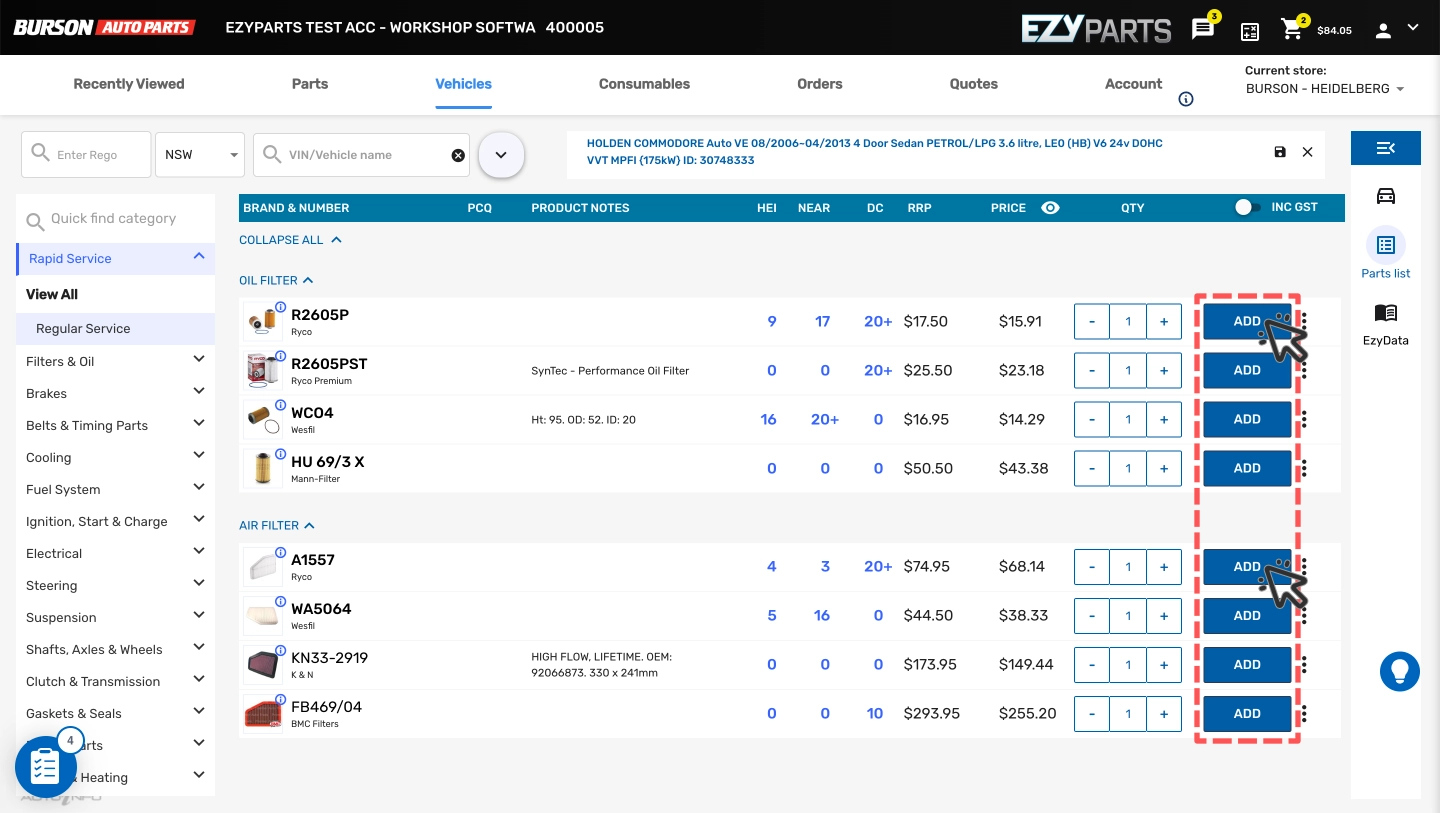
- You will now open Burson Ezyparts inside Workshop Software. Find the parts you need and Add each part to your shopping cart.
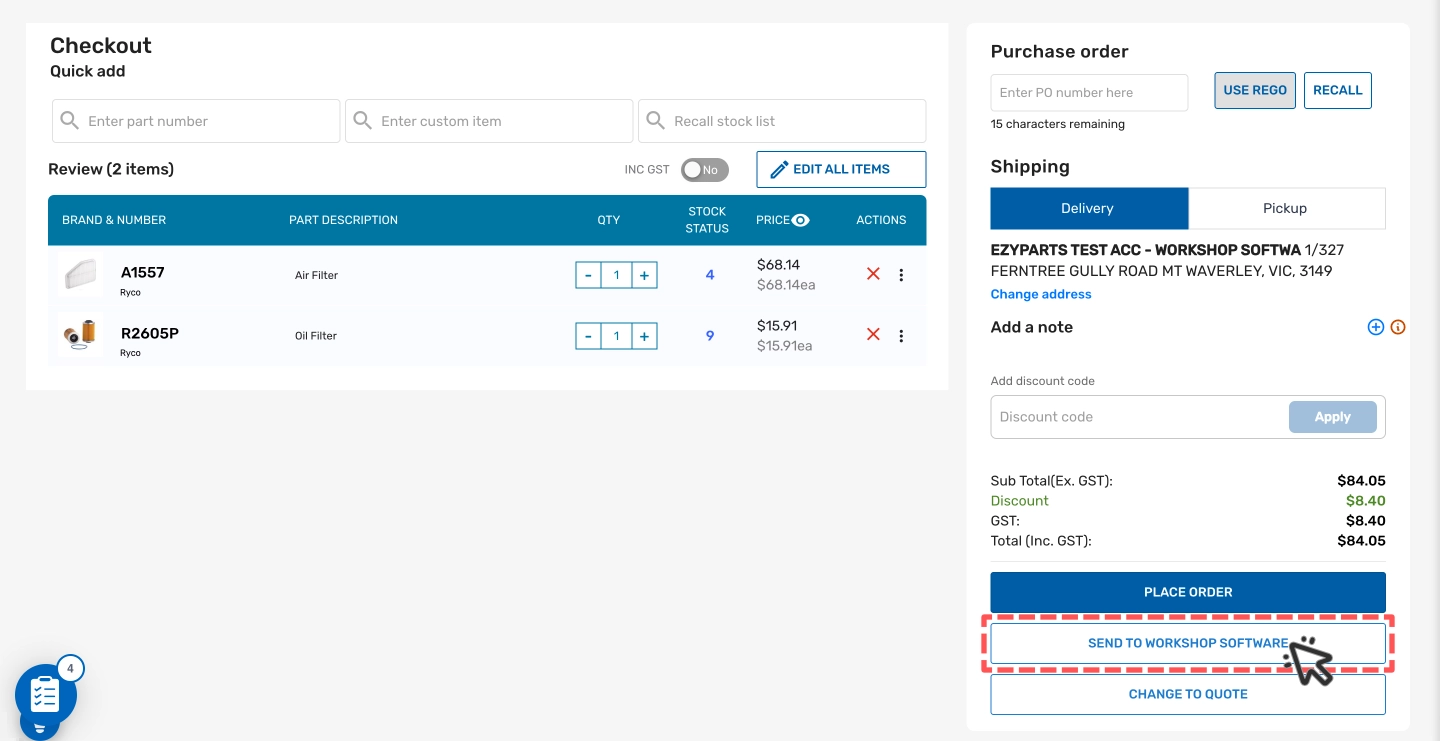
- To return parts to Workshop Software begin by clicking the Shopping Cart icon (3) then select Checkout (4).
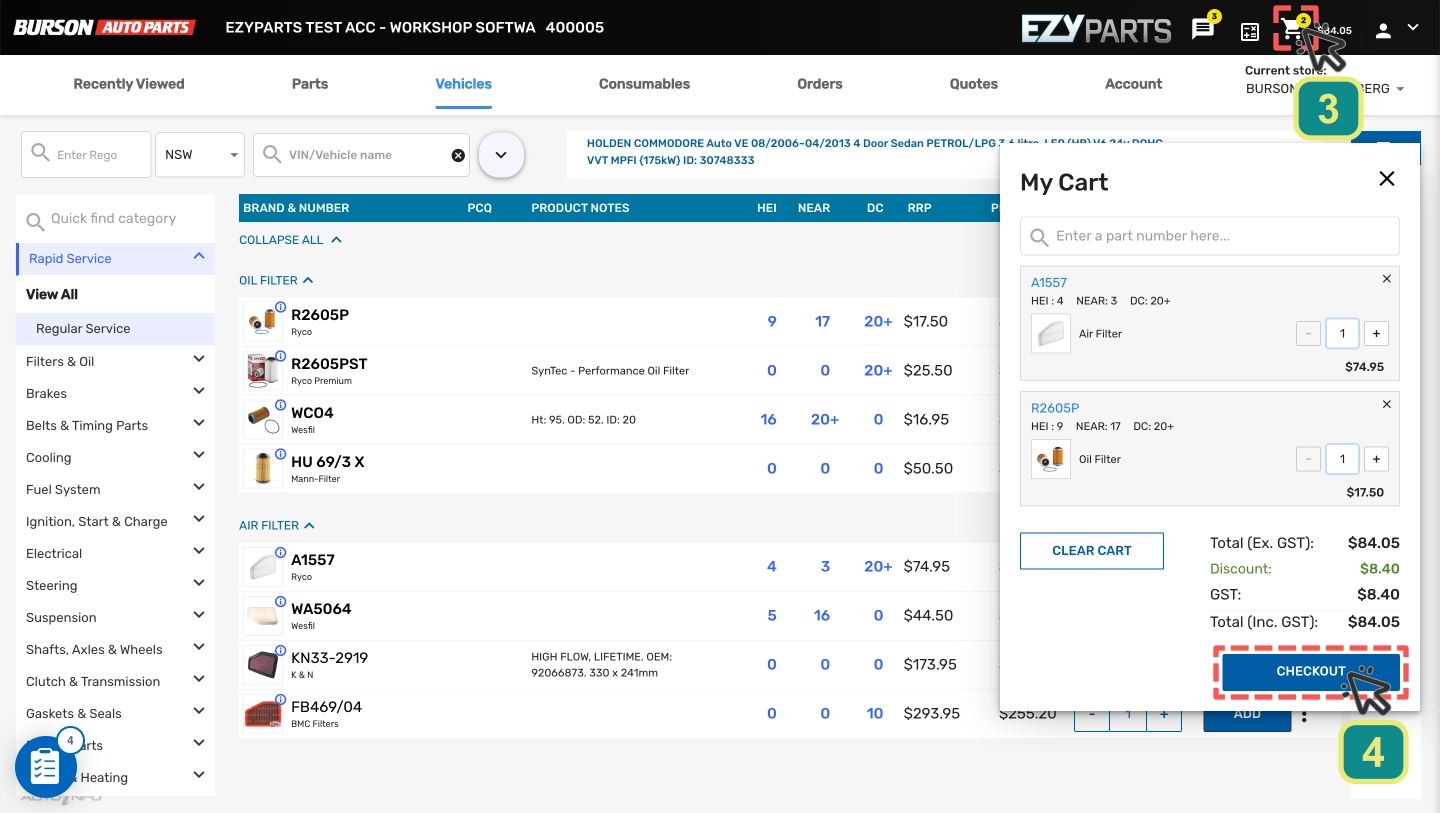
- You may then select Send to Workshop Software to return the parts to your Job / Open Invoice and add them to your Products list.
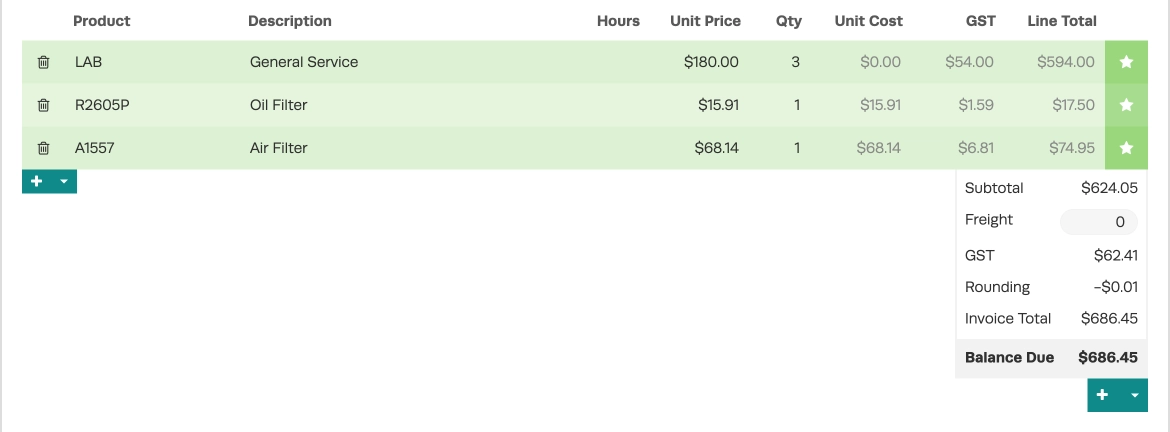
- The Product list in your Job will update with the new parts.
Create a Burson Stock Order
When you are ready to order parts begin by creating a new Stock Order and adding parts, at this time you may also add parts from any other Job to the same Stock Order before you Order parts from Burson.
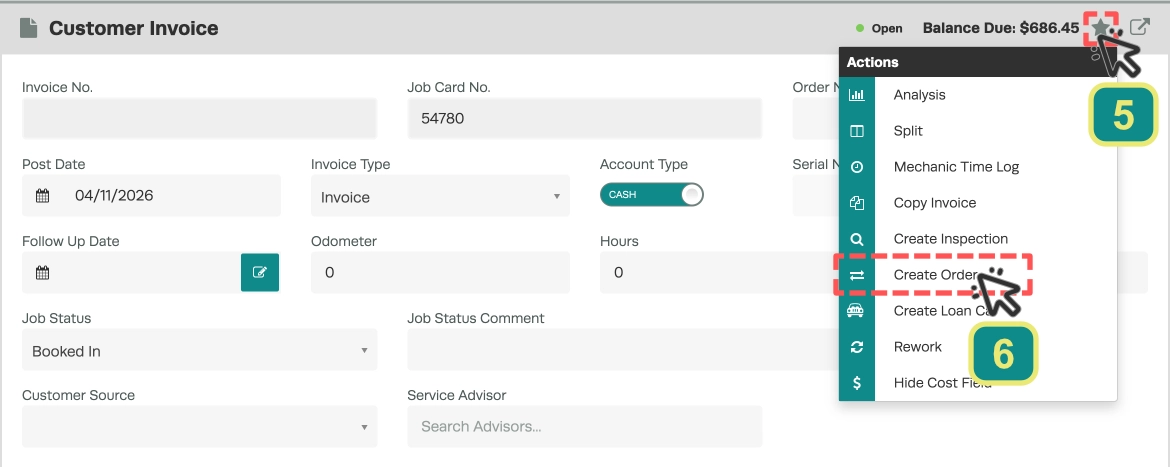
- To create the Stock Order first click the Star icon (5) and then Create Order (6).
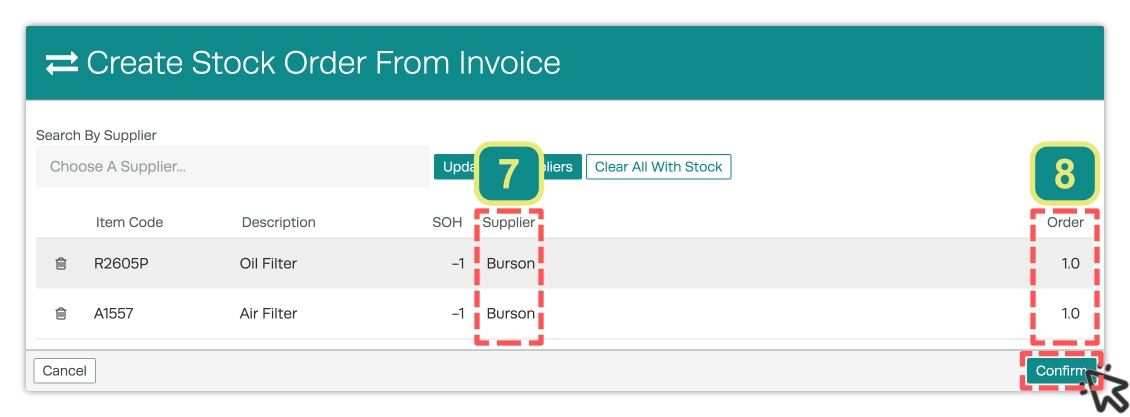
- In the pop up parts imported from Burson Ezyparts will have their supplier set as Burson (7), you may update the number you wish to order here (8) or in the next screen inside the suggested Stock Order.
- Click Confirm which will create a new suggested Stock Order or if one exists add the new parts to an unprocessed Burson Stock Order.
Order Parts from Burson
- To view your Stock Order and send your parts order to Burson first open the Attached Orders header inside your Invoice and open the Order Number with Burson as the supplier.

- Before finalising your Stock Order you may modify quantities and add additional items from other Jobs.
- To order the parts from Burson Ezyparts click the Star icon (9) in the Stock Order card and choose Send Order (10) from the drop down menu.
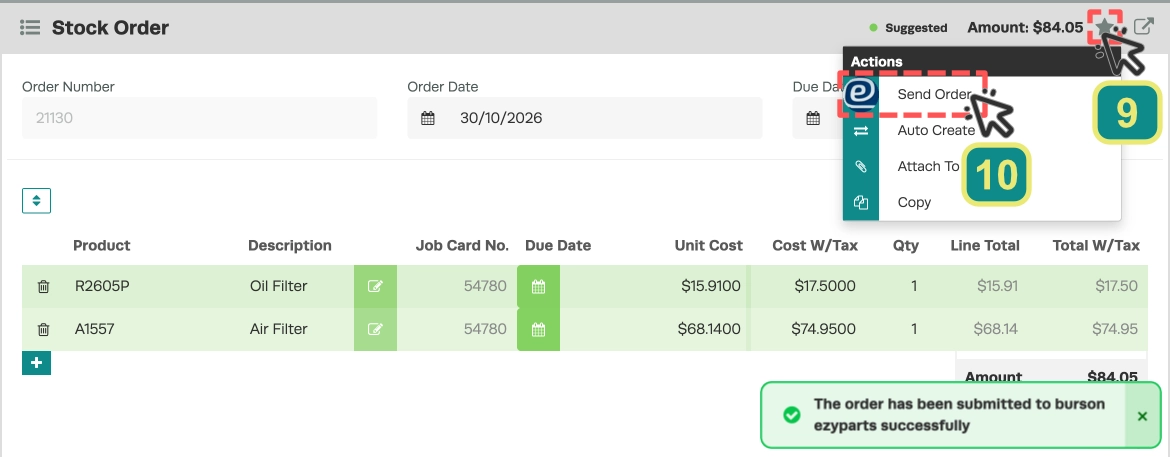
- Your order is sent to Burson Immediately and success will be confirmed with a note "The order has been submitted to burson ezparts successfully".
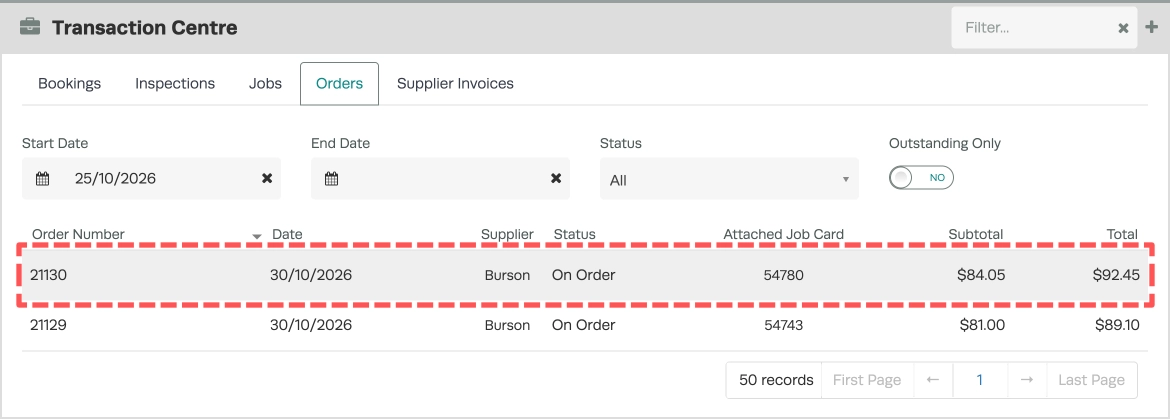
- The Stock Order's status will update to On Order.
Related Articles
- How to Integrate Burson Ezyparts
- Integrate with Repco NavigatorPro
- Order and Purchase Parts through Repco