 Skip to content
Workshop Software users who pay via Credit Card may update these payment details in their Company Profile.
Warning: If your Credit Card is expired or has insufficient funds at the time of a Subscription renewal you will be locked out of your Account and be asked to immediately update your payment information when you next attempt to Log In.
Open your Company Profile
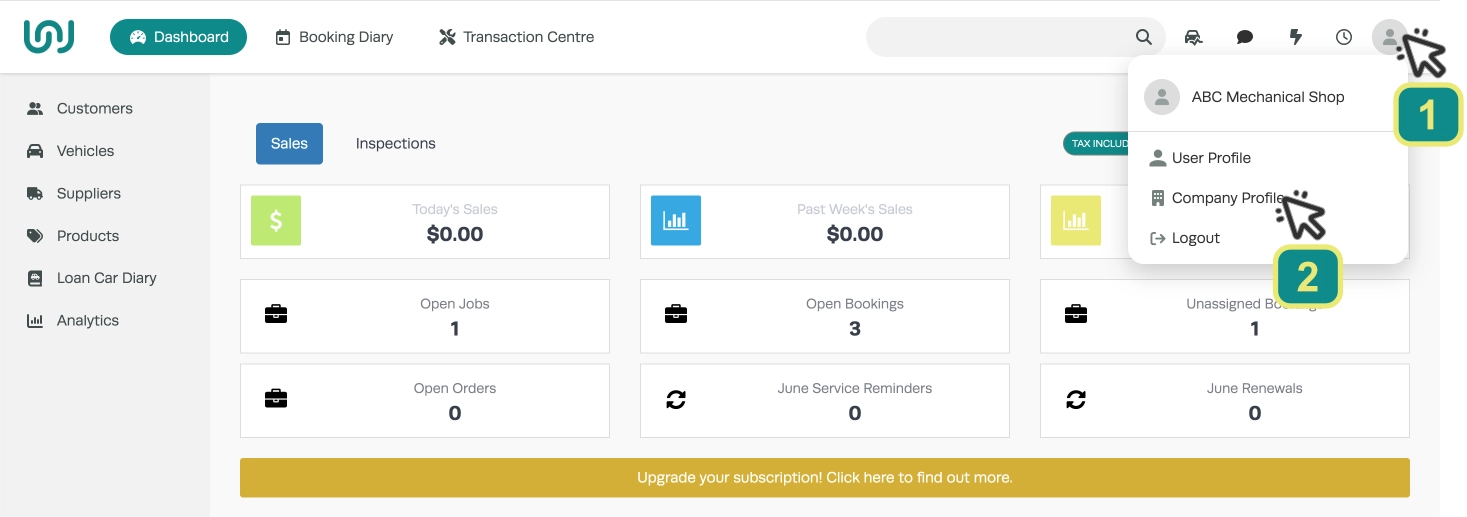
To access the Company Profile page first click the User icon (1) in the top right corner of the screen and choose Company Profile (2) in the drop down menu.
In the Company Profile page click to open the Subscription tab (3).

Update your Credit Card
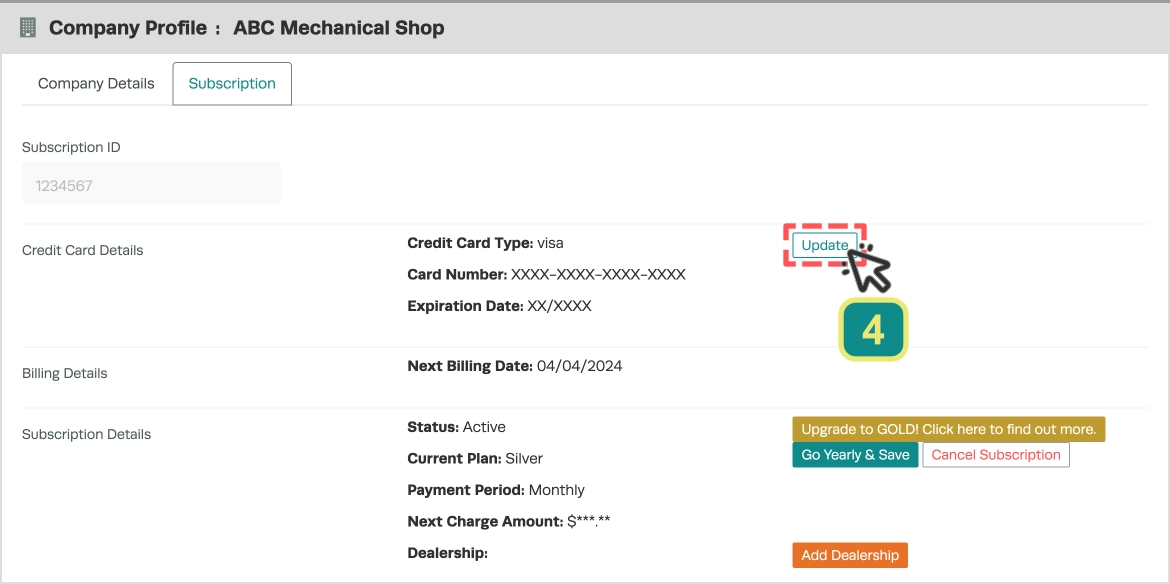
To update your credit card click the Update button (4) in the Credit Card Details section.
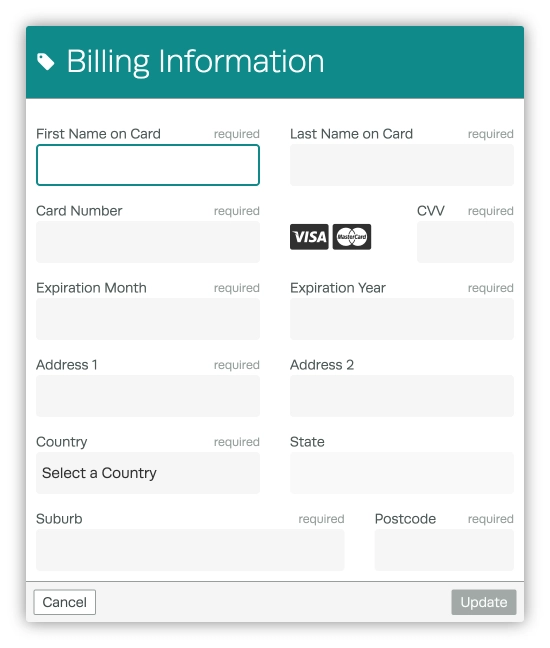
You may then enter your new credit card information and update your billing address.
Warning: You must complete the State field when updating your Credit Card Information.
The updated Credit Card information will now be used for all future periodic Account charges and single purchases.
Please Note: To change billing to a Capricorn Account please contact Workshop Software's Account Management team.
Good to Know
- You must update an expired Credit Card before the next periodic charge or you will be locked out of your account.
- Users are responsible for updating their Credit Card information, our Account Management team is not able to complete these actions for you.
