 Skip to content
Gold subscription users integrated with Xero can choose which Xero bank account each Payment Method syncs into. This article shows you where to set it in Company Lists.
PLEASE NOTE: This functionality is only available on our Gold level subscription and to customers that integrate with Xero. 1. Go the the tabs on the left hand side of the screen and select 'Settings' then 'Company Lists'. 2. Scroll down to the 'Payment Methods' section.
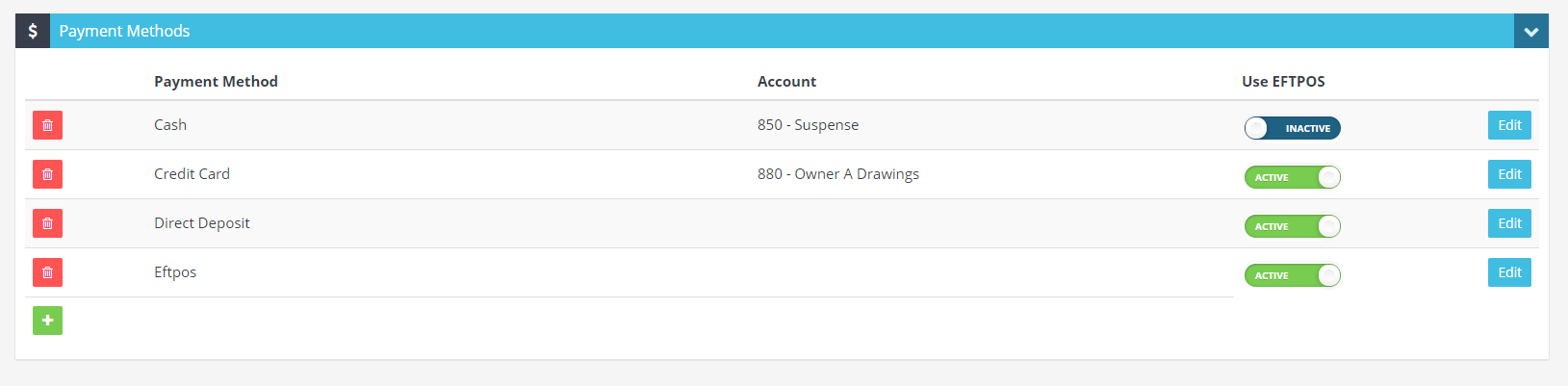 3. You can choose from your existing Payment Methods or create a new one by pressing the plus symbol.
4. Press the edit button on your chosen Payment Method.
3. You can choose from your existing Payment Methods or create a new one by pressing the plus symbol.
4. Press the edit button on your chosen Payment Method.
 4. Once you have pressed edit, a drop down box will appear in the Account column of the table. Please select the account that you would like these payment types to sync into.
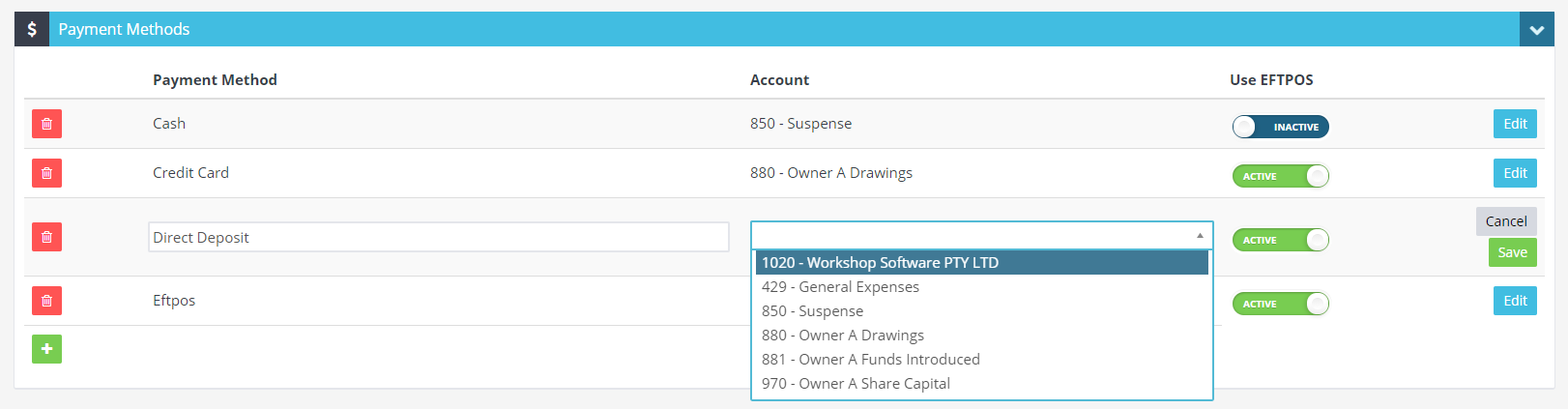 5. Once you have chosen your specific account you must then press Save on the Payment Method on the right hand side.
6. You must also scroll down and press Save at the bottom of the Company Lists page.
5. Once you have chosen your specific account you must then press Save on the Payment Method on the right hand side.
6. You must also scroll down and press Save at the bottom of the Company Lists page.
Related Articles
- Xero Sync Error - Account has been archived, or has been deleted
- Activate your Stripe account
- My MYOB account won’t register
