Skip to content
WorkshopPay Online lets you send a customer a secure payment link by email or SMS so they can pay the invoice from their phone, and the payment is recorded automatically. This article shows you how to send a payment link from an invoice.
This article will help you to get the most out of the WorkshopPay Online feature. If you are yet to activate and setup your account please refer to this guide.
For a video demonstration on how WorkshopPay works, checkout this page
WorkshopPay Online (WPAY Online) allows you to send a Payment request along with an Invoice to your customers. Simply opt to send the Payment link when contacting your customer via email or SMS. Once the Payment has been processed Workshop Software will automatically create the Payment transaction and apply it to the relevant Invoice!
The requirements for sending a Payment request are:
- A Processed Invoice with an Open balance.
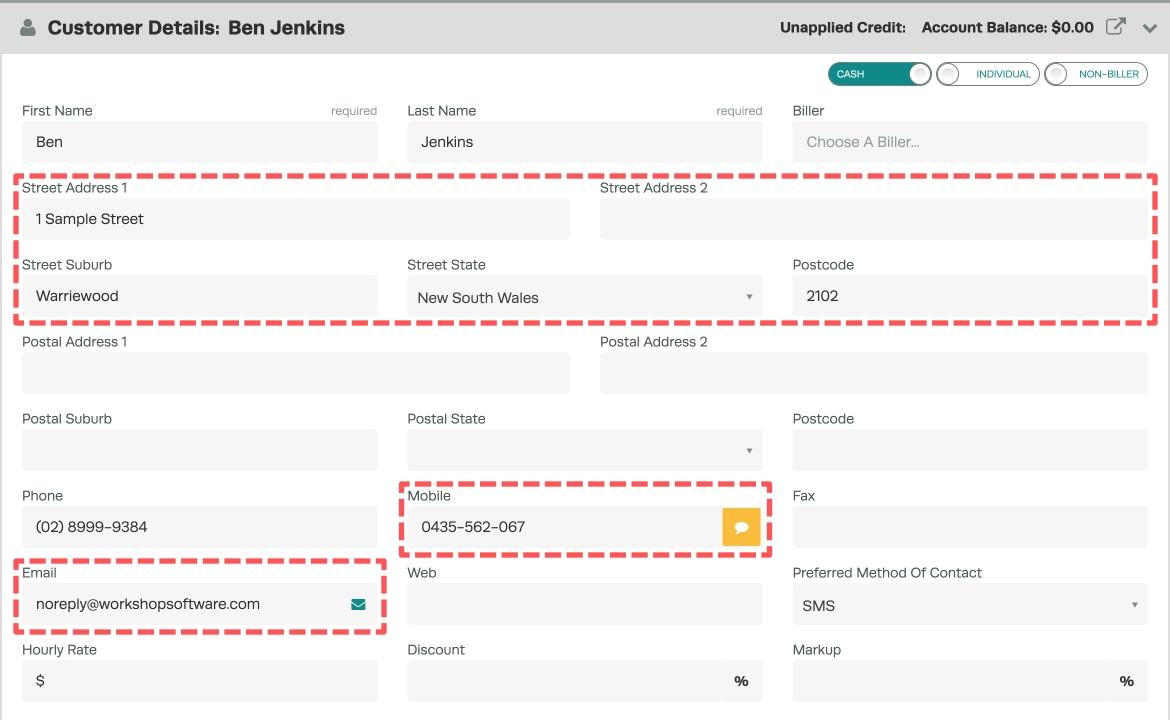
- An address recorded against the customer record.
- An email and/or mobile number recorded against the customer record.
Follow these steps to send a Payment request:
- Process and finalise the Invoice.
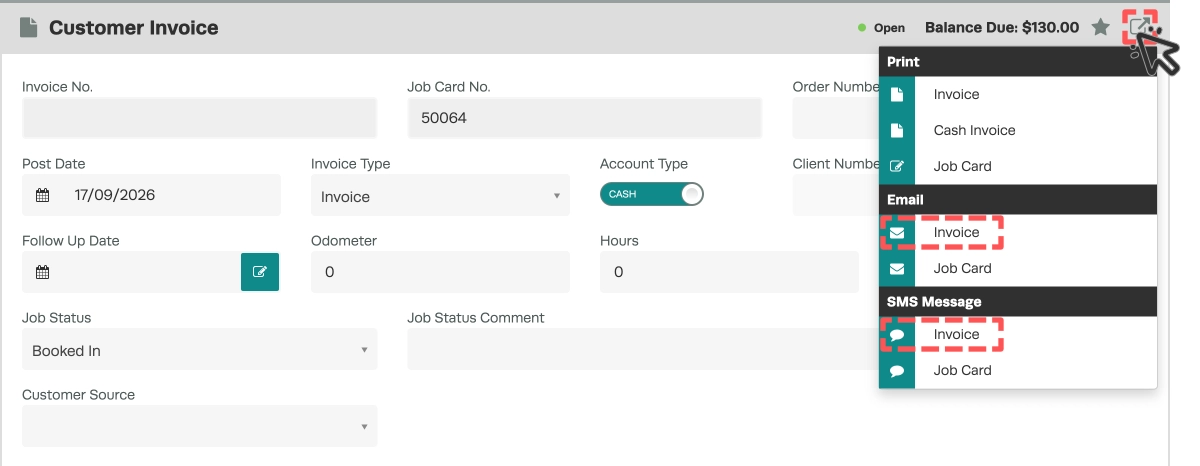
- In the Customer Invoice card click the Star icon and then select Email Invoice or SMS Invoice.
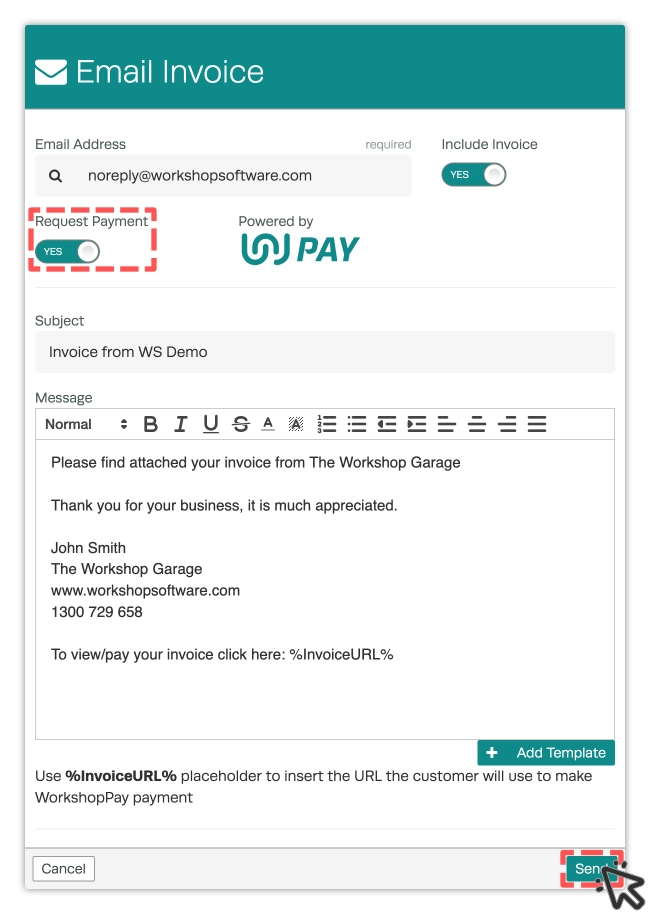
- Set the Request Payment toggle to YES. For more information on how to set up the default Request Payment message, please refer to this guide.
- Finalise your message then click the Send button.
Your customer will now receive the Invoice (if included) and a Payment request.
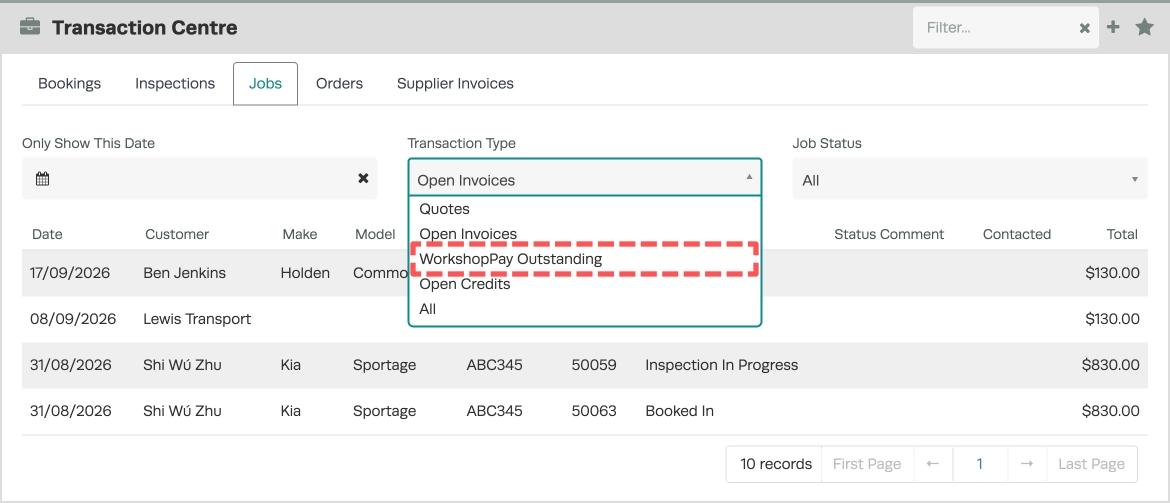
If you want to check which Invoices have outstanding Payment requests sent to customers you can go to the Transaction Centre, open the Jobs tab and set the Transaction Type to WorkshopPay Outstanding.