Skip to content
Starting a job moves it from a booking to live work and, if you clock time, starts the clock. This article shows you the three places you can start jobs from and when to use each.
When a car enters the workshop, you will need to turn the booking into an active job to generate the Job Card. This process is referred to as "starting the job." There are different ways to start jobs in Workshop Software:Option 1: Start a Job from the Customer Booking
- After creating a Customer Booking and saving it, scroll to the bottom of the page.
- Click the "Start Job" button located at the bottom of the booking page.
- This action will convert the booking into a Customer Invoice.
- The workshop user can then use the work order, which is named as the job card, to proceed with the job.
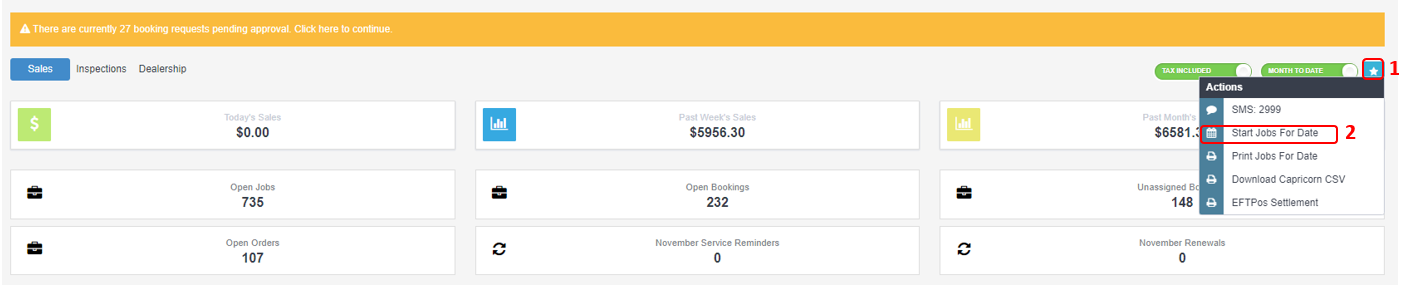
Option 2: Start Jobs for the Date - From the Dashboard
- On the Dashboard, click the star icon at the top-right corner of the page.
- Select "Start Jobs For The Date".
- A pop-up box will appear, prompting you to enter the date of the jobs you wish to start.
- Click "Run" to start the jobs and confirm the operation.
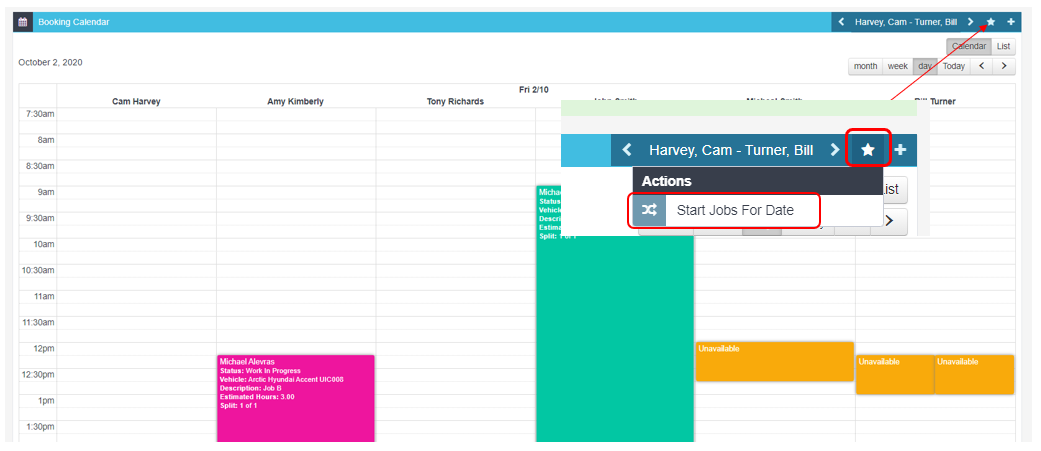
Option 3: Start Jobs for the Date - From the Booking Diary
- Navigate to the Booking Diary
- Click the star icon located at the far right of the booking line.
- Select "Start Jobs For The Date" from the options that appear.
- A pop-up box will appear, prompting you to enter the date of the jobs you wish to start.
- Click "Run" to start the jobs and confirm the operation to start all jobs for the date.