Scanning a Product Using the Mobile App
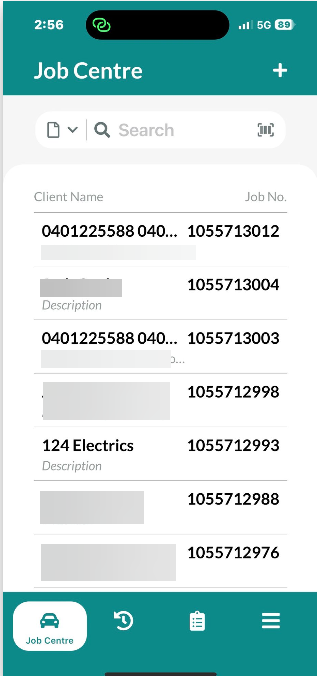
This guide explains how to scan a product using the built-in scanner feature in our mobile app. This functionality allows for quick and accurate capture of product data using your device’s camera, enhancing your workflow efficiency.
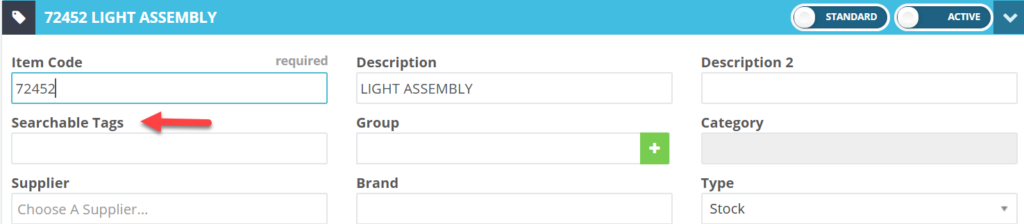
Before using the barcode scanner, ensure that your products have barcode numbers assigned to them. The Workshop Software mobile app requires these barcodes for scanning.
The first time you use the scanner, the app will request access to your device's camera. Tap Allow when prompted. If you need to enable it manually, follow these steps:
iOS:
Go to Settings > Workshop Software App > Camera > Toggle On.
Android:
Go to Settings > Apps > Workshop Software App > Permissions > Camera > Enable.
By following these instructions, you can efficiently scan products using the Workshop Software mobile app.
 Skip to content
 Save Changes:
  . Access Products:
  . Add a Product: