 Skip to content
You may not want every mechanic to see customer phone numbers and addresses on their phone. This article shows you how to restrict customer contact details in the mobile app for selected user groups.
If you want to restrict your mechanics from seeing the contact details (address, phone number) of the clients you can turn off their access to these details by following these steps.
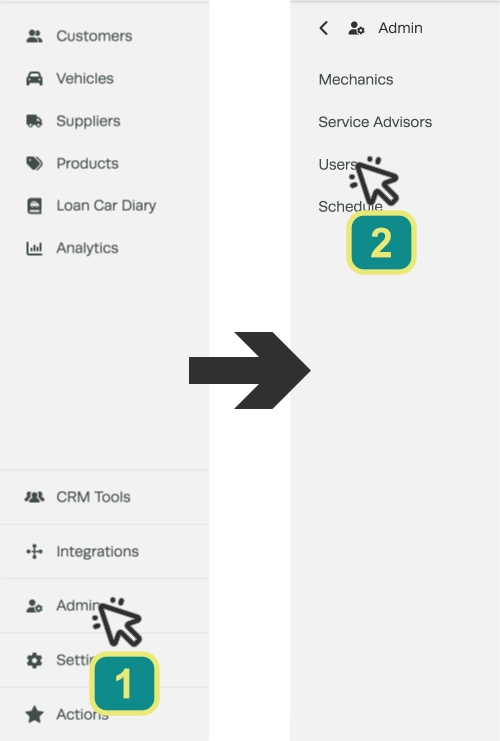
1. Click on Admin (1) in the left-hand sidebar menu, then select Users (2).
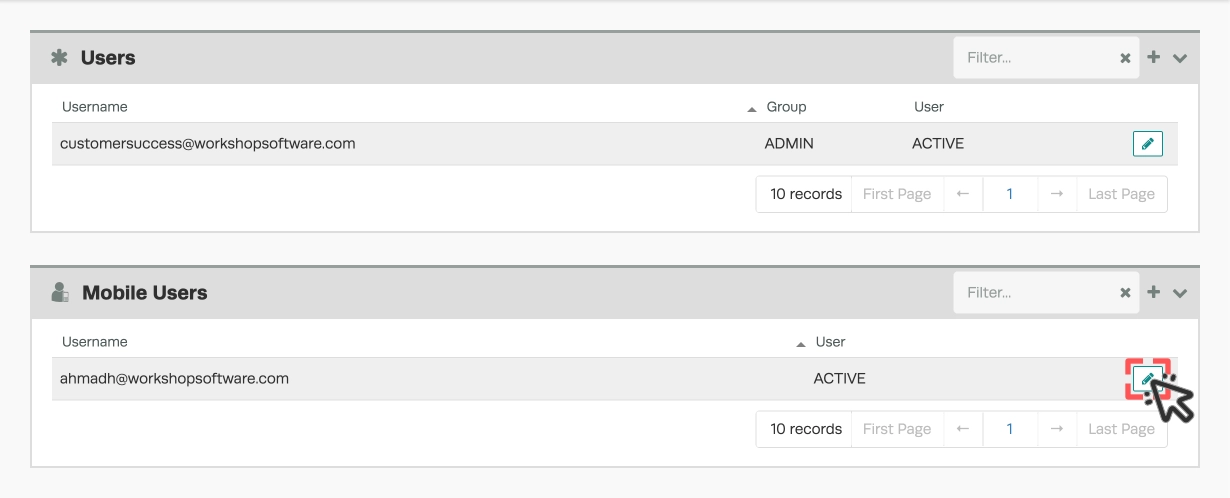
2. Double click or click on the pencil icon for the Mobile User login details you want to edit.
3. Click on the Limit Customer Information toggle so that it displays Yes.
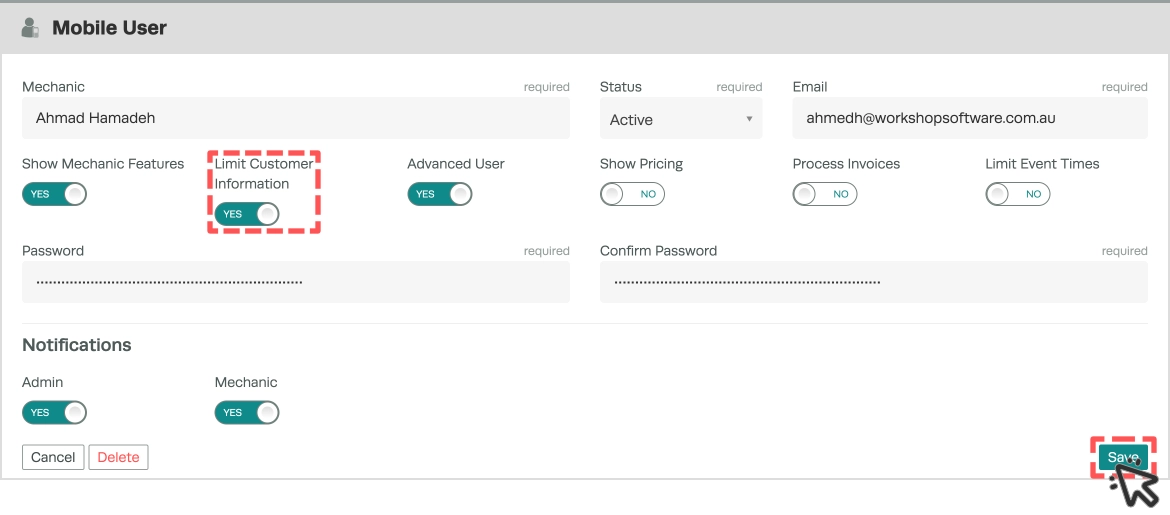
4. Click the green Save button to save the changes you have made.
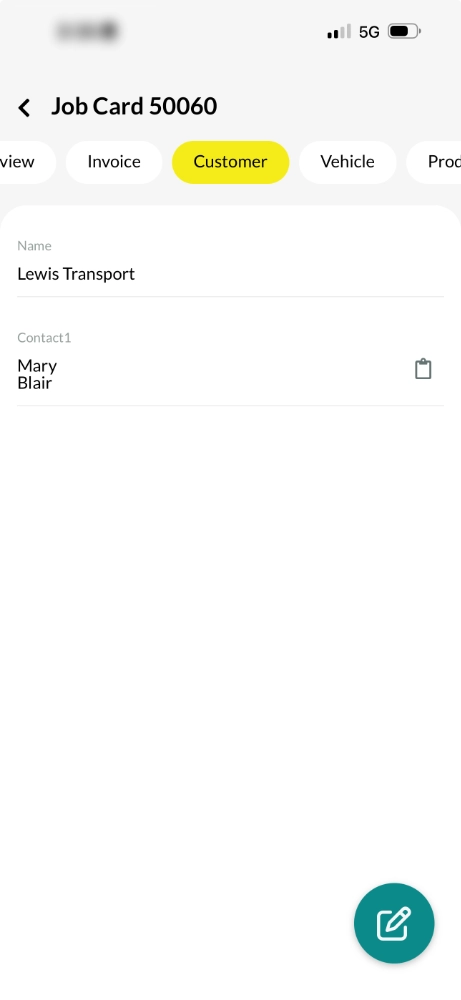
Now when the mechanic taps on the job card, they will only see the name of the person or any contact names (if it's a Company). They will not see any phone or address details of the customer.
Good to Know
- When Customer information is Limited the Mobile App user may only create new Bookings and Jobs for Customers that already exist in your Workshop Software account, you cannot enter a new Customer.
- You can find this option under Settings > Admin in the left-hand menu.
- This setting can be toggled on or off at any time. The setting updates immediately once you click Save but users may need to log out and log back in for the change to take effect.
Related Articles
- Barcode Scanner on the Mobile App
- Mobile App Invoice Functionality
- Enabling New Features in the Mobile App
