 Skip to content
This article shows you how to connect NAPA PROLink to Workshop Software, including where to find your Site Code, Account Number and Account Suffix in NAPA PROLink.
Before you start please make sure you have your NAPA PROLink account and login information.
Napa PROLink Account Information
You will require your:
- Site Code
- Account Number
- Account Suffix
- Napa Username and Password
You can obtain your Napa PROLink account information from NAPA PROLink as follows:
- Go to the top left-hand corner of your account, you can obtain the following.
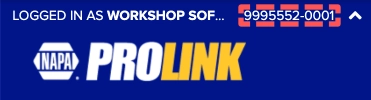
Account Number: The first seven digits of the number before the -.
Account Suffix: The four digits after the -.
- You can obtain your Site Code by clicking on Admin in the top right-hand corner, then selecting Site Settings.

- The Site Code will be listed.

Integrating with Workshop Software
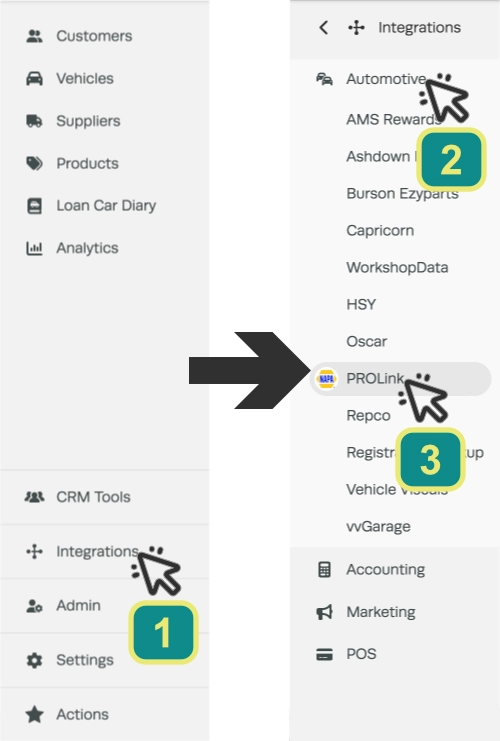
- In the left hand sidebar menu click Integrations (1), then select Automotive (2) and PROLink (3).
- You will be asked if you want to Activate PROLink Please click the green Activate PROLink button to continue, then click Yes when prompted.

- In the Supplier field (A) search for and click on your NAPA PROLink supplier, or use the green + Create One button to create a new supplier.
PLEASE NOTE: If you are integrated with an accounting application and you have a NAPA PROLink Supplier record already, please use that supplier record for your integration, this will ensure all future Supplier Invoices will sync to the same Supplier.
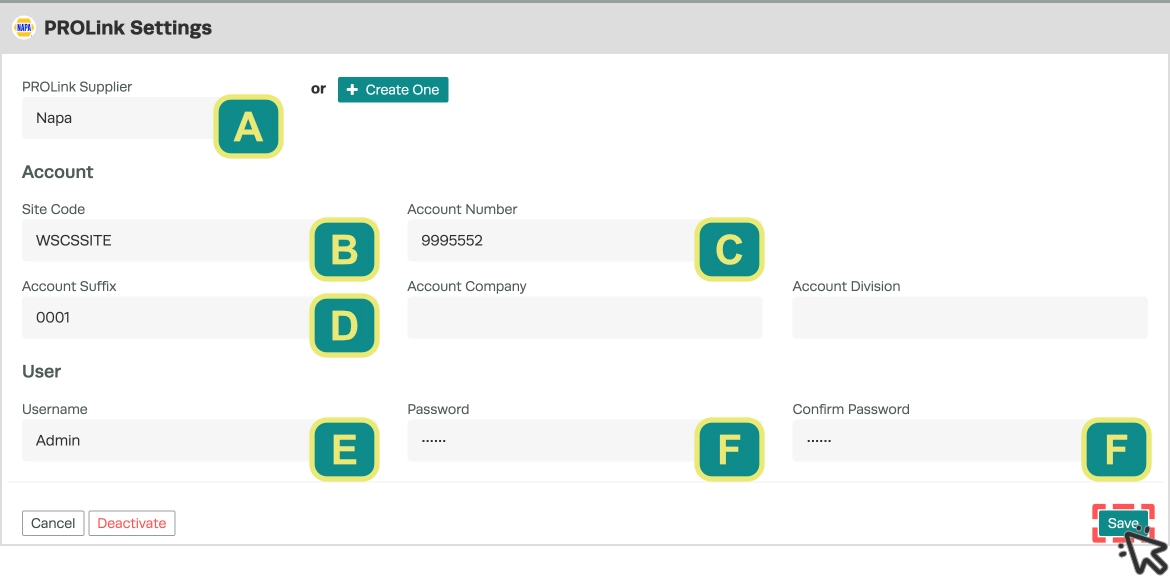
- Enter your Site Code (B), Account Number (C), Account Suffix (D), Username (E) and Password (F) in the fields provided.
Please Note: The Company and Division field are not commonly used, but may be required if you are part of a larger network of companies.
- Click the green Save button, your NAPA PROLink Integration is now configured.
