 Skip to content
When a supplier gives you a credit, for a returned part, a pricing error or a warranty claim, you need to record it so your supplier account and stock costs stay correct. This article shows you how to record a credit against a supplier.
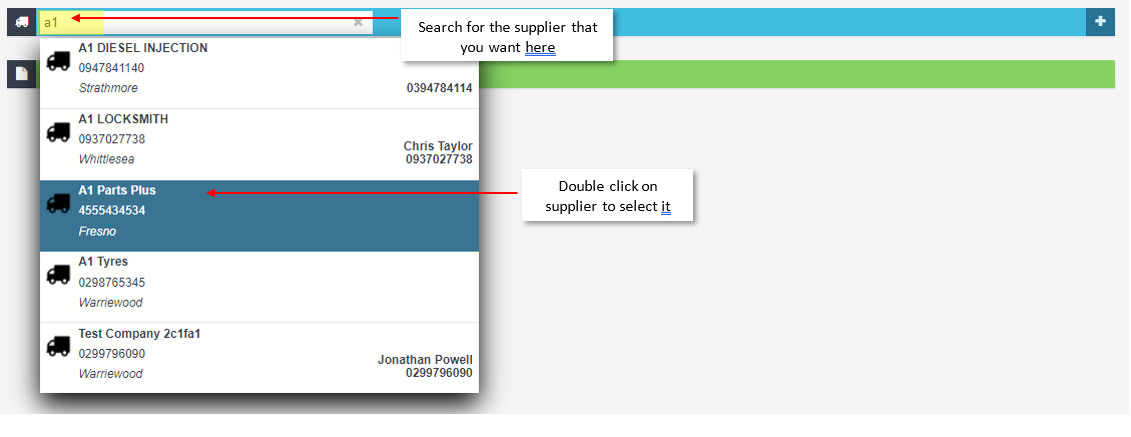
If a customer wants to make pre-payment then a credit invoice can be created so that you can allocate this towards an invoice later down the track. 1. Click on the '+' icon located next to the main search bar in Workshop Software and select 'Supplier Invoice' from the dropdown box. 2. Search for the Supplier using the search field at the top right of the page and double click on the correct search result you are looking for.
 3. Enter in the invoice details; ensure that your select 'Credit' from the 'Invoice Type' dropdown menu.
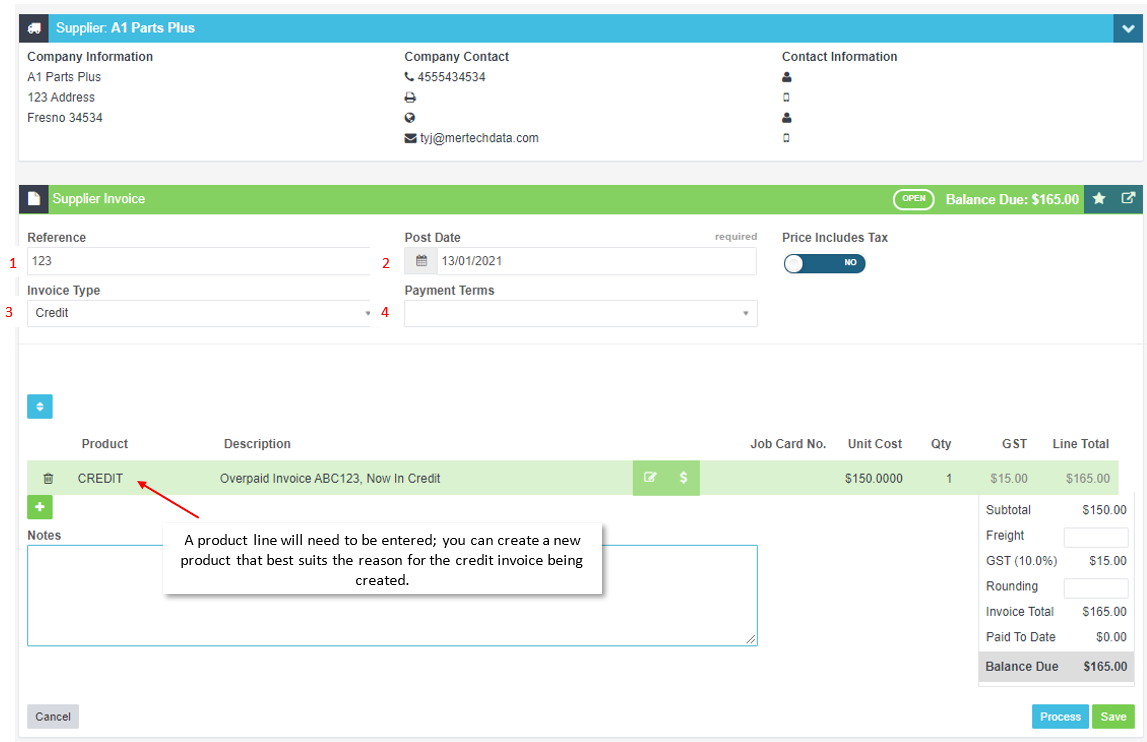 4. Click on the blue 'Process' button located on the bottom right hand corner of the page to finalise the invoice:
 5. The supplier will now have an unapplied credit for the amount of the invoice noted on it's profile:

Related Articles
- Applying a Supplier or Customer Credit
- How do I record a supplier refund
- How to record a customer credit
