Skip to content
How easy are you making it for your customer to book with you? Customer now expect to be provided one-click options to take action on your offerings.
Think of the “Shop Now” buttons in emails from businesses you follow and SMS messages to remind you a sale will end soon, there is always a link so that you don’t miss out.
With a Gold Workshop Software Account you can provide a one click booking offer when they get a service or rego reminder.
Update Online Booking Settings
- Ensure your Online Booking Diary's appointment options and branding is set up.
- If you haven’t done this yet, click on this guide: Set Up and Manage Online Bookings and make sure the toggle for Send Link in Reminders is set to Yes in CRM Tools > Public Booking.

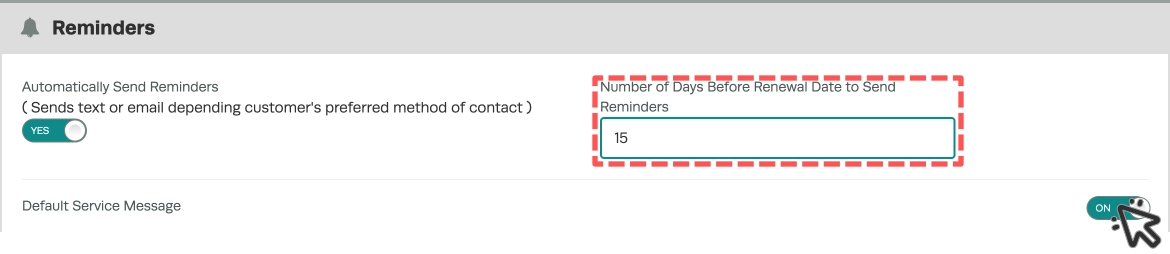
Turn on Automatic Reminders
- Ensure you have turned on your automatic rego & service reminder features in CRM Tools > Automatic Reminders.
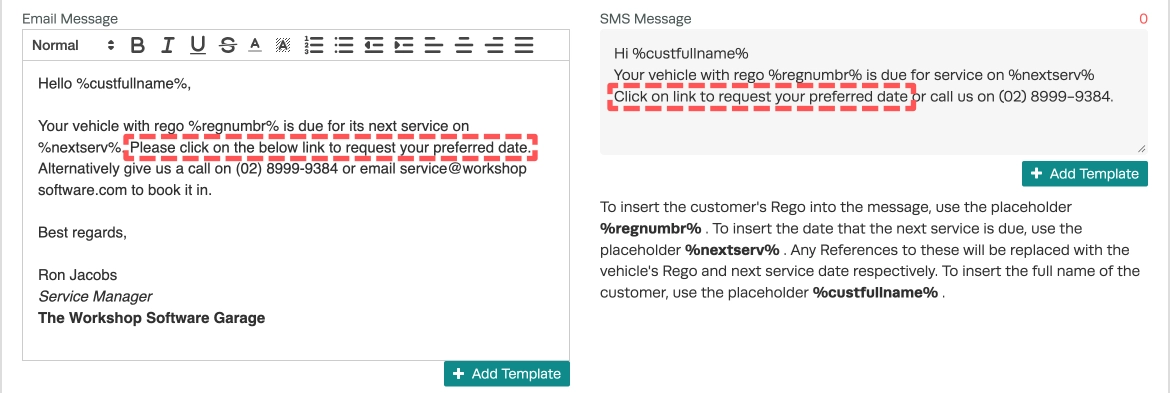
- Finally update your email/sms templates to let the customer know they can use the link to request their preferred date.
What Customers Receive
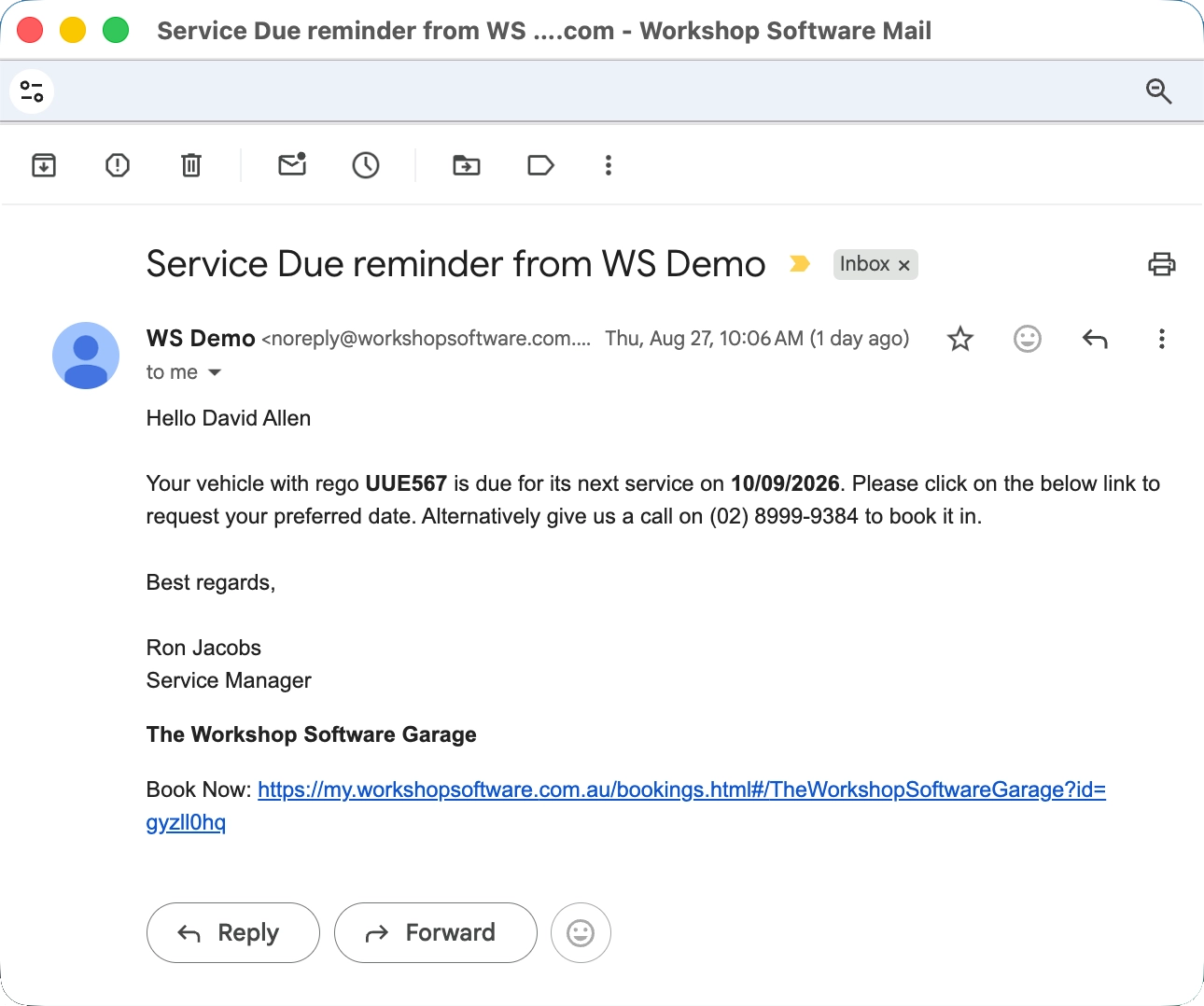
Below is a screenshot of what a reminder will look like to the customer.
Email version
SMS version
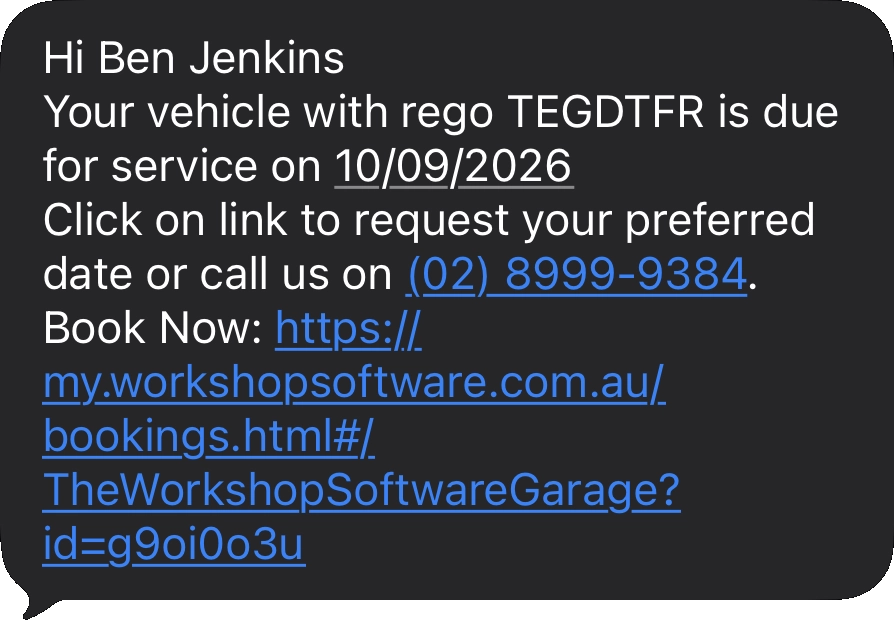
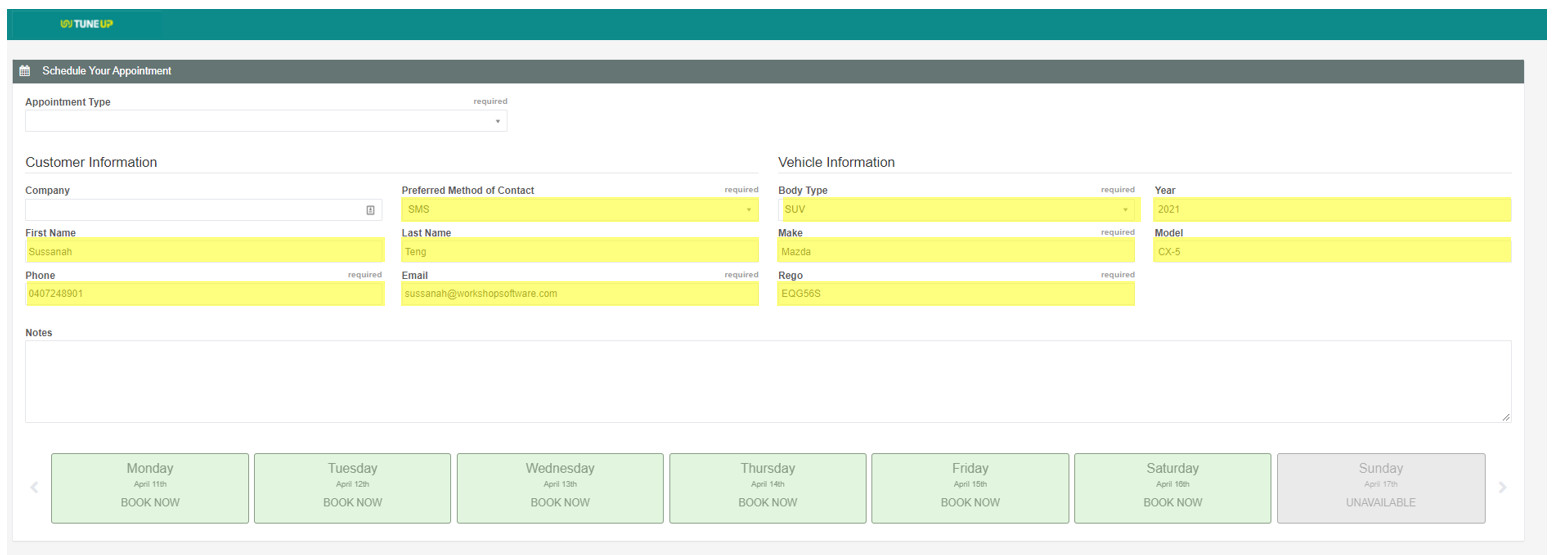
- When the customer clicks on the link it will load your online booking portal with the customer and vehicle details already complete on the form. All the customer needs to do is select the appointment type and date.