 Skip to content
The Inspection Settings page allows you to update the contact information included with your Inspections, configure when you are notified that a Customer has accepted tasks linked to an Inspection and to define which costs and labour hours are shown to your clients.
Access your Inspection Settings
- To access your Inspection Settings click CRM Tools in your left hand sidebar menu, then click Inspections and Inspection Settings.
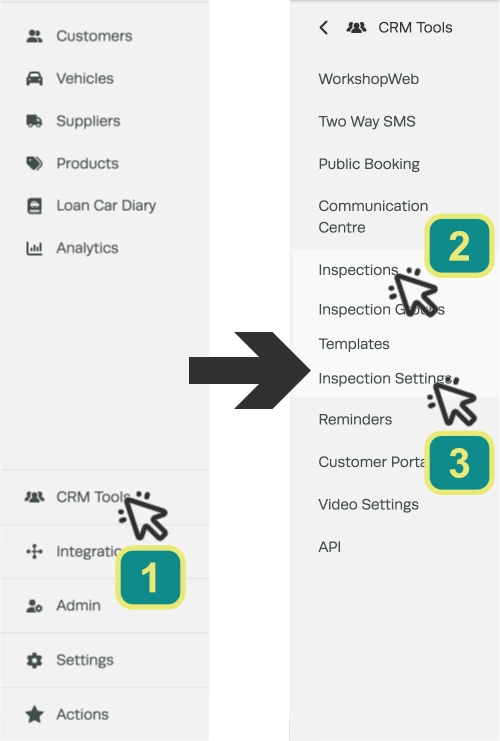
- You may now update any setting you would like, make sure to click the green Save button before leaving to lock in your changes.
Inspection Settings Explained
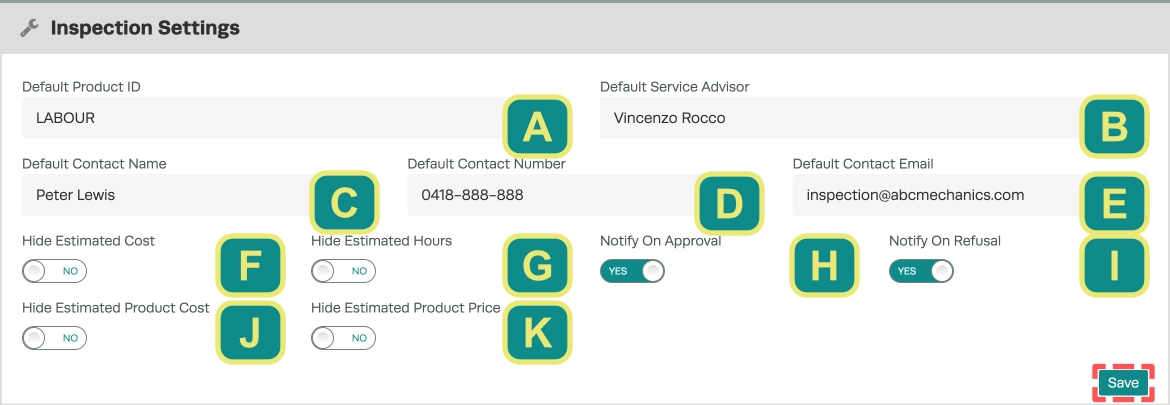
| Field | What it does |
|---|---|
| A. Default Product ID | Must be a Labour Product. Bookings and Jobs created from approved Inspections will contain a Product line with QTY of all combined Estimated Hours and Line Total of the combined Estimated Cost of all approved task. |
| B. Default Service Advisor | When complete this Service Advisor will be attached to Inspection you create. Service Advisors may be created and update in Admin > Service Advisors in the left hand sidebar menu. |
| C. Default Contact Name | A contact Name to be included with the Inspection. |
| D. Default Contact Number | A contact Number to be included with the Inspection. |
| E. Default Contact Email | A contact Email to be included with the Inspection. |
| F. Hide Estimated Cost | When enabled this will prevent the display of your estimated Labour cost on suggested repairs. |
| G. Hide Estimated Hours | When enabled this will prevent the display of your estimated Labour hours on suggested repairs. |
| H. Notify On Approval | When enabled this will send an email to the Default Contact Email when a Inspection task is approved. |
| I. Notify On Refusal | When enabled this will send an email to the Default Contact Email when a client refuses all tasks on an Inspection. |
| J. Hide Estimated Product Cost | When enabled this will prevent the display of your estimated Product Cost on suggested repairs when an Invoice or Booking is Created. |
| K. Hide Estimated Product Price | When enabled this will prevent the display of your estimated Product Price on suggested repairs. |
