 Skip to content
This article explains how to process split credit card payments in Workshop Software, including steps for users integrated with Workshop Pay.
Step 1: Process the Invoice
- Process the invoice as you normally would.
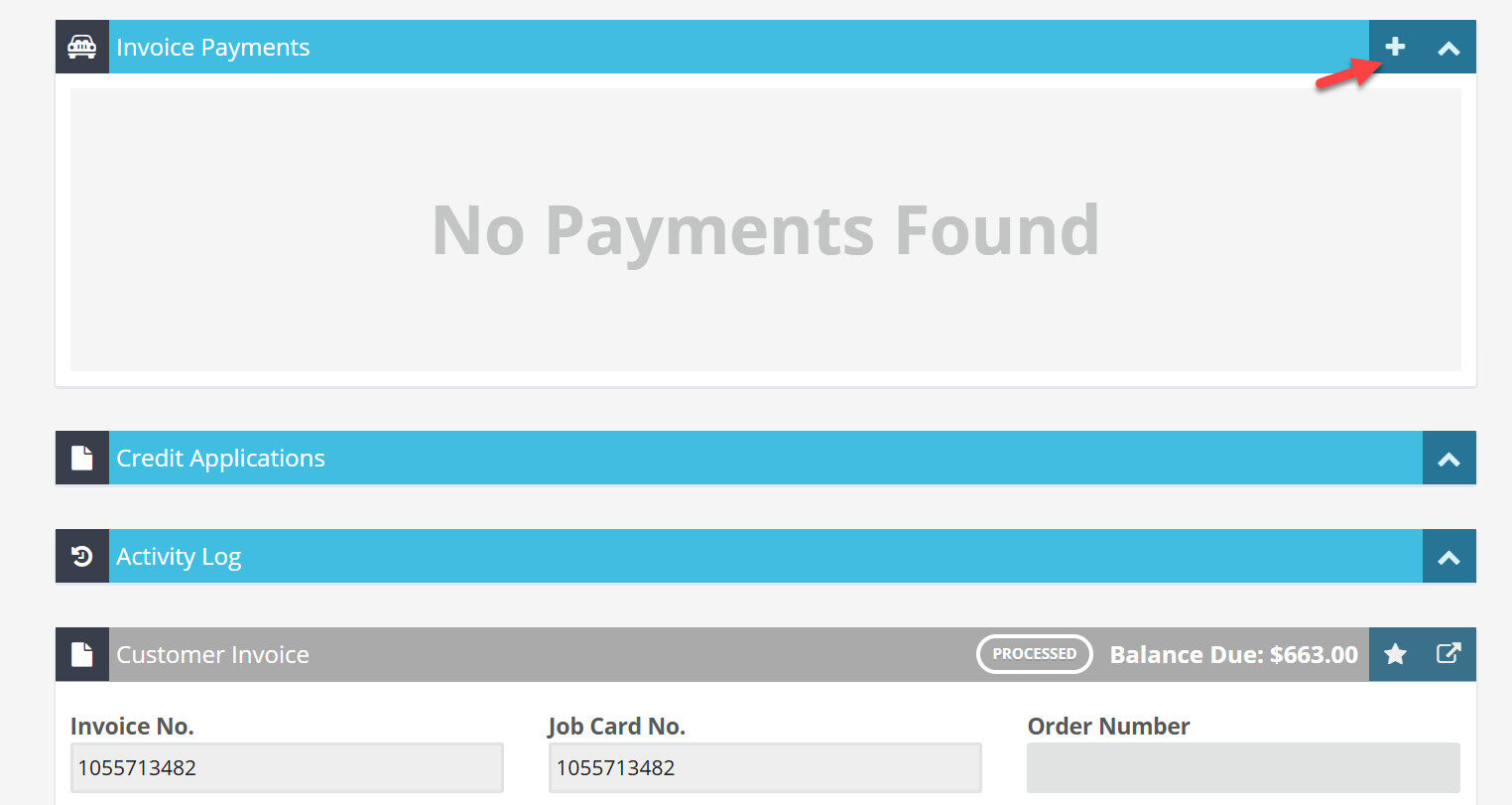
- Click on the plus sign (+) next to Customer Payment.
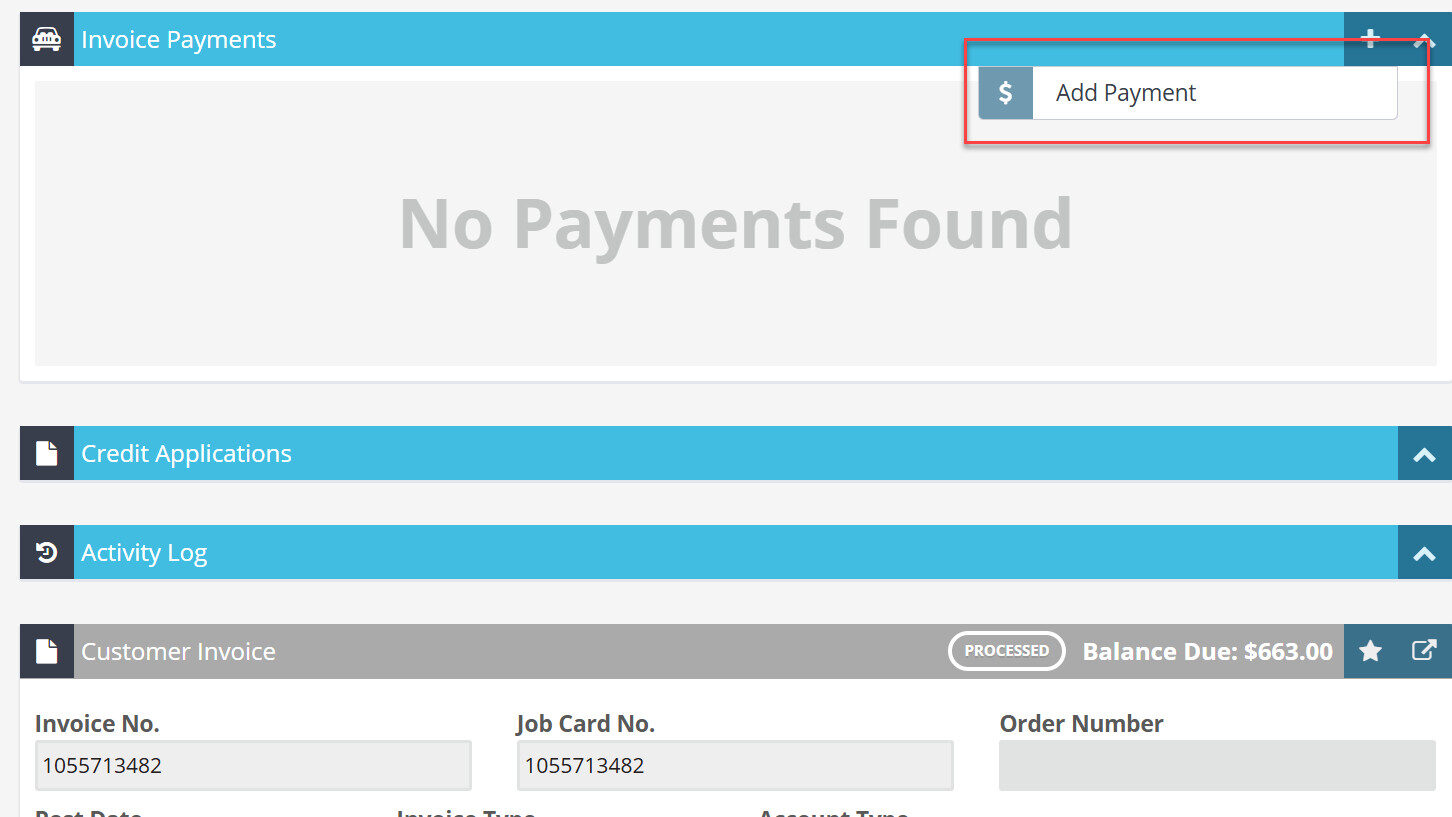
- Select Add Payment.
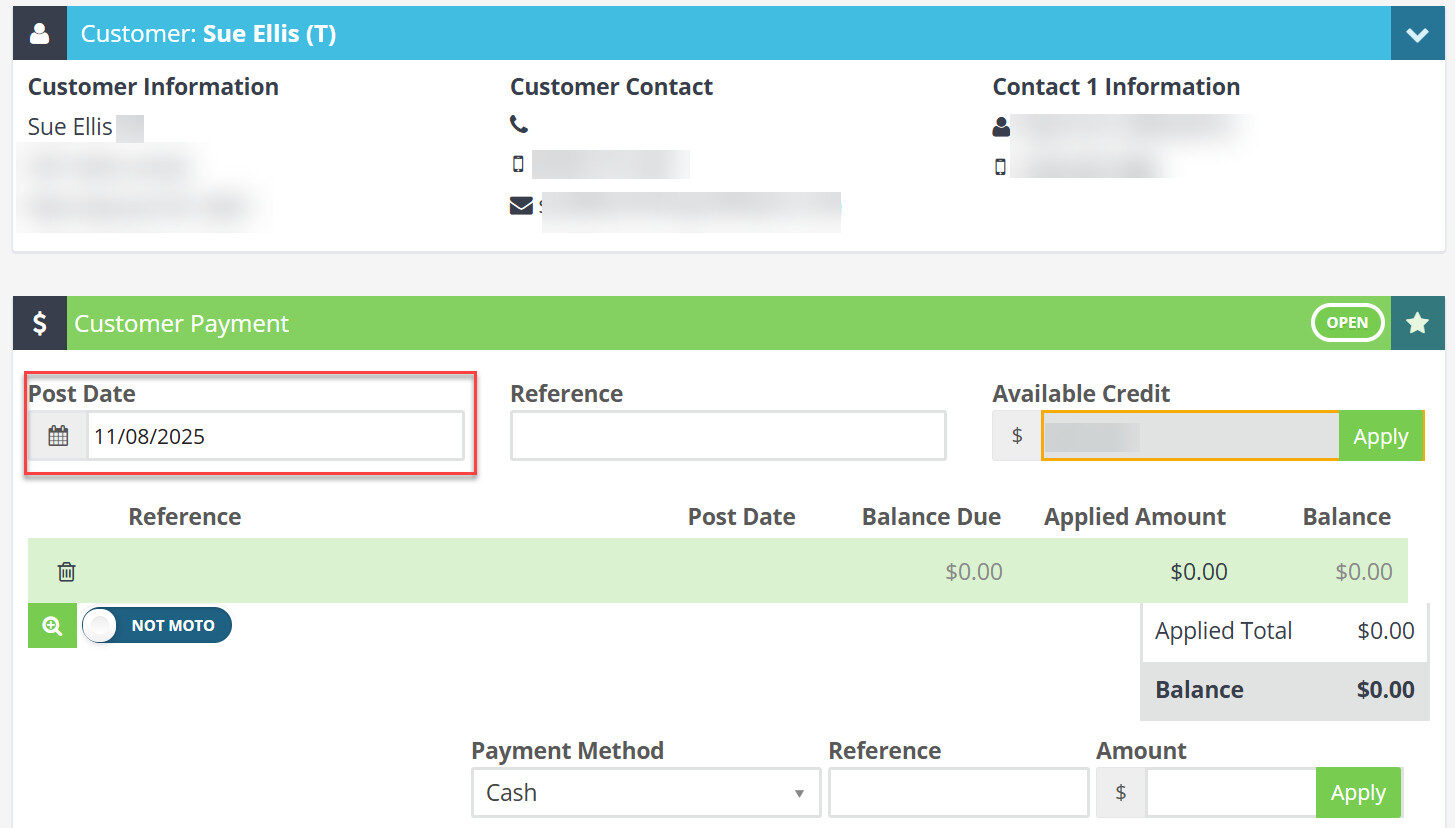
- Enter the payment date.
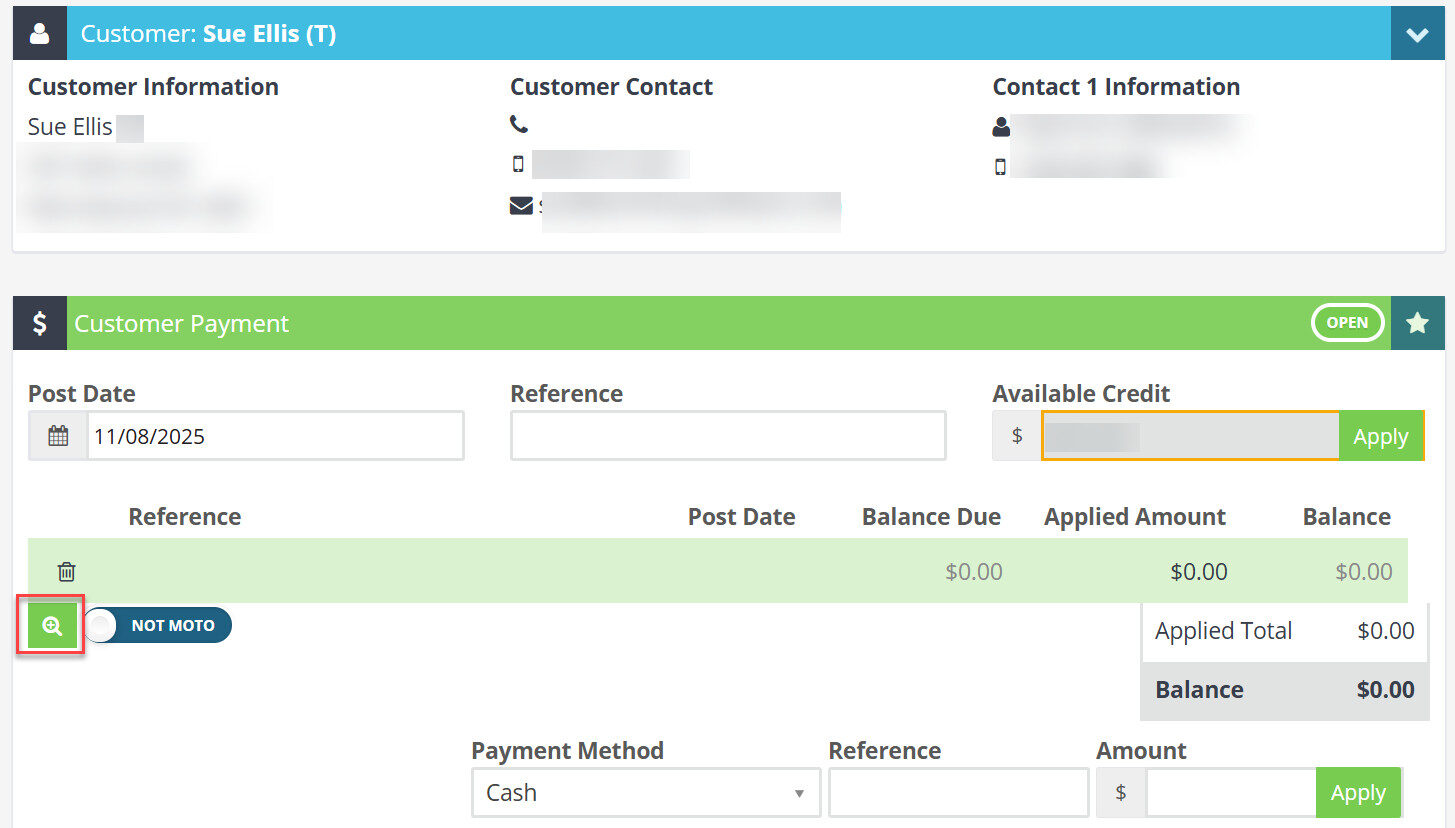
- Click on the magnifying glass to select the invoice you are applying the payment to.
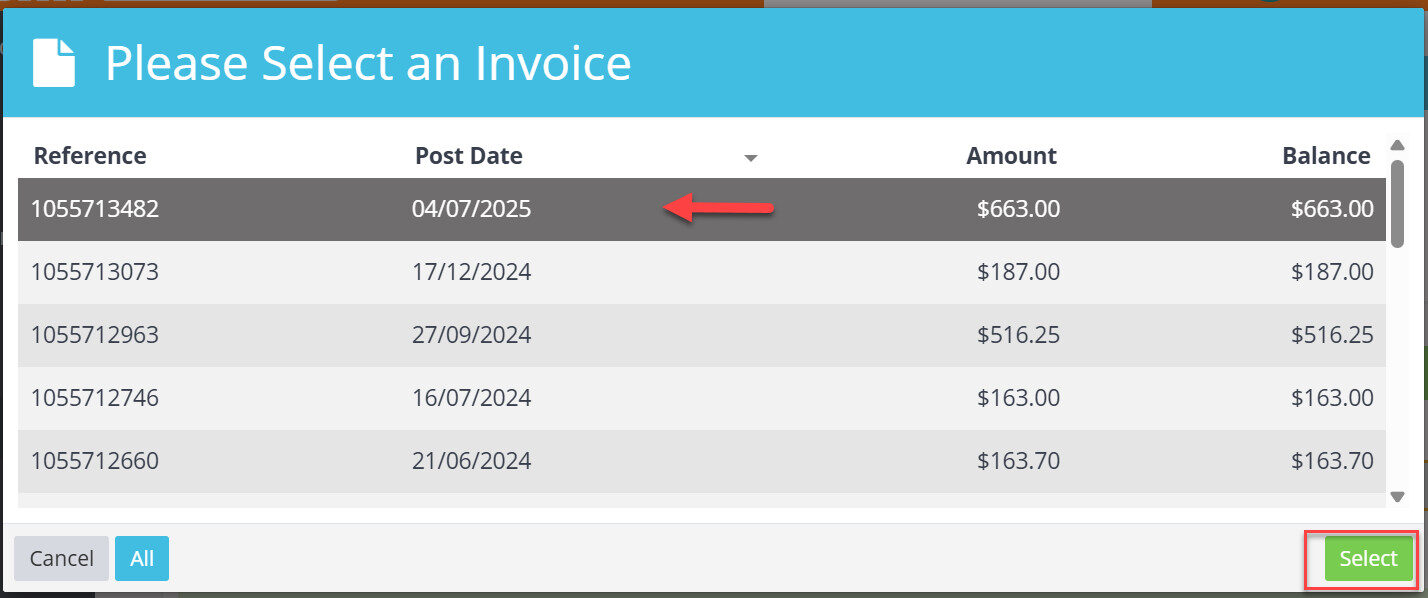
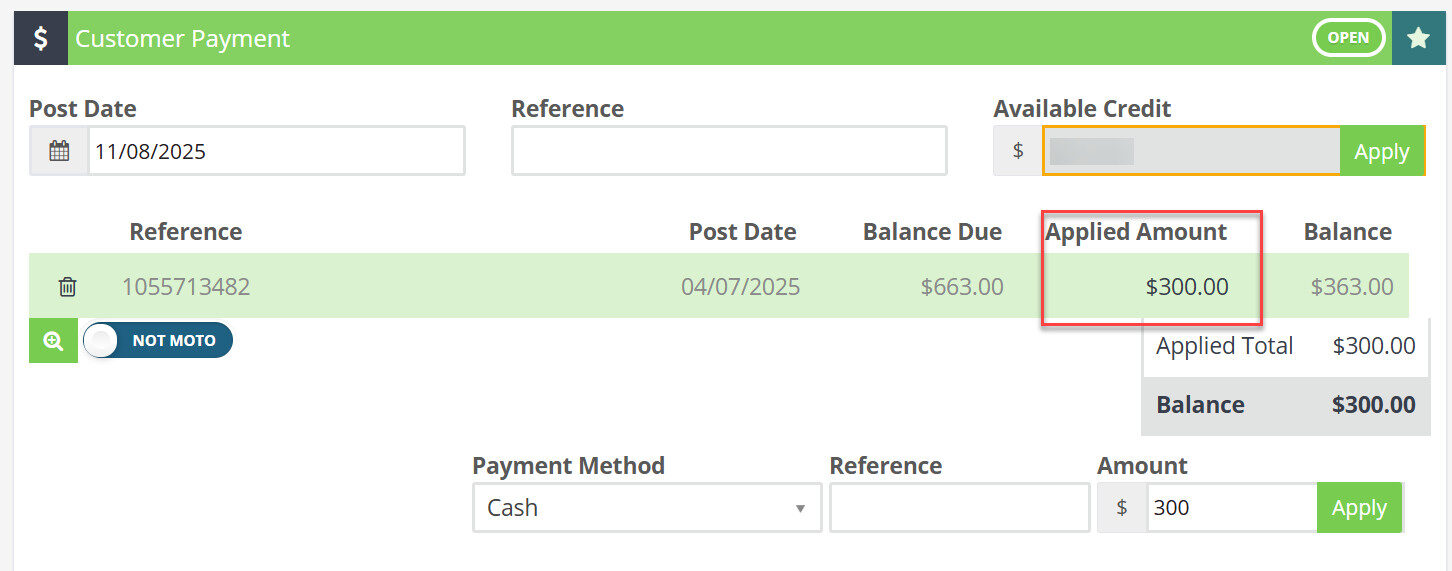
- In the Applied Amount field, enter the amount the customer is paying.
- Select the appropriate payment method (e.g. credit card).
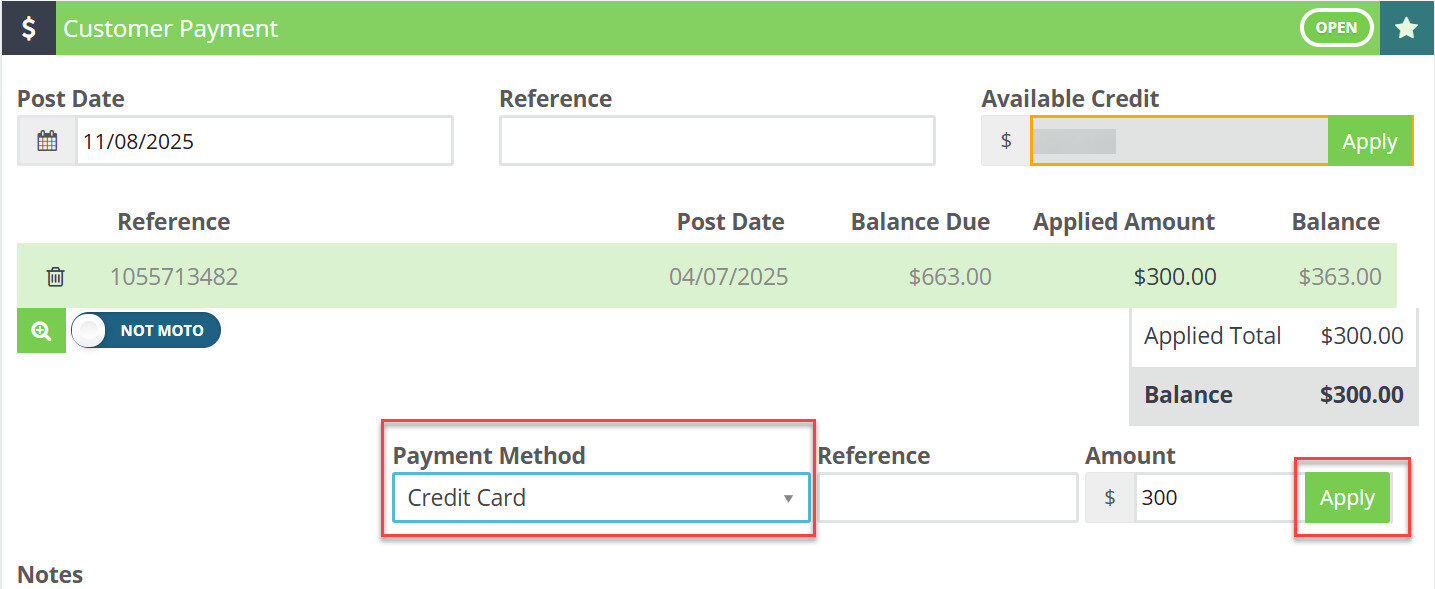
- Click Apply, then Save and process the payment.
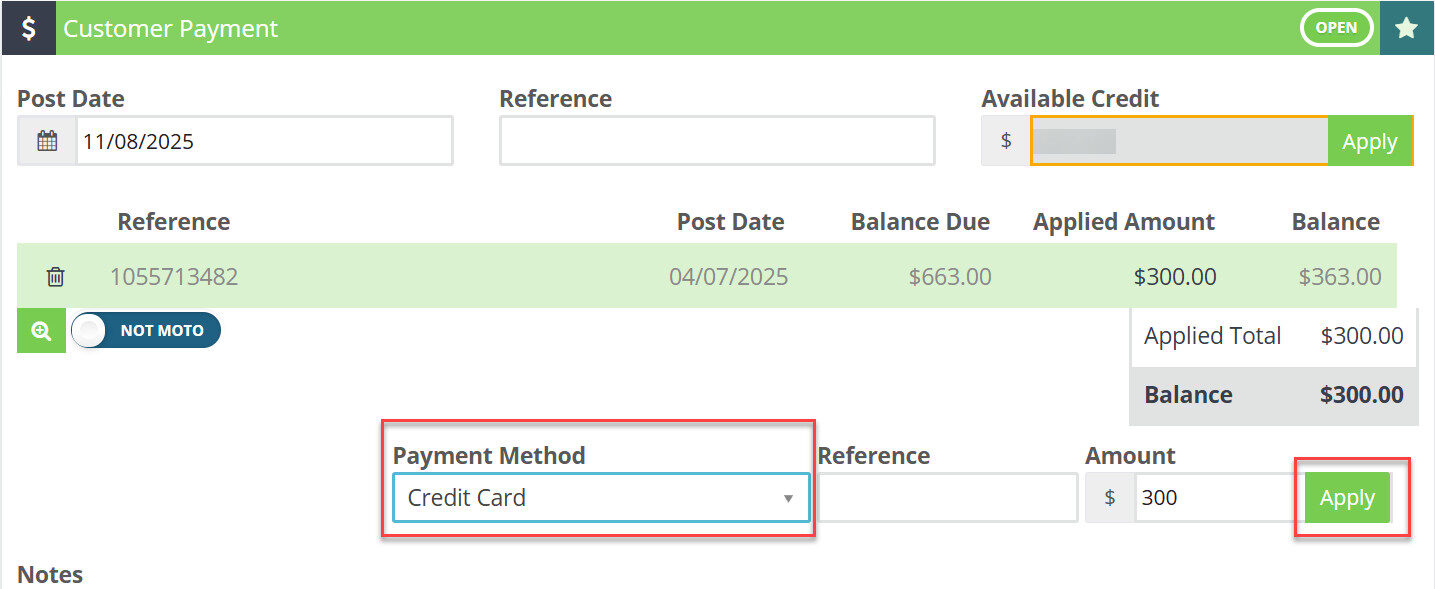
If you are using Workshop Pay, the integrated terminal will be triggered and the customer can make the card payment.
Step 2: Process Additional Payments
- Once the first payment is processed, reopen the invoice.
- Repeat the steps above to apply the next payment.
- Repeat as many times as necessary until the invoice is paid in full.
Good to Know
- If you are integrated with Workshop Pay, each time you process a split payment it will trigger the terminal.
- Once processed, the payment will automatically sync back into Workshop Software.
