Skip to content

This article explains how to set an online Booking Type so that booking requests for it go straight into your Booking Diary, without anyone in the workshop manually approving the request. It suits work you always accept, such as a WoF or a standard service.
Please note: Online bookings need a Gold subscription or above, and your public booking portal must already be set up.
Turn On Auto Approve for a Booking Type
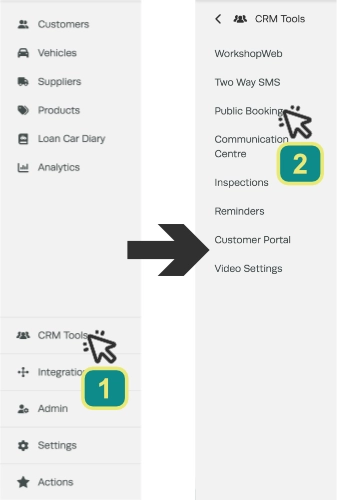
- Click CRM Tools (1) in the left hand sidebar menu, then select Public Booking (2).
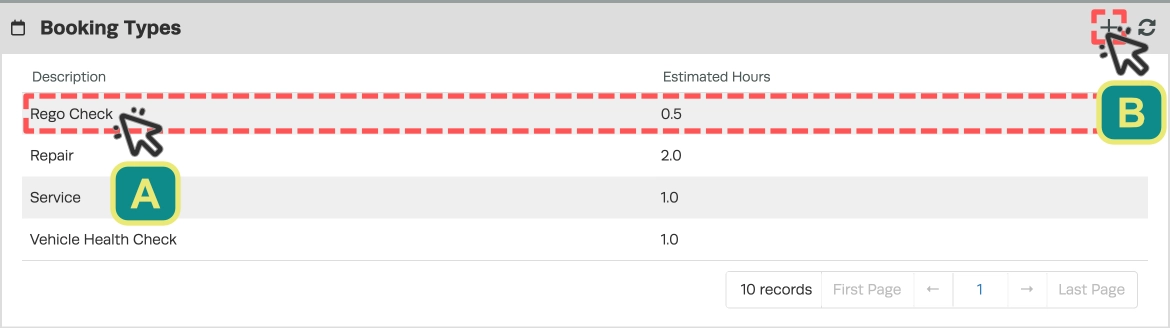
- In the Booking Types card, double-click the Booking Type you want to change (A) or click the + icon (B) at the top right of the card to create a new one. The Booking Type pop up opens.
- Enable the Auto Approve Online Bookings toggle, then click the green Save button. You will see the message "Booking Type Saved".
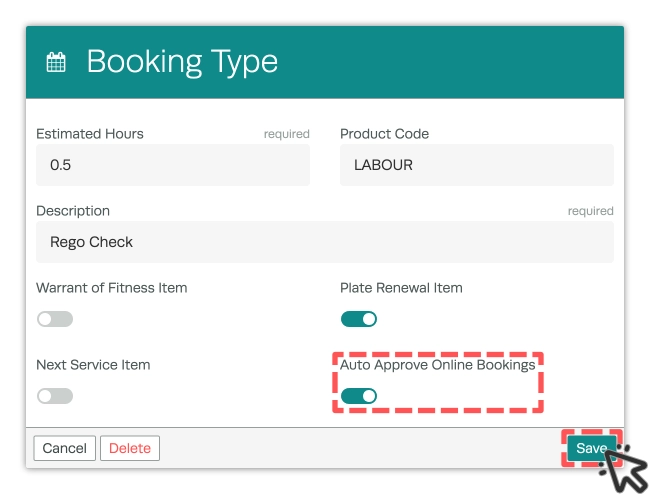
To stop approving a Booking Type automatically, open it the same way then switch Auto Approve Online Bookings off and click Save, new Booking Types start with the toggle disabled.
What Happens to an Online Booking Request
Workshop Software checks for new requests once an hour. When every Booking Type on a request is set to auto approve it:
- Adds the booking to your Booking Diary, matching an existing Customer and Vehicle where it can or creating them where it cannot.
- Sends the customer your booking confirmation by their preferred contact method, email or SMS.
- Removes the request from Booking Requests.
Warning: Auto approval only acts on requests made after you switch it on. Requests that were already waiting stay in Booking Requests for you to approve or deny by hand.
Good to Know
- A request that includes any Booking Type without auto approve is not approved automatically. It waits in Booking Requests as usual.
- If one request cannot be approved the others still go through. The unapproved request stays in Booking Requests, Workshop Software tries it again at each hourly check or you can approve it yourself at any time.
- You are not sent a message when a request cannot be approved, so keep an eye on the "booking requests pending approval" banner on your Dashboard and Booking Diary.
- If you switch auto approve off and back on again only requests made after you switched it back on are approved automatically.
- The confirmation uses the messages saved under Settings > Messages, in the Booking Messages section.
Frequently Asked Questions
How quickly is a request approved?
Within the hour. Workshop Software checks for new requests once every hour.
I switched auto approve on, so why are my waiting requests still there?
Only requests made after you switch it on are approved automatically. Approve or deny the earlier ones yourself from Booking Requests.
Why is a request still in Booking Requests after the hourly check?
The usual reasons are: the request includes a Booking Type that is not set to auto approve, it was made before auto approve was switched on or the Product on the Booking Type is no longer a Labour Product. Fix the cause and the next check will pick it up, or approve it yourself.
Does the customer still get a confirmation?
Yes. They receive the same booking confirmation they would get if you approved the request yourself, by email or SMS depending on the contact method they chose.
Do I need to contact Workshop Software to switch this on?
No. Any workshop using online bookings can switch it on or off for each Booking Type.