Skip to content

This article describes an upcoming Workshop Software feature, we will remove this notice and change the location of this article to it's final category when the feature is released.
The BNT Ezyparts integration lets you check part prices, add parts to a Quote, Booking, Stock Order or Job and order them without leaving Workshop Software. This article walks through the BNT workflow from selecting parts in BNT Ezyparts to sending the order.
Please note: BNT Ezyparts must be activated before you may add parts from BNT, to integrate please see How to Integrate BNT Ezyparts.
Please Note: BNT Ezyparts is available to Workshops whose Company country is New Zealand. Australian Workshops use Burson Ezyparts instead.
Purchase BNT Parts
Supplier integrations are first used to visit a Supplier's web-store and return parts from that store to your Job Card and Products list.
Once you are ready to order parts you may create a Stock Order from one or more Jobs in Workshop Software, combining Supplier parts from each into a single order which is then sent to the Supplier and purchased.
When the Shipment is received a Supplier Invoice and subsequent Payment complete the process.
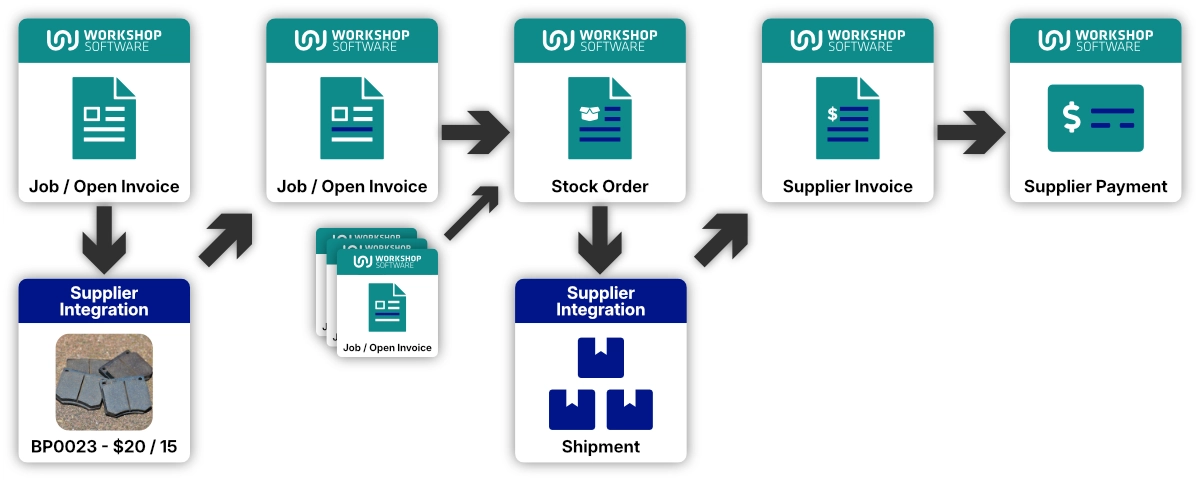
Please Note: Parts from BNT Ezyparts may also be added directly to a Stock Order, see Ordering for Stock below.
Adding BNT Parts to a Job, Invoice or Booking
You can add BNT parts to a Job, Quote, Invoice or Booking, the steps are the same for each.
- Open the record that you wish to add parts to and attach the Vehicle, then scroll down to the product section.
- Click the Down Arrow (1) beneath the parts list then select Add BNT Ezyparts Items (2).
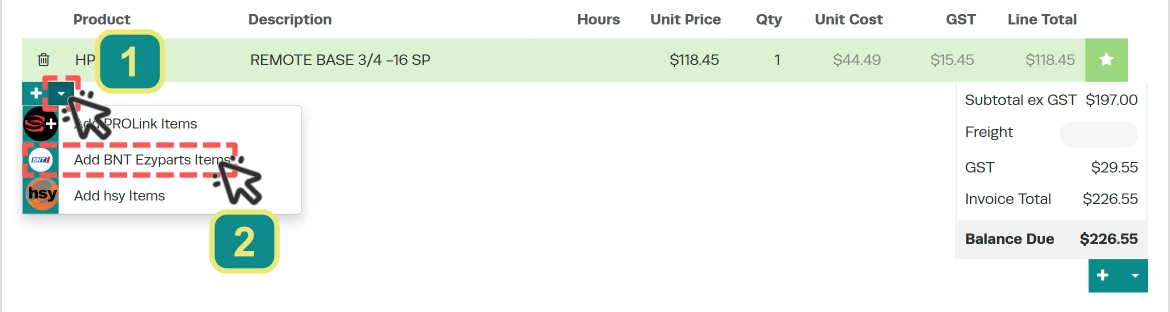
- Workshop Software saves the record and opens BNT Ezyparts inside Workshop Software, already signed in. If the Vehicle has a Registration, BNT opens on that Vehicle so you can browse parts that fit it.
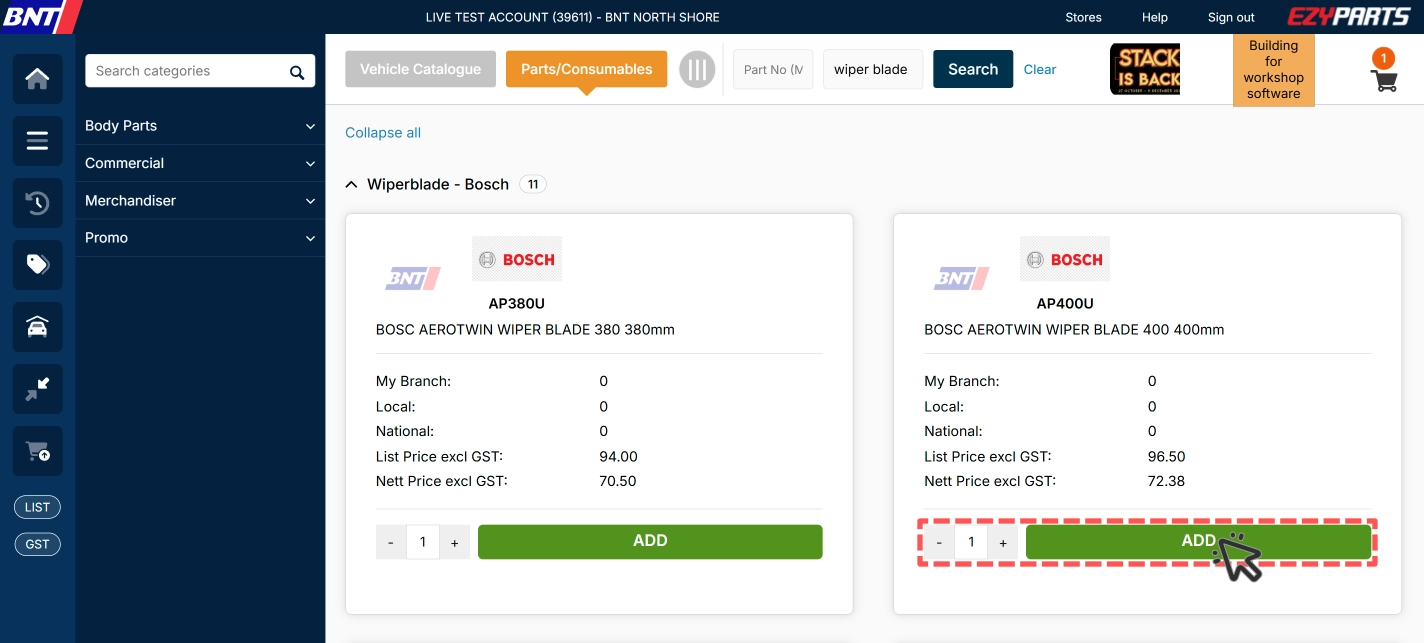
- Find the parts you need, set the quantity and click Add to put each part in your BNT shopping cart. You can keep searching and adding until the cart holds everything you need.
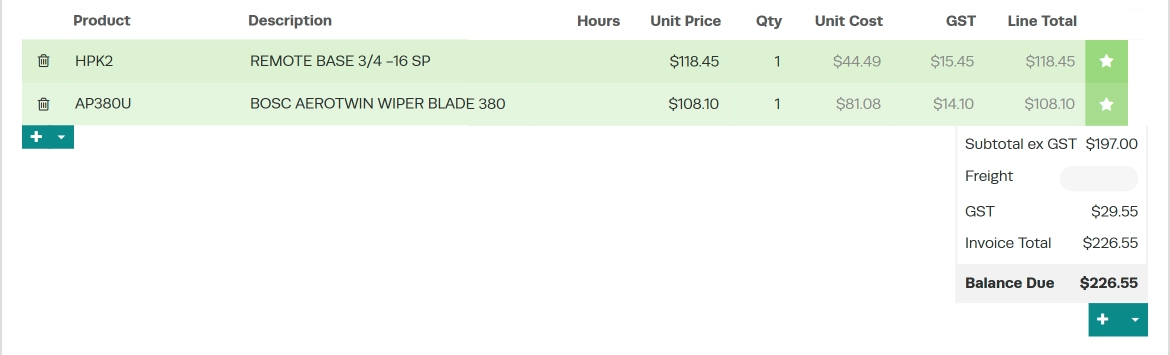
- To return parts to Workshop Software begin by clicking the Shopping Cart icon (3) then select Submit to Workshop Software (4).
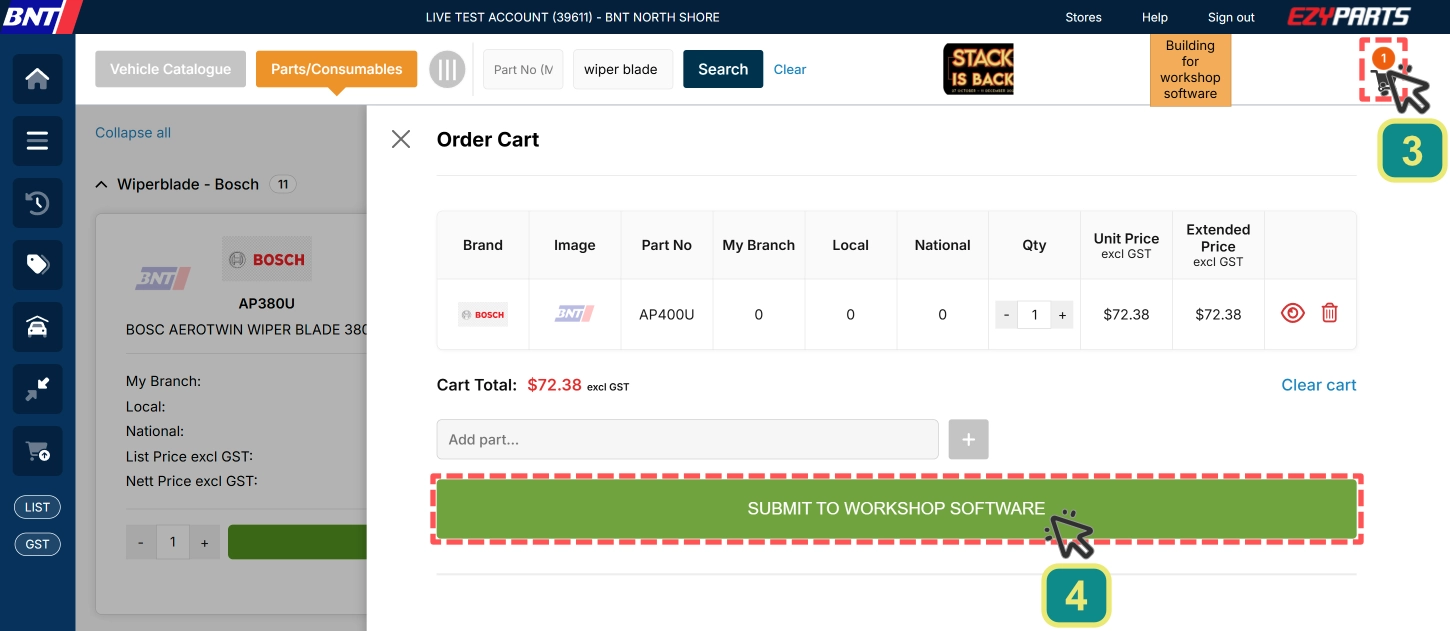
- You return to the same record and the Product list updates with the new parts, ready to Quote or Invoice.
Creating a BNT Stock Order
When you are ready to order parts begin by creating a new Stock Order and adding parts, at this time you may also add parts from any other Job to the same Stock Order before you order parts from BNT.
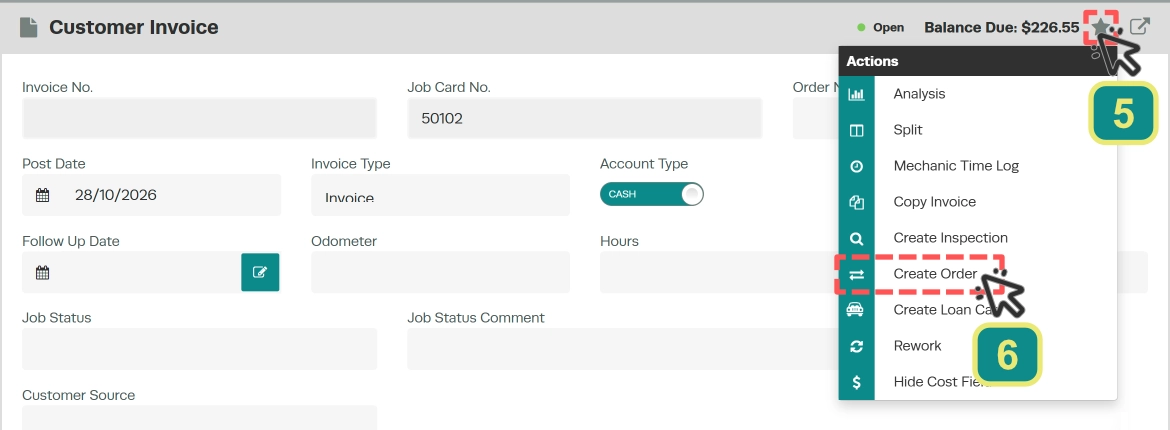
- To create the Stock Order first click the Star icon (5) and then Create Order (6).
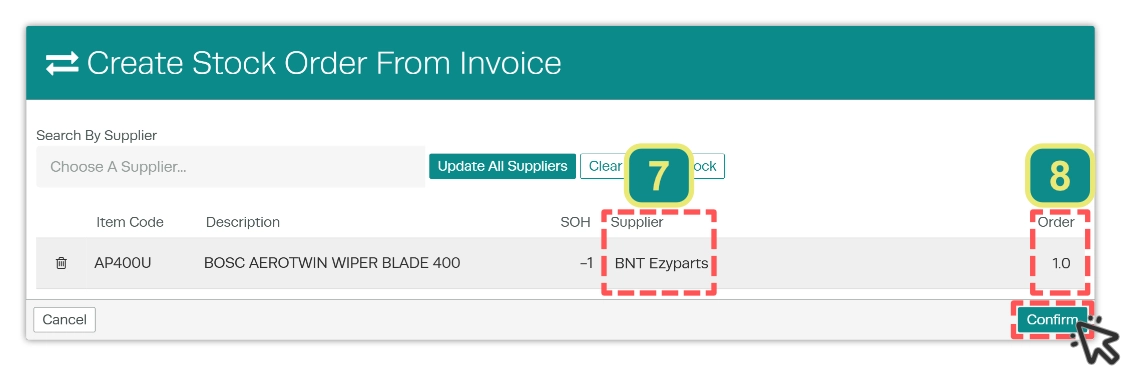
- In the pop up, check that the parts imported from BNT show BNT Ezyparts as their Supplier (7). Set the quantity you wish to order for each part (8), you may also update the number in the next screen inside the suggested Stock Order.
- Click Confirm which will create a new suggested Stock Order or if one exists add the new parts to an unprocessed BNT Stock Order.
Please note: parts from other suppliers go on their own orders. A BNT order can only hold parts that came from BNT.
Sending the Order to BNT
- To view your Stock Order and send your parts order to BNT first click the arrow to open the Attached Orders header inside your Invoice and open the Order Number with BNT Ezyparts as the Supplier.

- Before finalising your Stock Order you may modify quantities and add additional items from other Jobs.
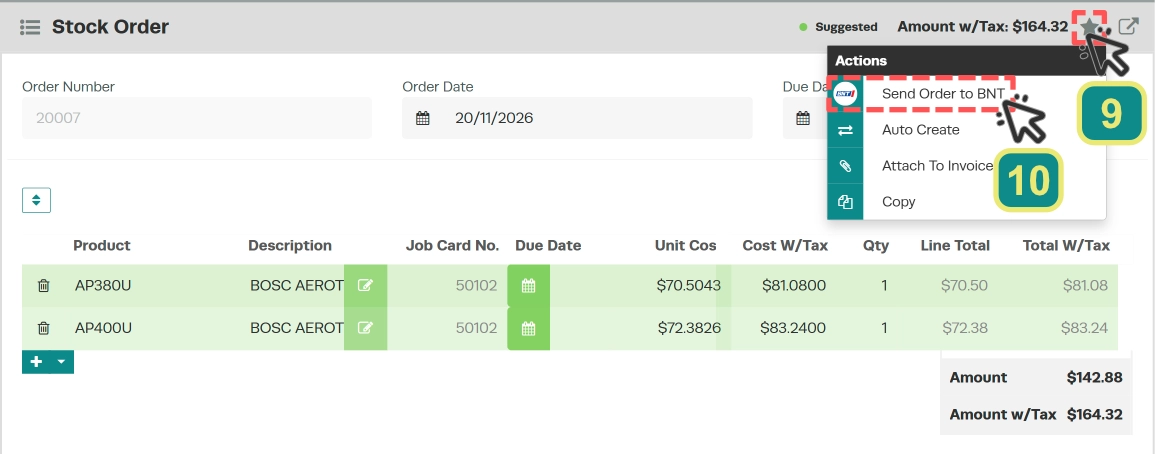
- To order the parts from BNT Ezyparts click the Star icon (9) in the Stock Order card and choose Send Order to BNT (10) from the drop down menu.
- A Send Order to BNT window asks you to choose how BNT should deliver the order, select a Delivery Method then Click Send Order, the choices and their freight come from BNT.
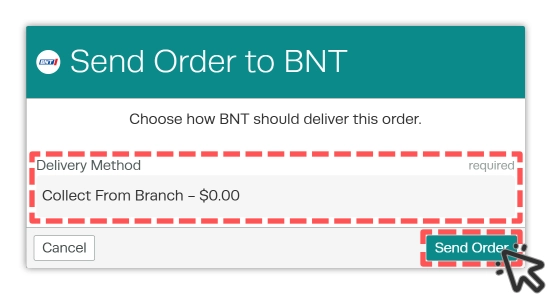
- Your order is sent to BNT Immediately and success will be confirmed with a green message followed by BNT's order number.
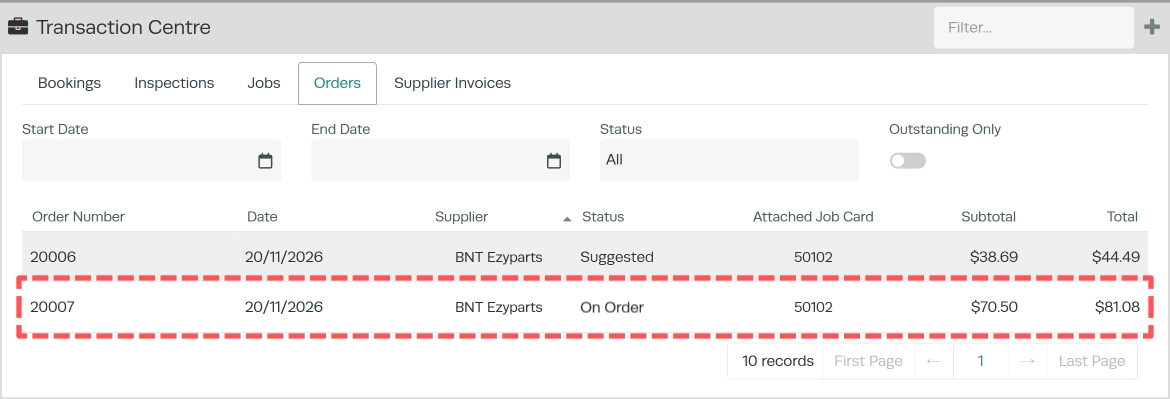
- The Stock Order's status will update to On Order, you can also find it under your Transaction Centre's Orders tab.
Ordering for Stock
You may pick parts in BNT straight from a Supplier Stock Order without starting from a Job. This is useful when you are restocking shelves.
- Create a new Stock Order or open a Suggested order for the BNT Ezyparts Supplier.
- Click the Arrow next to the + under the lines and choose Add BNT Ezyparts Items.
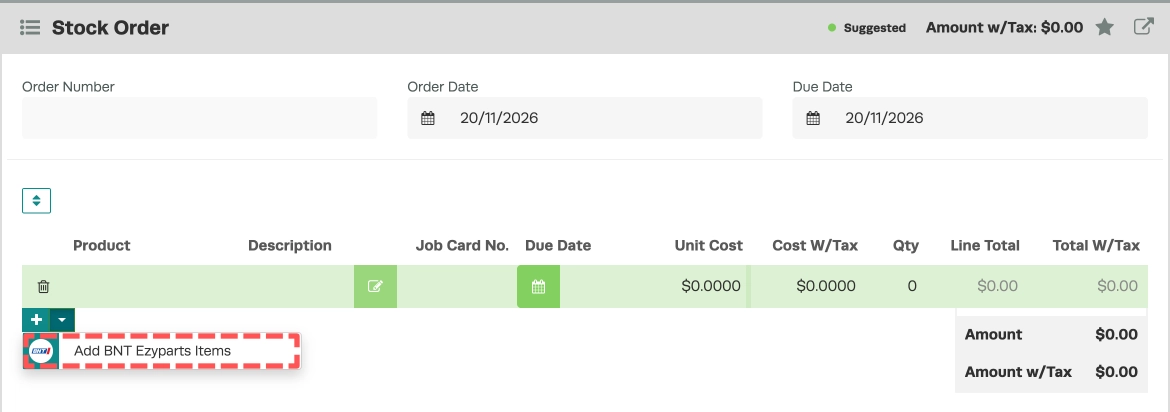
- Add the parts to your BNT cart and send the cart back to Workshop Software.
- The parts come back as order lines at BNT's trade price. A part already on the order has its quantity increased, unless the line came from a Job.
Good to Know
- Send Order to BNT only shows on an open order for the BNT Ezyparts Supplier that has not been sent yet. It disappears once the order is sent, so an order can't go to BNT twice.
- An order that has been sent, processed or voided can't take more BNT parts. Start a new order for anything extra.
- Parts from other suppliers go on their own orders, so a Job with parts from several suppliers creates one Stock Order per supplier.
Frequently Asked Questions
Why does the order say the parts did not come from BNT Ezyparts?
The order holds a part that was not brought back from BNT. Remove it, or bring it back from BNT Ezyparts first, then send again.
Why does it say BNT has not sent any delivery options?
Bring the parts back from BNT Ezyparts again, then send the order.
What if I sent the cart while someone else sent the order?
BNT says the order has already been sent and nothing is added. Start a new order for the extra parts.