Skip to content

This article describes an upcoming Workshop Software feature, we will remove this notice and change the location of this article to it's final category when the feature is released.
Integrating BNT Ezyparts with Workshop Software lets a New Zealand Workshop open BNT from inside Workshop Software, bring parts back and send orders to BNT without leaving the system. This article explains how to connect your BNT account.
Please Note: BNT Ezyparts is available to Workshops whose Company country is New Zealand. Australian Workshops use Burson Ezyparts instead.
With this integration, you can:
- Open BNT Ezyparts from a Job, Invoice, Booking or Supplier Stock Order, already signed in.
- Bring parts back to Workshop Software.
- Send your order to BNT without leaving Workshop Software.
Requirements for Integration
To integrate BNT Ezyparts with Workshop Software, you will need your:
- BNT Ezyparts email address
- BNT Ezyparts password
One login covers your whole Workshop, so it only needs to be entered once.
Step-by-Step Integration Process
Activate BNT Ezyparts
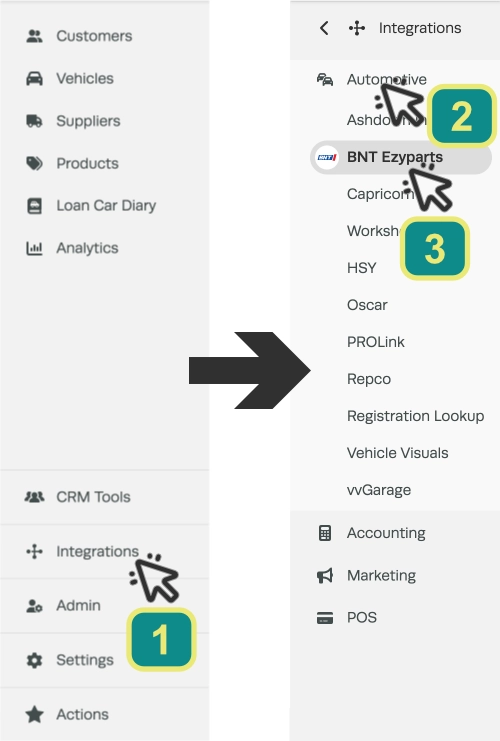
To access the BNT integration click Integrations (1), Automotive (2) then BNT Ezyparts (3) in the left hand sidebar menu.
You'll see a prompt to activate BNT Ezyparts, click the Activate BNT Ezyparts button to proceed.

Configure BNT Ezyparts
The BNT Ezyparts Settings card opens once the integration is active. To configure it you will need to choose a Workshop Software Supplier, enter your BNT login and choose how prices are updated when a BNT part is brought back.
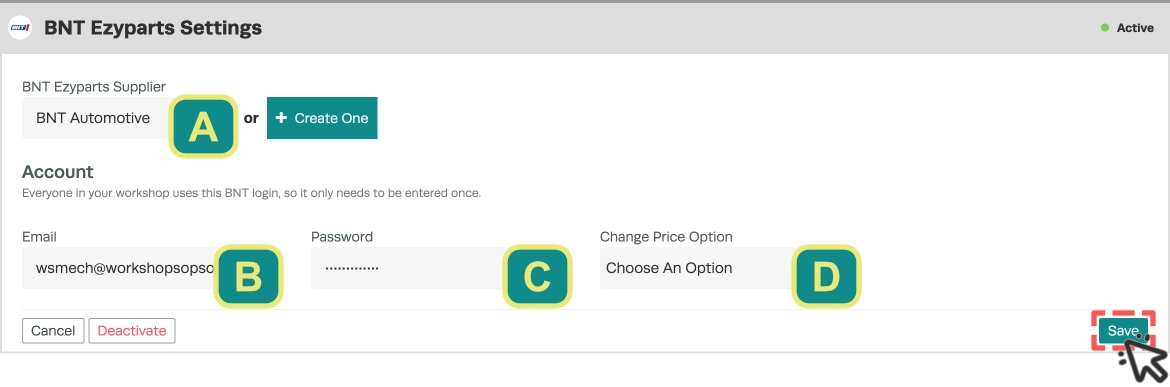
| Field | What it does |
|---|---|
| A. BNT Ezyparts Supplier | Choose an existing Supplier or add a new one from the same box. If you leave it empty, Workshop Software creates a Supplier called BNT Ezyparts the first time you bring parts back. |
| B. Email | Your BNT Ezyparts email address. |
| C. Password | Your BNT Ezyparts password. One login covers your whole Workshop, so it only needs to be entered once. |
| D. Change Price Option | Choose how a Product's Retail Price is updated when the same part comes back from BNT, see Change Price Option below. |
Change Price Option
This drop down menu (D) decides what happens to a Product's Retail Price when a part you have already brought over from the integration comes back from BNT.
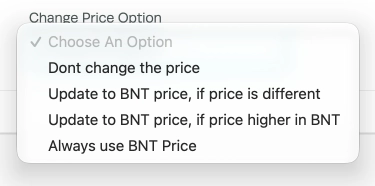
- Don't change the price: Your Retail Price stays as it is.
- Update to BNT price, if price is different: Your Retail Price changes to the BNT price whenever the two are different.
- Update to BNT price, if price higher in BNT: Your Retail Price changes only when the BNT price is higher.
- Always use BNT Price: Your Retail Price always changes to the BNT price.
Once you have entered your information click the Save button.
Your BNT integration is now active in Workshop Software. This guide explains how to Order Parts with the BNT Integration.
Good to Know
- When you open the settings again the password box is empty. Leave it blank to keep the saved password.
- Parts new to your Workshop are added to your Products list automatically, with BNT's part number, description, cost and price.
- The Change Price Option only applies to parts you bring back after you click Save. Lines already on a Job are not changed.
- Prices follow your Company's tax settings, so a Workshop that enters prices including GST gets BNT prices with GST added.
Frequently Asked Questions
Why can't I see BNT Ezyparts under Integrations?
It only shows when your Company country is New Zealand. Check your Company Profile.
Does every user need their own BNT login?
No. Everyone in your Workshop uses the login saved on the settings card.
What happens if my BNT password changes?
Opening BNT Ezyparts shows "BNT could not log you in. Please check your BNT username and password." Enter the new password on the settings card and click Save.
What if no one has entered the BNT login yet?
Opening BNT Ezyparts shows a message asking an administrator to add the Workshop's BNT username and password in the BNT Ezyparts integration settings.
Can I turn the integration off?
Yes. Click Deactivate on the settings card. Parts and orders already in Workshop Software stay as they are.
I used Burson Ezyparts in New Zealand. Where has it gone?
Burson Ezyparts is now for Australian Workshops only. BNT Ezyparts is how New Zealand Workshops order from Burson's New Zealand business.