Skip to content

This article describes an upcoming Workshop Software feature, we will remove this notice and change the location of this article to it's final category when the feature is released.
This article explains how to put your Workshop Software booking link on your Google Business Profile, so customers who find you on Google Search or Google Maps can request a booking with you straight from your listing.
A booking link on your Google Business Profile is free and easy to configure. Bookings made through this link are tagged as Google sourced in your Booking Requests.
Please note: The Connect Google Book Now panel is on the Public Booking screen, which is available for Gold or Platinum subscribers. You also need a Google Business Profile for your workshop.
Copying Your Google Booking Link
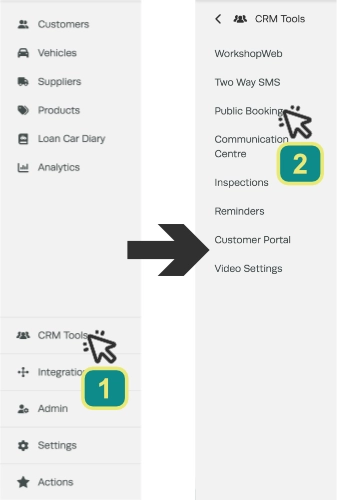
- Click CRM Tools (1) in the left hand sidebar menu, then Public Booking (2).
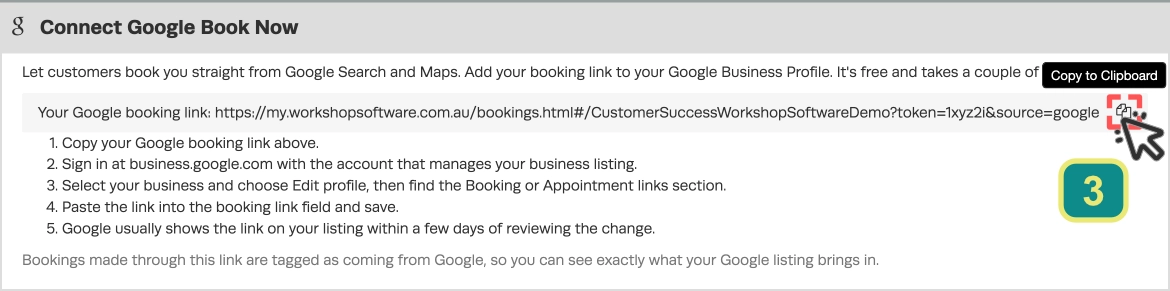
- In the Connect Google Book Now card click the link icon next to Your Google booking link (3) to copy the URL.
- Be sure to copy this specific link rather than typing your own or pasting the Your public URL or requests are not tagged as from Google.
Adding the Link to Google
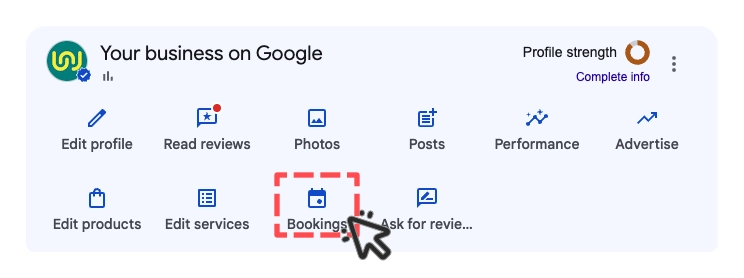
- Sign in at business.google.com with the account that manages your business listing, select your business, choose Edit profile, then find the Bookings or Appointment links section.
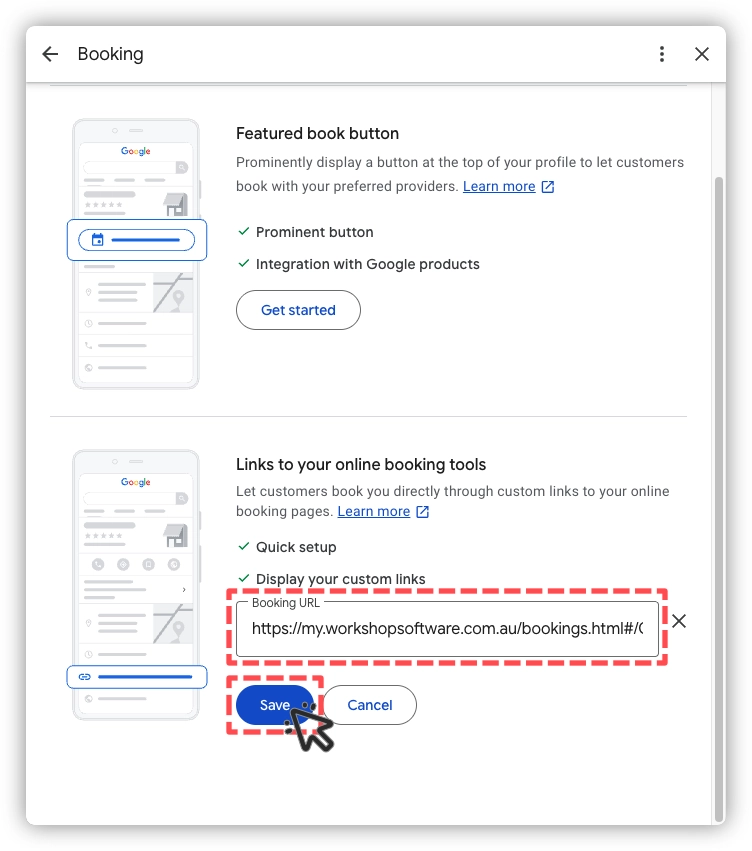
- Paste the link into the Online Booking Tools link field and save. Google shows it within a few days, on a verified Business Profile only.
Approving Requests From Google
Your customer clicks the booking button on your Google listing and your booking page opens. They send a request the same way as from your website.
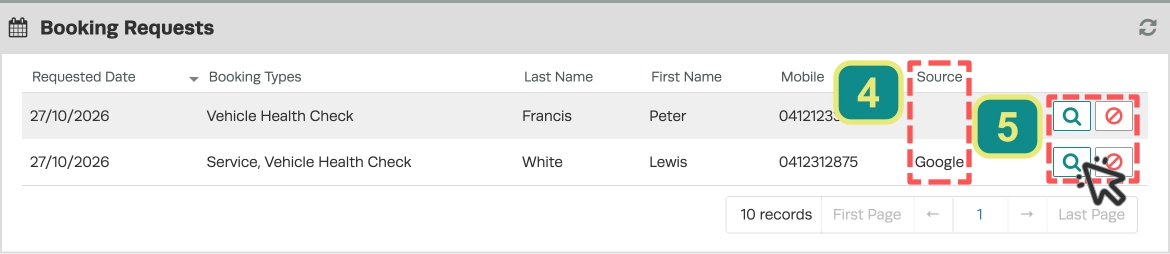
- Click the Booking Requests banner on your Dashboard or Booking Diary to open the Booking Requests card. The Source column (4) reads Google for requests made through your Google booking link and is blank otherwise.
- Click the magnifying glass icon (5) to open a request, then approve it as you would any other request.
Good to Know
- Adding a booking link to your Google Business Profile is free.
- The Google tag stays on the approved booking for reporting. It is not shown on the Booking Diary.
- Requests from your website, Facebook page or any other link show a blank Source.
- Use Your public URL everywhere except Google, so your Google figures stay accurate.
Frequently Asked Questions
Why can't I see the Connect Google Book Now box?
The Public Booking screen, including the Connect Google Book Now panel, is available on Gold and Platinum subscriptions only.
My requests from Google show a blank Source. Why?
The link in Google was most likely typed by hand or copied from Your public URL. Copy Your Google booking link again from the Connect Google Book Now box and replace the link in your Google Business Profile.
A request shows nothing in the Source column. Is that a problem?
No. Only requests made through your Google booking link are tagged. Requests from your website link, a reminder link or the Customer Portal show a blank Source.
Can I put my Google booking link on my website as well?
You can, but every request made through it is marked Google. Use Your public URL on your website so you can tell the two apart.
Do my customers need a new link?
No. Your public URL has not changed. Only the Google booking link carries the extra ending that tags a request as from Google.
Will my customer see a different booking page from Google?
No. They see the same booking page as customers using your website link.