 Skip to content
In Workshop Software's Analytics tool users may run a number of reports that will provide visibility on Customer Deposits made against Quotes and Invoices.
Reports are able to provide;
- A list of all Deposits currently open, that is where a deposit is attached to a Quote or an Unprocessed Invoice.
- A list of Payments and Deposits logged in Workshop Software during a defined period of time.
- For Xero users a list of Deposits which have been refunded in Workshop Software but not manually Voided in Xero. Xero's API cannot void a deposit transaction so users must manually correct their Xero records for any refunded Deposits.
All reports may be generated in the Analytics menu.
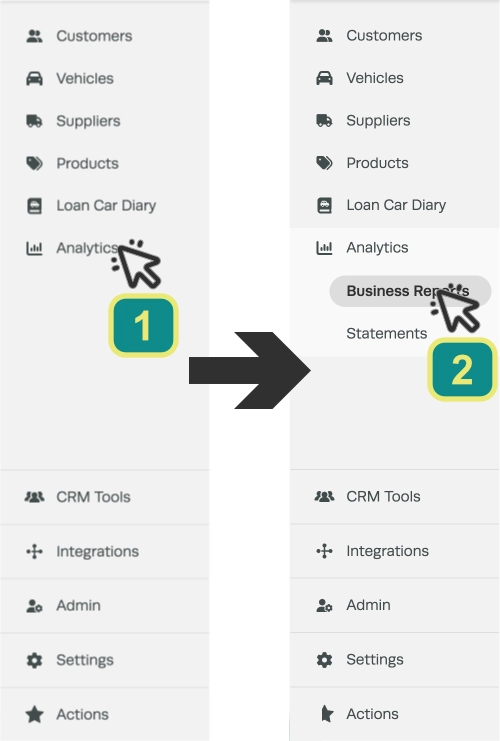
- To access the Reports screen click on Analytics (1) from the menu options on the left hand sidebar menu and then click Business Reports (2).
Customer Open Deposits Report
The Customer Open Deposits Report will give you a list of all Deposits taken on invoices that are still open, once the invoice has been processed or finalised the Deposit will then show as a Customer Payment.
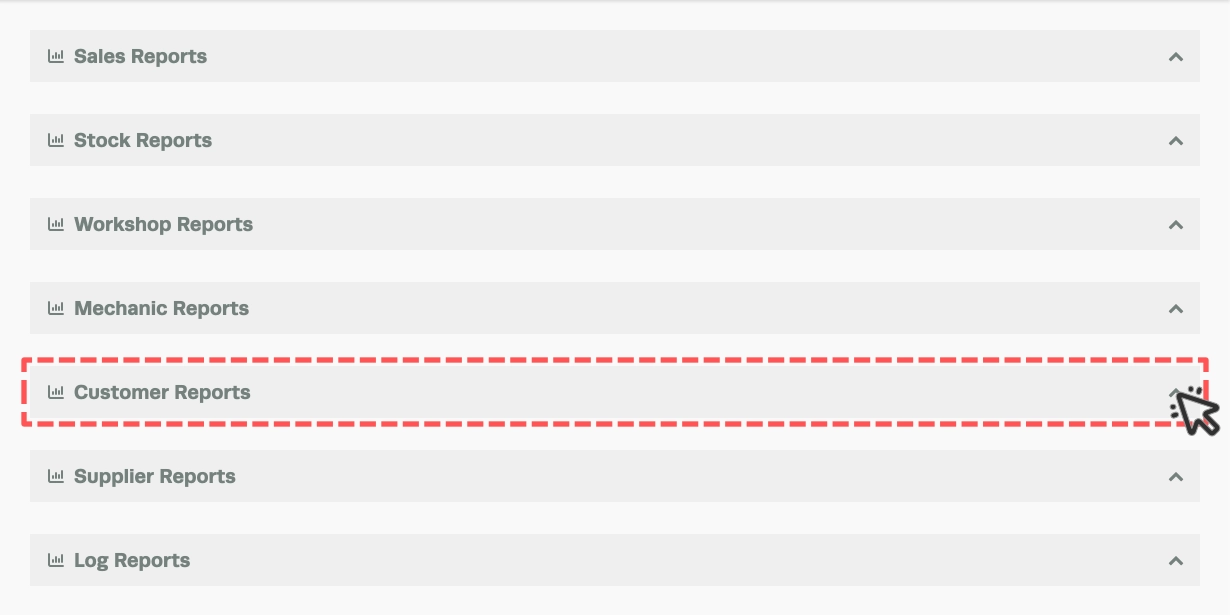
- Click on the arrow icon to the far right of the Customer Reports bar to expand the card.
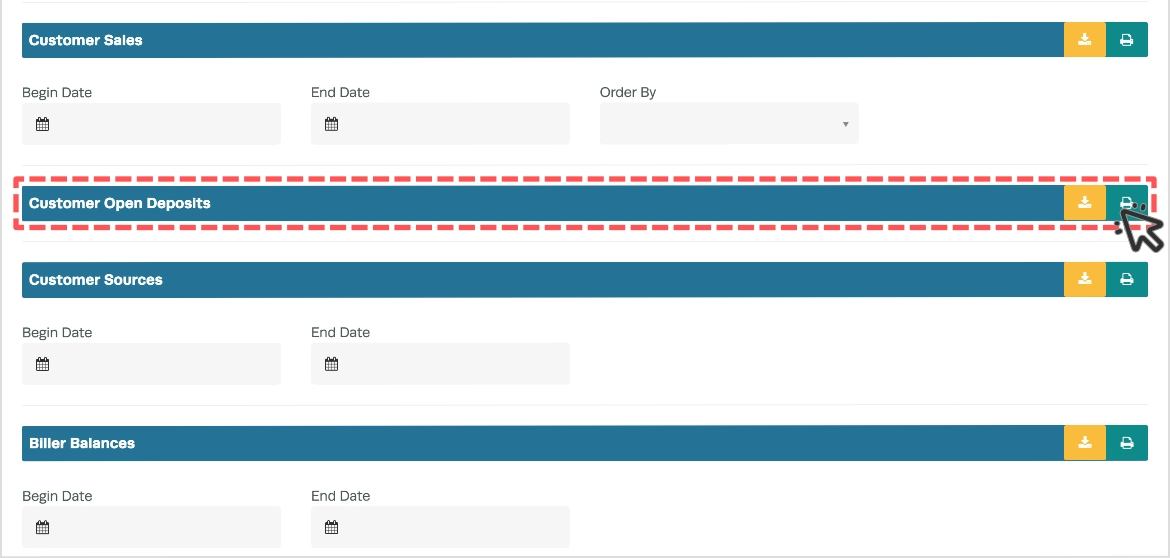
- In the Customer Open Deposits bar click on the green Printer button to generate the report in a new tab, from there it may be printed or saved.
- The report lists every open Deposit, the associated Invoice or Quote, Customer, Payment Method, Deposit Amount and the current total value of the document.

Payment Reconciliation
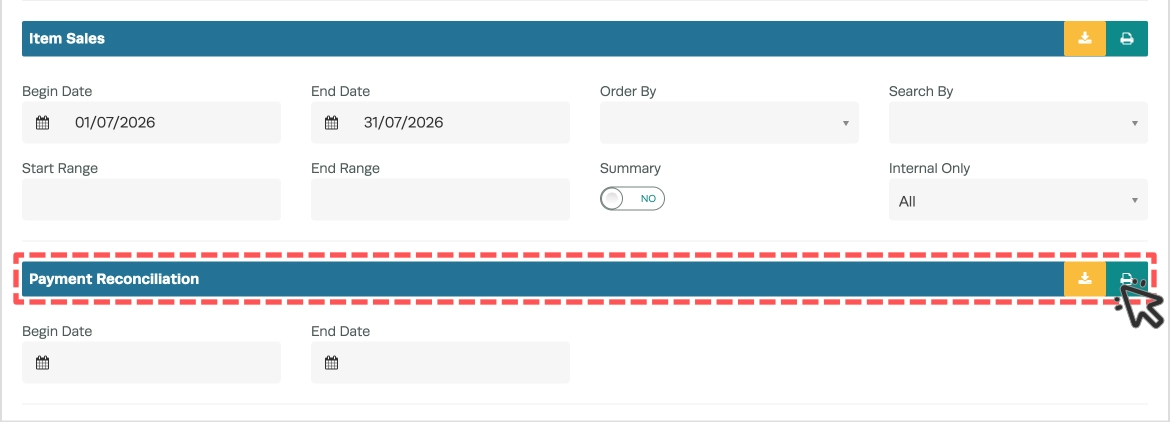
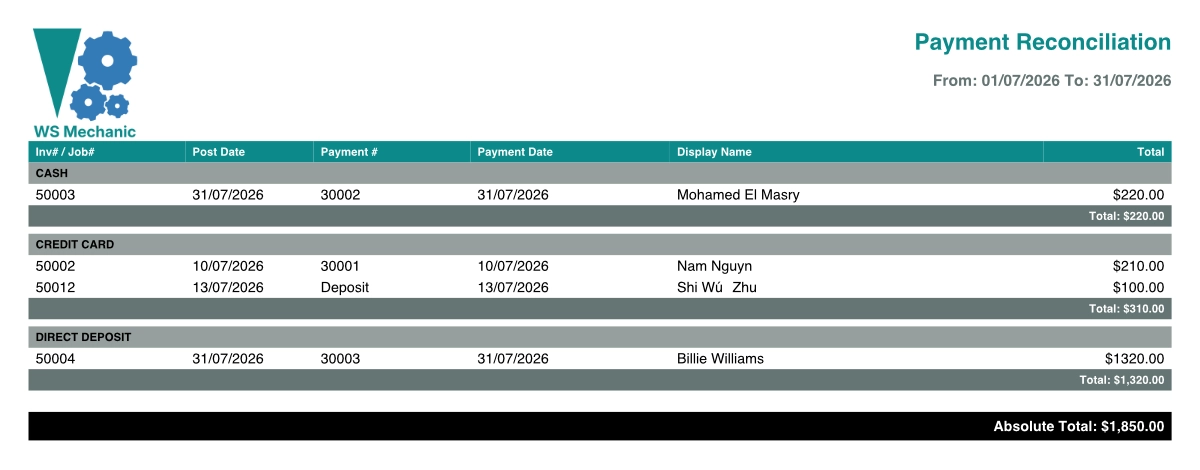
The Payment Reconciliation report provide a list of Payment and Deposit transactions, organised by Payment Method during a chosen date range.
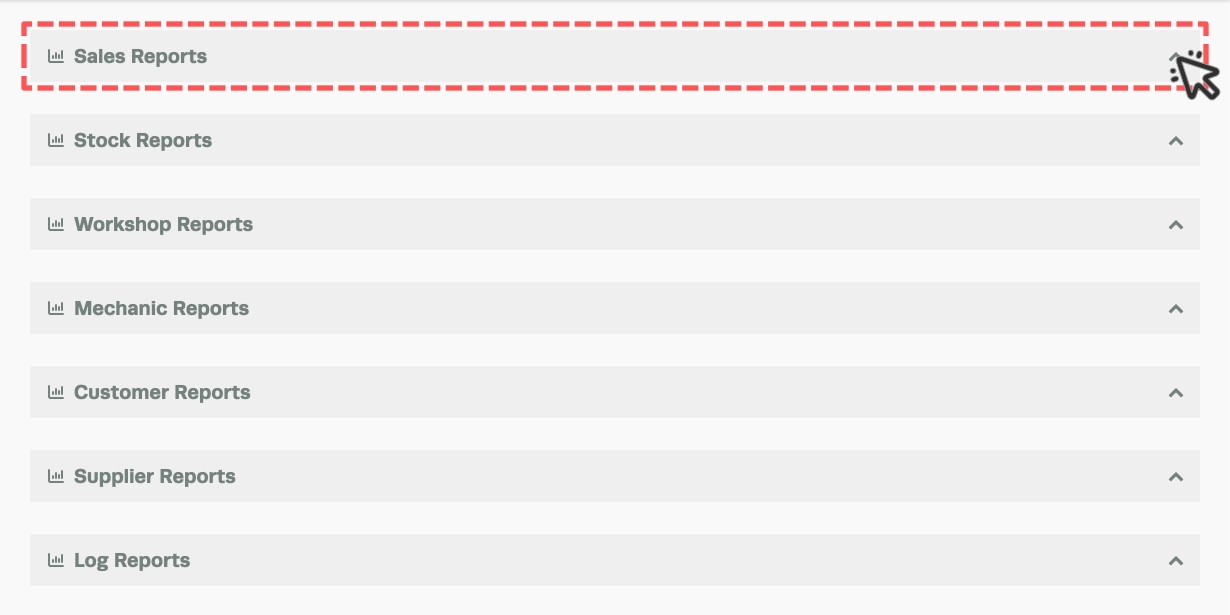
- Click on the arrow icon to the far right of the Sales Reports bar to expand the card.
- In the Payment Reconciliation bar choose a Begin Date and End Date, the report will contain transactions posted between these dates.
- Click on the green Printer button to generate the report in a new tab, from there it may be printed or saved.
- The report lists every Invoice number, the payments value, the associated Customer, post date and payment dates for each transaction organised by Payment Method.
Xero Deposit Cleanup
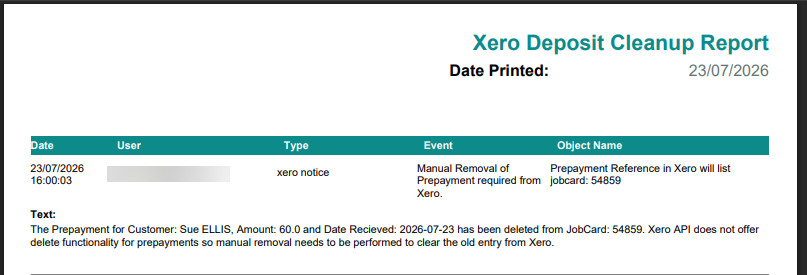
For users who have connected Workshop Software's Xero Integration an additional report is available which lists any Refunded Deposits. To learn how Deposits sync with Xero please read this article.
Xero's API used for this integration does not allow a connected Software Package to send a Void instruction to Xero. You will need to manually locate Deposit transactions that have been refunded and void them in Xero.
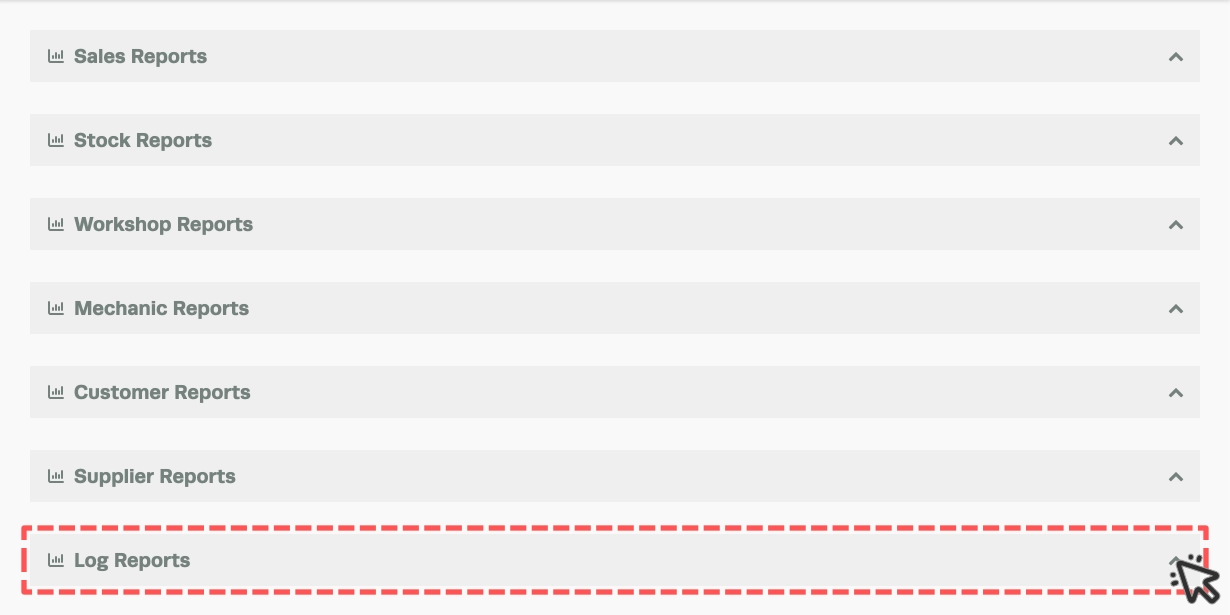
- Click on the arrow icon to the far right of the Customer Reports bar to expand the card.
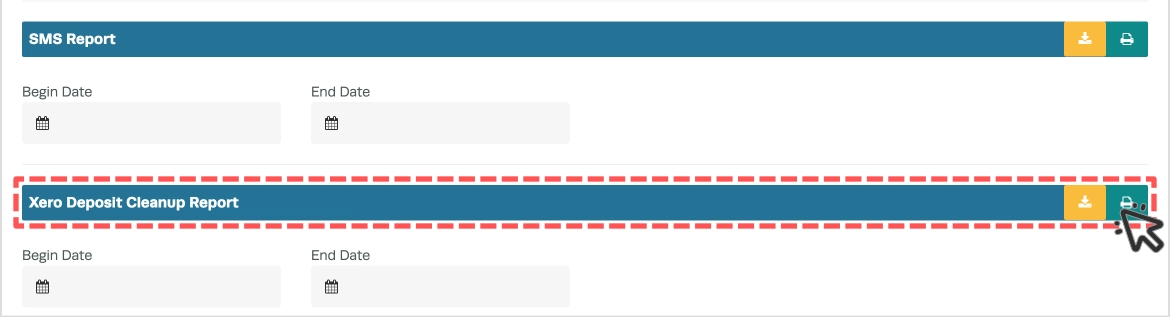
- In the Xero Deposit Cleanup Report bar choose a Begin Date and End Date, the report will contain transactions posted between these dates.
- Click on the green Printer button to generate the report in a new tab, from there it may be printed or saved.
- The Deposit Cleanup Report lists the contact, document number and creation date for each transaction.
Frequently Asked Questions
Can I filter the Customer Open Deposits Report by date range?
No. As Open Deposits are a Current Liability for your business they are most commonly reviewed in total. Each Deposit line in the report includes the date it was created.
Related Articles
- How to Run a Customer Balances Report
- How Customer Deposits Sync to Xero
- How to Take Refund and Delete a Customer Deposit
