
Customer Deposits make it easy to collect money from your customers before work begins while keeping your accounting records accurate.
When you take a deposit in Workshop Software, it's automatically linked to the customer's invoice. Once the job is invoiced, the deposit is applied automatically in Xero, eliminating the need to manually process additional payments or reconcile separate transactions.
This article explains how Customer Deposits flow from Workshop Software into Xero, including:
- What records are created in Xero
- The required chart-of-accounts setup
- How deposits behave when invoices are processed
- What happens when deposits are refunded
- The important manual cleanup step required in Xero after refunded deposits
Understanding how deposits sync helps ensure your workshop accounting records remain accurate and easy to reconcile.
PLEASE NOTE
Customer deposit sync works with the Xero AU/NZ integration. If you are in the UK, Canada, or USA,
contact support@workshopsoftware.com to confirm specifics for your region's Xero version.
How Customer Deposits Work
When a customer pays a deposit in Workshop Software, the deposit is synced to Xero as a Prepayment.
In Xero, this is created as a Receive Prepayment bank transaction, which acts as a credit on the customer's account until an invoice is created.
The prepayment includes:
- Reference:
Deposit Method: <payment method>- Example:
Deposit Method: Cash - Example:
Deposit Method:Workshop Pay_terminal
- Example:
- Description:
Prepayment for JobCard: <Job Card Number> - Account: Your configured Unapplied Customer Payments account (Liability)
- Bank Account: Your configured Customer Payment Bank Account
When the Job Card is processed in Workshop Software, the prepayment is automatically allocated against the the new invoice in Xero.
The result is:
- The invoice balance is reduced by the deposit amount.
- The prepayment is marked as Paid in Xero.
Setting Up the Customer Deposit Account in Xero
Before you can use Customer Deposits with the Xero integration, you'll need to create a dedicated Customer Deposit account in your Xero Chart of Accounts.
Step 1 - Create the Customer Deposit Account in Xero
- Log in to Xero.
- Navigate to Accounting → Chart of Accounts.
- Create a new account.
Configure the account as follows:
- Account Type: Current Liability
- Code: Enter an available account code (if you're unsure which code to use, speak with your accountant or bookkeeper).
- Name/Description: For example, Customer Deposits or Customer Prepayments.
- Enable payments to this account: Tick this option.
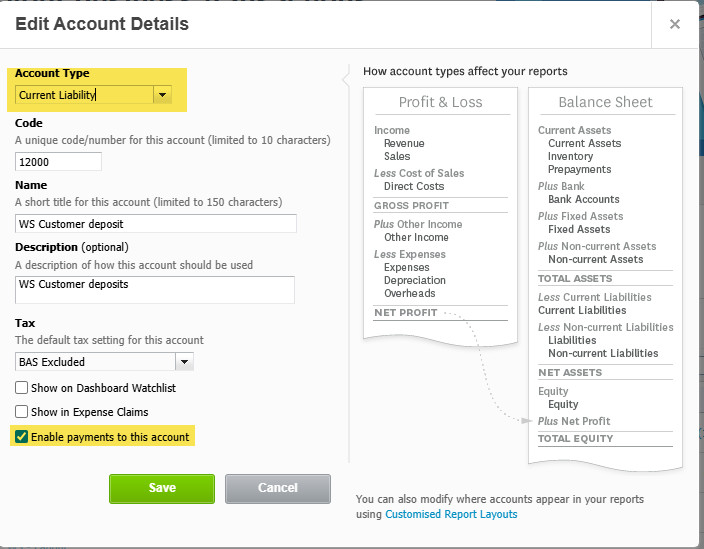
Why does this need to be a Current Liability?
Customer deposits represent money you've received for work that hasn't yet been completed or invoiced. Until the sale is finalised, those funds are considered money you owe to the customer, so they should be recorded as a Current Liability rather than income.
Step 2 - Select the Account in Workshop Software
Once you've created the account in Xero:
- Log in to Workshop Software.
- Navigate to Settings → Integrations → Accounting → Xero.
- Locate the Customer Deposit Account setting.
- Select the Customer Deposit account you created in Xero.
- Click Save in the bottom-right corner.
Your Customer Deposit account is now configured and ready to use.
3. WorkshopPay Surcharge Account (Optional)
Required only if you accept terminal payments with surcharges.
Account Type: Income
Any payment surcharge collected from customers is posted to this account.
Xero requires surcharge invoice lines to be mapped to an Income account.
Once these accounts exist in Xero, go to Integrations > Accounting > Xero > Account Setup in Workshop
Software and select each one from the dropdowns.
What Happens When a Customer Pays a Deposit?
When you record a customer deposit in Workshop Software:
- The deposit is automatically synced to Xero as a Prepayment.
- The payment appears against the customer in Xero, showing the payment reference and amount.

- The transaction is posted to your Customer Deposit (Current Liability) account.
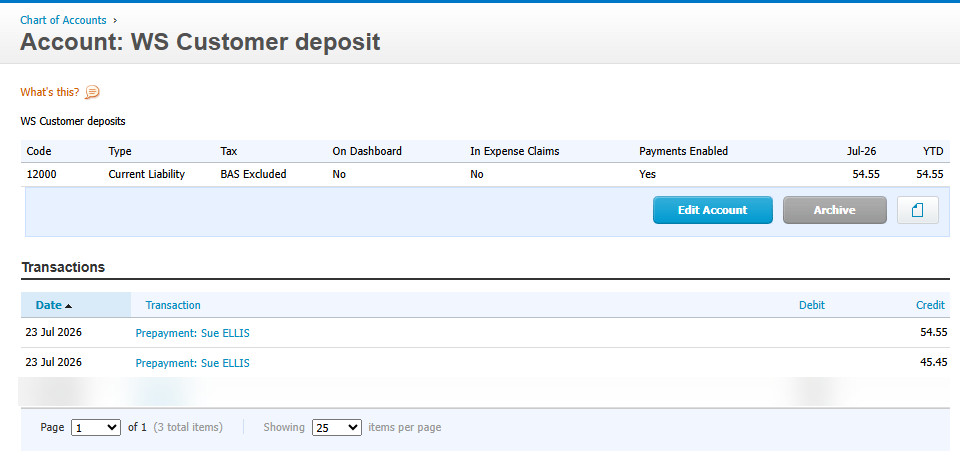
- Because the payment has been synced to Xero, you can reconcile it against your bank feed as part of your normal reconciliation process.
What Happens When the Invoice is Created?
When the Job Card is processed and the invoice is created in Workshop Software:
- The prepayment is automatically applied to the customer's invoice in Xero.
- Any reconciled customer deposits are allocated against the invoice.
- The invoice balance is reduced by the value of the deposit.
- Only the remaining balance (if any) is left outstanding for payment.
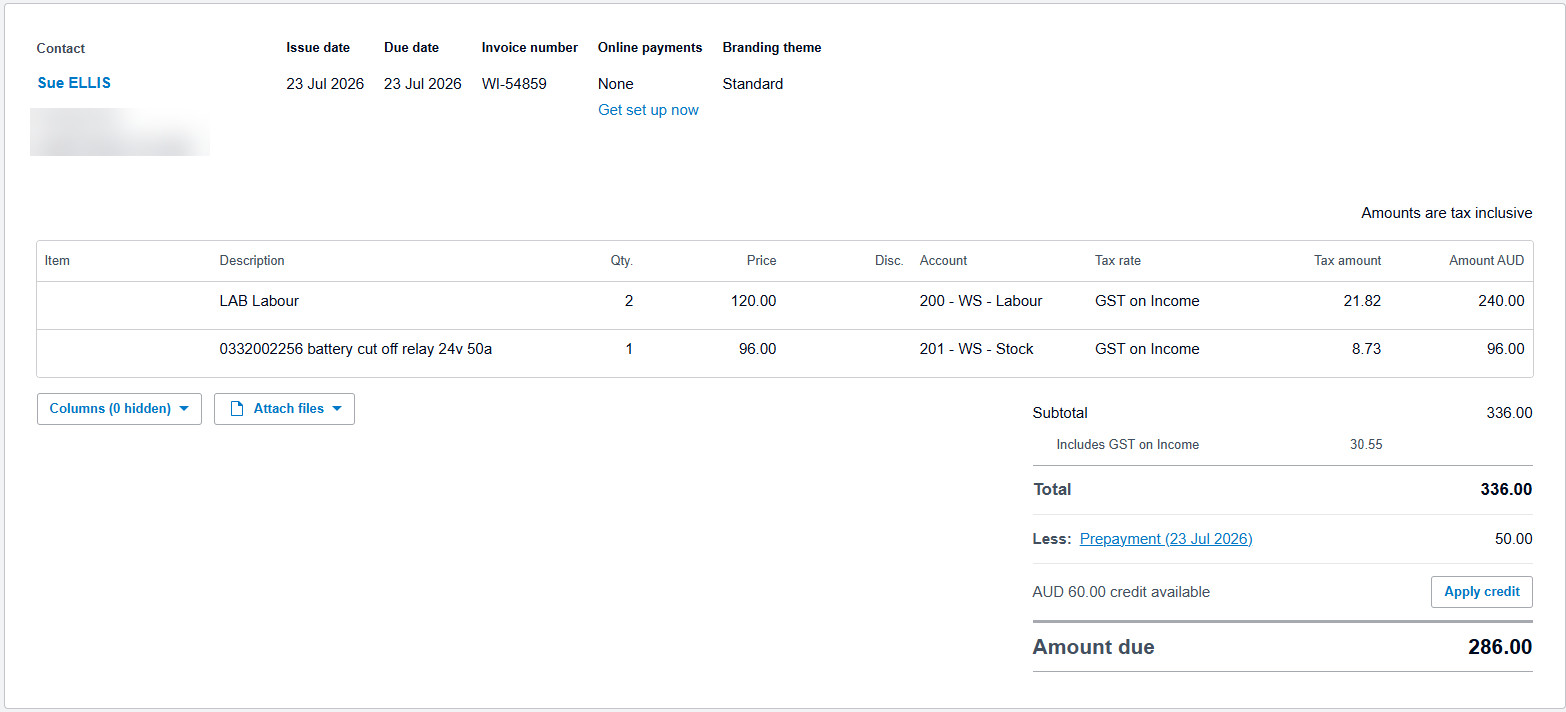
This automatic allocation eliminates the need to manually apply customer deposits or process additional payment transactions in Xero.
Important: manual cleanup required when refunding deposits in Xero
As a result, you'll need to manually void the prepayment in Xero.
Workshop Software will notify you
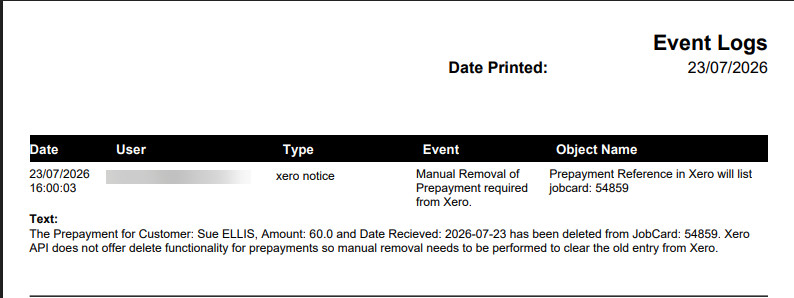
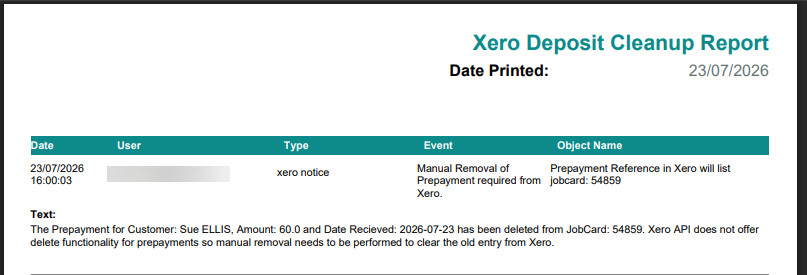
Whenever a refunded deposit requires manual action, an Event Log entry is created.
Event Type
Xero Notice
Event
Manual Removal of Prepayment required from Xero
The event includes:
- Customer name
- Deposit amount
- Deposit date
- Job Card number
This notification is informational and simply lets you know that a manual step is required in Xero.
Removing Refunded Customer Deposits from Xero
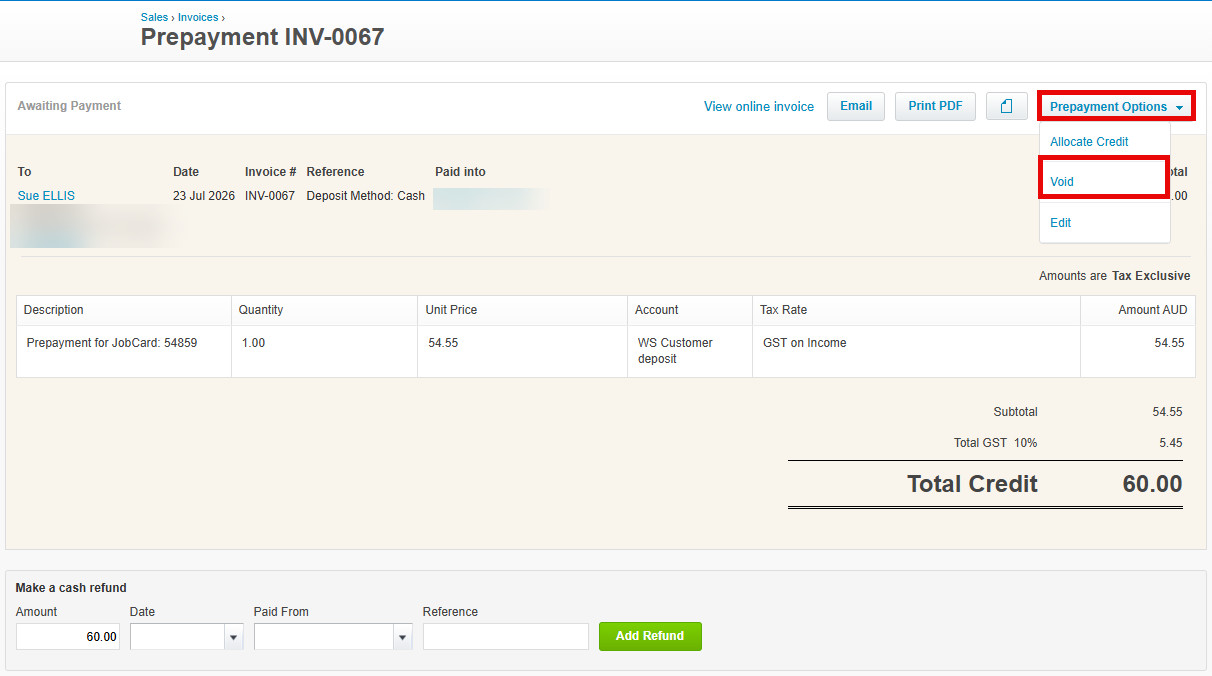
If a customer deposit has been refunded in Workshop Software, you'll need to manually void the corresponding prepayment in Xero.
Follow these steps:
- In Workshop Software, navigate to Analytics > Reports → Business Reports → Xero Cleanup Report.
- Review the report to see any deposits that require manual removal from Xero. The report includes the customer name, deposit amount, deposit date, and the original Job Card number to help you locate the correct transaction.
- Log in to Xero and locate the matching prepayment.
- Open the prepayment, click Prepayment Options, and select Void.
Once the prepayment has been voided in Xero, the required cleanup is complete. The entry will remain in the Xero Cleanup Report as a historical record, but no further action is required.
GOOD TO KNOW
- The "Manual Removal" event log notice is the canonical Workshop Software behaviour for
refunded Xero prepayments - it's not an error. It's a heads-up that Xero's API limitation requires a
manual step. - Xero treats prepayments as a special type of credit note. The URL in Xero's UI for a prepayment
is ViewCreditNote.aspx, but the underlying record is a Bank Transaction with
Type=RECEIVE-PREPAYMENT. Workshop Software stores Xero's record ID in the xero_id
column on the deposit. - If you accidentally delete a prepayment in Xero before voiding it via Workshop Software, the next
sync may produce a "Cannot find Xero record" event log entry - contact support if this happens. - The Xero Cleanup Report is a passive helper - Workshop Software doesn't automatically void
prepayments in Xero because doing so requires user authentication that the integration doesn't
have.
Frequently Asked Questions
Why doesn't Workshop Software just delete the prepayment automatically?
Xero's public API does not expose a DELETE or VOID operation for prepayments - we tested all three
relevant endpoints (/Prepayments, /CreditNotes, /BankTransactions) and Xero rejects each. The only way
to remove a prepayment is via the Xero web UI.
Can I configure a different bank account per terminal?
Not currently. The single Customer Payment Bank Account configured in Workshop Software's Xero
settings is used for every deposit upload.
What if my Xero trial account expires while I'm running tests?
You'll need to reconnect to a fresh trial. After reconnecting, verify the three accounts (Bank, Liability,
Income) exist in the new chart of accounts - sandbox/trial chart of accounts is fresh on each setup.
