 Skip to content
This article explains how to turn on and manage push notifications in the Workshop Software mobile app so you are alerted on your phone when something needs attention like a new booking request, a job assigned to you or that a customer has payed through a WorkshopPay payment link.

Please note: You need the latest version of the Workshop Software app (version 10.1.0 or later). If you haven't updated recently, update the app from the App Store or Google Play first.
Turning Notifications On
- After updating, open the app. You will see a What's New screen, tap Continue (1) to reach the Turn on notifications screen, tap the Allow button (2) and then Allow (3) notifications in your phone's request.
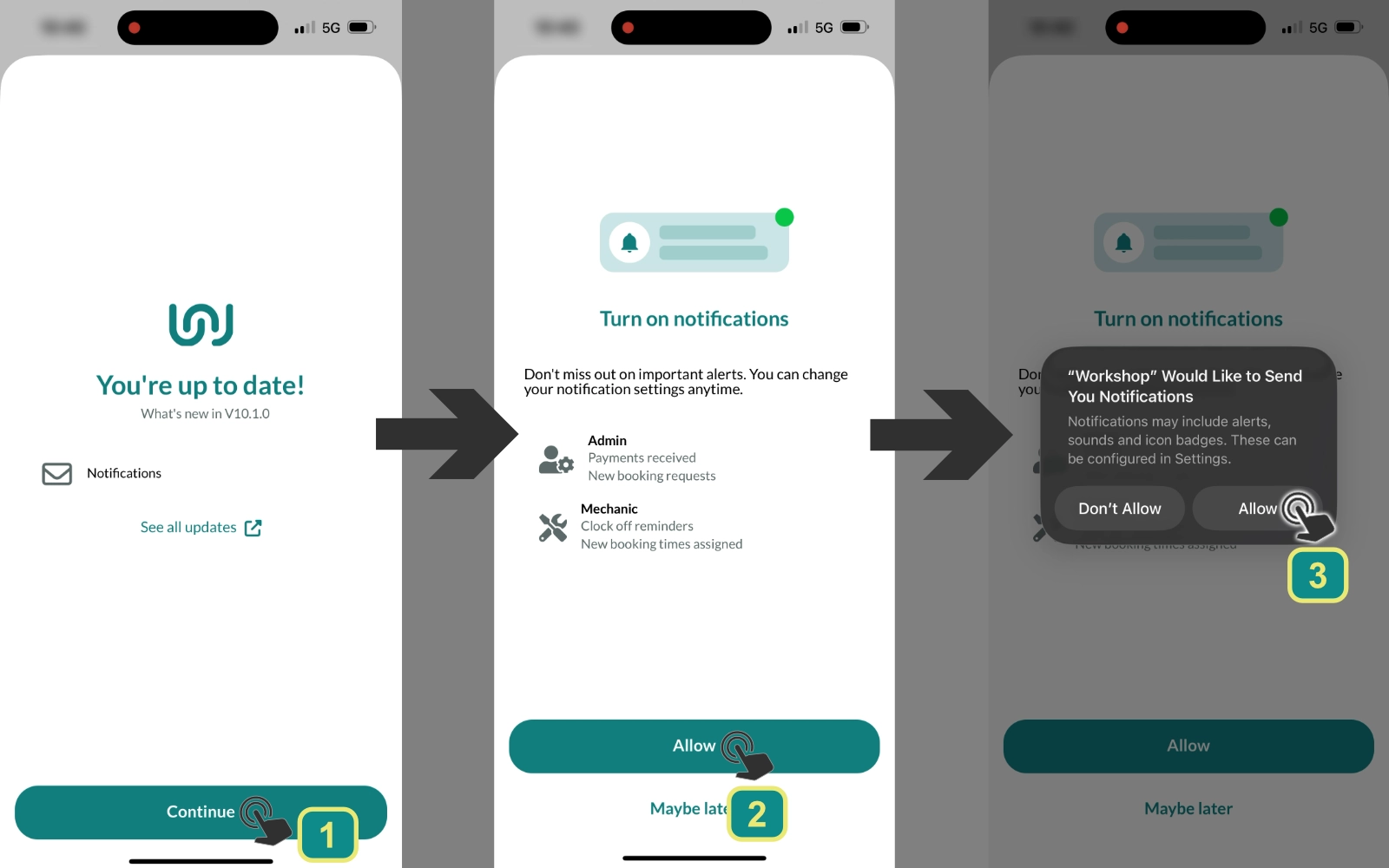
If you tapped Maybe later, you can still turn notifications on any time from the settings screen explained below.
Managing your notifications
Before notifications are received they must be enabled for the mobile user's account by a system Admin and users must select the types they would like to accept.
Users may choose the notifications they wish to receive or turn off all notifications in the More tab of the Mobile App.
- Tap the three line More icon (4) at the bottom of the app, then tap Notifications (5).
- Turn Enable Notifications (6) on. This is the master switch - while it's off, you receive nothing.
- Switch the individual notifications underneath on or off to suit your needs.
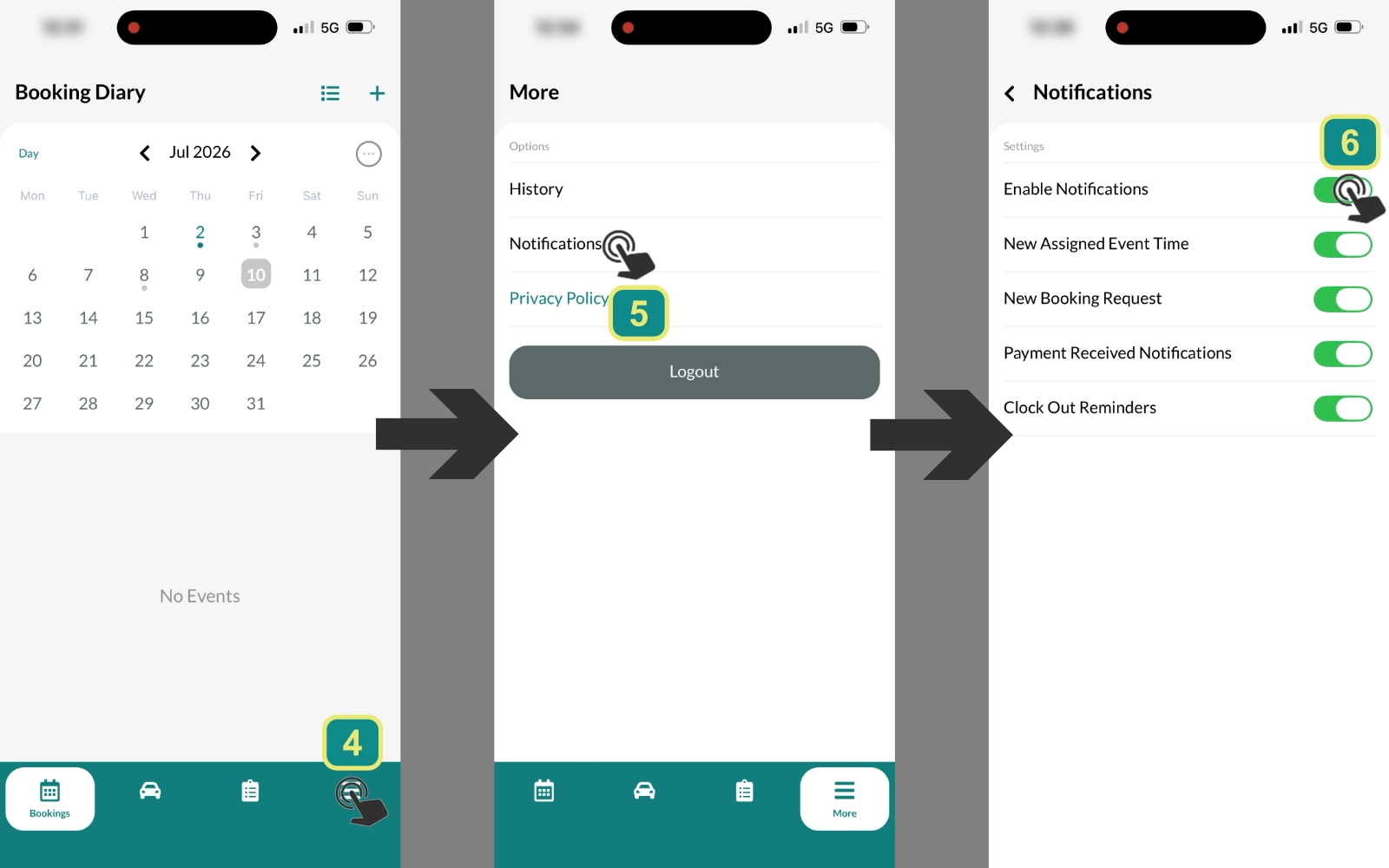
Please note: If there are no notifications listed to switch on, they haven't been enabled for your login yet. Your workshop admin enables these in the web app under Admin > Users - see Choose Which Mobile Notifications Your Team Receives.
Notification Types
New Assigned Event Time: An event time has been assigned to you inside a booking, split bookings will notify for each split.
New Booking Request: A customer has requested a booked time online.
Payment Received Notifications: An online payment has been received (shown with the title WPAY).
Clock Out Reminders: Received when you are still clocked in to a job at closing time, this option will only appear if your user account is a Mechanic account.
Please Note: Users will also receive critical messages from Workshop Software if notifications are enabled, these are occasional important system messages.
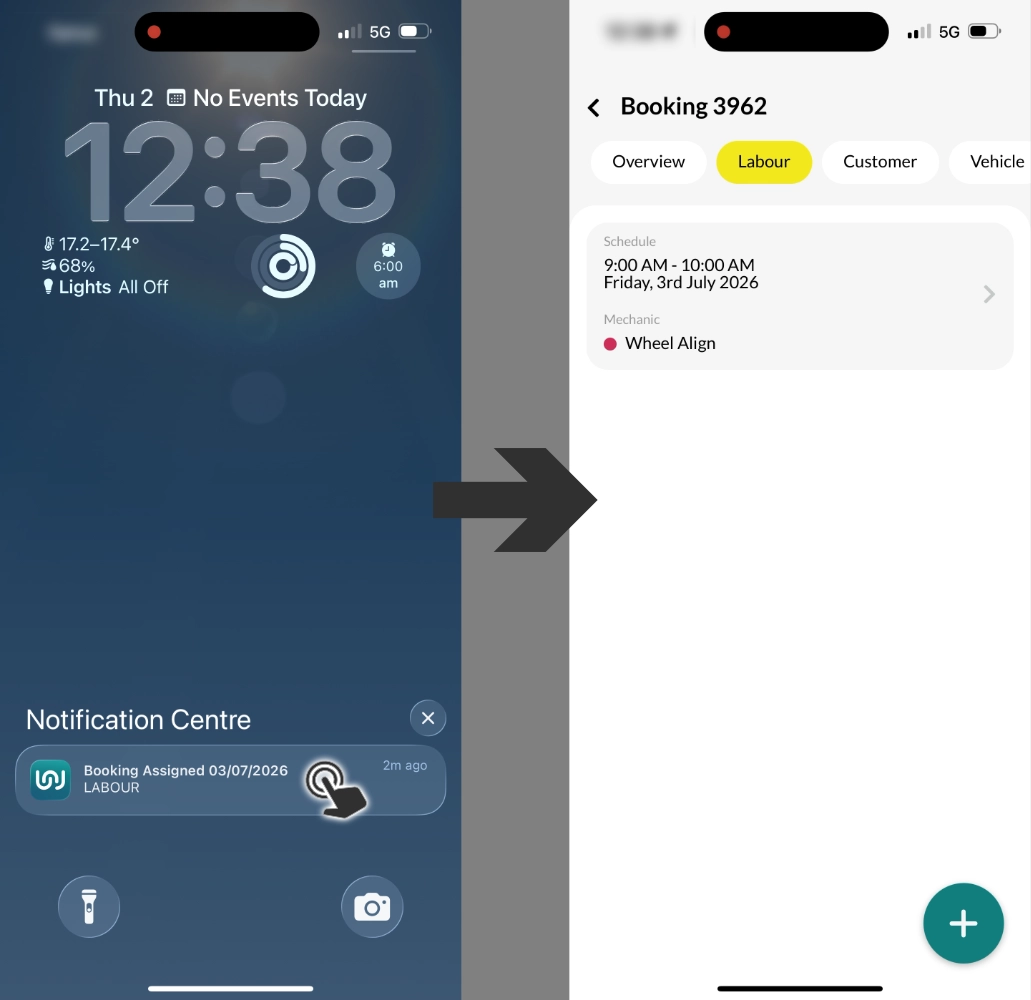
Tap any notification to open the app on the screen it relates to, such as the job card or the booking.
Good to Know
- Notifications appear even while you have the app open.
- When you log out, notifications stop. If a message is sent while you're logged out, you won't receive it later - log back in to start getting new notifications again.
- Notifications arrive silently. Your phone lists them in its notification centre and adds a number badge to the app icon.
- On some phones a long message is shortened in the notification list, tap it, or open the app, to read it in full.
Frequently Asked Questions
I turned notifications on but I'm not getting any, why?
First open More > Notifications and check that Enable Notifications is on and the toggle for that notification is on.
If there is nothing listed to switch on, ask your workshop admin to enable notifications for your login under Admin > Users on the web app.
Finally check if your phone's Do Not Disturb mode is enabled and notification settings in its system settings allow the Workshop app to display notifications.
Why didn't I get a notification that was sent earlier?
Notifications are only delivered while you are logged in to the app. If you were logged out when one was sent it will not be displayed. You will receive new notifications from the time after you log in.
Can I receive notifications on more than one phone?
Notifications go to the phone you're currently logged in on. If you log in on a different phone, notifications move to that device.
Do notifications make a sound?
No - they arrive silently and appear in your phone's notification centre with a badge on the app icon. You can change sound and banner behaviour in your phone's own settings for the Workshop app.
Why is part of my notification missing?
Longer messages may be trimmed in your phone's notification list. Tap the notification or open the app to read the full message.
