Skip to content
The GSF Car Parts integration lets you order parts directly from a booking or invoice, and adds the products you bring across to your product list. This article shows you how to connect your GSF account and place your first order.
The GSF and Workshop Software integration allows you to order parts straight from your customer bookings and invoices!
All products brought over from GSF will be added to your product list in Workshop Software which makes ordering a whole lot easier. To get started you will need an account with GSF to complete the integration.
First go to Integrations > Automotive Integrations and select GSF Settings.
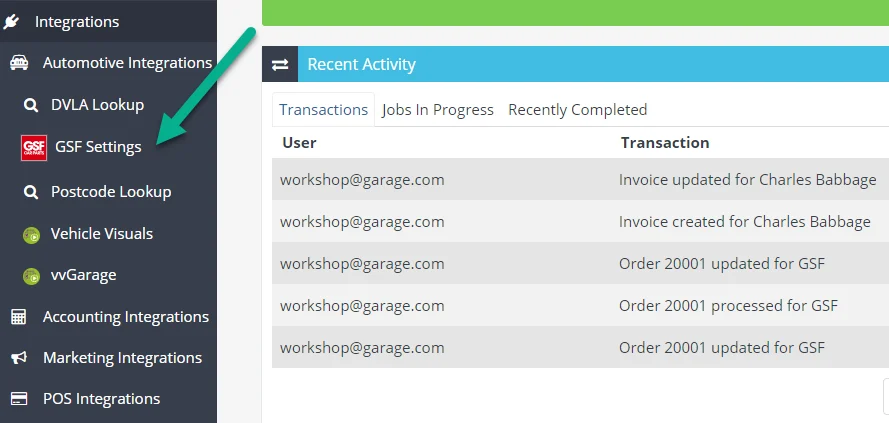
Next enter your Customer ID, Account Number and select your GSF Supplier. If you need to create a supplier please refer to this guide.

Now you are ready to start ordering. Create a booking or an invoice and assign a customer and vehicle. You will see the GSF logo at the bottom of your line items.
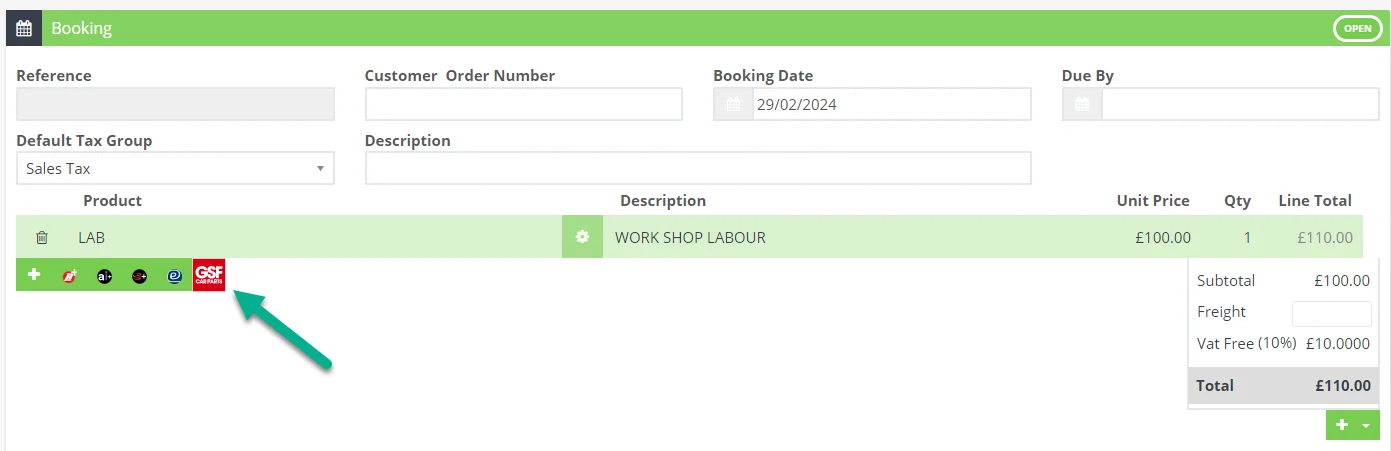
Select this button and you will be taken through to the GSF portal. From here you can add products to your basket.
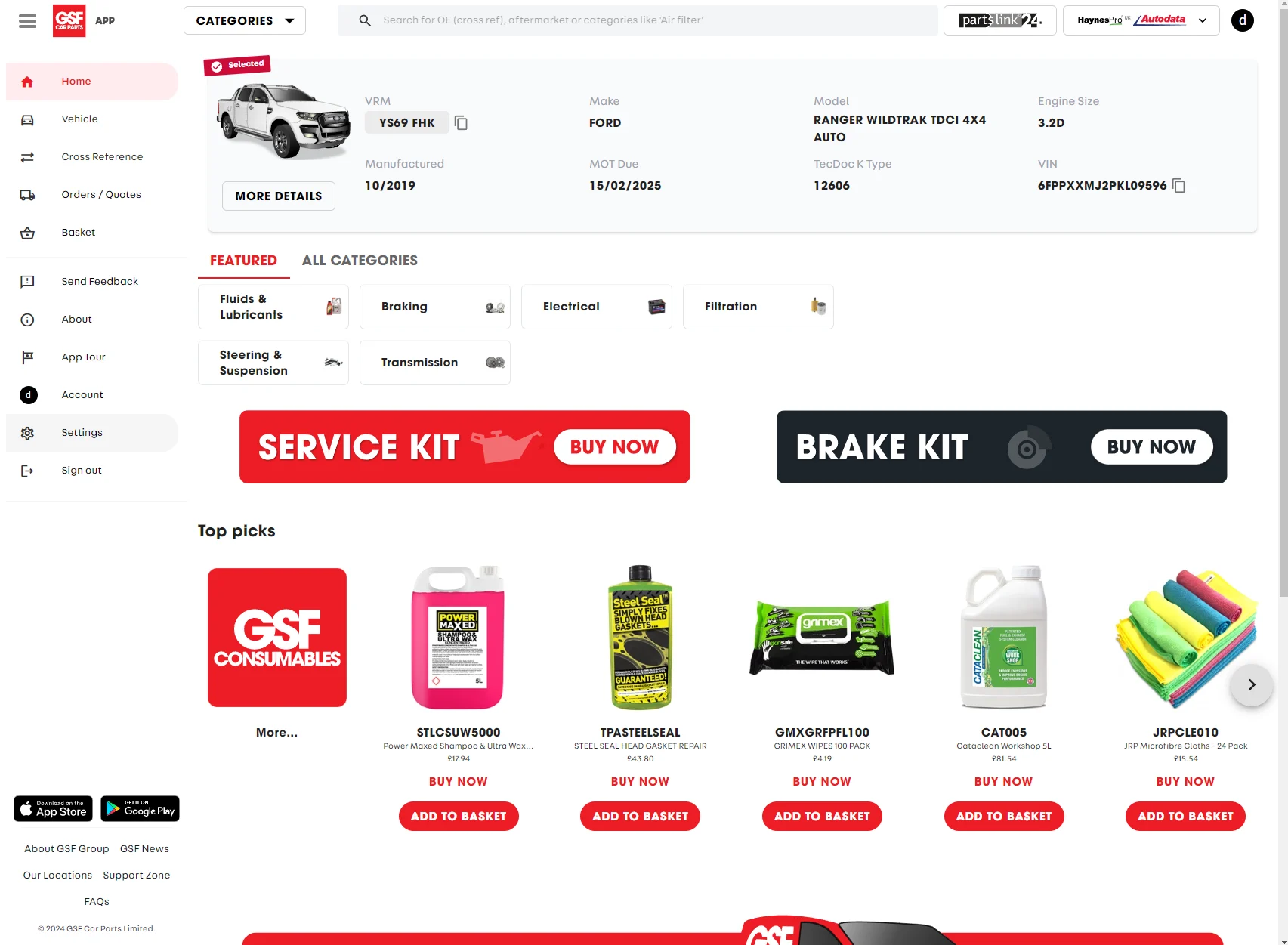
When you are ready to send these products back to your booking/invoice select the "Send Quote to Workshop" button that can be found in the basket.
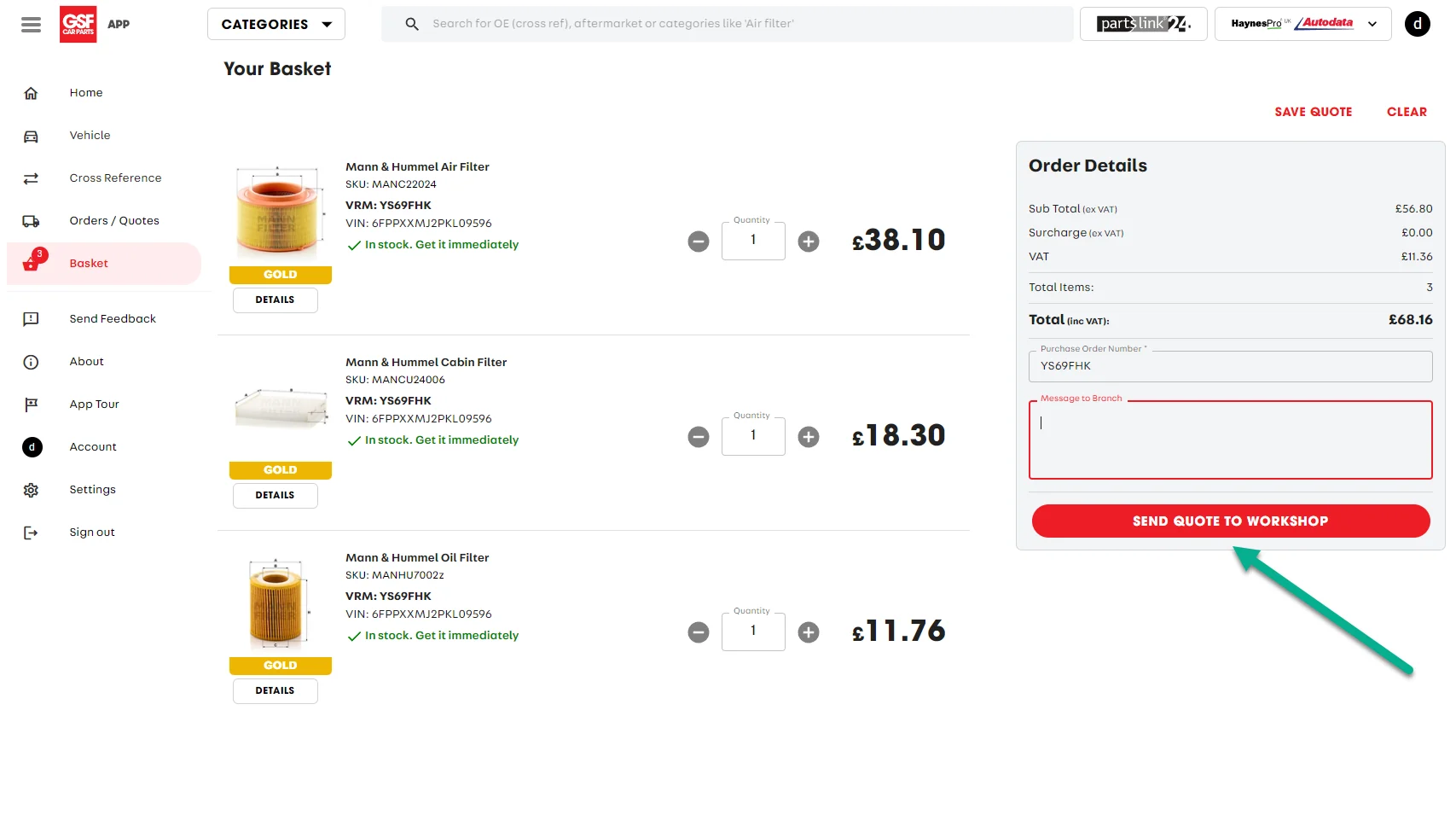
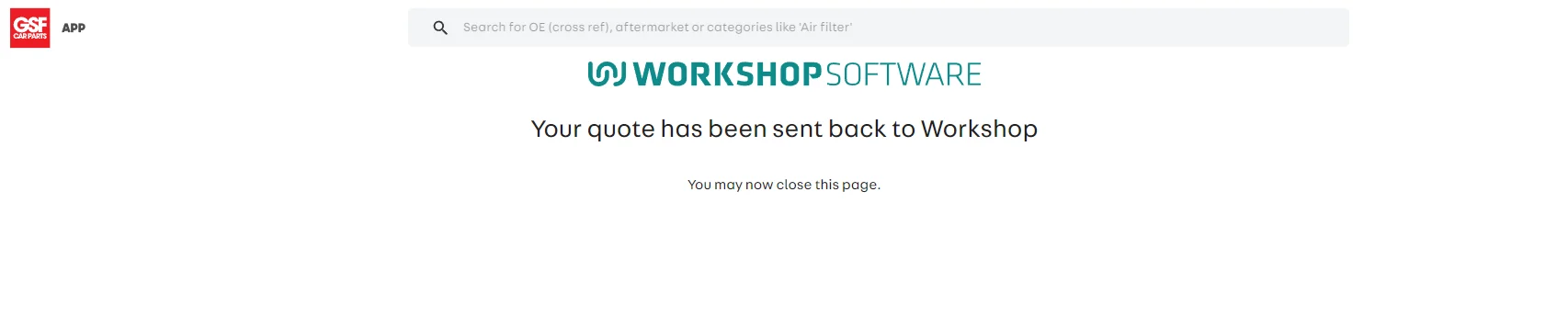
This will send over all the products from your basket and not only add them to your booking/invoice but also create them as products in Workshop Software! Once you see the confirmation page simply close that tab and your parts will be added to Workshop Software.
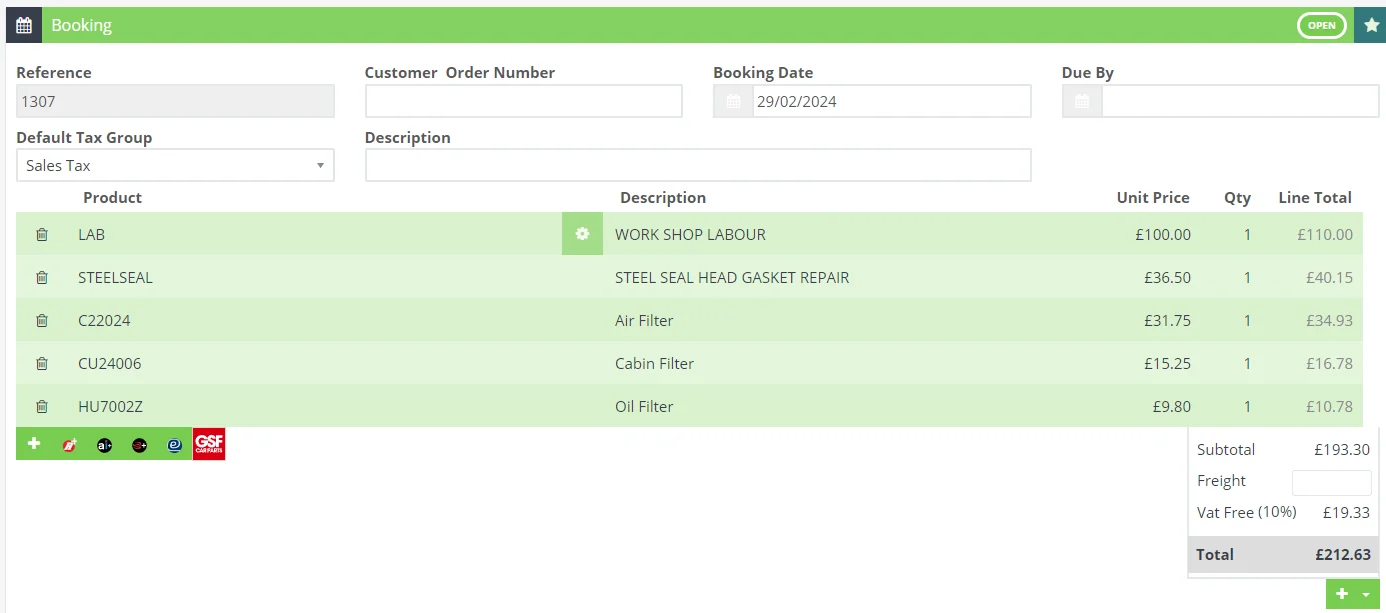
When you are ready to place your order with GSF select the action star and Create Order.
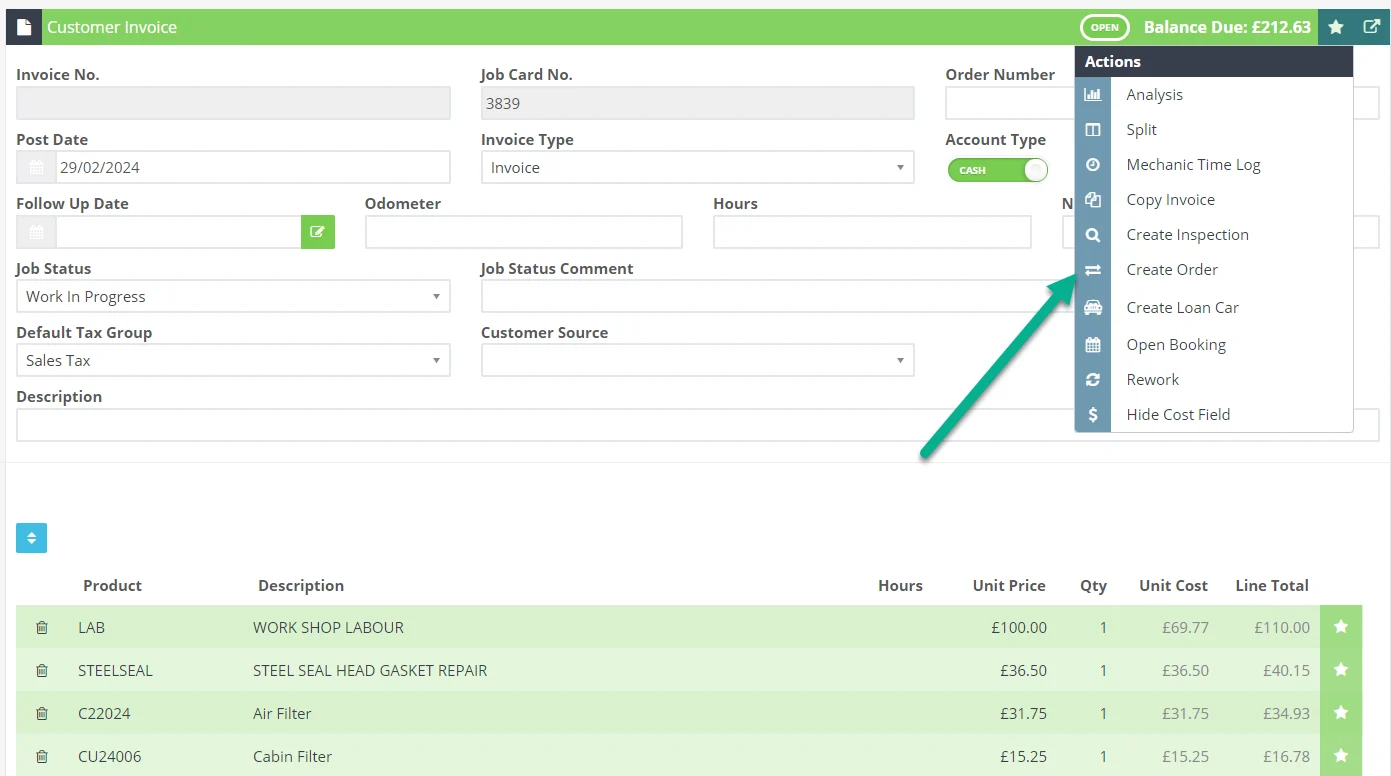
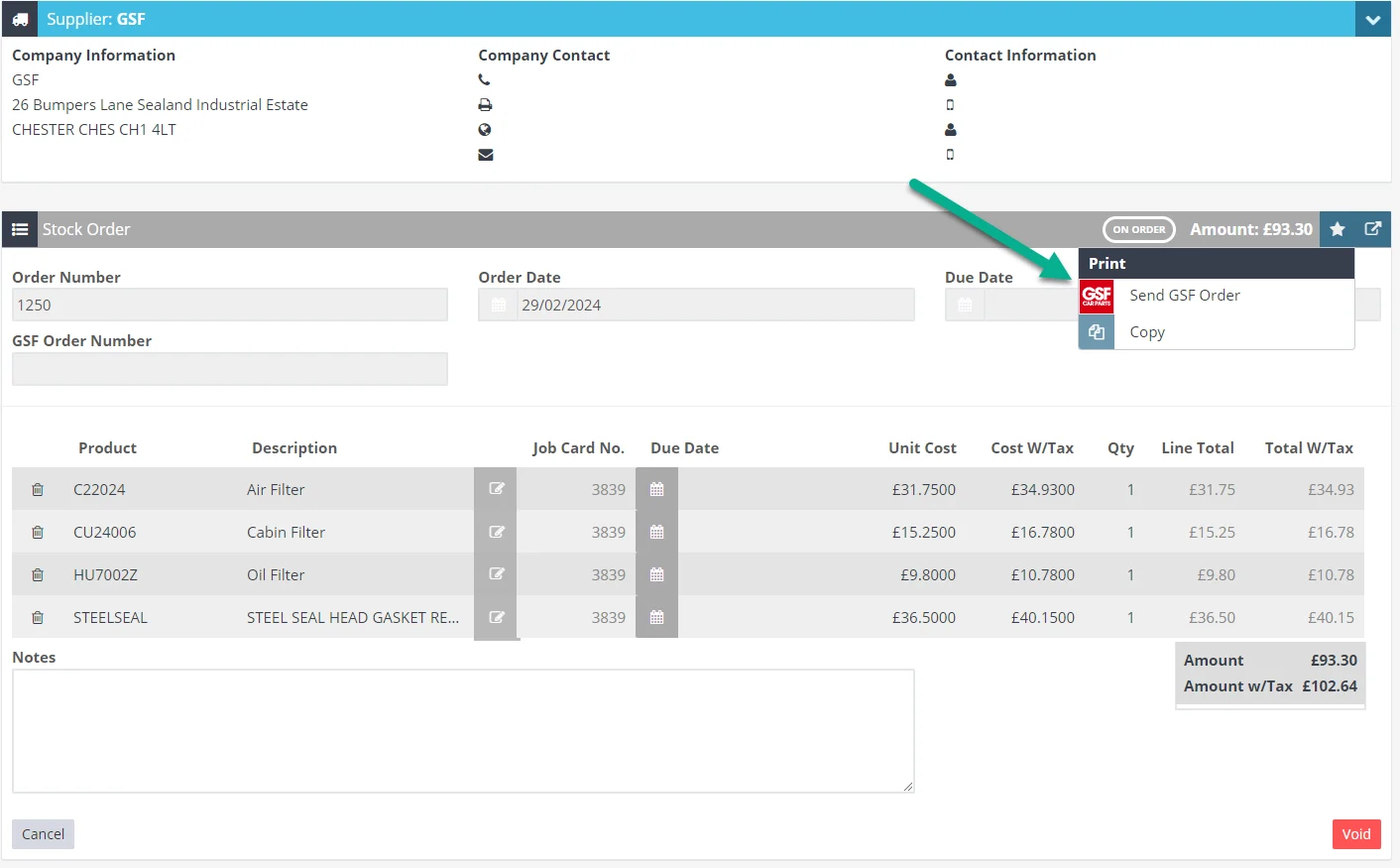
Process that order and then select the action star, here you can send through your order to GSF.
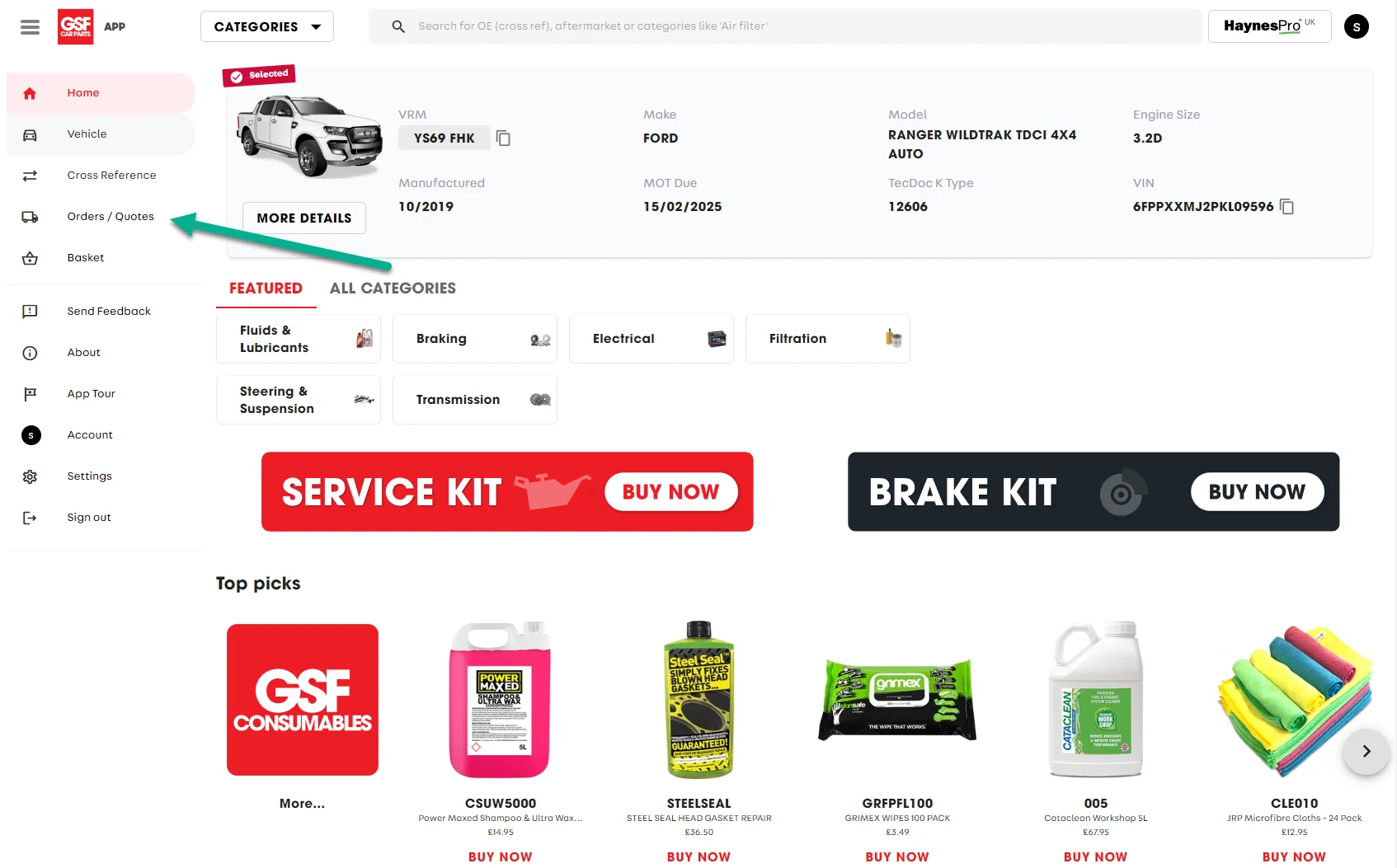
You can track your orders by logging into your GSF account and selecting "Orders / Quotes".