
Suppliers need to be set up before you can raise stock orders or record supplier invoices against them. This article shows you how to add a new supplier and edit an existing one.
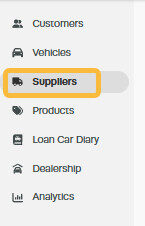
1. Click on Suppliers from the menu options on the left hand side of the screen;
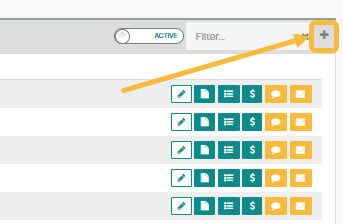
2. Click on the '+' icon to the far right of the Suppliers menu bar at the top of the page to add a new supplier;
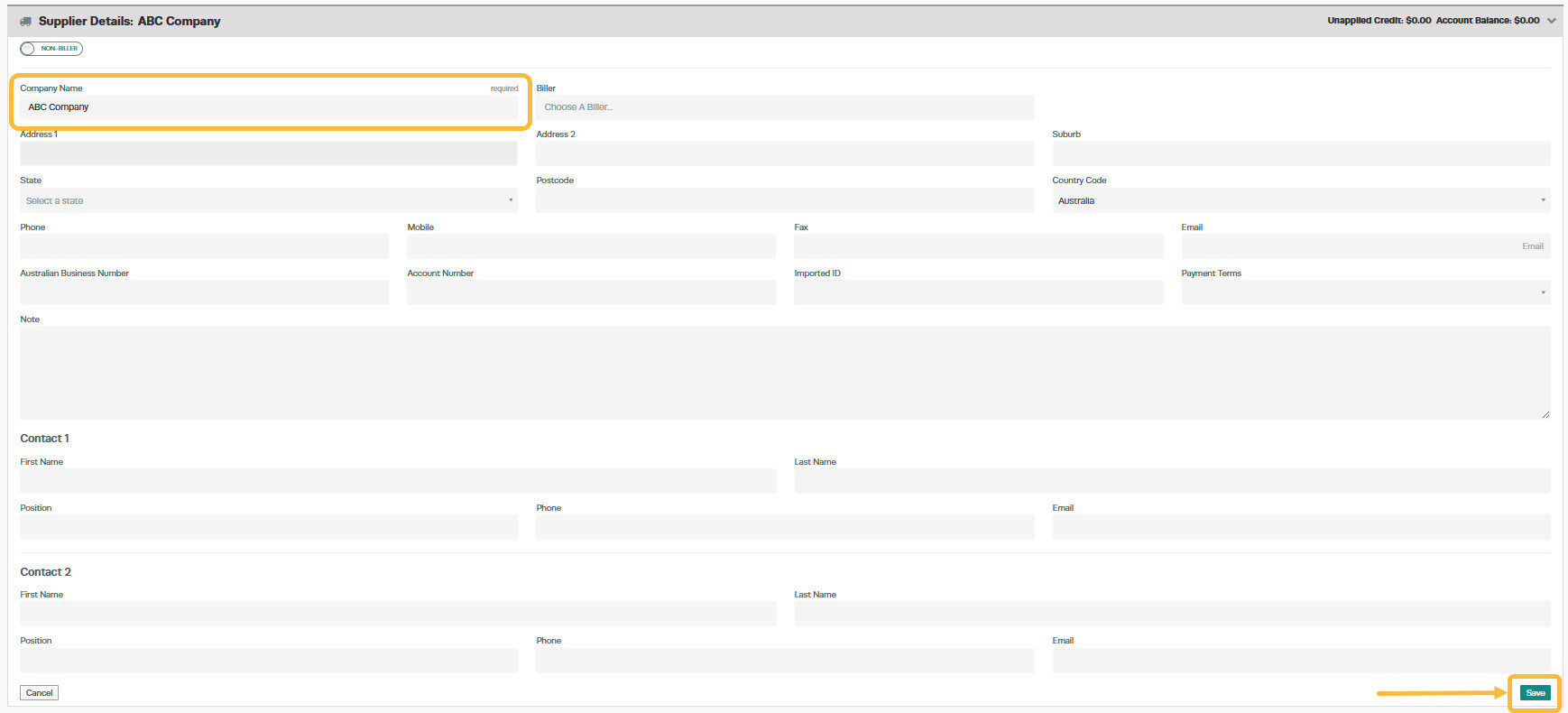
3. Enter the details of the supplier, only the Company Name is a required field. Once all the details have been entered click on the green Save icon in the bottom right corner of the page;
4. To edit the details of a Supplier, click on the 'Edit' button and make the necessary changes in the Supplier Details screen and click save.

5. You can delete a Supplier provided no stock orders, invoices or payments have been entered for them. To do this click on the red Delete icon on the left hand side below the Supplier information in the Supplier Details page;

Related Articles
- How to search for a supplier
- Supplier refund
- How to send an email to a supplier from Workshop Software
