 Skip to content
In a Platinum multi-branch account, a customer who has visited another branch does not need to be created again. This article shows you how to find that customer in the shared database and add them to your branch.
The following is a guide on working with Customers in Workshop Software's Platinum Multi-branch system. This guide is specifically for anyone with Platinum Multi-Branch subscription.
How to add a customer that has used another branch
Please note: At this time, this feature can only be used in the customer quick add on invoice and events/bookings.
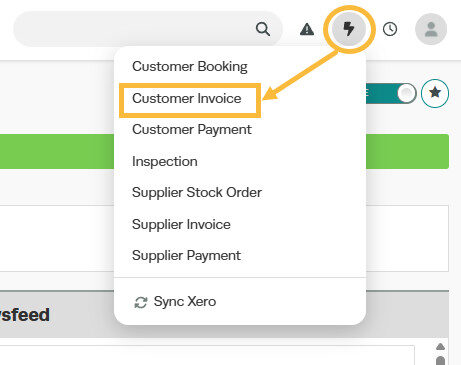
1. Click on the '+' icon next to the main search bar in Workshop Software, and select 'Customer Invoice'
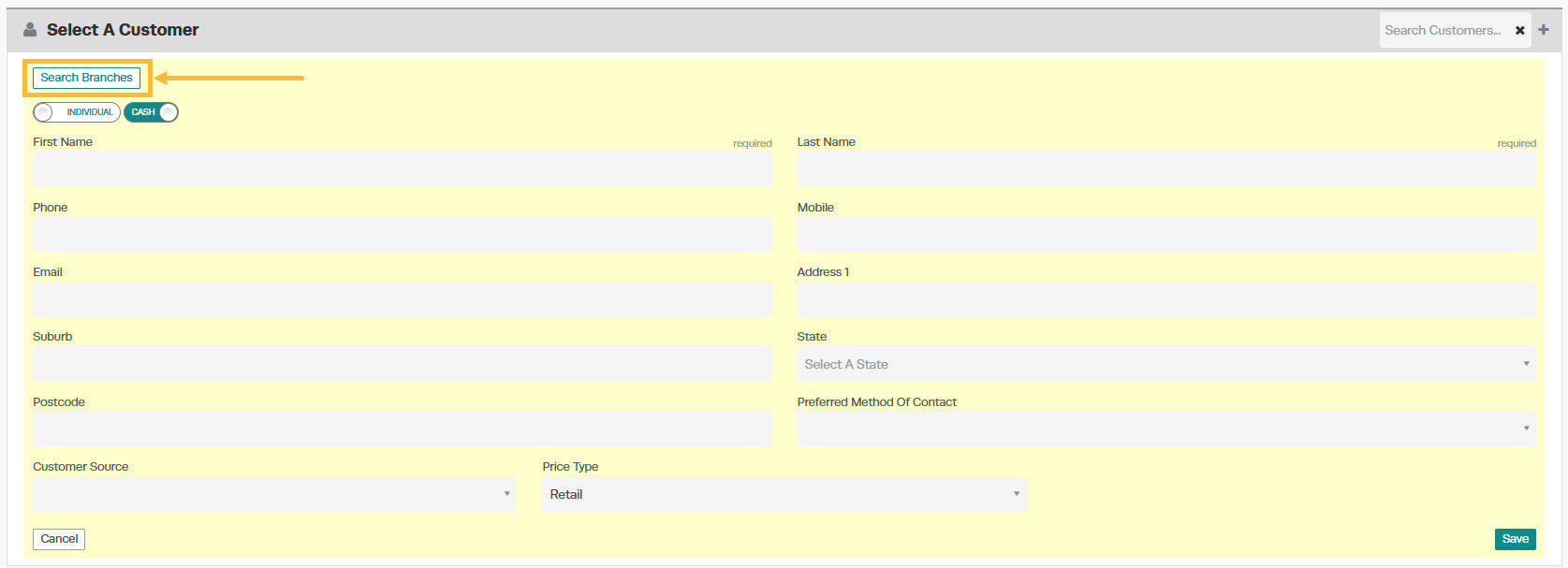
2. Click on the '+' to add a new customer.

3. Click on 'Search Branches'
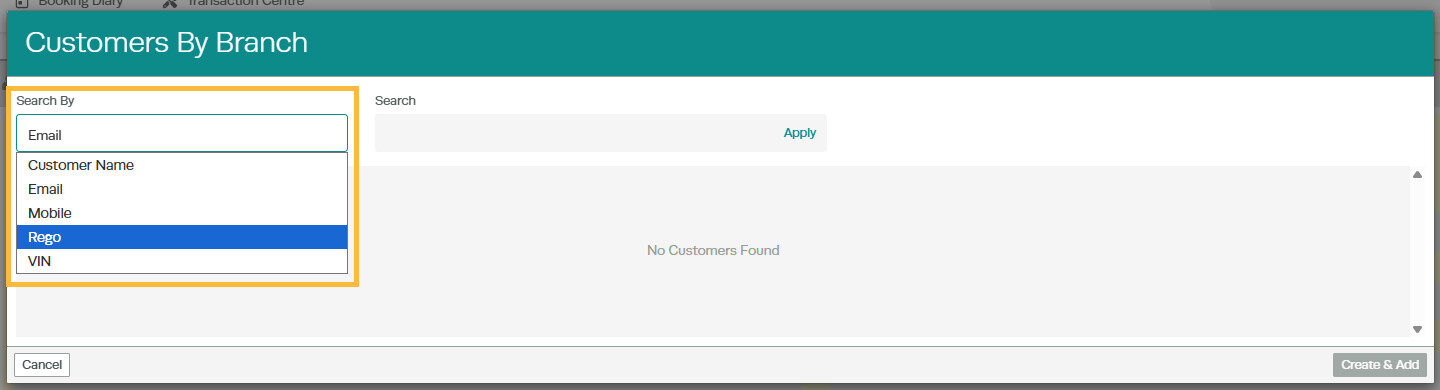
4. A pop up box will appear and you can now search with any of the following details in the 'Search By' field:
- Mobile
- Registration/Plate Number
- VIN
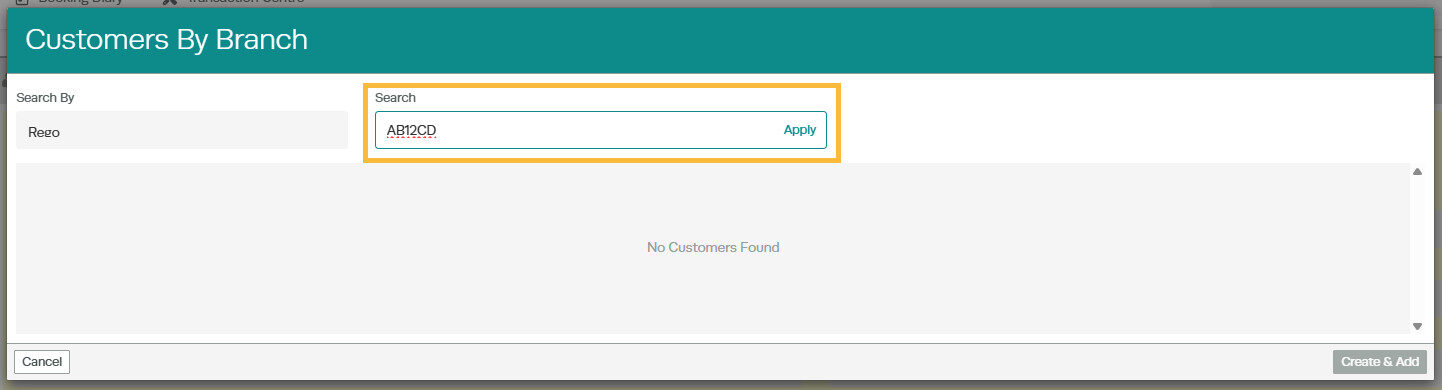
5. Enter the value in the field provided and click on 'Apply'. This will search for that item in all branches and provide a list:
6. Select the customer or vehicle that you want to use:
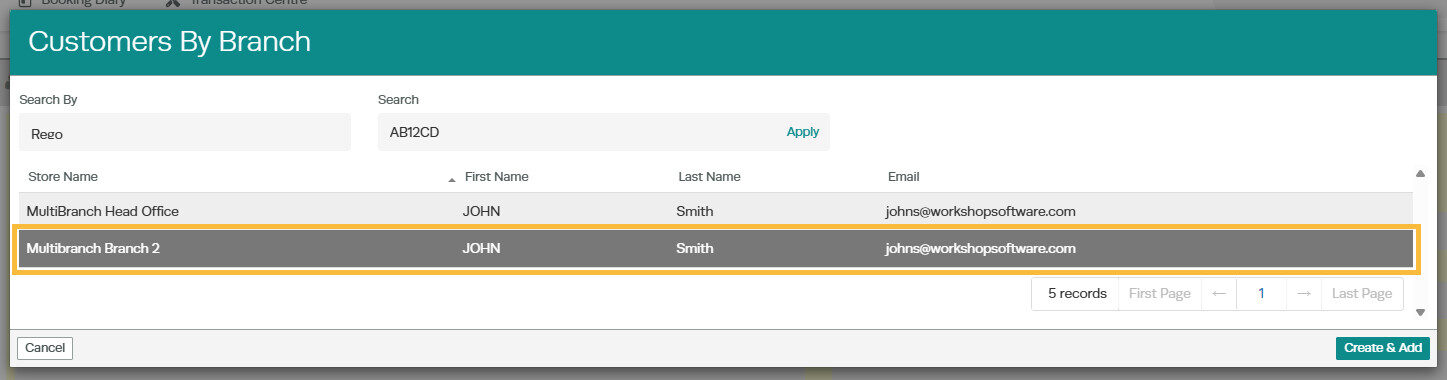
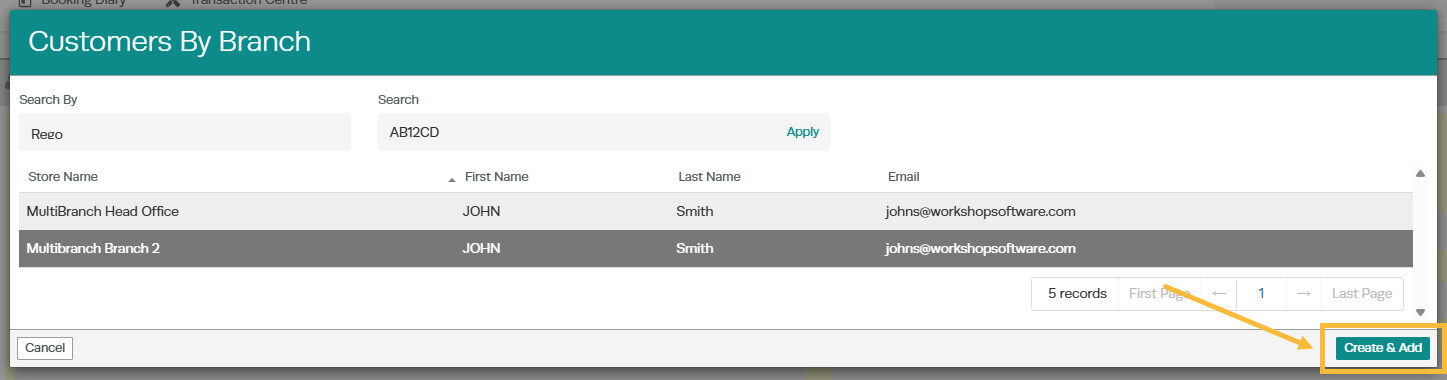
7. Click on 'Create & Add' to add the customer into your company system, and to add this also to the invoice or booking:
Good to Know
- You can search for a customer by name, phone number, or email address using the search bar.
- This feature is also available on the Workshop Software mobile app if you have mobile access enabled on your account.
Frequently Asked Questions
Will this change affect existing invoices for this customer?
Changes to customer details (such as name, address, or contact information) apply to future invoices. Existing completed invoices retain the details that were on the invoice at the time it was created.
Related Articles
- Platinum Multi-Branch - How to add a vehicle and vehicle history from another branch
- How to Add a Customer, Vehicle and Vehicle History from another Branch
- Customer Portal Multi-Branch
