Burson Automatic Invoice Feature

Automotive IntegrationsUpdated 20 Sep 20262 min read

The Burson Automatic Invoice feature downloads your Burson invoices straight into Workshop Software, so you no longer have to enter them by hand. This article shows you how to enable it and what to ask Burson to switch on.


This feature is designed to save you time and effort by eliminating the need to manually enter your Burson invoices. By enabling this feature, your Burson invoices will be automatically downloaded and integrated into your Workshop Software account.

Steps to Enable:
  1. Log in to your Workshop Software account.

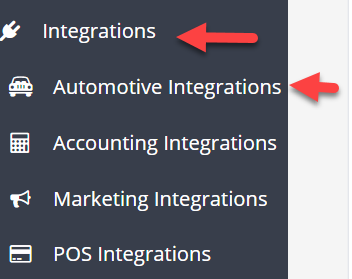
  2. Navigate to Integrations > Automotive Integrations.

Workshop Software burson automatic invoice feature showing to integrations > automotive integrations

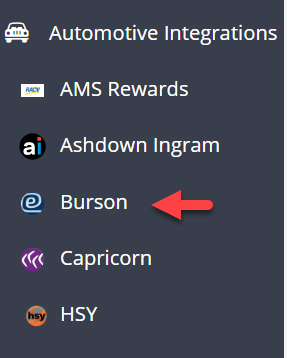
Select Burson Integration

Workshop Software burson automatic invoice feature showing burson integration

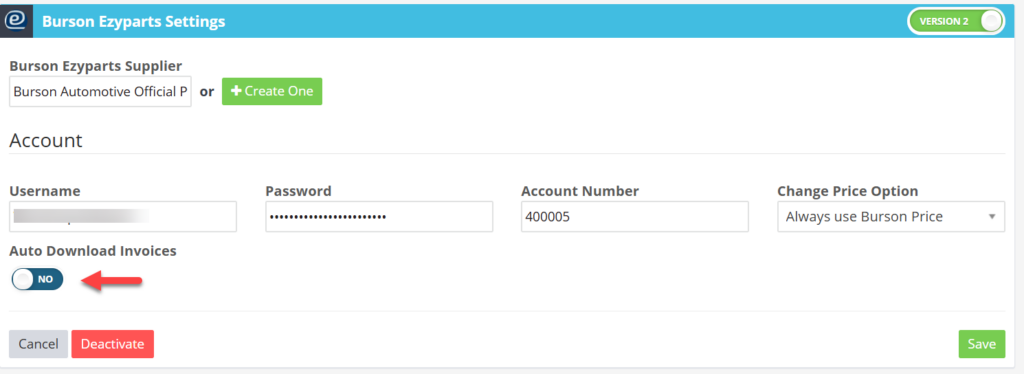
  1. Toggle Auto Download Invoices to Yes > Save

Workshop Software burson automatic invoice feature showing auto download invoices to yes > save

Once activated, your Burson invoices will seamlessly sync with your account.

Benefits:

  1. Time-Saving: Automates the process of importing invoices.

  2. Accuracy: Reduces the risk of manual entry errors.

  3. Efficiency: Keeps your accounts updated in real-time.


After enabling this feature, please contact Burson and request they enable 'Electronic Invoicing for Workshop Software'.

Email: ezyparts@burson.com.au

Phone: 1300 733 849

Good to Know

  • Make sure you click Save after making your changes. If you navigate away before saving, your changes will be lost.
  • You can print, email, or SMS the invoice to your customer once it is ready.
  • If you experience any issues during setup, contact the Workshop Software support team for assistance.

Frequently Asked Questions

Can I undo this change to the invoice?

You can update the invoice again by following the same steps. If the invoice has already been finalised or synced to your accounting system, contact your administrator about the best approach.

What do I do if the integration is not working?

First, check that your credentials are entered correctly and that both systems are accessible. If the issue persists, check the event log in Workshop Software for specific error messages, or contact the Workshop Software support team for assistance.

Can I disconnect this integration later?

Yes. You can disable or disconnect the integration at any time through the integration settings in Workshop Software. Disconnecting does not delete any data that has already been synced.

Related Articles

Also Explore

Was this article helpful?