Skip to content

This guide shows how to create Booking Types your customers can request in the Public Booking Portal.
See the Online Bookings article for how to configure and use the portal. Match your Booking Types to the services you want customers to be able to request online.
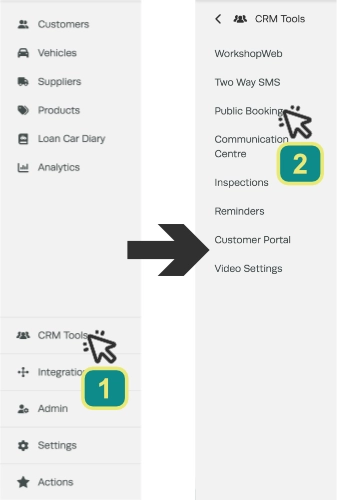
- Click CRM Tools in the left hand sidebar menu, then select Public Booking.
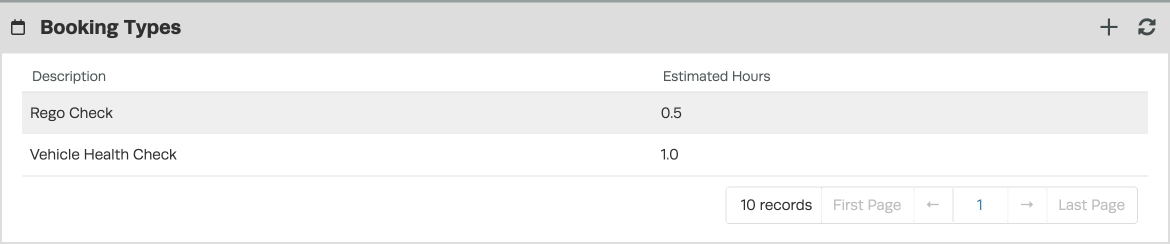
- In the Booking Types card, click the + icon on the right to add a new Booking Type, or double click to edit one.
- Each Booking type links to a Labour product and sets the time it takes in the Booking Diary. Complete the fields in the pop up (see the table below), then click the Save button to create or update the Booking Type.
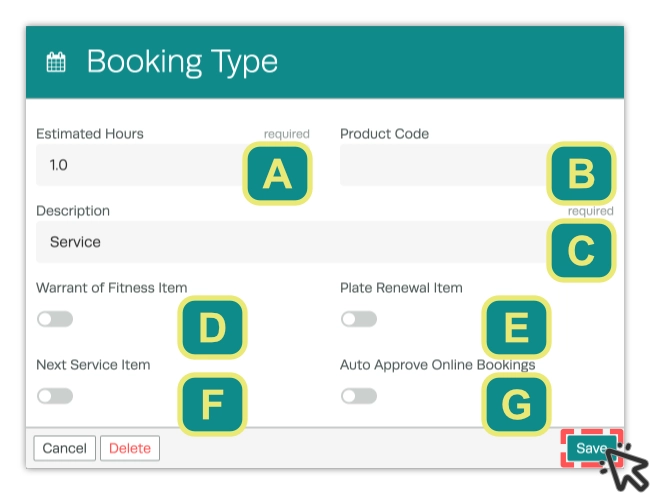
| Field | What it does |
|---|---|
| A. Estimated Hours | Required. Must be greater than 0. |
| B. Product Code | Select the Labour product this Booking books. Must be a Labour product. |
| C. Description | Required. The Booking name the customer sees. |
| D. Warrant of Fitness Item | Switch on to include this booking type as included with Bookings made from a NZ Warrant of Fitness reminder. |
| E. Plate Renewal Item | Switch on to include this booking type as included with Bookings made from a Registration Renewal reminder |
| F. Next Service Item | Switch on to include this booking type as included with Bookings made from a Next Service reminder |
| G. Auto Approve Online Bookings | Switch on to have online requests for this Booking Type added to your Booking Diary without manual approval. See How to Automatically Approve Online Bookings. |
Please note: If your business is integrated with VVGarage, all three fields (Estimated Hours, Product Code and Description) must be filled in for the Booking Type to sync to the app.
Frequently Asked Questions
Can customers see this in the Online Booking Portal?
Customers see the Description and length of each Booking Type in the Public Booking Portal, but will not see the labour product or reminder links.
Related Articles
- How to Create a Booking in Workshop Software
- How to quickly create a booking in Workshop Software
- How to Automatically Approve Online Bookings