 Skip to content
This article explains how to read and reply to your Customers' text messages from Workshop Software's mobile app, how the unread count works and how to turn notifications on or off.
Please note: Regular Mobile user accounts do not have access to Two-Way SMS in the Mobile App, only ADMIN group Web App user accounts may send and receive SMS Messages.
The Messages tab appears in the app only if;
- Your business is in Australia, New Zealand, the United Kingdom or Northern Ireland.
- Your subscription is Gold or higher.
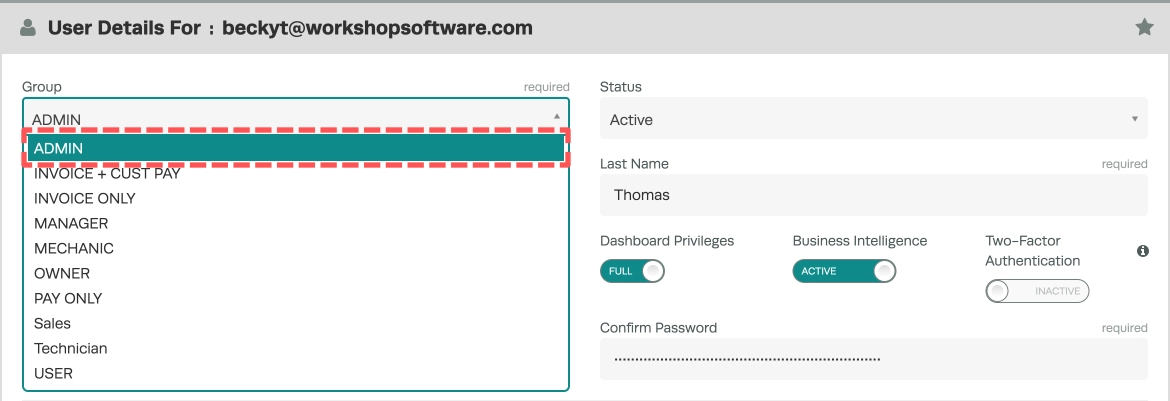
- You are logged in with a Web App user account assigned the ADMIN group.
If any one of those is not true the tab does not appear, please review this article to configure a Web App User's access to the Mobile App.
Access the Messages Tab
Your conversations with Customers are accessed in a dedicated Messages tab. Every conversation where you have manually sent an SMS to a Customer or where they have messaged you will appear.
Automatic messages such as service reminders, booking confirmations and payment requests appear inside a conversation but never add to the unread count and never start a new conversation, a conversation will only be created when a Customer responds.
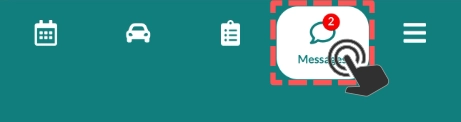
- Open Workshop Software's Mobile App then Tap Messages (the speech-bubble icon) in the green bar at the bottom of your screen.
- The Messages screen lists your conversations, newest first, you may use the search box to find a Customer by name or mobile number, or switch between All and Unread.
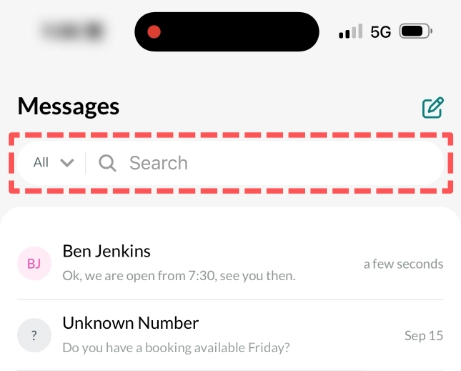
Please note: The search only filters the conversations already loaded on screen. If you are hunting for an older conversation scroll down to load more first, then search.
Read and Reply
- Tap a conversation to open it, your messages appear as blue bubbles on the right and your Customer's as grey bubbles on the left, with the date above each day's first message.
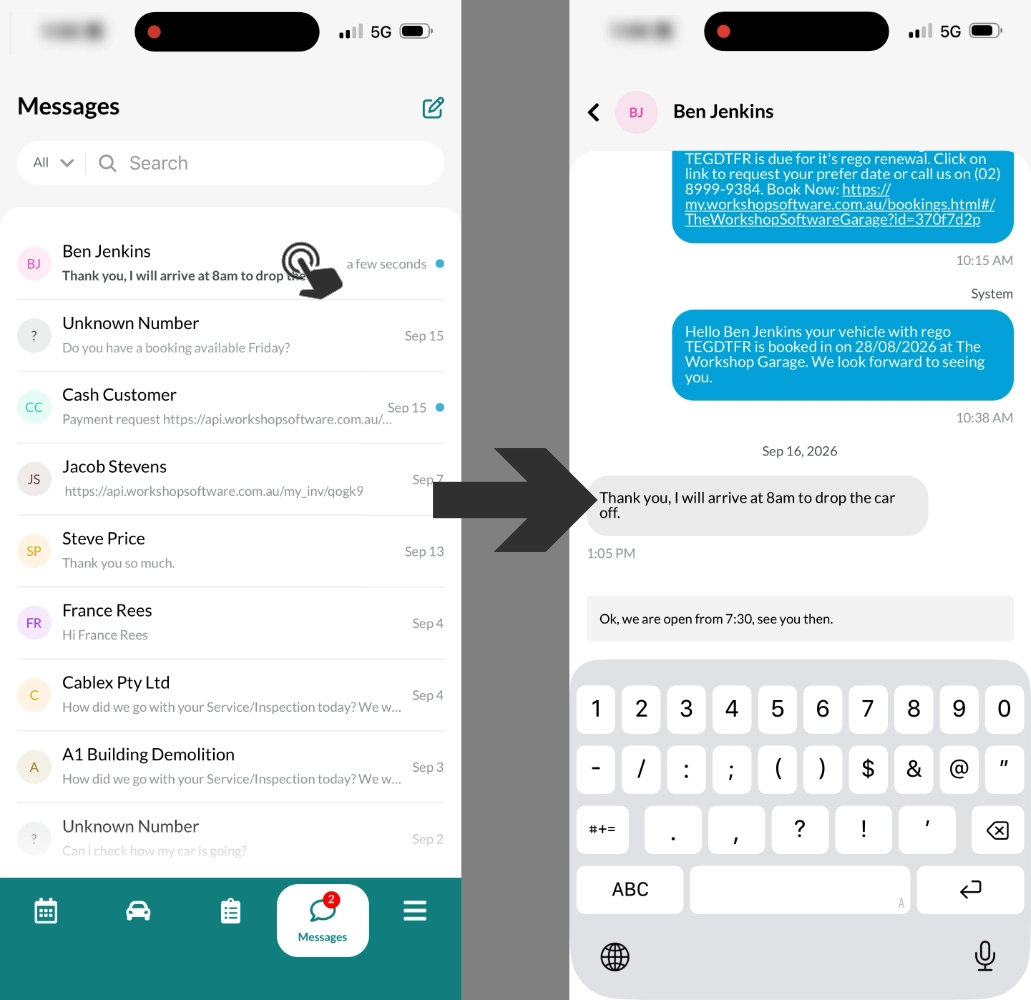
- To send a message tap the Message box at the bottom, type your reply and then press the send or return key on your keyboard.
Please note: There is no separate send button. The return key on your phone's keyboard sends the message, an empty message will not send.
Start a New Conversation
You can start a new conversation with any Customer or add a new Customer to contact.
- On the Messages screen, tap the green Compose icon in the top right, search for the Customer by name and tap them. The conversation opens ready for you to type, even if you have never texted them before.
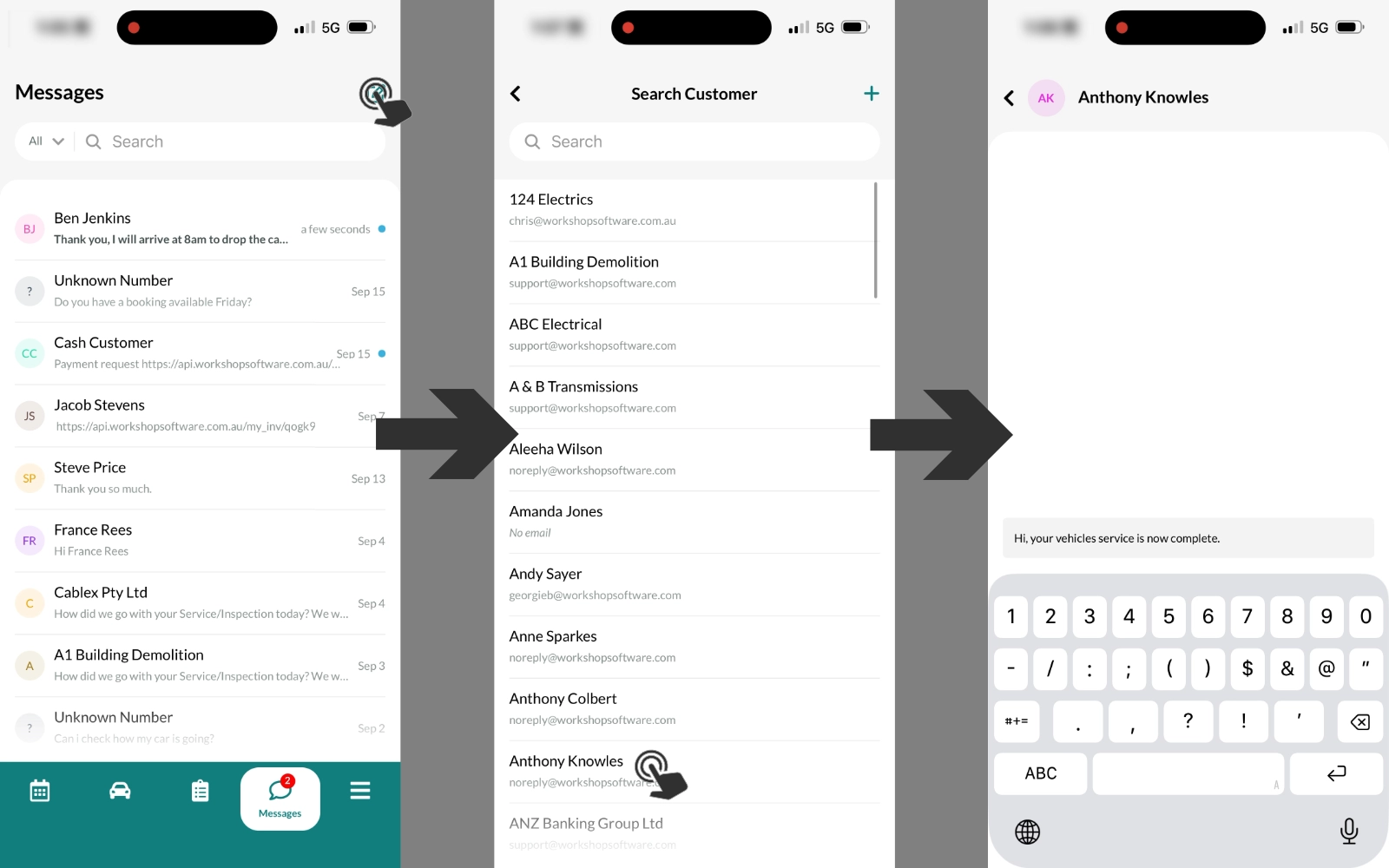
- If you would like to add a new Customer click the + icon on the top right of the Search Customer List.
Mark a Conversation Read or Unread
To help manage your list of people to respond to you may mark messages as Read or Unread.
- In the Messages tab swipe any conversation to the right then tap Mark as read or Mark as unread to change the Message's status.
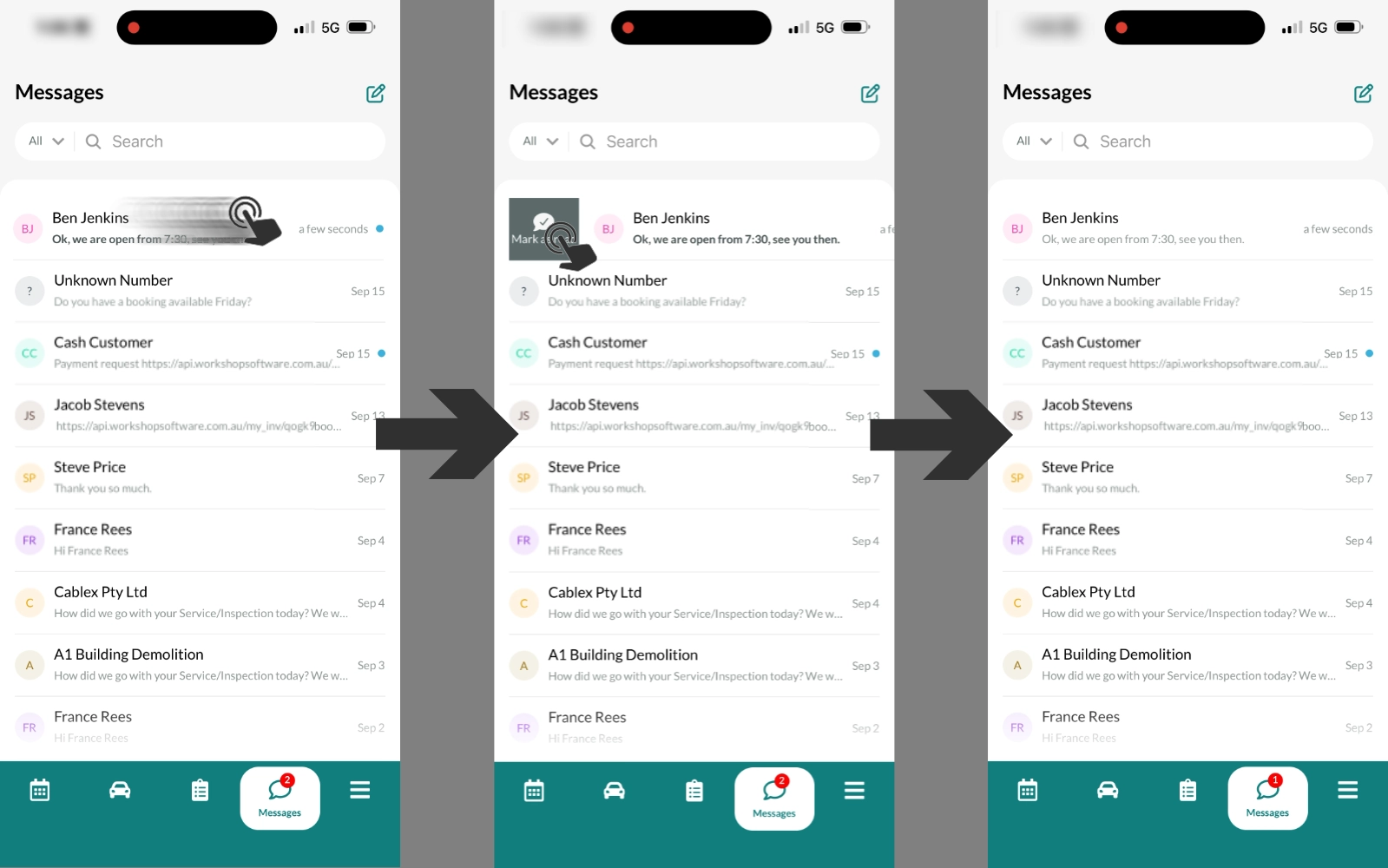
Please Note: Opening a conversation marks it read automatically.
Turn SMS Notifications On or Off
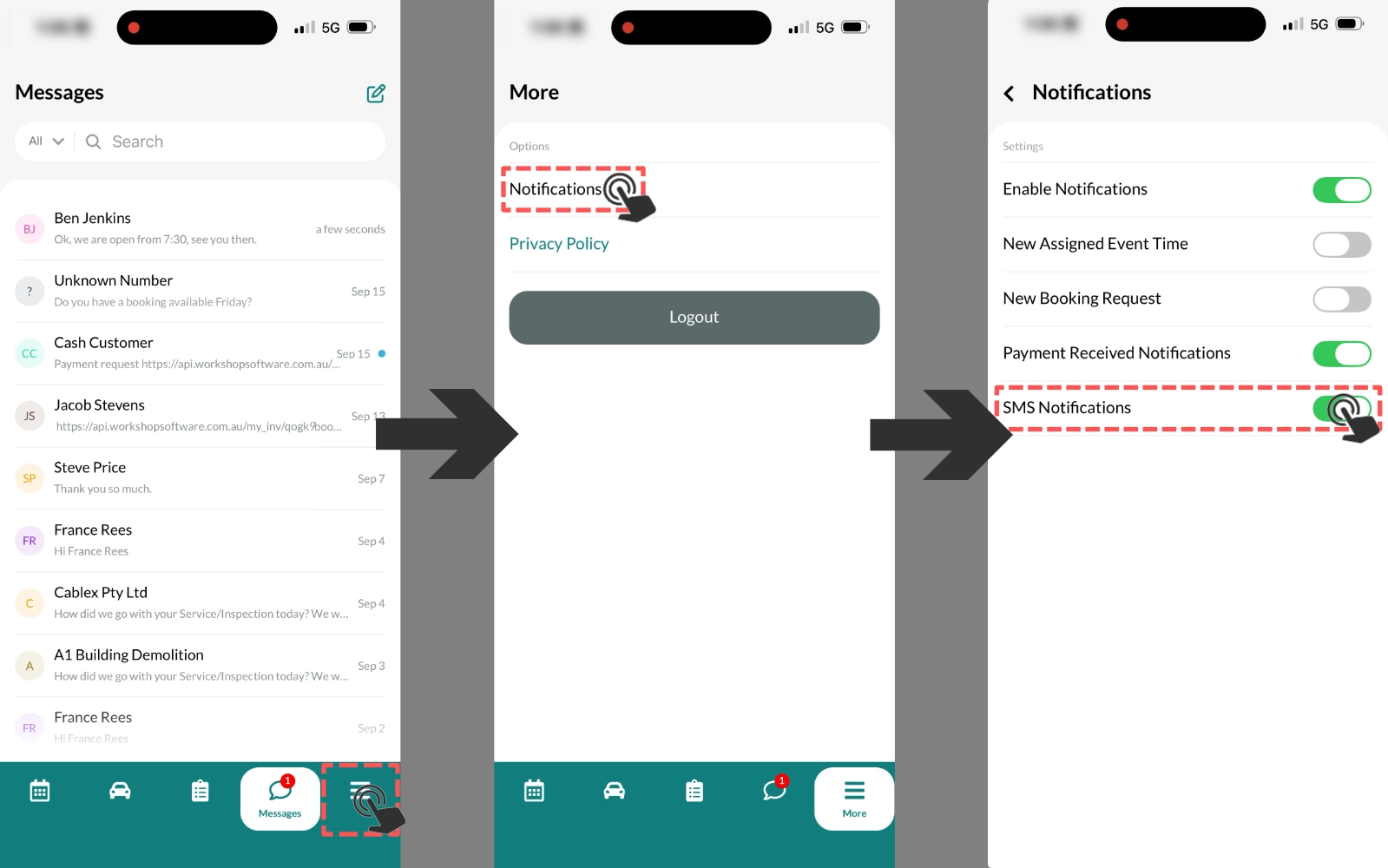
Mobile App user's with access to the Message tab will receive a push notification when a new SMS messages is received. If you do not wish to receive these messages you may disable them.
- Go to More, tap Notifications and switch the SMS Notifications toggle on or off.
Good to Know
- The red circle counts conversations with unread messages, not individual messages. Five unread texts from one Customer count as one. Above 99 it shows 99+.
- The app and the web app now show the same unread number. Reading a conversation on your phone clears it on the web too, and the other way around.
- If you do not have Two-Way SMS, you will see "Customers cannot respond to these messages." above the message box. You may still send messages, but replies will not be received. Tap the warning to read how to switch Two-Way SMS on.
- Links inside a message may be tapped and open in your phone's browser, phone numbers inside a message are not tappable.
Frequently Asked Questions
Why can't I see the Messages tab?
Check all three:
- Your business must be in Australia, New Zealand, the UK or Northern Ireland.
- Your subscription must be Gold or higher.
- Your user group must be Admin, your Workshop Software administrator can check your group under Admin > Users.
Do I need Two-Way SMS switched on to use the Messages tab?
No. The tab appears without it and you can still send messages. Without Two-Way SMS your Customers cannot reply and you will see a note above the message box telling you so.
The number on the app icon looks wrong. What do I do?
Open the Messages tab. The count refreshes whenever the app connects, when a message arrives, and when you mark something read or unread. If it still looks wrong, pull down on the Messages list to refresh.
The list stopped loading older conversations. Why?
If loading older conversations fails once, the list stops trying so it does not loop. Pull down on the list to refresh, or leave the tab and come back, and it will load again.
Why didn't I get a notification for a new message?
Check More > Notifications, make sure Enable Notifications and SMS Notifications are both on, if so you may need to turn off Do Not Disturb mode and check your phone's own notification settings for Workshop Software.
Can my mechanics use this?
Only Web App users in the ADMIN group see the Messages tab. A mechanic in a non-admin group or using a Mobile App login will have no access to the Messages tab and cannot send SMS messages, which is intended.
