 Skip to content
Workshop Software gives you nine invoice formats. Every one of them prints the same job, the same parts and labour, and the same totals and tax. What changes is the layout: where the job notes sit, whether your logo or a pre-printed letterhead takes the top of the page, whether labour is grouped under bold headings, and whether unit prices show including or excluding GST. This guide compares the nine side by side, helps you pick the one that suits how your workshop bills, and shows you how to switch in under a minute.
Please note: The invoice format is one setting for your whole workshop. Once you save it, every invoice you print, email or SMS uses the new layout, including older invoices the next time you reprint them. If you choose either letterhead format, you must also enter a Top Margin so the invoice clears your pre-printed header.
The nine formats at a glance
| Format | Best for | What makes it different | Extra settings |
|---|---|---|---|
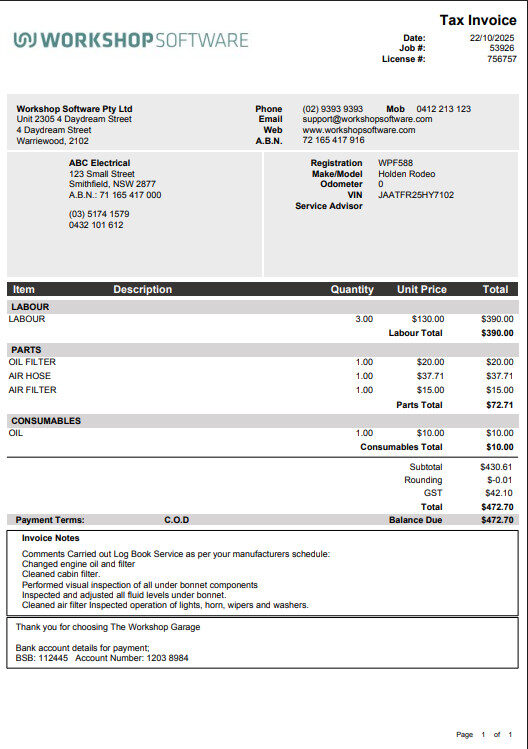
| Default (B&W) | Most workshops printing on plain paper | Clean black and white layout with your logo, company and customer details, and light shading to separate sections. | None |
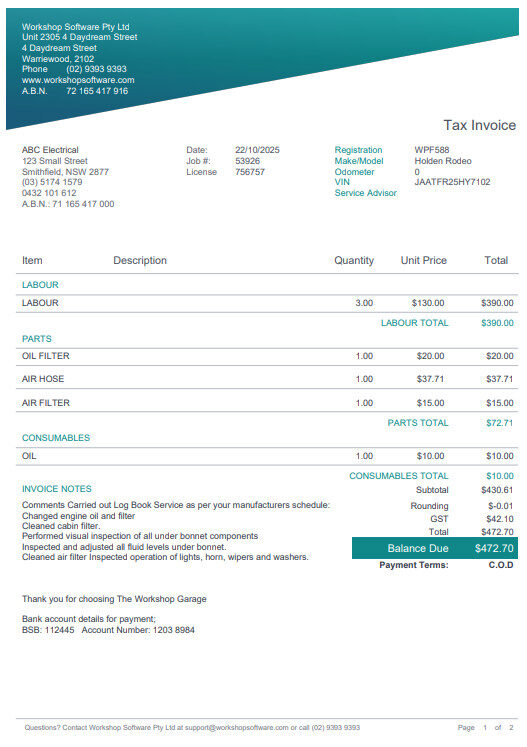
| Default (Colour) | A brighter look without a logo | Same layout as the default with a colour header. Does not print your logo. | None |
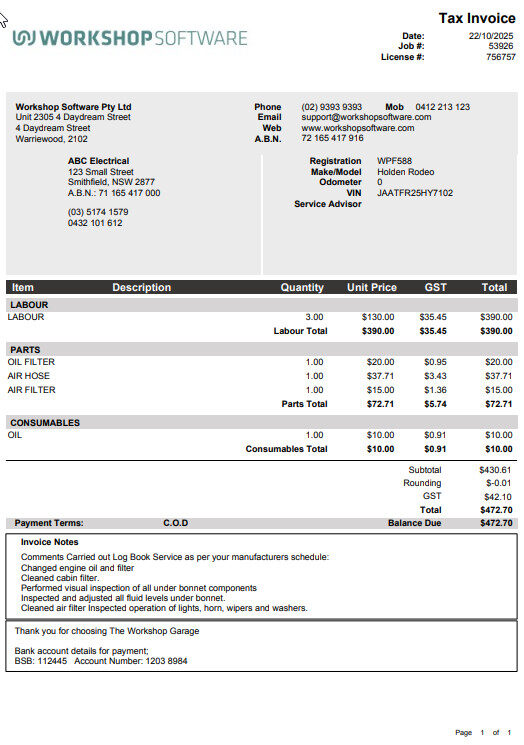
| Default (B&W) Ex GST Totals | Fleet, trade and business customers who compare prices before tax | The default layout with unit prices and line totals shown excluding GST in bold. GST is still added at the bottom. | Hide Line Prices, Hide Tax |
| Notes At Top | Jobs where the diagnosis matters more than the parts list | Prints the invoice notes above the labour and parts lines instead of below them, so the customer reads your explanation first. | None |
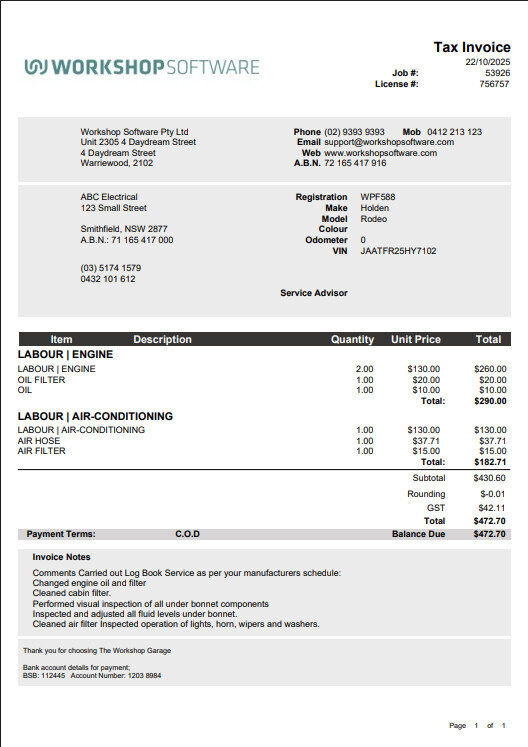
| Print Labour Style | Workshops that sell labour first | Each labour line becomes a bold heading with its parts listed underneath, so a job with Engine and Air-Conditioning work reads as two clear sections. | Show or hide letterhead, running totals |
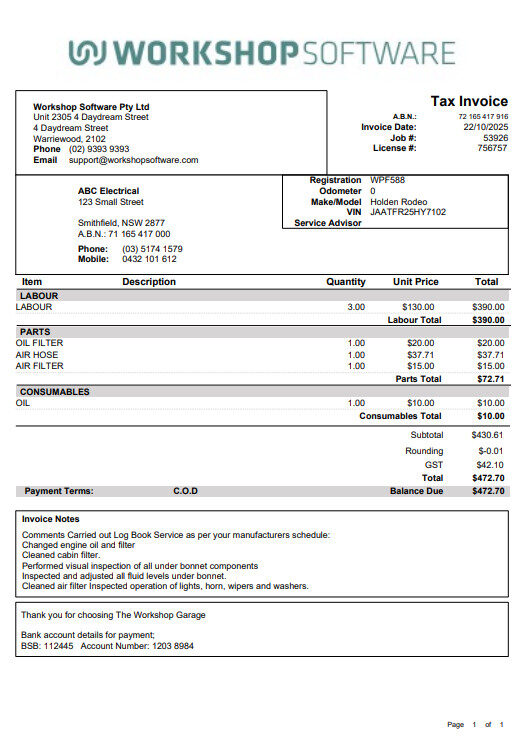
| Print Letterhead With Company | Pre-printed paper that carries your logo only | Leaves a blank band at the top for the pre-printed header and keeps your company name and details on the invoice. | Top Margin (required) |
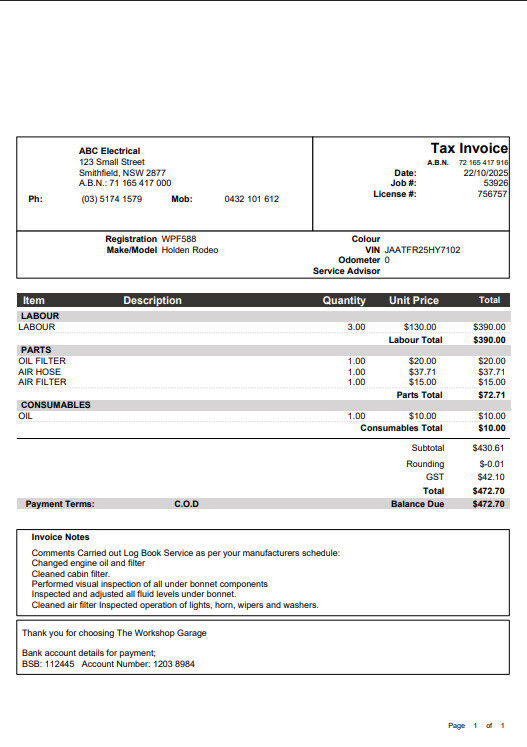
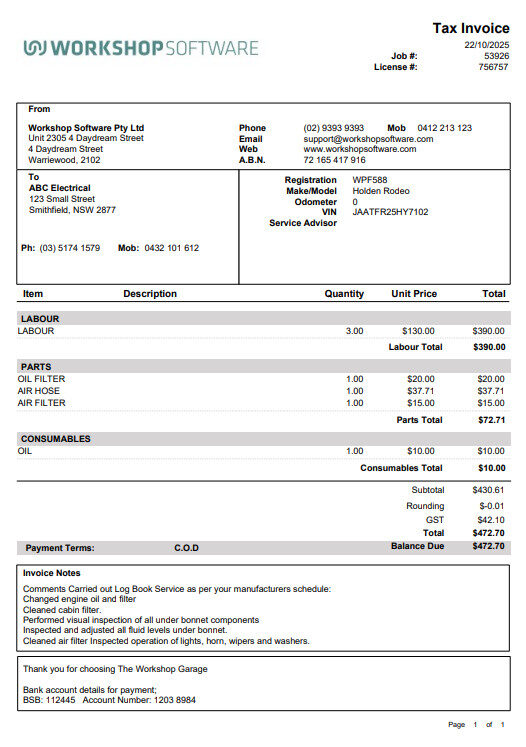
| Print Letterhead Without Company | Pre-printed paper that already has your logo and details | Leaves the top blank and drops the company block entirely, so nothing prints twice. Customer details sit beside the date and invoice number. | Top Margin (required) |
| Print Stretched | Workshops that have designed a full-width header image | Stretches your uploaded logo across the full width of the page, so a complete letterhead graphic can be used as the logo. | Show or hide company details |
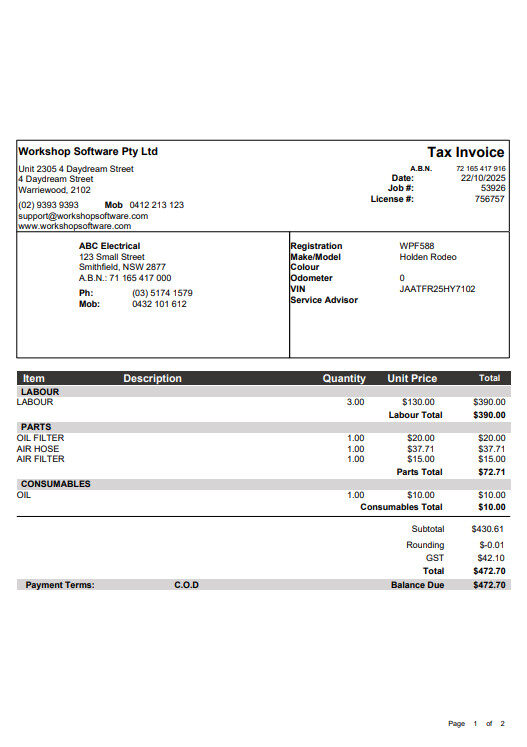
| Print Original | Long-standing users who prefer the first layout | The very basic template Workshop Software launched with. Kept for workshops that have used it since the start. | None |
What each one looks like
Click a sample to open it at full size.

Which format should I choose?
Start with the paper you print on, then the way your customers read an invoice.
- Plain paper and you want your logo on the invoice: Default (B&W). If you have not uploaded a logo yet, see Add my company logo to invoices.
- Plain paper, no logo, and you want some colour: Default (Colour).
- Fleet, trade or business customers who work in ex-GST prices: Default (B&W) Ex GST Totals. Turn on Hide Tax if their purchase orders are ex GST only.
- Pre-printed letterhead that already shows your logo and address: Print Letterhead Without Company, with a Top Margin set to clear the header.
- Pre-printed letterhead that shows your logo only: Print Letterhead With Company, with a Top Margin set.
- You have a full-width header graphic rather than a square logo: Print Stretched, and upload the graphic as your logo.
- Your invoices are mostly labour, or you want each repair listed as its own section: Print Labour Style.
- You write detailed notes about what you found and want customers to read them first: Notes At Top.
Whichever you choose, the totals, tax and payment details are identical, so you can switch formats at any time without affecting your figures or your accounting integration.
How to change the invoice format
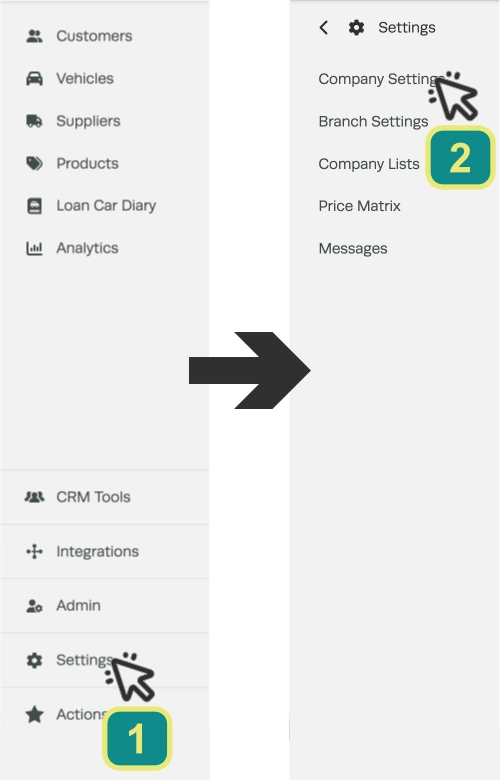
- In the left-hand sidebar, click Settings, then Company Settings.
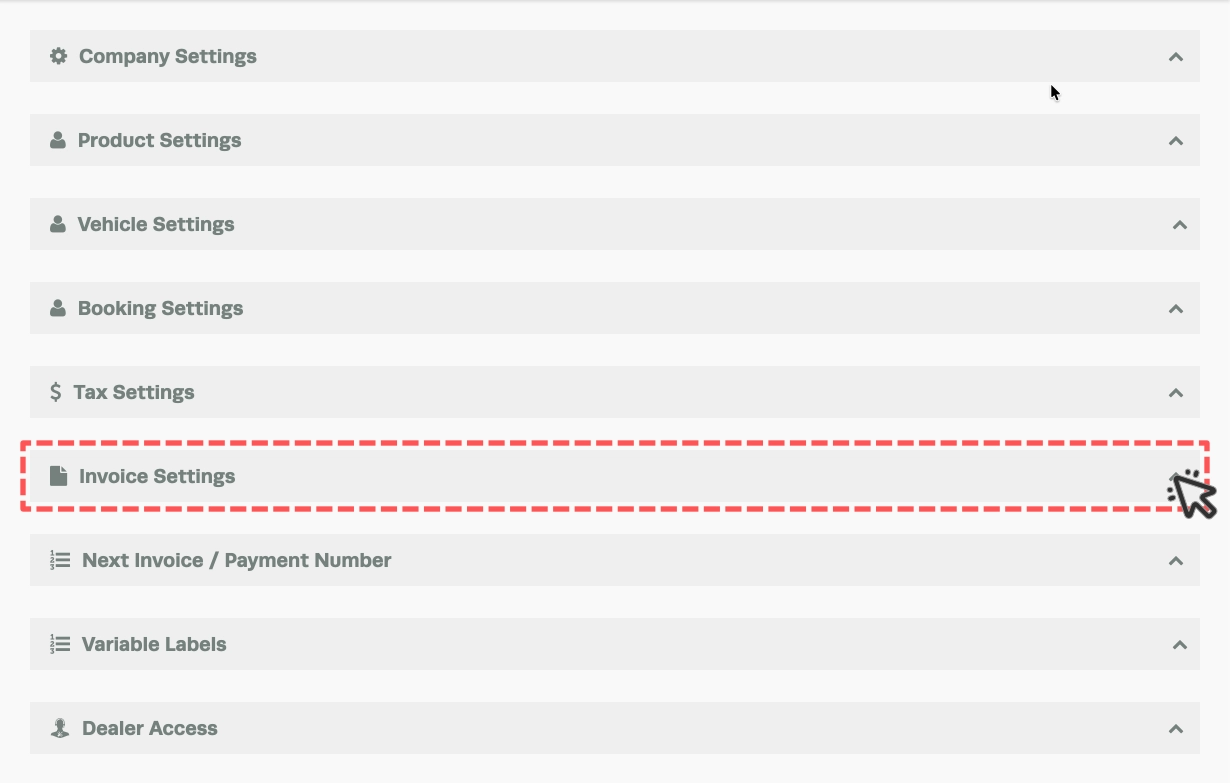
- Scroll down to the Invoice Settings header bar and click the arrow to expand it.
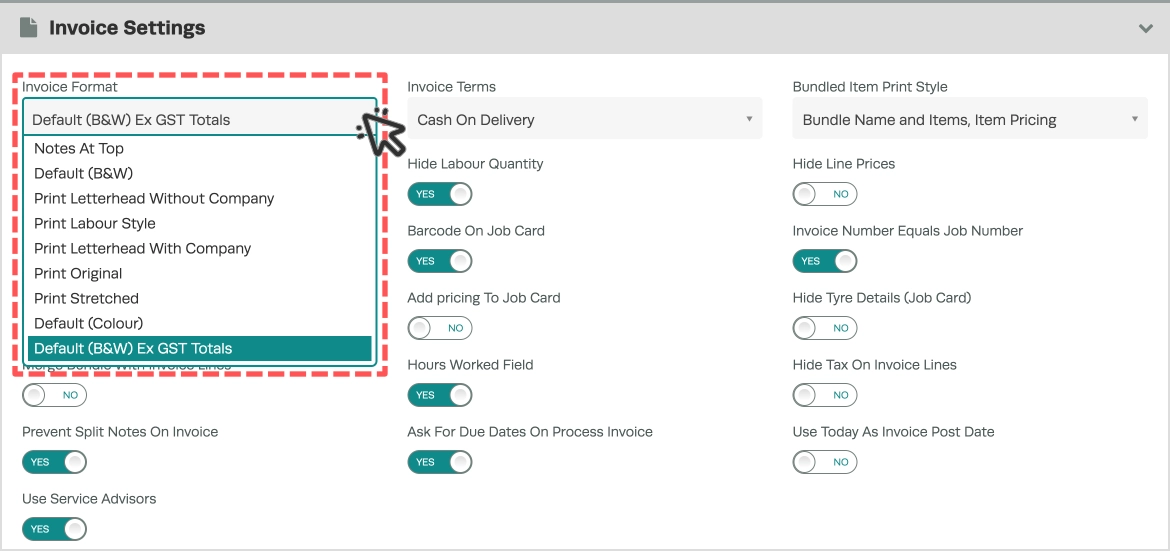
- Open the Invoice Format dropdown and select the format you want.
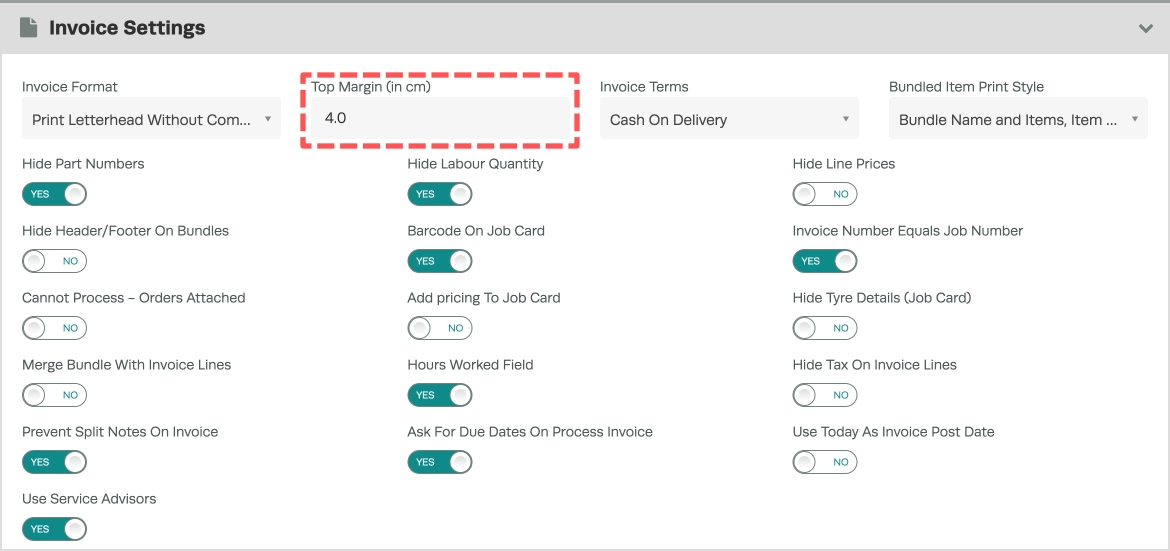
- Set any extra options for that format. For either letterhead format, enter a Top Margin so the invoice starts below your pre-printed header. Print Labour Style lets you show or hide the letterhead and include running totals. Print Stretched lets you show or hide company details. Ex GST Totals adds Hide Line Prices and Hide Tax.
- Click Save. If you leave the page before saving, the change is lost.
- Open any invoice and click Print to preview it in the new format before you send the next one to a customer. If you are on letterhead, print one page on your actual paper and adjust the Top Margin until it sits right.
Frequently Asked Questions
Will invoices I have already sent change?
The copies your customers already have do not change. If you reprint or re-email an older invoice, it will use whichever format is selected at that time.
Why is my logo not showing on the invoice?
Two common reasons. Default (Colour) does not print a logo at all, so switch to Default (B&W) if you want it. Otherwise, check that a logo has been uploaded under your company profile: see Add my company logo to invoices.
My invoice prints over the top of my letterhead. How do I fix it?
Increase the Top Margin in Invoice Settings and print a test page. Keep adjusting until the invoice starts just below your pre-printed header. Both letterhead formats need a value in this field.
Can I use different formats for different customers?
No. The invoice format is a single setting for your workshop, so all customers receive the same layout. If a particular customer wants ex-GST pricing, switch to Ex GST Totals before printing their invoice and switch back afterwards.
Can I hide part numbers or line prices?
Yes. Hide Line Prices is available with the Ex GST Totals format, and part numbers can be hidden on any format: see Hide the part number on an invoice.
Does the format affect my Xero, MYOB or QuickBooks sync?
No. The format only changes the printed and emailed layout. The figures that sync to your accounting software are the same on every format.
Related Articles
- How to Change the Invoice Format
- Add my company logo to invoices
- Hide the part number on an invoice
- Company Settings Explained
