 Skip to content
This article shows you how to allocate a full or partial payment to an Account Customer's Invoices in Workshop Software, which is how you record instalments or a single payment that covers several Invoices.
To record Payment for a Cash Customer's Invoice please review this article.
Apply Payment for any Customer
Payment's may be applied to one or more Invoices which have been processed for a Customer but which are not yet Closed (the Invoice balance is not zero).
Select a Customer
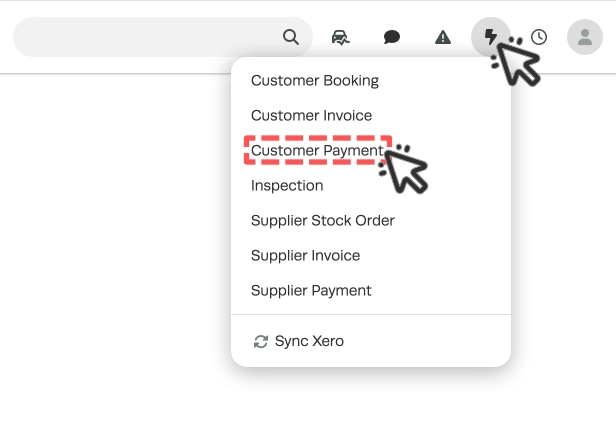
- To open a new Customer Payment click the Lightning Bolt icon then select Customer Payment.
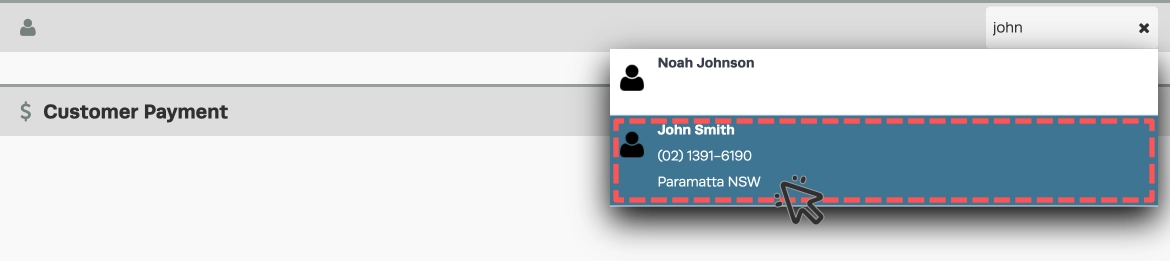
- Then search for your Customer in the search bar and click their entry.
Select Invoices
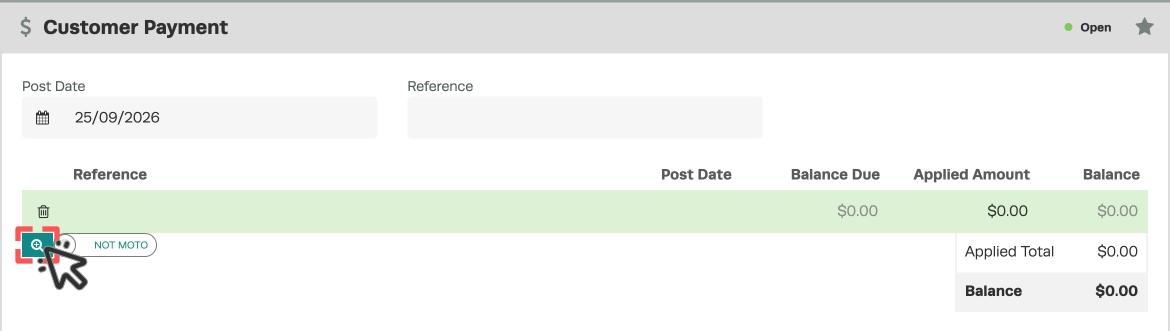
- To select the Invoices you are recording a Payment for click the green Magnifying Glass button.
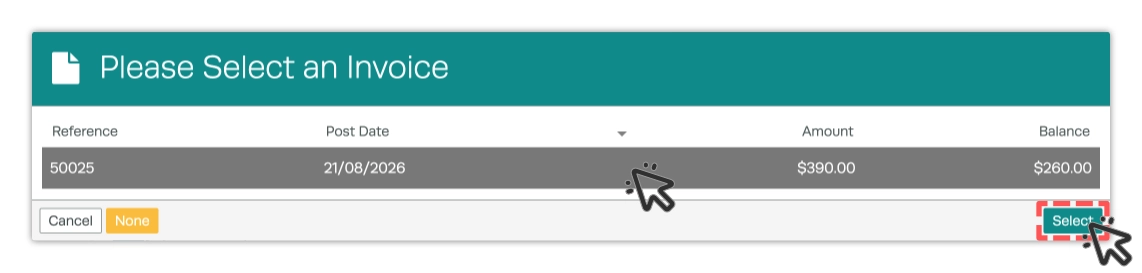
- You may then click one or more Invoice to select them and then click the green Select button to add them to your list of Invoices.
Apply Funds
- The Applied Amount will default to the Invoice's remaining Balance, if you would like to record payment for less than this amount you may change the Applied Amount for each Invoice.

- In the Payment Method fields below the Balance select a Payment Method, Reference and an Amount equal or less than the remaining Balance and click the green Apply button to record a portion of the Payment.
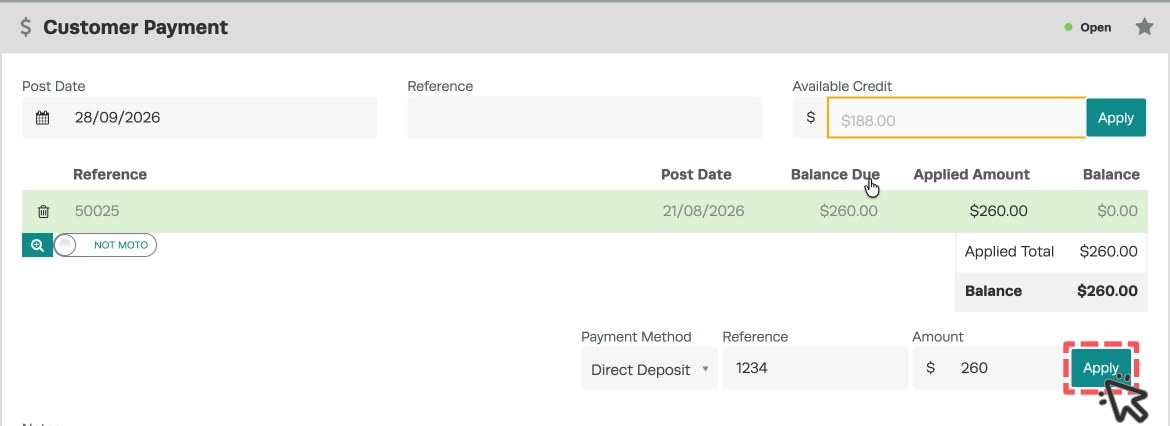
Please Note: You may only record Payments sufficient to reduce the final Balance to $0.00. If you would like to create an overpayment on a Customer's account follow this process.
- After you have recorded all funds for this Payment click the Green Process button to allocate the Payment.
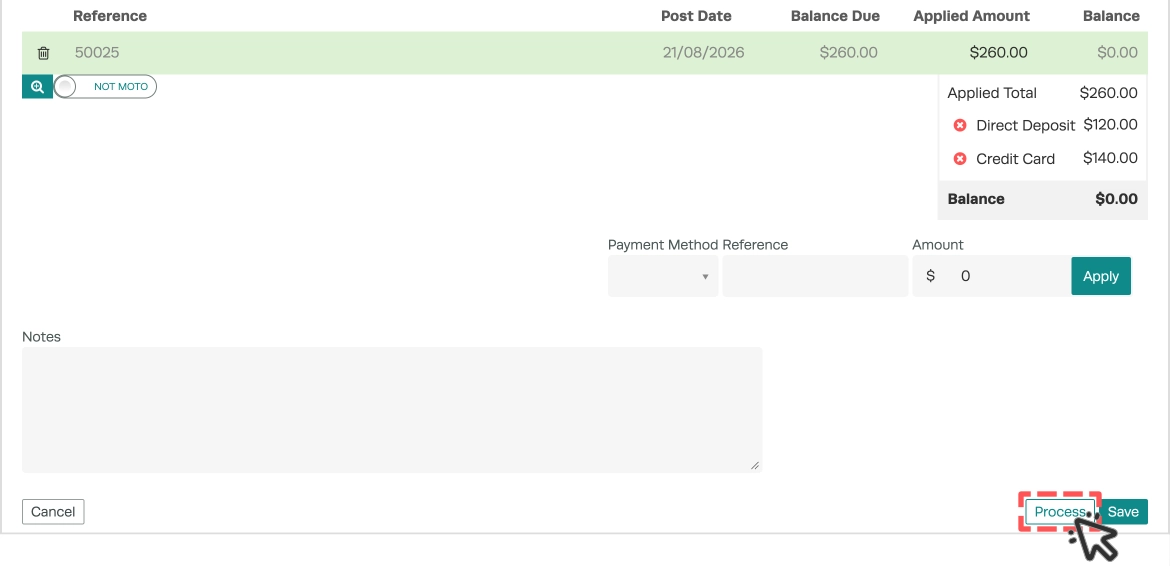
- Once processed each Payment type will be displayed on the Invoice and it will be Closed.
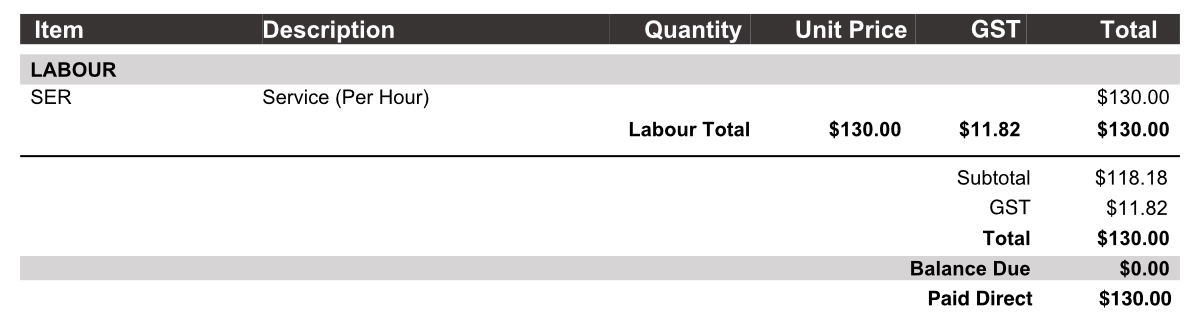
Print a Receipt
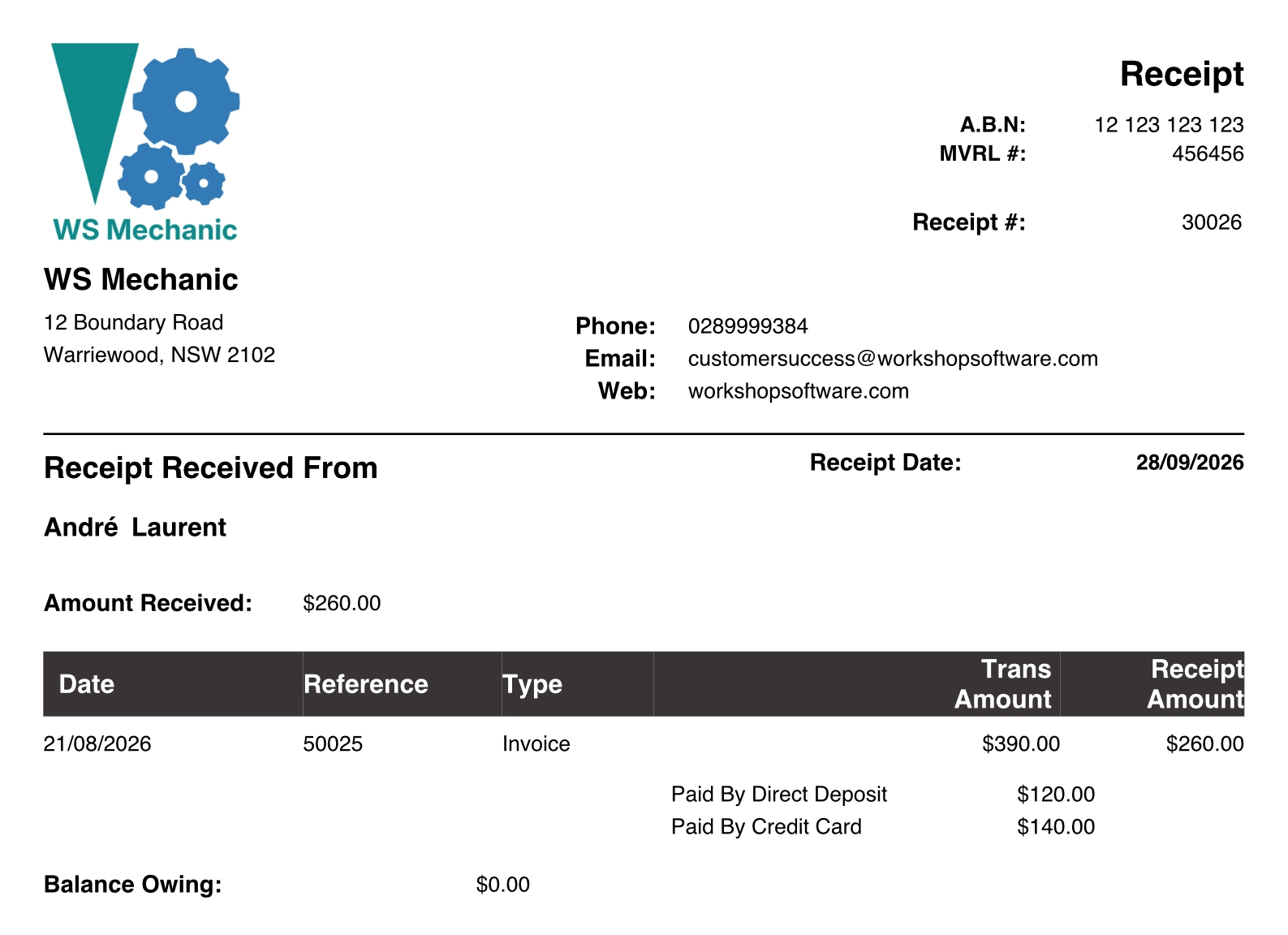
You may print or email a .pdf receipt for a Payment or if using a WorkshopPay terminal instruct it to print a Receipt.
- Using the Export icon you may Print or Email a Receipt for your Customer.
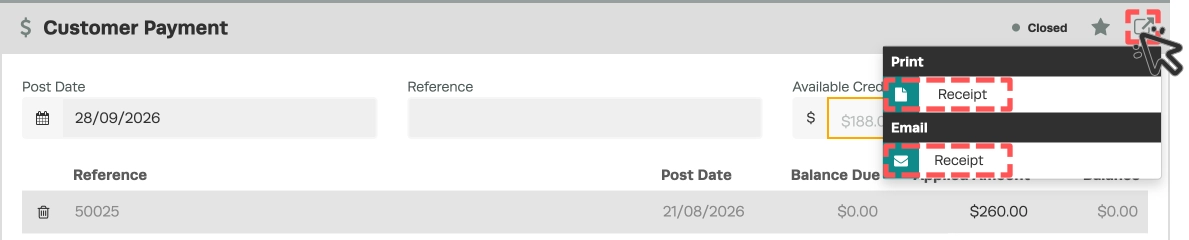
- Using the Star icon you may print a receipt from your WorkshopPay terminal for any included WorkshopPay funds and view each fund allocation's Reference.
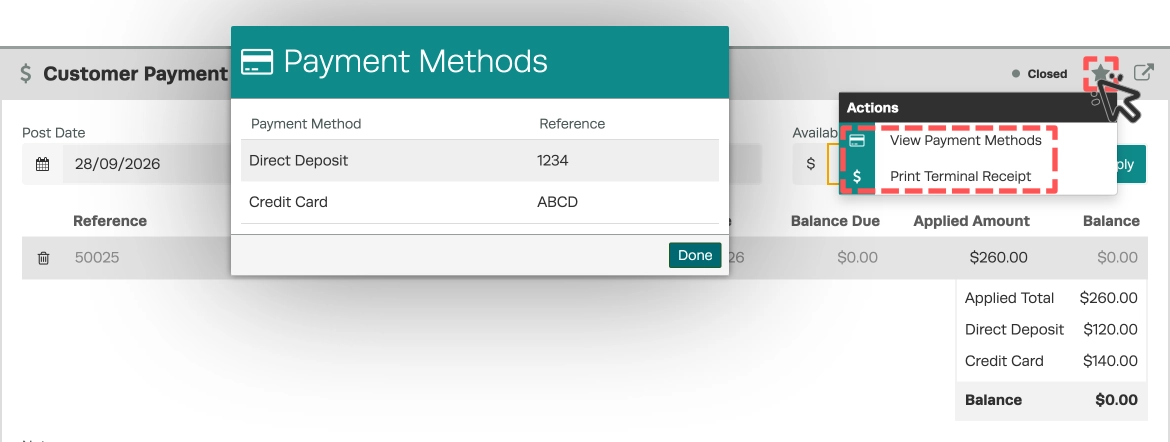
- The Receipt will include details of each Invoice and Payment Method used.
Apply Payment from an Invoice
You may open a new Customer Payment from a Processed Invoice with the Customer and Invoice already selected.
- Open the Invoice.
- In the Invoice screen scroll down to the Invoice Payments card and click the + icon.
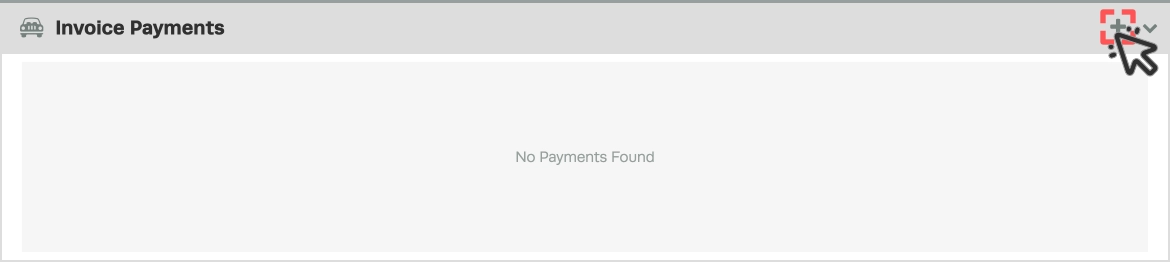
- The Payment will open with the Customer and Invoice already selected.

Apply Payment from a Customer's Record
You may open a new Customer Payment from a Customer's record with the Customer already selected.
- Open a Customer's record.
- Scroll down to the Customer Payments card and click + icon.
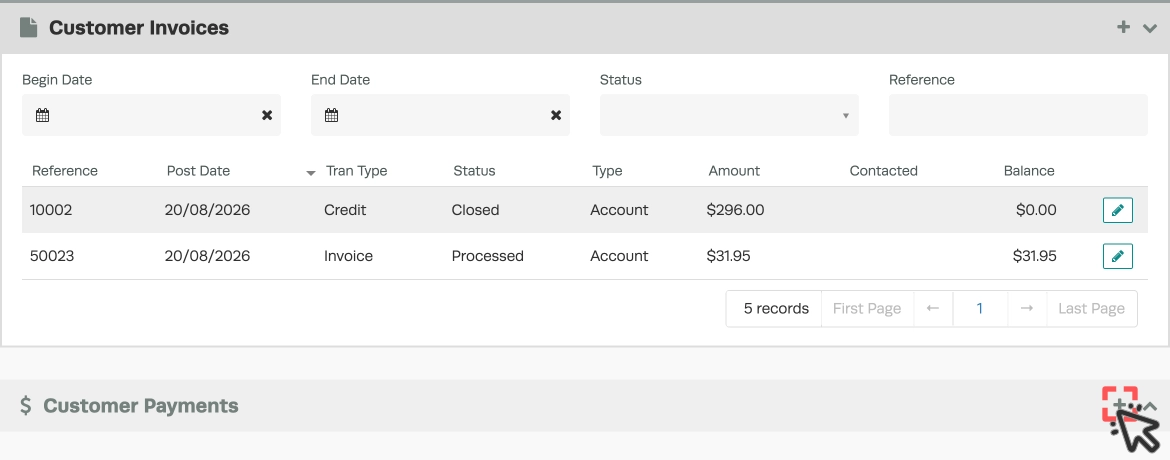
- The Payment will open with the Customer already selected.

Payment Details Explained
On the Payment screen you may record Notes and References for a Payment or apply any unapplied Customer Credits.
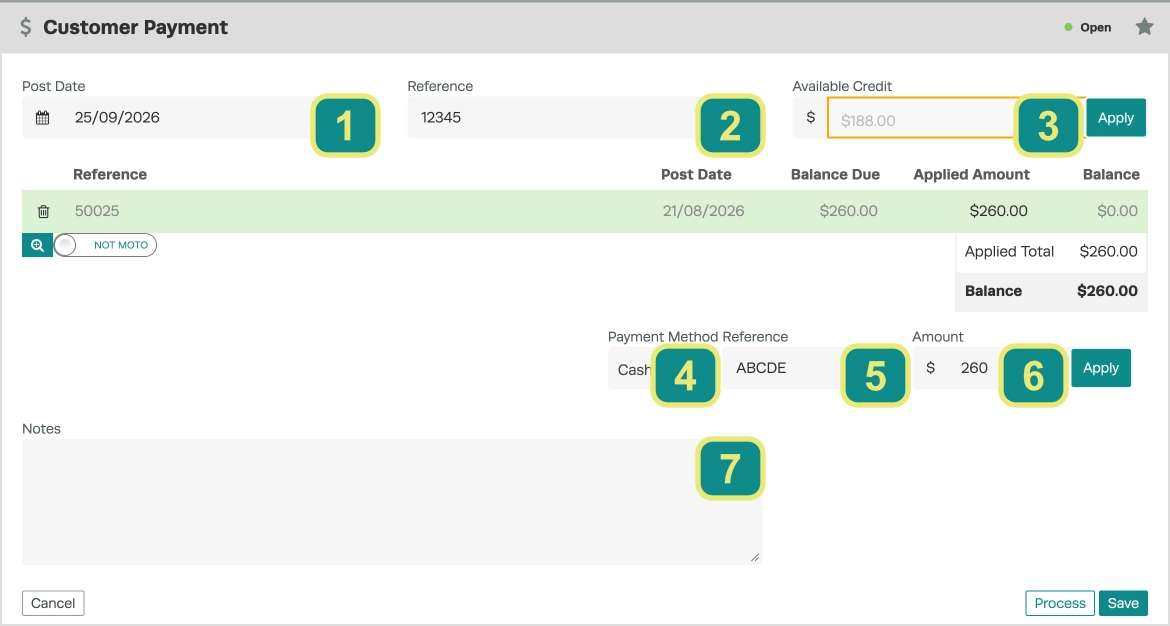
| Field | What it does |
|---|---|
| 1. Post Date | This is the Post Date of the payment, change this date if you would like to backdate a payment to when you received funds. |
| 2. Reference (Payment) | This is the master Reference for the Payment transaction. |
| 3. Available Credit | This field will only appear if a Customer has an unapplied Credit, you may click the green Apply button to apply a portion of this Credit to the Invoice before processing a new Payment. |
| 4. Payment Method | Fields 4-6 are used to record how a portion of the Balance has been paid, in Payment method select how the funds were received. The defaults are Cash, Credit Card and Direct Transfer but you may add additional Payment Methods in Settings > Company Lists. |
| 5. Reference (Applied Payment) | This Reference field is used to record a Reference for a single fund transfer. |
| 6. Amount | The amount for the single fund transfer, this cannot be greater than the remaining Balance. |
| 7. Notes | In the Notes field record internal text notes relating to this payment. Notes are internal and are not printed on the receipt. |
Good to Know
- Double-check the details on your invoice before finalising to ensure everything is correct.
- If a customer pays in multiple instalments, repeat this process for each payment until the balance is zero.
Frequently Asked Questions
Can I undo a payment on an invoice?
Changes to finalised invoices may be limited. If the invoice has already been synced to your accounting system, you may need to create a credit note instead of editing the original invoice.
