Skip to content

This article explains how to use the redesigned Booking Diary to book Jobs in, move them between Mechanics and days and split work that needs more time.
Choosing a View
The Booking Diary can display your Bookings on a calendar view or as a list.
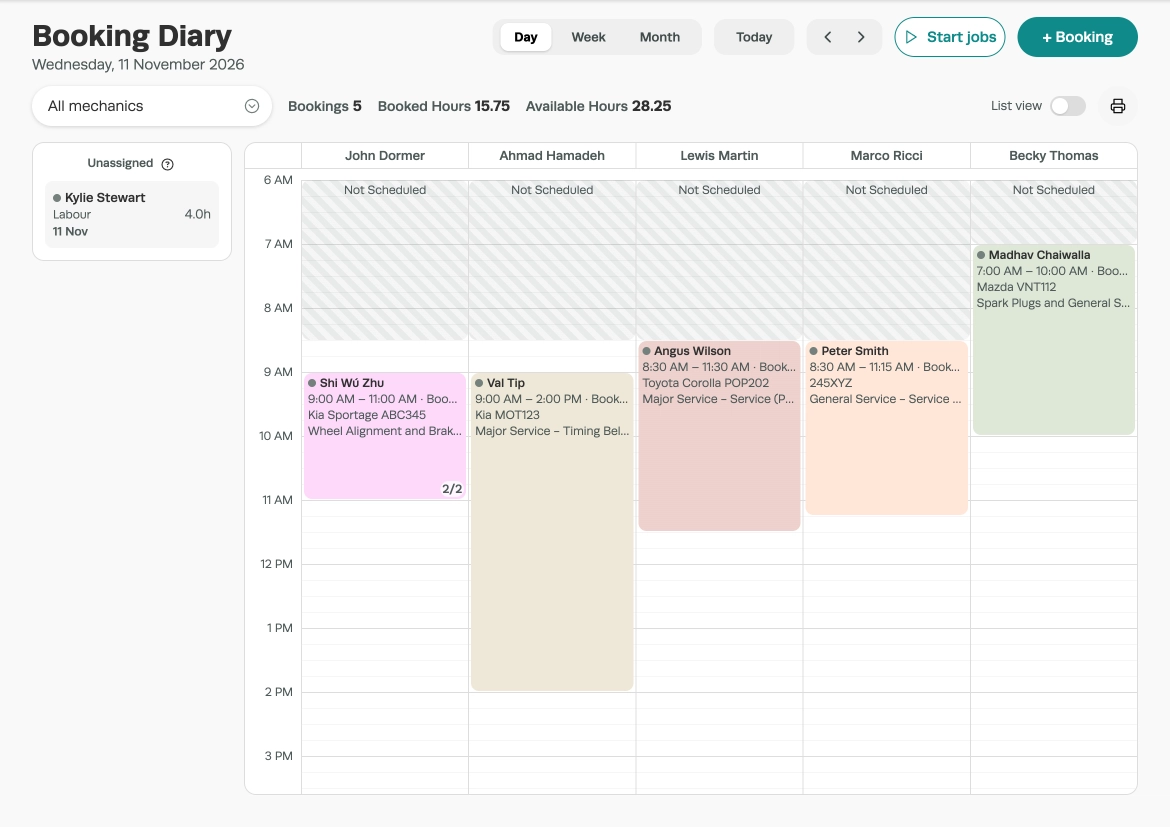
- Open the Booking Diary link from the navigation bar, the diary defaults to today's date in the Day view, with a column for each of your Mechanics.
- Click the Day, Week or Month buttons (1) to change the view and use the Arrow or Today buttons (2) to change the date.

Day View
Day view shows the day's Bookings, Booked Hours and Available Hours.
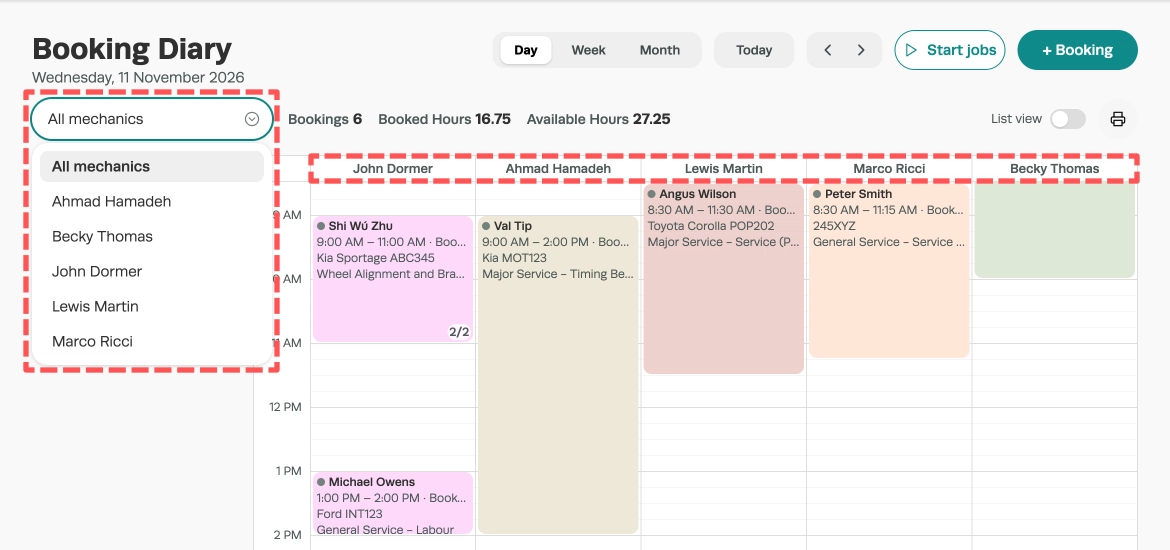
Click a Mechanic's name or select them from the drop down menu to show only their Bookings. Click their name again to return to all Mechanics.
Week View
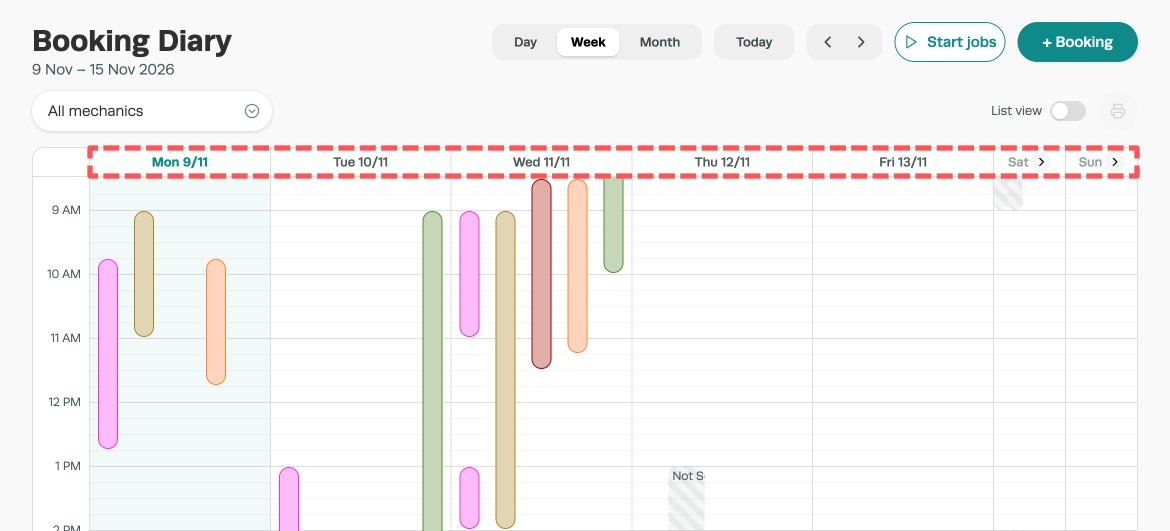
The Week view shows a column per day. Click a day's heading to open it.
Month View
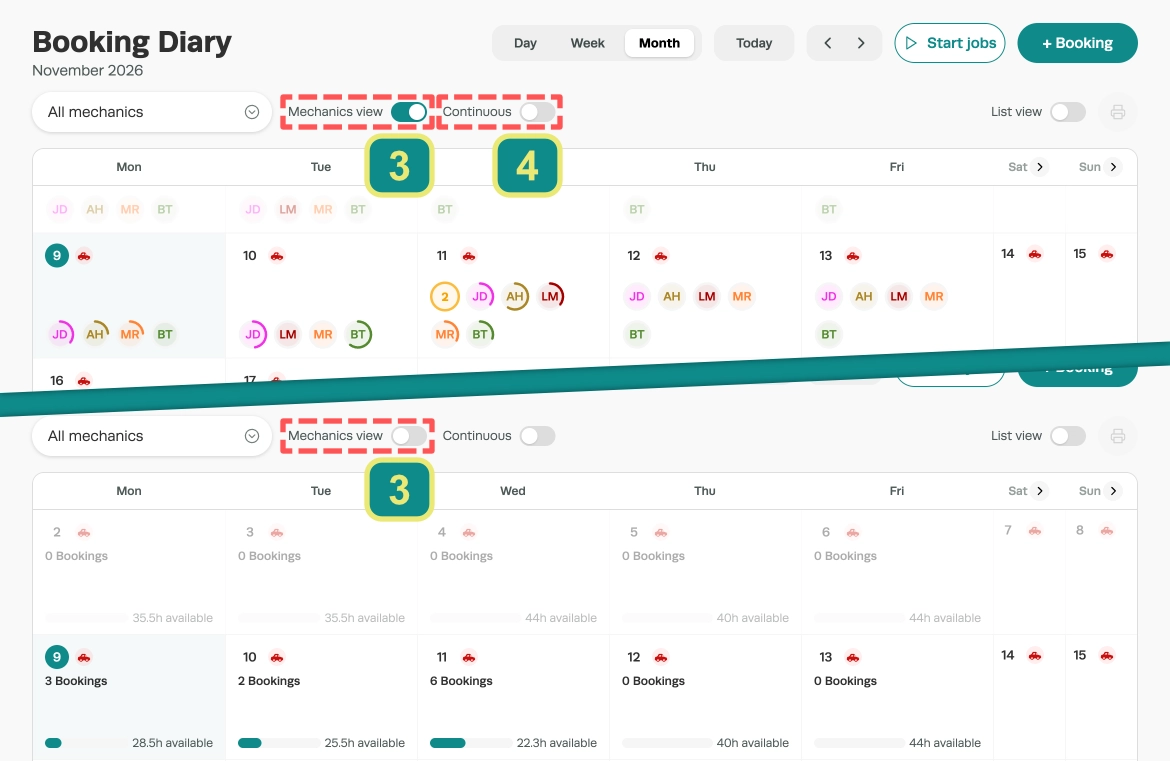
The Month view shows each day's Bookings, hours booked and hours still available, or Fully booked when none are left. The Mechanics view toggle (3) switches between an overview of each team member's capacity and total workshop availability.
The Continuous toggle (4) enables continuous scrolling between months.
With Mechanics view on, click a Mechanic's ring to open their day or elsewhere in the box to open the day for all Mechanics.
List View
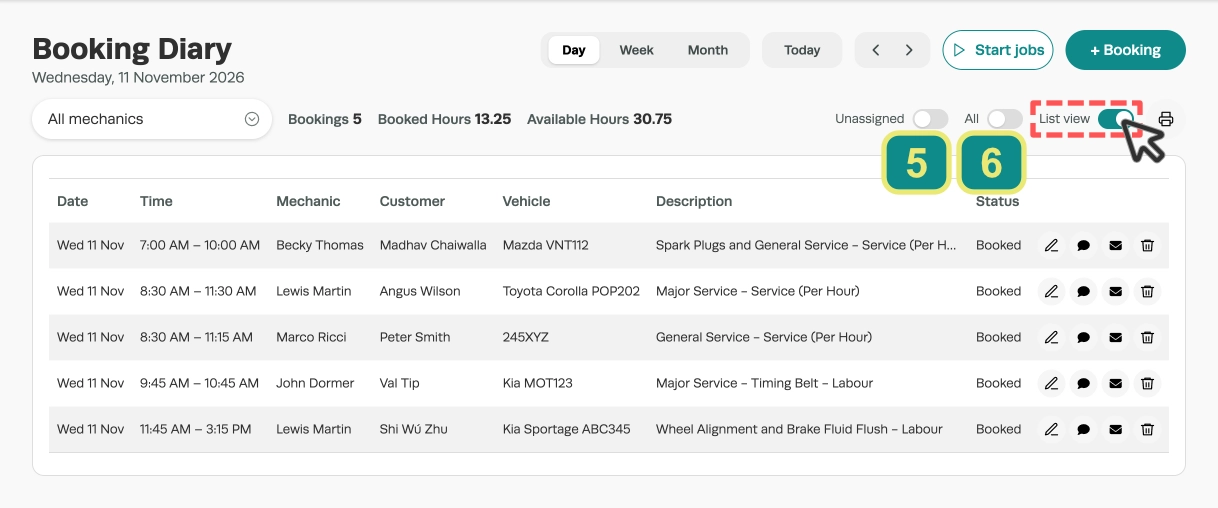
The List view shows Bookings as a table filtered by the Day, Week or Month selection.
Enable the Unassigned toggle (5) to list every Booking with no Mechanic assigned or All (6) to show every Booking.
Booking a New Job
- Double-click an empty time in a Mechanic or day's column, the + on a day's box in the Month View or the + Booking button to create a new Booking.
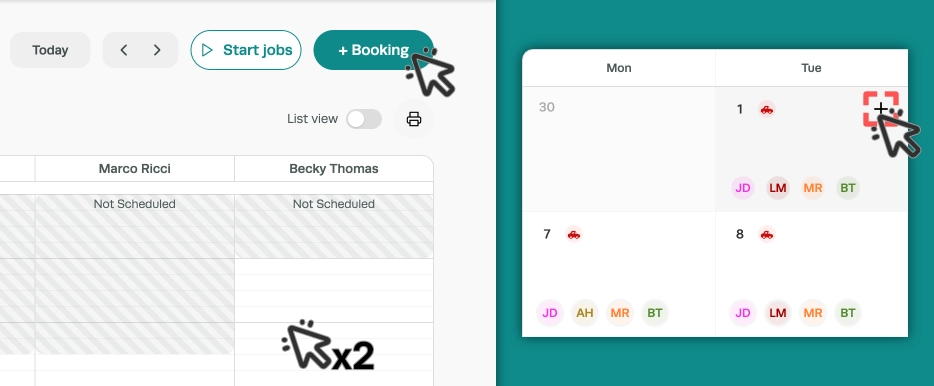
- The New Booking window opens with the date, time and Mechanic filled in as appropriate.
- Search for the Customer or use + Customer to add a new Customer, then select a Vehicle or click + Vehicle to add a new Vehicle.
- Confirm the Start Time and Date then enter a Description and the Estimated Hours before clicking Save booking to finalise the new Booking.
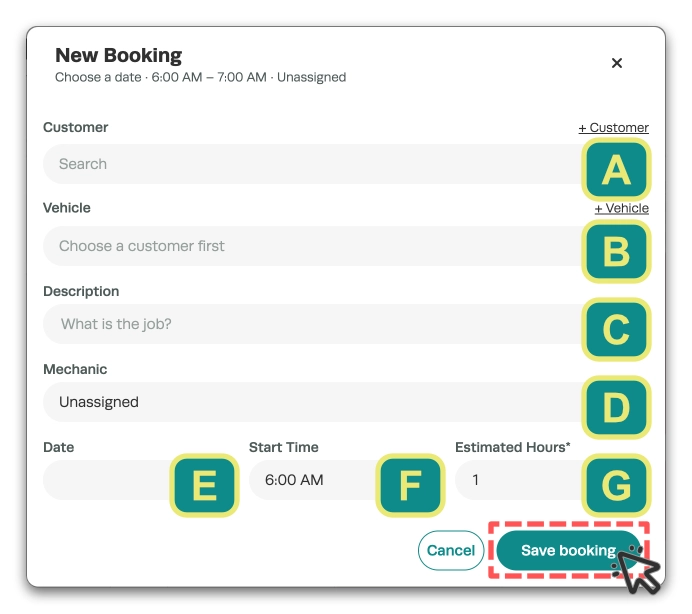
| Field | What it does |
|---|---|
| A. Customer | Search for the Customer or click + Customer to add a new one. |
| B. Vehicle | Choose one of the Customer's Vehicles or click + Vehicle to add a new one. Pick a Customer first. |
| C. Description | A short description of the work that needs to be done. |
| D. Mechanic | The Mechanic doing the work. It is prefilled if you opened the window from a Mechanic's column otherwise it shows Unassigned. |
| E. Date | The date of the Booking. |
| F. Start Time | The time the Booking starts. |
| G. Estimated Hours | How long the work is expected to take. This sets the length of the Booking in the diary. |
Please Note: Unassigned Bookings take hours off the whole workshop's available hours for their day, but don't count towards any one Mechanic or the Booked Hours total. You can drag them onto a Mechanic later.
Moving and Assigning Bookings
You may drag a Booking to another time, Mechanic, or in the Week view to another day.
Drag a Booking's top or bottom edge to change its length.
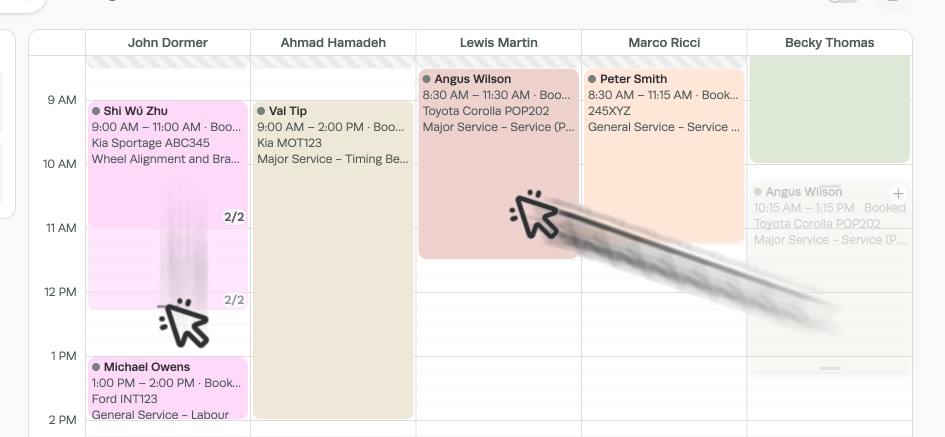
Please Note: Two Bookings can overlap on the same Mechanic: the diary warns you and shows them side by side. You can't book a past time or a time the Mechanic is away or not rostered.
The Unassigned Column
In the Day view, the Unassigned column on the left holds work waiting for a Mechanic: that day's Bookings with no Mechanic, Bookings with no date, and parts split from other Bookings.
Drag a card onto a Mechanic's column to book it in.
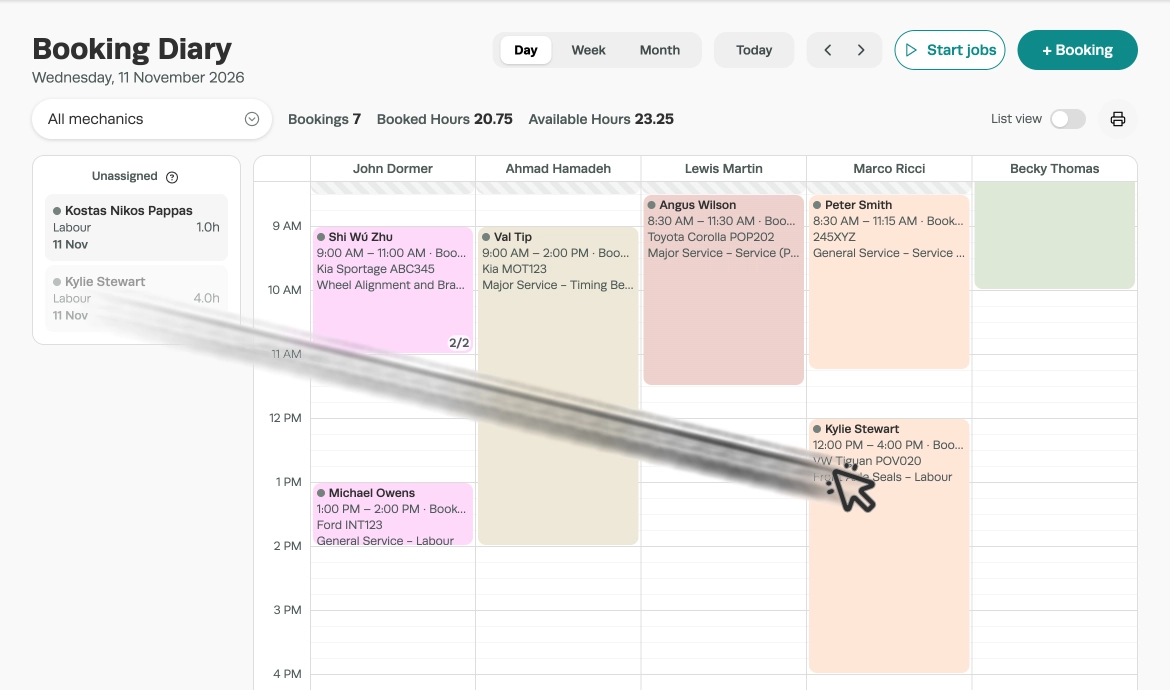
To take a Booking off the diary, drag it onto Unassigned. Any Booking can be moved back to Unassigned until its Job Card is finalised.
Splitting a Booking
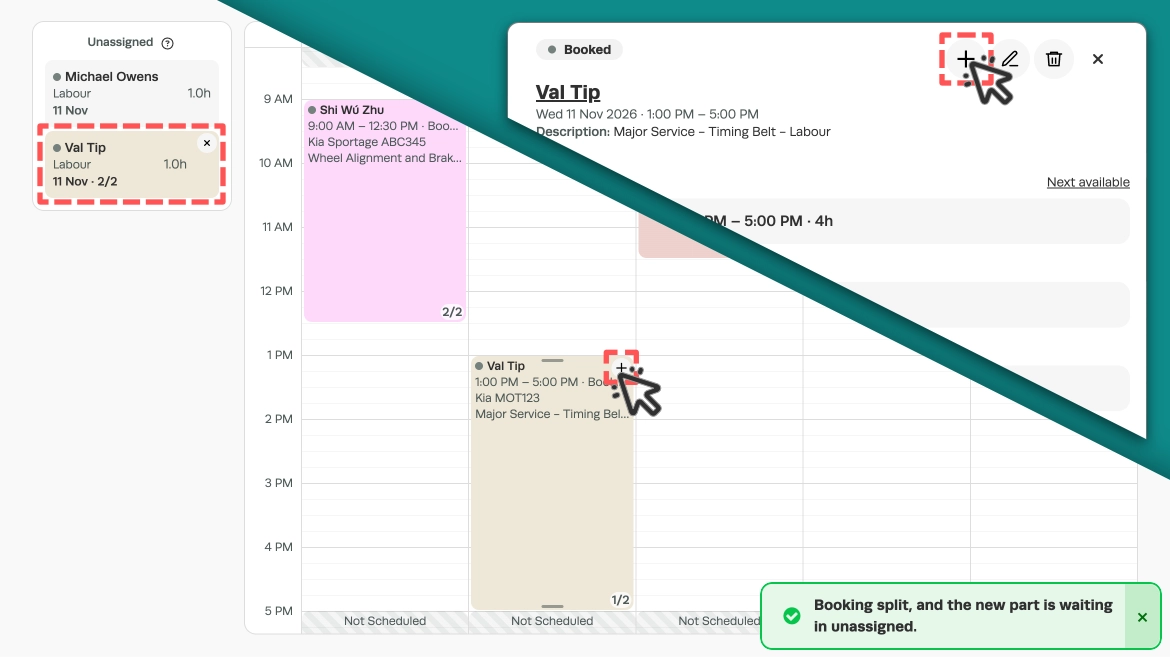
When a Job needs more time or a second Mechanic's attention, click the + on the Booking's box in the Day view or the + at the top right of its details card.
The Booking keeps its length and a new 1 hour part waits in Unassigned.
You may then drag the unassigned part to a second Mechanic or change to a later day to assign it then.
Changing a Booking from its Card
Click a Booking's box to open its card. From the card you can change any Booking detail except the Customer, change the Labour Product on the Booking and contact the Customer.
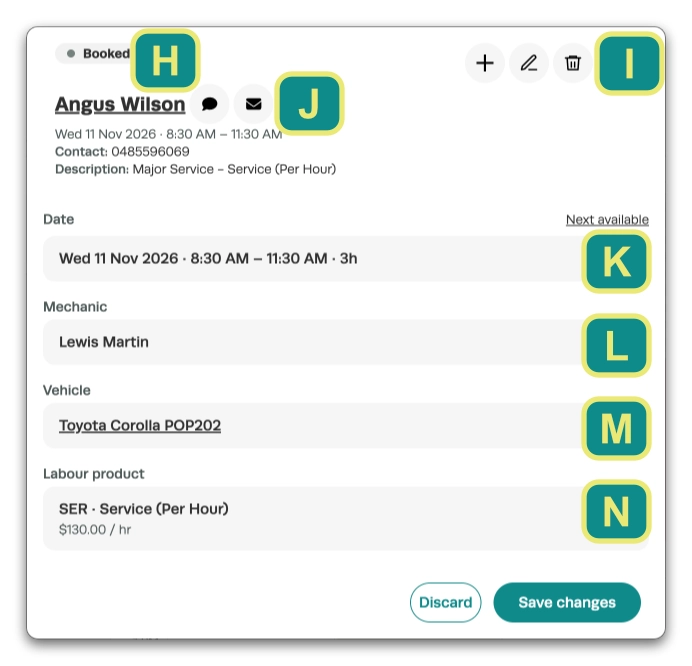
| Field | What it does |
|---|---|
| H. Status | The status tag on the card: Booked, WIP (Work in Progress) or Finalised. |
| I. Card tools | The + icon splits the Booking, the Pencil opens the full Booking (or the Job Card once started) and the Bin deletes the whole Booking. |
| J. Customer | The Customer's name with their contact details and the SMS and Email icons to get in touch with them. |
| K. Date | Click to change the Date, Time or Duration (hrs). Click Next available to see the next free times. |
| L. Mechanic | Click to change the Mechanic for this Booking. |
| M. Vehicle | The Vehicle the work is for, click the underlined Vehicle details to open the Vehicle's page or the box to select a different Vehicle. |
| N. Labour Product | The Labour Product on the Booking and its hourly rate, click to search for and assign a different Labour Product for example a specific service offering. |
- Click Save changes to confirm your choices.
Deleting a Booking
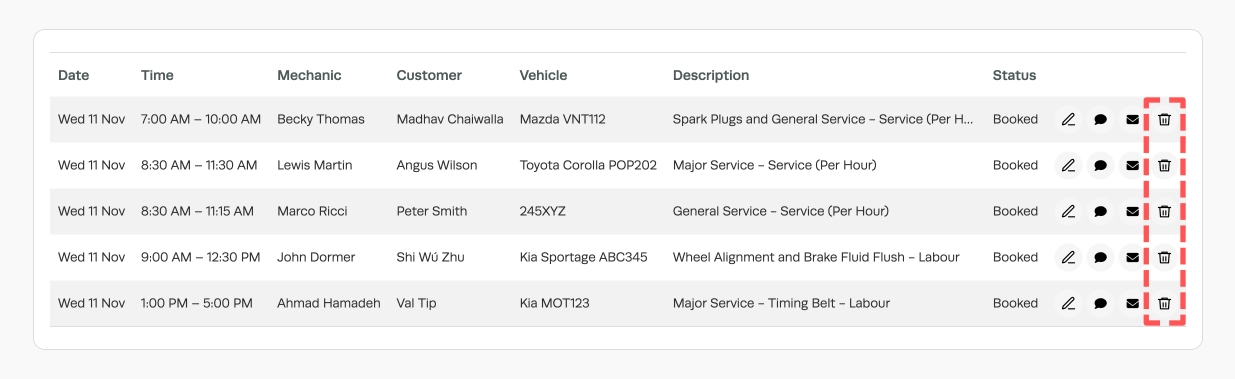
The Bin icon on a Booking's card or in List view deletes the whole Booking including all parts of a split Booking.
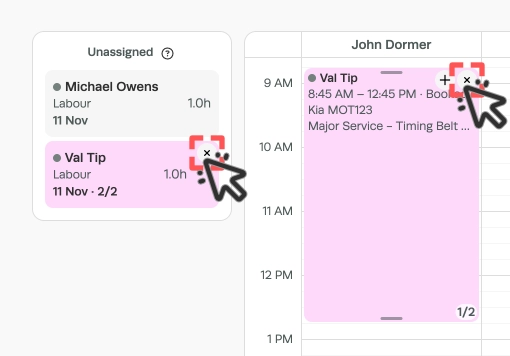
To remove one period in a split Booking click the X icon in the top right corner of its box.
Starting the Day's Jobs
- Click the Start jobs button (7), check the Date, then click Start jobs (8) in the pop up
- Every open Booking that day becomes a Job Card.
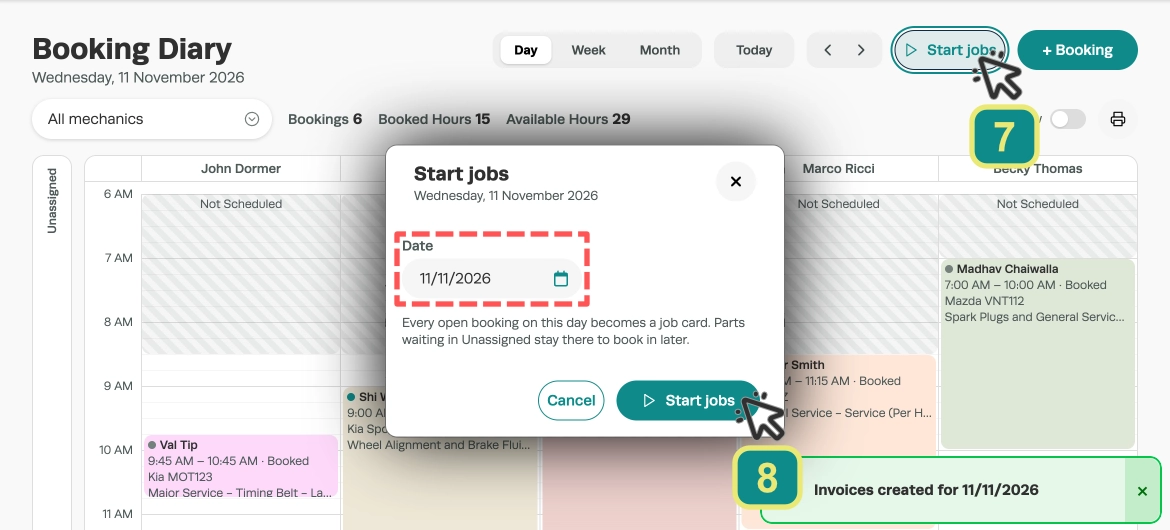
Please Note: Split parts in Unassigned stay there.
Good to Know
- In the Day view, a grey dot means Booked, a teal dot means work in progress and light green is Finalised.
- Parts from the last 12 months appear in Unassigned on every day, older parts only on their own date.
- A Booking can have two split parts waiting at once.
- Yellow Unavailable and grey Not Scheduled blocks define times outside your team's rostered hours, preventing bookings during time off and Holidays.
- A Mechanic with no roster that day or one made inactive is shaded Not Scheduled all day.
- Click an Unavailable or Not Scheduled block to open the Schedule and adjust unavailable times.
- Start jobs, the printer icon and the Month view loan car icon are Gold features.
Frequently Asked Questions
Which date does + Booking open on?
+ Booking opens on the day you are viewing, or on today's date when you are viewing a past day.
Why does a card from Unassigned land at a different time to my pointer?
It starts at the time its top edge is lined up with, wherever you grabbed it.
What does the printer icon print?
Every Job for the day you are viewing.
Can I change a waiting Booking's hours before booking it in?
Yes. Open its card in Unassigned and change the Duration (hrs).
Can I move a started job back to Unassigned?
Yes, until its Job Card is finalised.
Does work waiting in Unassigned reduce a day's free hours?
Yes. An Unassigned Booking takes its hours off the whole workshop's available hours for its day, but doesn't count towards any one Mechanic or the Booked Hours total.
Why can't I see the Unassigned column?
It only shows in the Day view. When nothing is waiting it shrinks to a slim strip down the left of the grid and you can still drag a Booking onto it. When more than ten cards are waiting, scroll the column to see the rest.
Why was my move refused?
The time has passed, the Mechanic is away or not rostered at that time, the Booking would run past closing time, or the day is more than 24 months ahead. The message tells you which.
Can two Mechanics work on the same Booking at the same time?
Yes. Split the Booking and drag the new part onto the second Mechanic at the same time.
Why can't I split or unassign a Job?
Once its Job Card is finalised, a Job can no longer be split or moved to Unassigned.
Why is the + greyed out on some days in the Month view?
You can't book into a day that has passed. Past days are for looking back only.
How far ahead can I book?
Up to 24 months from today. A Booking already further out than that stays editable on its own day, but can't be moved further out.
What does the loan car icon in the Month view mean?
Green means a loan car is free for at least half your opening hours that day, and red means none is. Click it to open the Loan Car Diary on that date.
How do I hide the weekend?
Click the arrow beside Saturday or Sunday in the Week or Month view. The diary remembers your choice.
Does changing a Booking's length on the diary change the Labour hours on the Booking?
No. The length on the diary is the Estimated Hours. The Labour line on the Booking, and the Job Card made from it, keep the hours you entered.