 Skip to content
Attaching a loan vehicle to the customer's invoice records who had the car and lets you charge for it if you need to. This article shows you how to set up the loan car product and add it to an invoice.
THIS FEATURE IS AVAILABLE FOR GOLD & PLATINUM CUSTOMERS ONLY
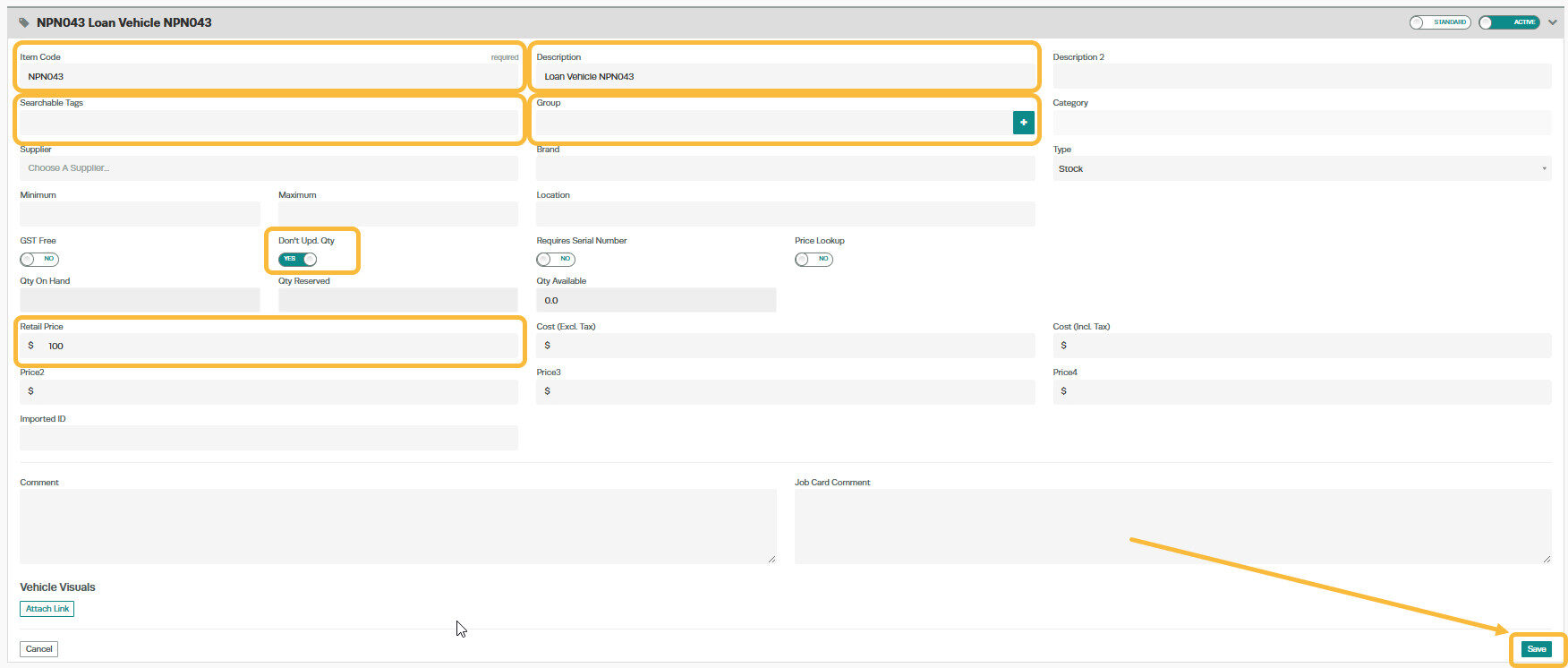
If you wish to have the Loan Vehicle details attached to the customer invoice you would need to set up the Loan Vehicle as a 'Product'
To Set up the Product:
1. Go to 'Products' then click on the '+'

2. Fill in the Vehicle details and make sure the 'Don't Upd. Qty' is switched to 'YES'.
3. Add a 'Retail Price' if you wish to charge the customer a fee for the loan vehicle.
4. The click 'Save'
Related Articles
- Create your Loan Vehicle Terms and Conditions
- Create a Customer Invoice
- Add Vehicle Details to a Booking or Job Card - Customer Invoice
