Skip to content

This article explains how to send your colleague a link that opens a specific page in Workshop Software, such as a Booking, Customer or the Jobs tab of the Transaction Center, and what happens when they click it.
Using this method a staff member will land on the exact piece of work you mean, without describing where to find it.
Please note: These links are for your staff with Workshop Software Web App user accounts, to send a Customer a link to request a booking use your public booking link instead.
Copy a Link to your Open Page
- Open the page you want to share, for example a Booking, a Customer, a Vehicle or an Invoice.
- Click the browser address bar, select the whole address and copy it with Ctrl+C (Cmd+C on a Mac).
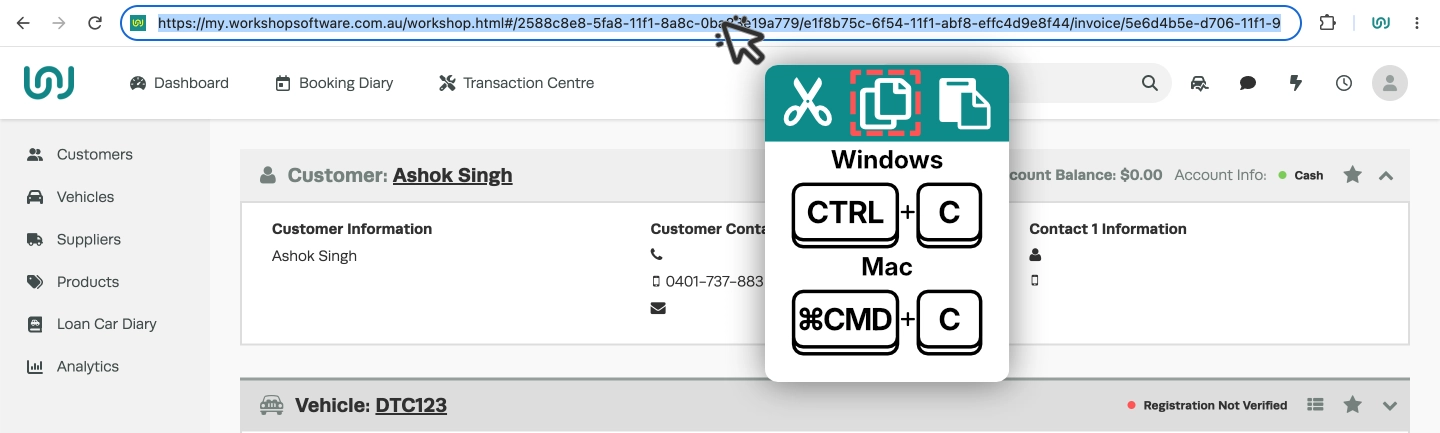
- Paste the address into an email, Slack, RingCentral message, or any other message and send it to your colleague.
What Your Colleague Sees
If they are already logged in: The link opens a new tab straight to the same page you opened, with the navigation bar and left hand sidebar menu showing as normal.
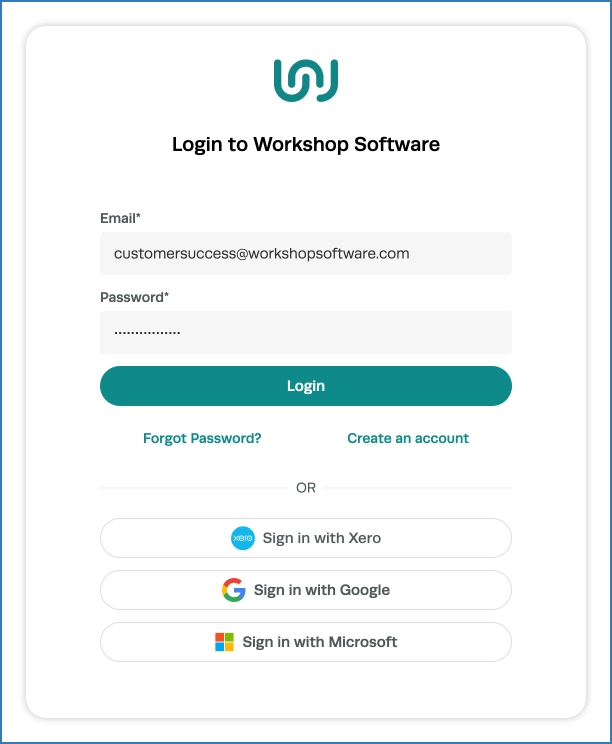
If they are not logged in: The Login to Workshop Software screen appears first. As soon as they log in they are taken to the page you opened, instead of their usual home screen.
Good to Know
- The link works the same way whether it is clicked in an email, a chat app, or pasted into a new browser tab.
- A link never gives anyone extra access. Your colleague only sees what their own User Group allows, exactly as if they had opened the page from the menu.
- Your colleague should log in from inside the tab the link opened. If they close that tab and log in from a fresh one they land on their usual home screen.
- The linked page is only used once. The next time they log in without a link, they go to their usual home screen.
- If your colleague was logged out overnight, the link still works. They log in first and then go to the page.
- Links work the same way in the dealer area of Workshop Software.
Frequently Asked Questions
I used to get a blank white screen when I opened a Workshop Software link while I was logged in. Has that changed?
Yes. A link to a page inside Workshop Software, opened in a new tab while you are logged in, now loads that page in full, with the top menu and sidebar. If you still see a blank screen, contact support@workshopsoftware.com.
Why did I land on my home screen instead of the page in the link?
Check that you logged in in the same tab the link opened. Logging in from a different tab, or going to the login page directly, takes you to your usual home screen. If your subscription has been cancelled or your trial has ended, you are taken to the account activation screen instead, as before.
What happens if the link is to a page my User Group cannot open?
You see the same "Insufficient rights" message you would get if you tried to open that page from the menu. Ask your administrator if you need access.
Can a link send me to another website after I log in?
No. After you log in, Workshop Software only ever takes you to a page inside Workshop Software. Any other destination is ignored and you go to your usual home screen.
My grid filters were reset when I opened a link to a list. Why?
Rows per page are always remembered. Filters are only remembered when Persist Grid Filters is switched on. To turn it on, click your company name at the top right of the screen, select User Profile, switch on Persist Grid Filters and click Save. If you do not see User Profile in that menu, ask your administrator.
Can I bookmark a page inside Workshop Software?
Yes. Opening a bookmarked page works the same way as a link. If you are logged out, you log in first and are then taken to the bookmarked page.