 Skip to content
All users can see the Sales Dashboard by default. This article shows Admin users how to limit a user's Dashboard Privileges so they cannot see sales figures and analysis charts.
By default, all users have access to the Sales Dashboard in Workshop Software. However, there is a function available that allows you to restrict user access to the Sales Dashboard if needed. If you have Admin access, follow these steps to manage user permissions: Go to admin Users
Users
 2. Click on the green 'pencil' icon for the corresponding username that you wish to limit their access to the sales dashboard
 3. Under Dashboard Privileges, toggle the setting to Limited to restrict access to the Sales Dashboard.
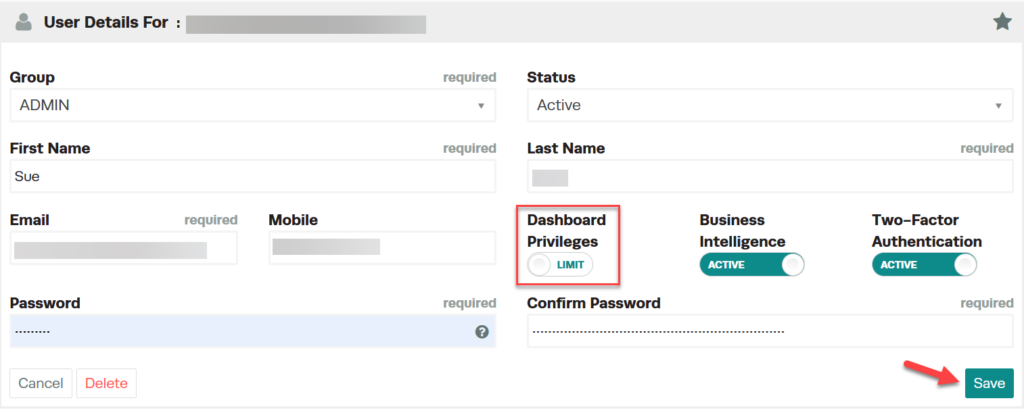 This user will not have access to see:
- Today's sales
- Past week's sales
- Past month's sales
- Analysis charts (inc. sales, performance, hours and product details)

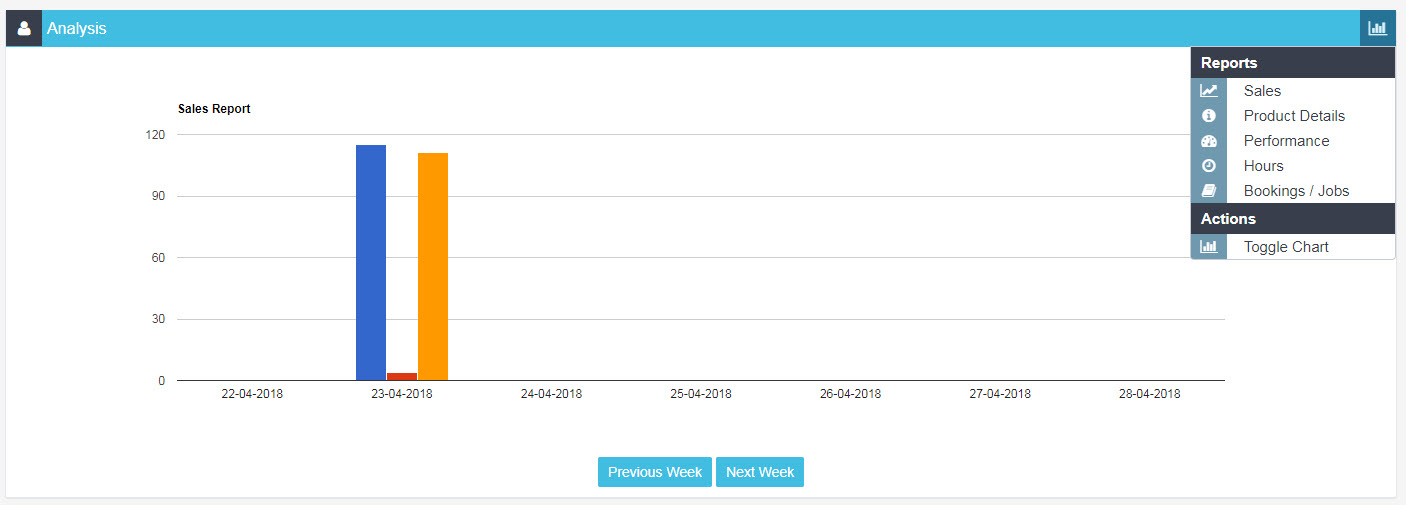
Please note: if you want your 2nd Admin user or sub-user to NOT see the Sales Dashboard, you can remove their access by clicking the 'Dashboard Privileges' toggle to LIMITED.
