 Skip to content
The Xero error 'The specified contact details match an archived contact' means you have a transaction against a customer who is archived in Xero. This article shows you how to restore the contact in Xero and re-sync.
The reason for this error is that you have made a transaction against a customer in Workshop software that you have as an archived contact in your Xero account. You can see the error below. 'The specified contact details matched an archived contact. Archived contacts cannot currently be edited via the API. To resolve this issue please go through the following steps in your Xero account:
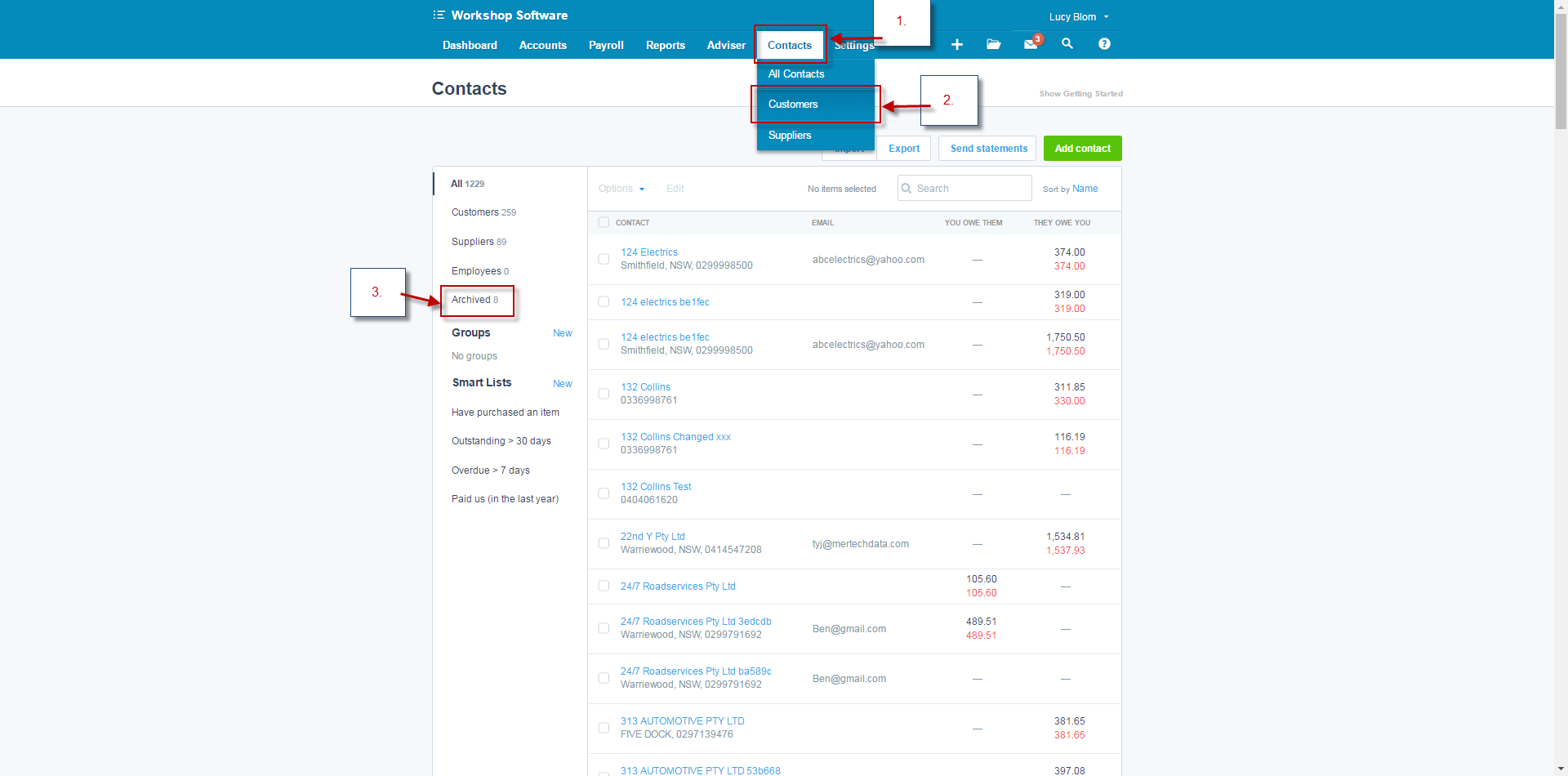
1. Select the 'Contacts' to open the drop down box.
2. Select 'Customers' form the drop down box.
3. Select Archived form the navigation bar on the left.
To resolve this issue please go through the following steps in your Xero account:
1. Select the 'Contacts' to open the drop down box.
2. Select 'Customers' form the drop down box.
3. Select Archived form the navigation bar on the left.
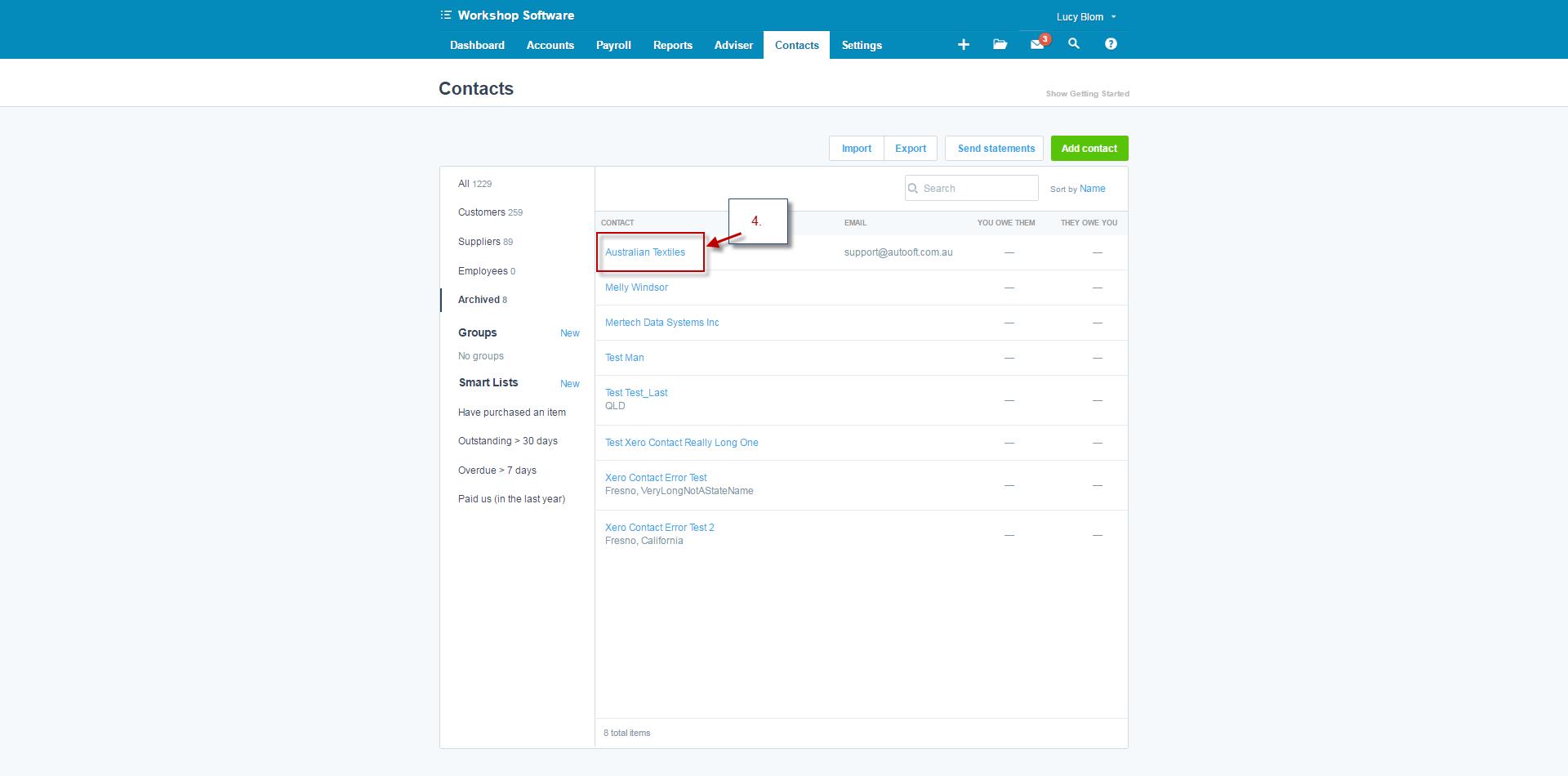
 4. Select the customer specified on the error. The customer's name will be in the blue area on the error above.
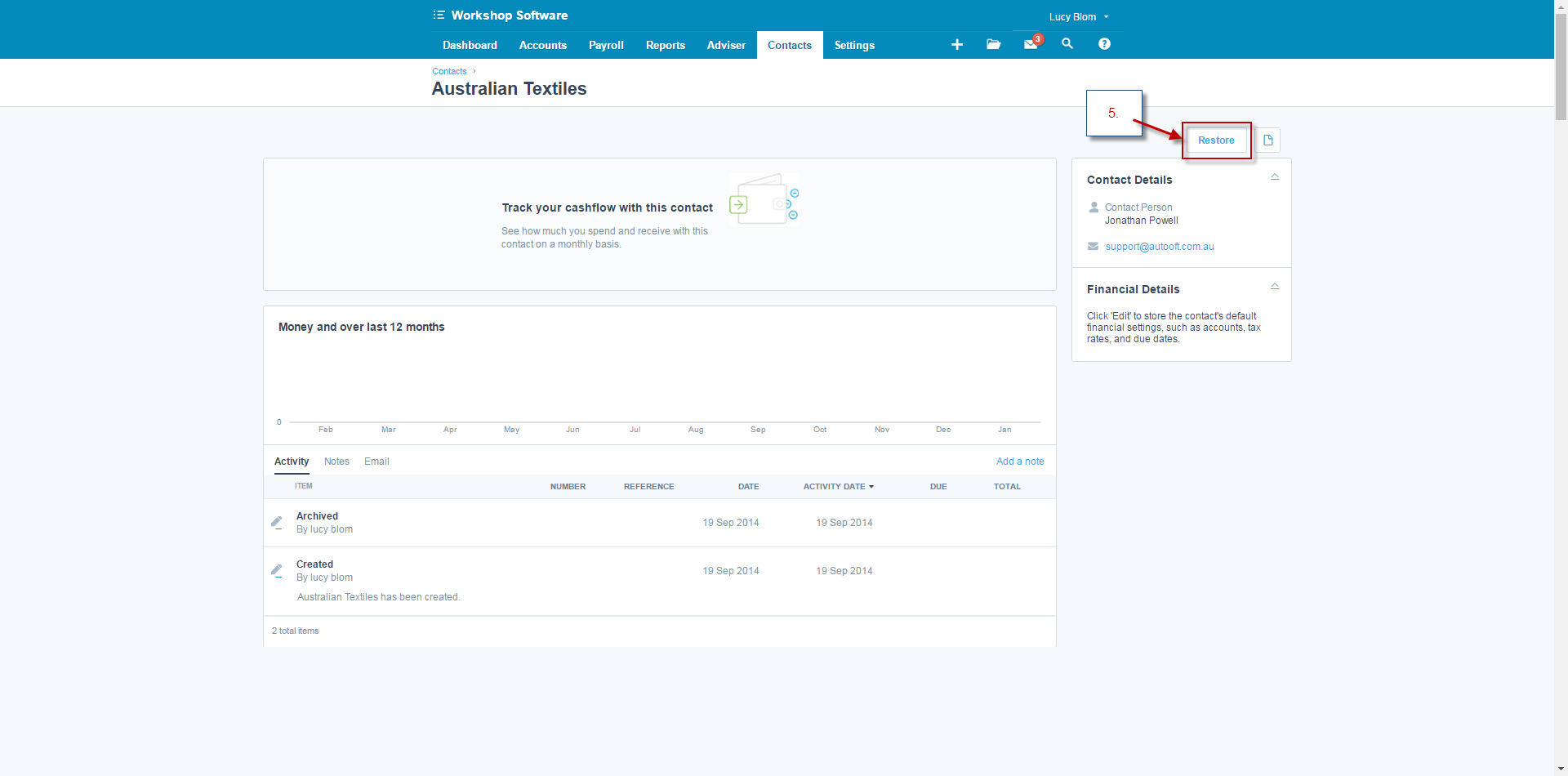
 5. Click 'Restore' to un-archive the contact.
 6. Go back to Workshop Software and press the Xero icon in the top right-hand corner to start a manual sync. Leave a few hours for the sync to complete fully.
Related Articles
- Xero Sync Error - Account has been archived, or has been deleted
- Xero Sync Error Message - Invoice not of valid status for creation
- Xero Sync Error Message - Associated parent record is not uploaded to Xero
