 Skip to content
The Xero error 'Xero integration will not work until valid accounts are entered' means one of the accounts in your Xero settings is blank or is missing its account code. This article shows you how to fix it in Xero's Chart of Accounts.
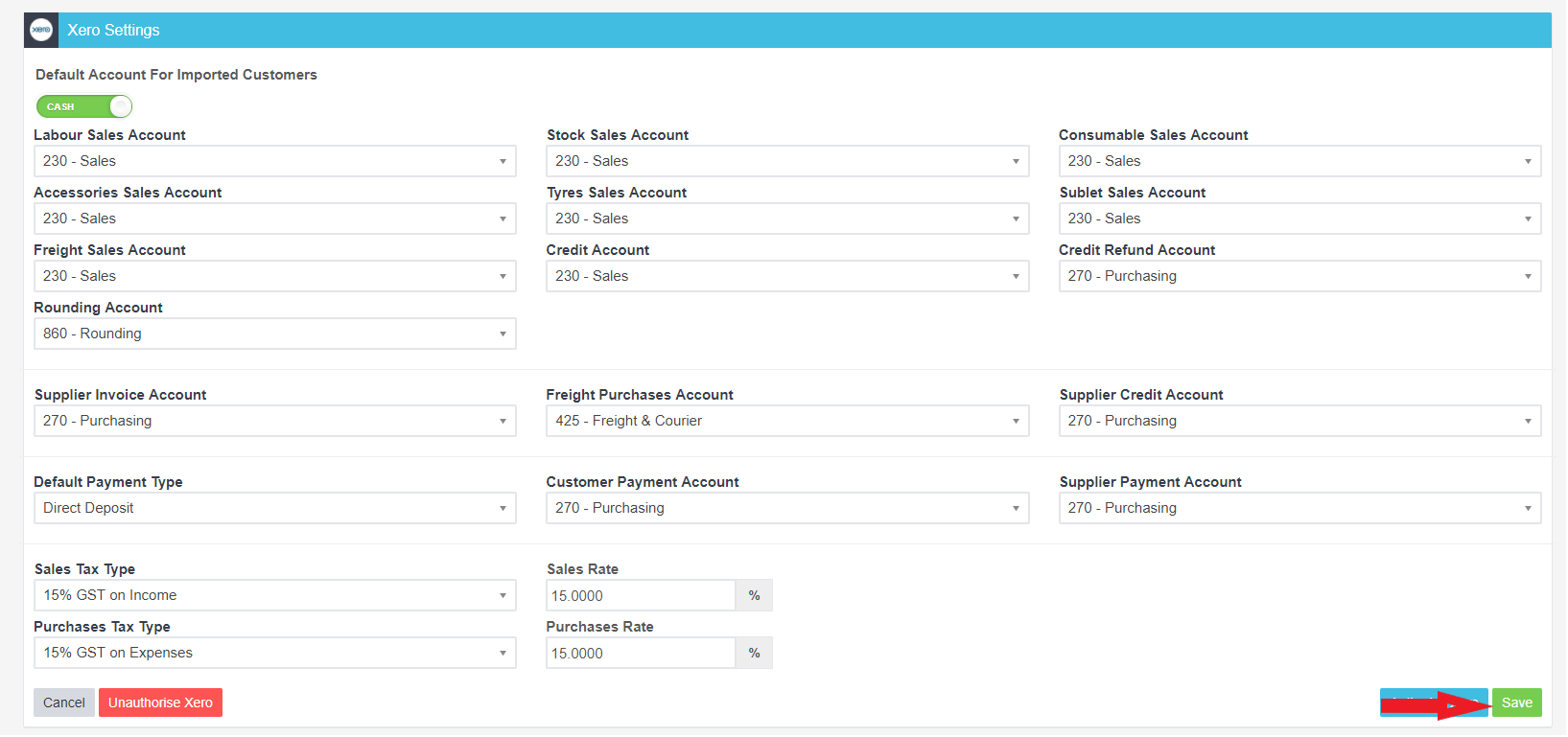
This issue is because of the way that your Xero account is set up. If you look in your Xero Settings, you will either see blank fields (All fields must be filled, even if you are not using this aspect of the integran) or one of the accounts set up will look something like the screenshot below: As you can see, the Reference number is missing at the front of the Account Name.
This needs to be changed in Xero:
1) Log into Xero
2) Go to Settings - Chart Of Accounts
As you can see, the Reference number is missing at the front of the Account Name.
This needs to be changed in Xero:
1) Log into Xero
2) Go to Settings - Chart Of Accounts
 3) Click on the Account that is missing the code
 4) Update the box called "Code" and click Save.
 5) Return to Workshop Software and save the Xero integration.
Related Articles
- Xero Sync Error Message - Invoice not of valid status for creation
- Xero Sync Error Message - Associated parent record is not uploaded to Xero
- Xero Sync Error Message - The specified contact details match an archived contact
