Skip to content
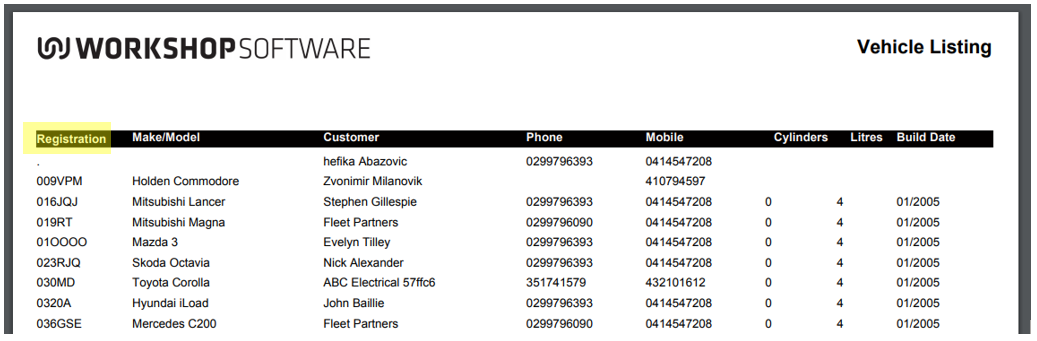
The Vehicle Listing report gives you a list of the vehicles in Workshop Software, with rego, make and model, customer contact details and build date, filtered by customer name, vehicle make or rego. This article shows you how to run it.
You are able to generate a list of the vehicles in Workshop Software and can filter the list by customer name, vehicle make or vehicle rego. The listing will show;-
- Vehicle rego
-
- Vehicle make/model
-
- Customer name
-
- Customer phone
-
- Customer mobile
-
- Vehicle cylinders
-
- Vehicle litres
-
- Vehicle build date
 2. Click on the down arrow icon to the far right of the blue 2. Click on the down arrow icon to the far right of the blue Workshop Reports menu to expand the menu; menu to expand the menu;
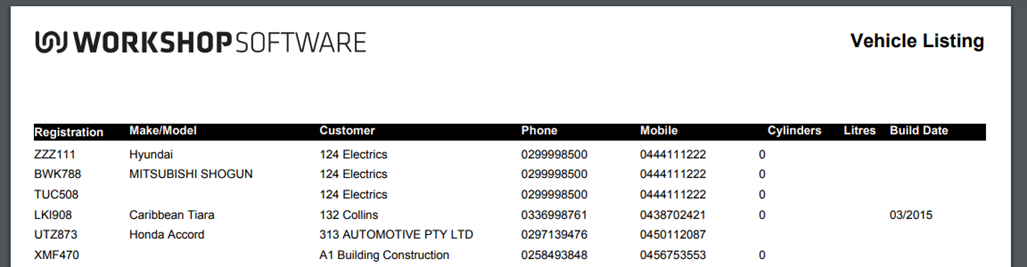
 Filter by Customer Name
Will generate in alphabetical order by customer name
Filter by Customer Name
Will generate in alphabetical order by customer name
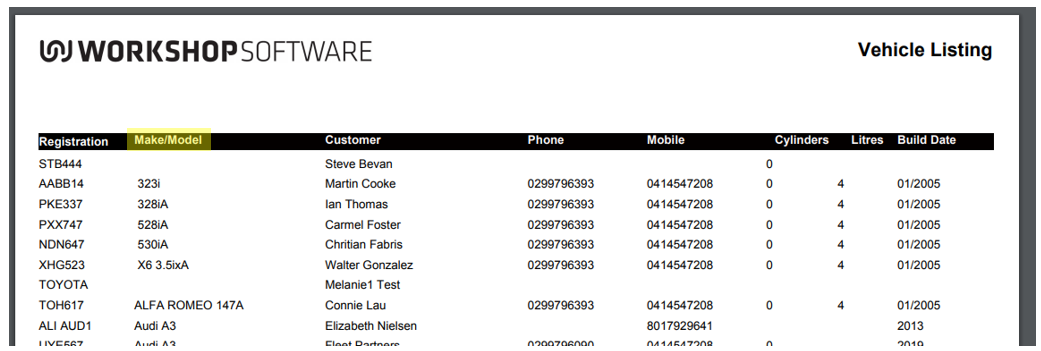
 Filter by Vehicle Make
Will generate in alphabetical/numerical order by Vehicle Make/Model
Filter by Vehicle Make
Will generate in alphabetical/numerical order by Vehicle Make/Model
 Filter by Rego
Will generate in alphabetical/numerical order by Vehicle Rego
Filter by Rego
Will generate in alphabetical/numerical order by Vehicle Rego