 Skip to content
Workshop Software can send five kinds of reminder without anyone in the office touching them: service due, registration due, New Zealand WOF due, a follow-up on an unaccepted quote, and a reminder the day or two before a booking. Each goes out by SMS or email according to the customer's preferred contact method. This guide walks through switching each one on and writing the messages.
Please note: Write both an SMS message and an email message for every reminder type you switch on, even if you only ever use one of them. Reminders for a category are not sent until both templates exist. If you plan to send SMS, buy SMS credits first. WOF reminders only appear when your country code is set to New Zealand.
Before you start
- SMS credits in your account if you will send texts.
- Default Service Interval set in Settings > Company Settings, so Next Service dates calculate correctly.
- Service toggle set to Yes on your labour products that count as a service, so processing an invoice updates the vehicle's Next Service date. See Add a product.
- Message templates, optional but recommended. Create them in Settings > Company Lists and you can drop them into any reminder with the + Add Template button.
The five reminder types
| Reminder | Triggered by | Recommended timing | Placeholders you can use |
|---|---|---|---|
| Service | The vehicle's Next Service date | 14 days before | Customer name, rego, next service date |
| Registration | The vehicle's Rego Due Date | 14 days before | Customer name, rego, due date |
| WOF (New Zealand) | The vehicle's WOF Due Date | 14 days before | Customer name, rego, due date |
| Booking | A booking in the diary | 2 days before | Customer name, booking date |
| Quote follow-up | A quote that has not been accepted | A few days after the quote was sent | Customer name, quote number, quote date |
Turn on reminders
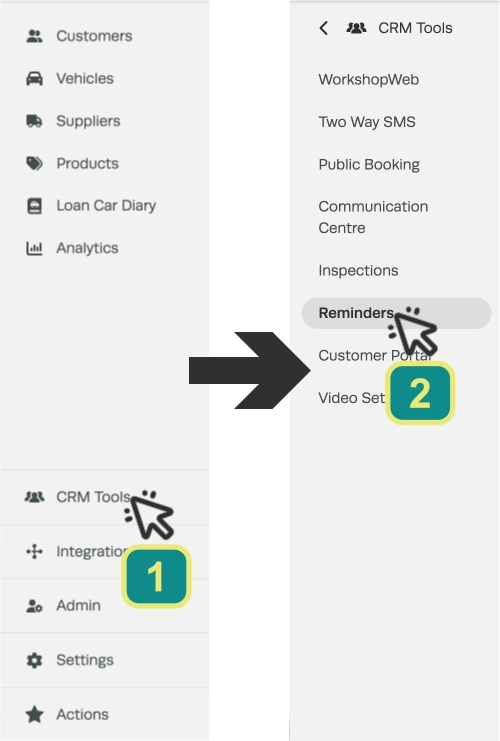
- In the left-hand sidebar, click CRM Tools, then Reminders.
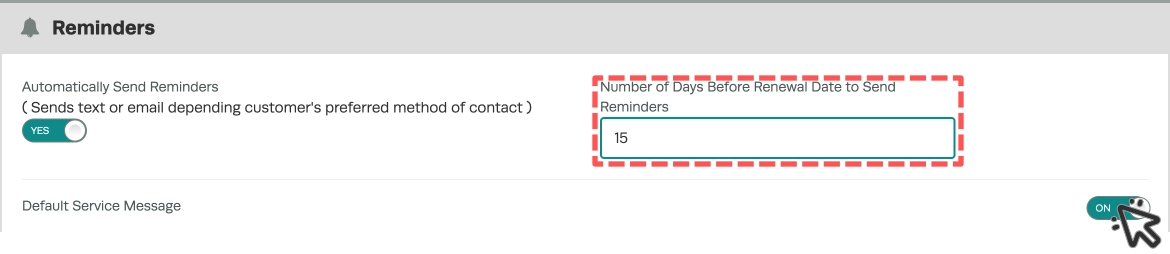
- Set Automatically Send Reminders to Yes. This is the master switch for service, registration and WOF reminders.

- Enter the Number of Days Before Renewal Date to Send Reminders. We suggest 14, which gives customers time to book. Then switch On each category you want: Service, Registration and, in New Zealand, WOF.
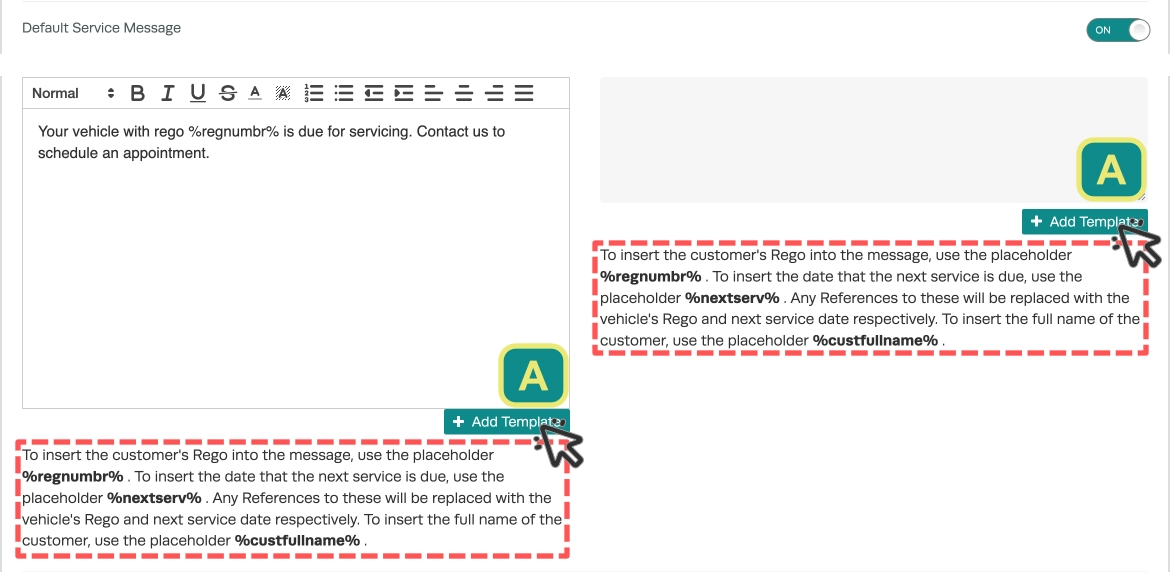
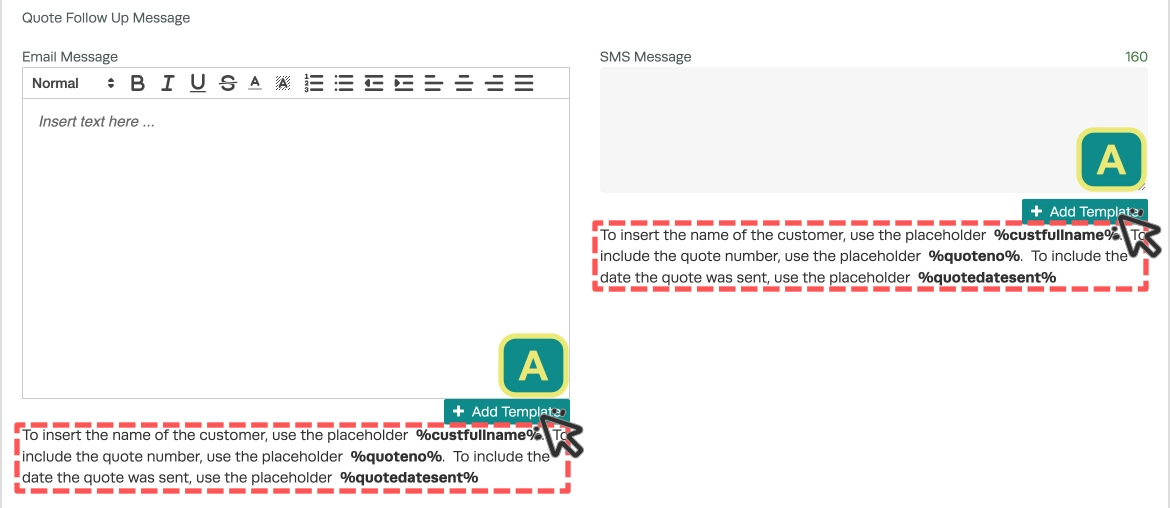
- Write the SMS and email message for each category. The hints above each box show the placeholders for the customer's name, rego and due date; type them exactly as shown and they are filled in per customer. To reuse a saved template, click + Add Template in the bottom right of the box.
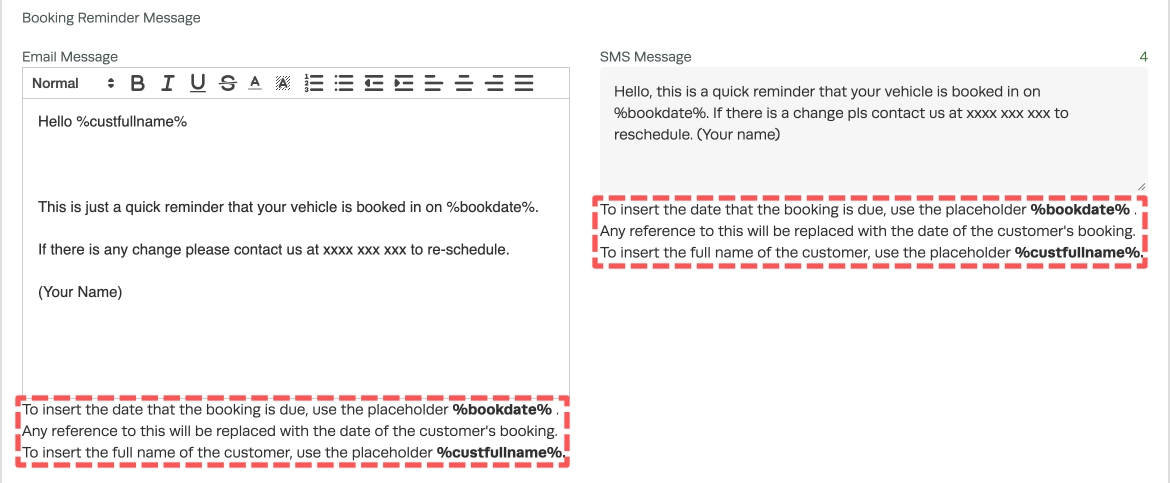
- Scroll to Booking Reminders. Set Automatically Send Booking Reminders to On and enter the number of days before the booking. We recommend 2 days. Then write the SMS and email messages, using the name and booking date placeholders. We also recommend using the word "re-schedule" in the message, as a prompt for customers whose plans have changed to get back in touch.

- Scroll to Quote Reminders. Set Automatically Send Quote Follow Ups to Yes, enter how many days after the quote to follow up, and write the SMS and email messages using the name, quote number and quote date placeholders.

- Click Save at the bottom right of the page.

Control who gets reminders, and when
Two settings outside the Reminders page decide whether a particular customer receives a reminder and on what date.
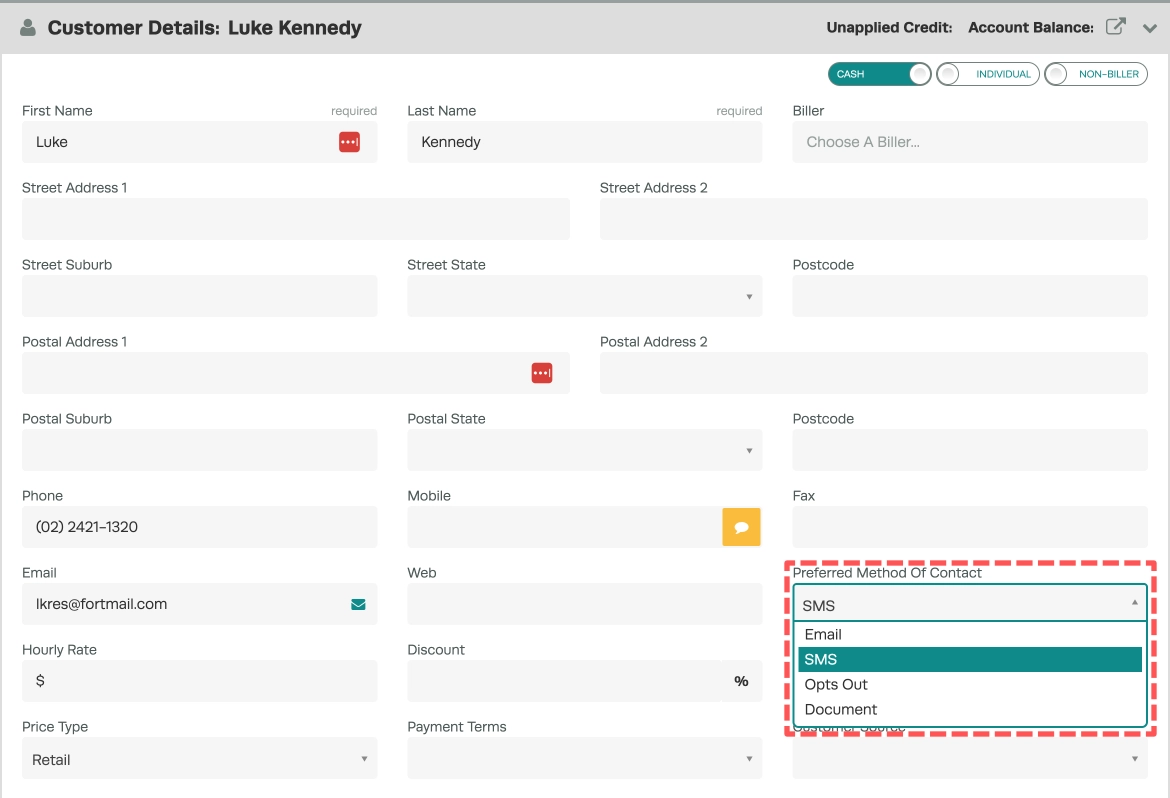
Preferred Method of Contact in each customer's details chooses SMS, email, or opts them out of automatic messages altogether. New customers inherit the default from Settings > Company Settings.
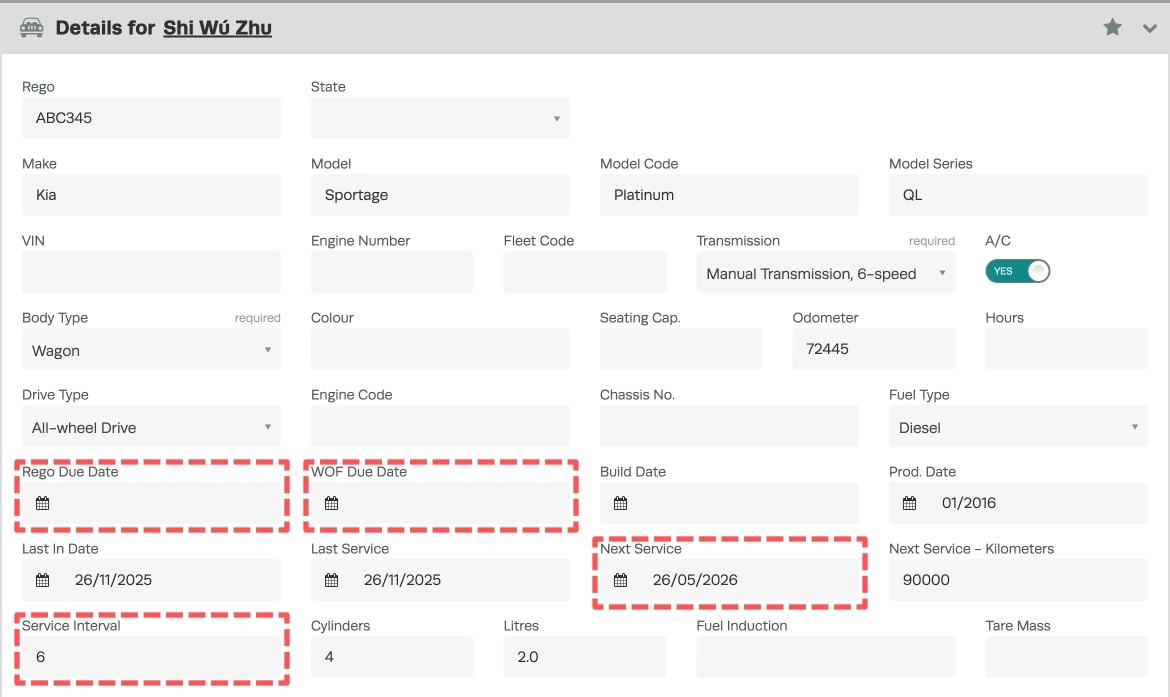
Rego Due Date, WOF Due Date, Next Service and Service Interval in each vehicle's details are the dates the reminders count down from. Next Service updates itself whenever you process an invoice containing a labour product flagged as a Service, using Last Service plus the Service Interval. For vehicles that have not been in recently, set the dates by hand here.
Frequently Asked Questions
What time of day are reminders sent?
Once a day, at a fixed time for your time zone: 10:00am on the Australian east coast (11:00am during daylight saving), 9:30am in South Australia and the Northern Territory, and 12:00pm in New Zealand (1:00pm during daylight saving). The full list is in What time are Automated Messages sent.
A customer says they never got a reminder. What should I check?
Check that their Preferred Method of Contact is not set to opt out; that the vehicle has a date in the relevant field (Next Service, Rego Due Date or WOF Due Date); that the reminder category is switched On and has both an SMS and an email message saved; and, for SMS, that you have SMS credits.
Why hasn't a vehicle's Next Service date moved after a service?
Next Service only updates when a processed invoice contains a labour product whose Service toggle is set to Yes. Check the product, and update this vehicle's Next Service date by hand in its Vehicle Details.
Can I save my reminder wording to reuse?
Yes. Create the message as a template in Settings > Company Lists, then insert it into any reminder field with the + Add Template button in the bottom right of that field.
Can the reminder include a link to book online?
Yes. See How to provide a booking link for service reminders.
Related Articles
- What time are Automated Messages sent
- How to provide a booking link for service reminders
- Select a customer's preferred method of contact
- Update a vehicle's next service due date
- How to purchase SMS credits
- Quote management: reminders, tracking and follow-up
