Skip to content

This article explains what customers see on your public booking link and what has changed when you approve a Booking Request.
Please note: The wizard appears on every public booking link, on any device, with nothing to switch on.
Public Booking settings are available for Gold or Platinum subscribers.
What Your Customers See
The Public Booking Wizard is designed for PC and Phone screens, your customer will work through five short steps and a review screen, with Back and Continue buttons to refine their choices.
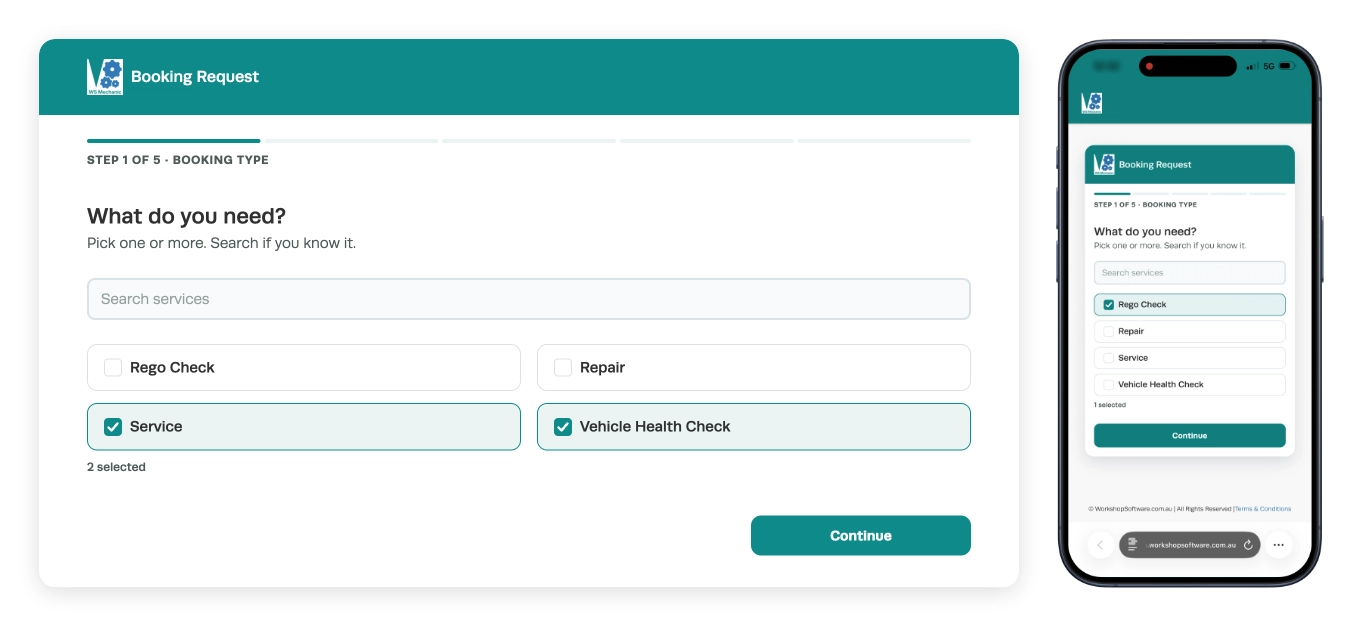
What do you need?
- Customers may pick one or more of your Booking Types, with a Search services box available for long lists.
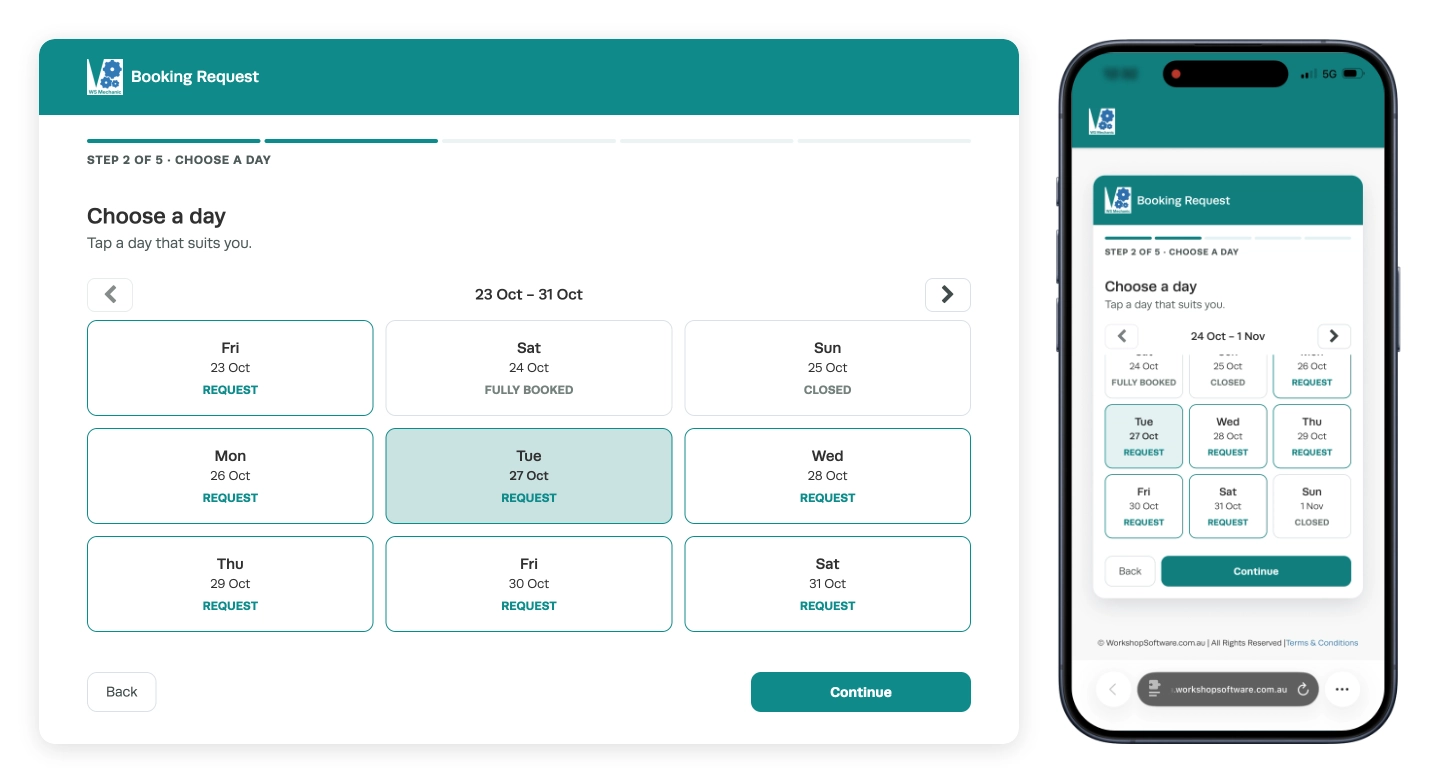
Choose a day
- Nine days show at a time, each labelled Request, Fully booked, Holiday or Closed. Only a day marked with Request may be chosen.
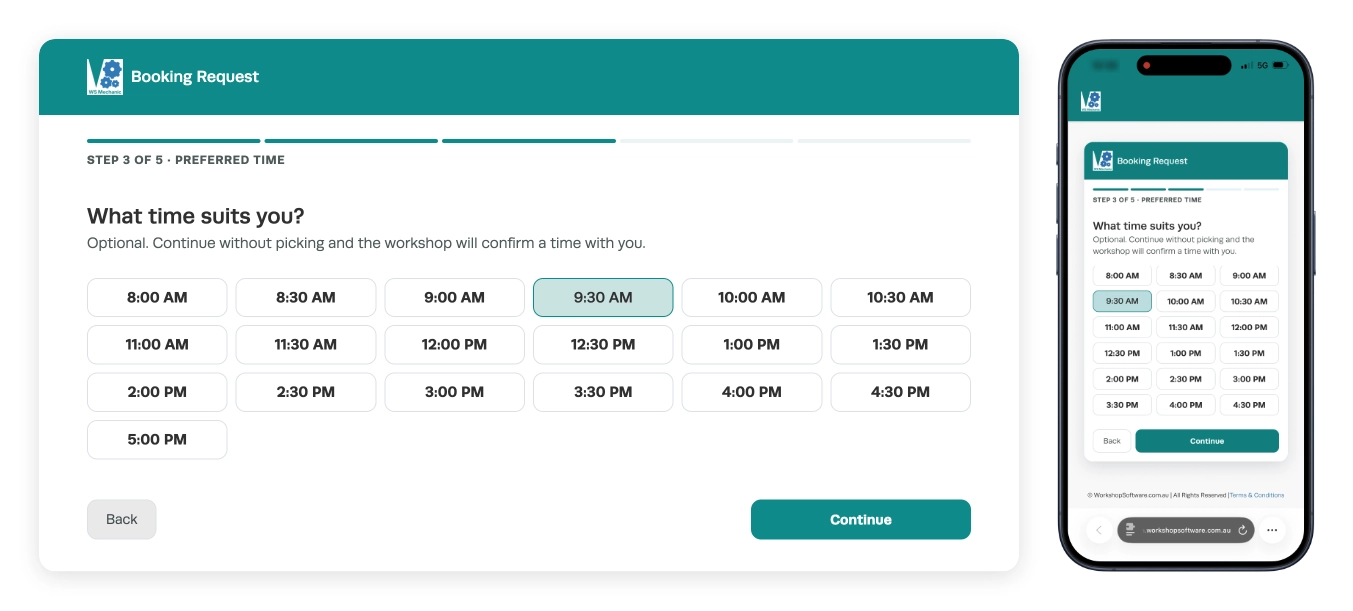
What time suits you?
- Customer may pick an arrival time between 8:00 AM and 5:00 PM or press Continue without selecting and confirm a time later.
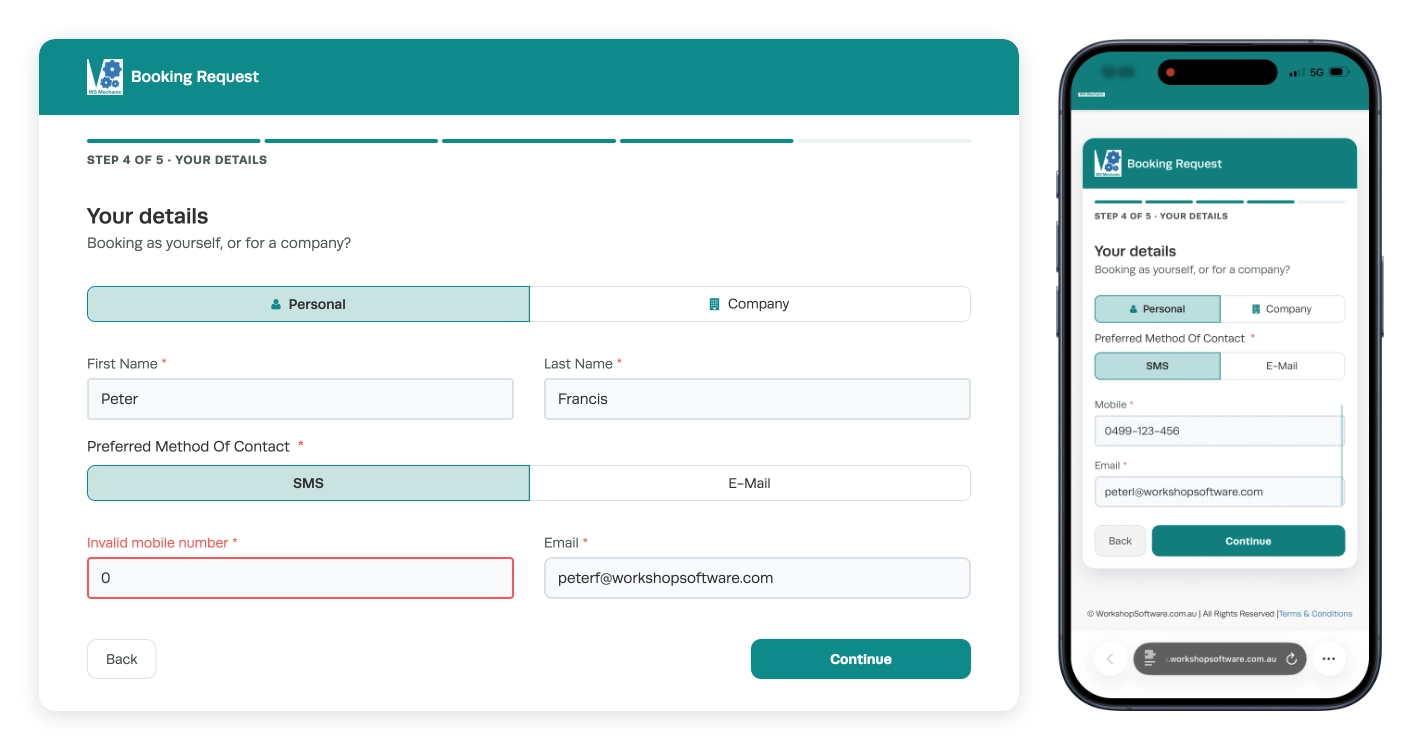
Your details
- When entering details Customers define if the booking is Personal or a Company booking, their Preferred Method Of Contact, Mobile Number and Email.
- A Mobile Number that does not match your country's mobile format shows Invalid mobile number and they cannot continue.
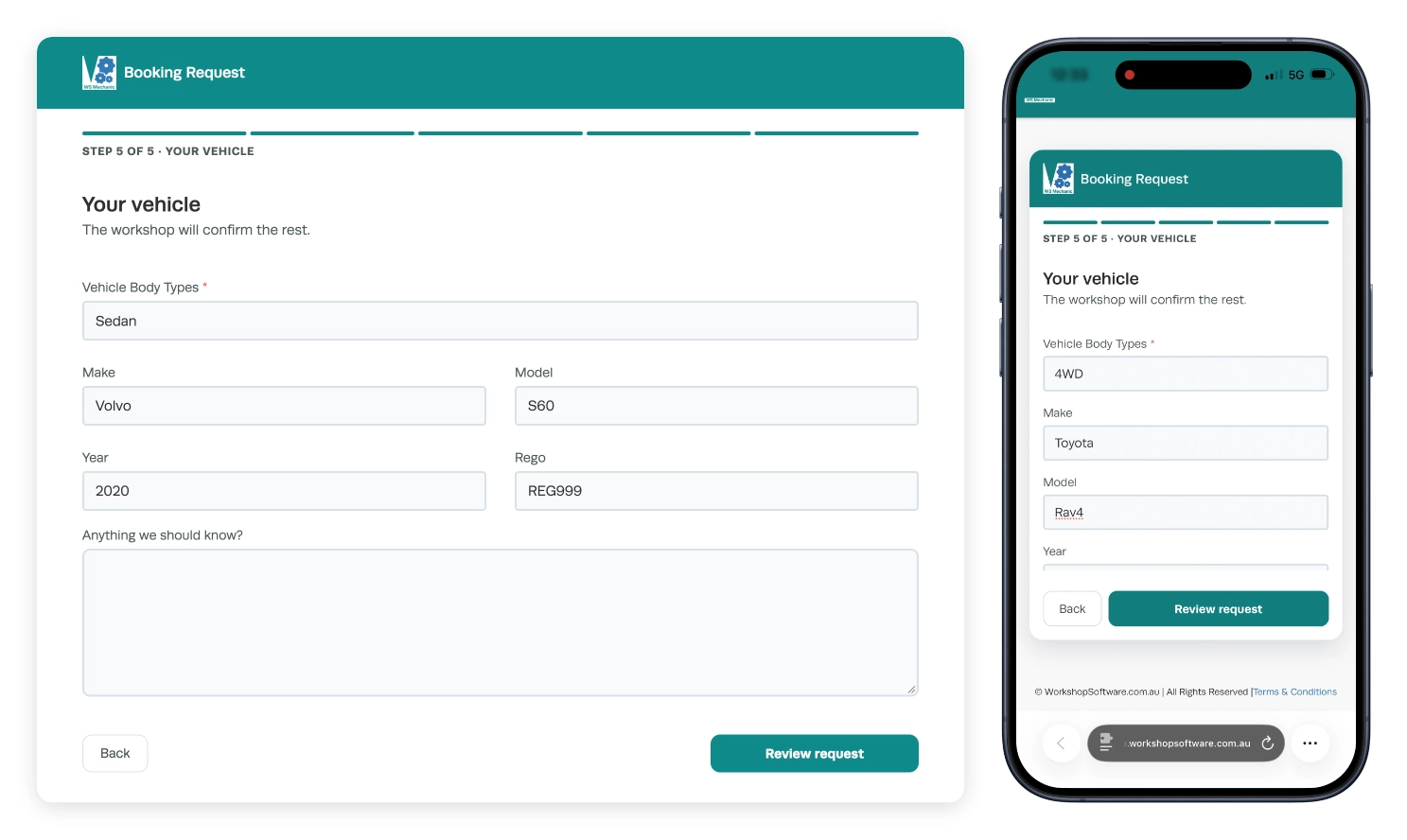
Your vehicle
- The vehicle's Body Type is required, Make, Model, Year, Registration and Anything we should know? are optional.
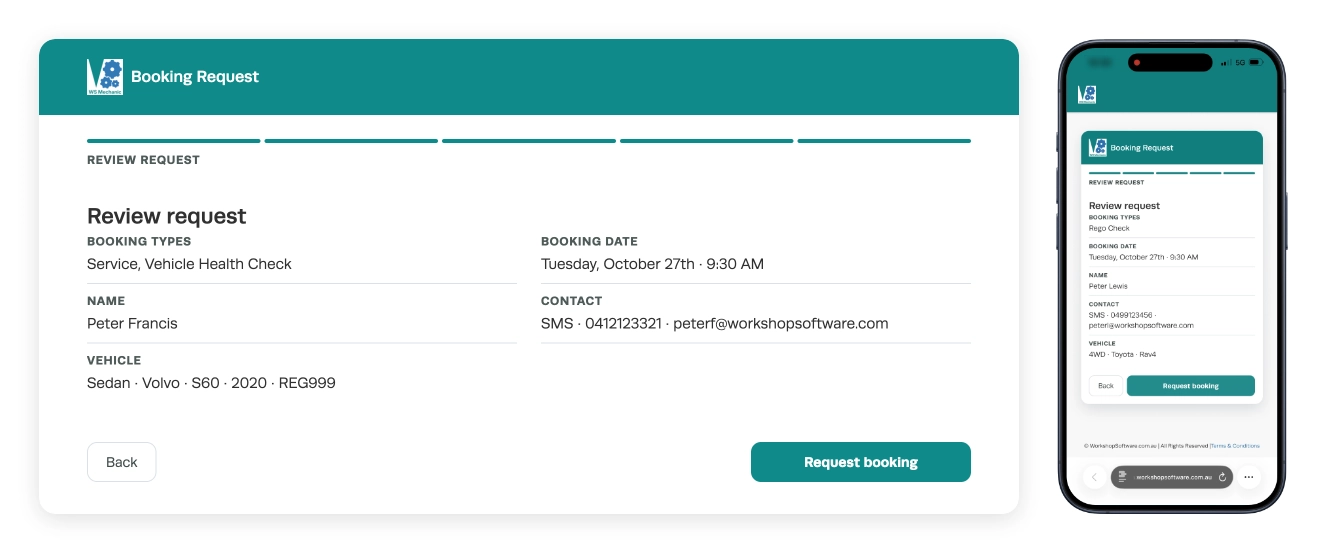
Review request
- After reviewing the request's details, the Request booking button will send the booking to your workshop, confirmed with a Request received! message.
Approving a Booking Request
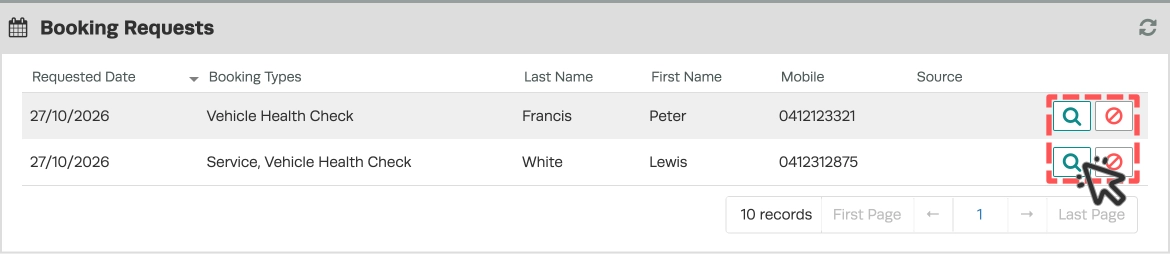
Requests still arrive through the Booking Requests banner visible on your Dashboard and Booking Diary.
- Click the banner to open the Booking Requests card.
- Click a magnifying glass icon to open a request.
Confirm Booking Details
Before approving a booking you will need to confirm or adjust the date and time of the booking, confirm your Customer's contact and Vehicle information is correct and may choose to allocate a Mechanic to the work.
The duration of a new booking is preset by the Estimated Hours value of your Customer's selected Booking Types.
Requested Date and Requested Time (A) show what your customer asked for and cannot be edited.
Scheduled Date and Scheduled Time (B) are pre-filled from the requested times or empty when none were chosen. Change these fields to the correct booking Date and Time.
Contact By (C) is the method used to send a booking approval, you may change this to switch between SMS or Email booking approvals.
Search Mechanics (D) is used to allocate a Mechanic to the booking period.
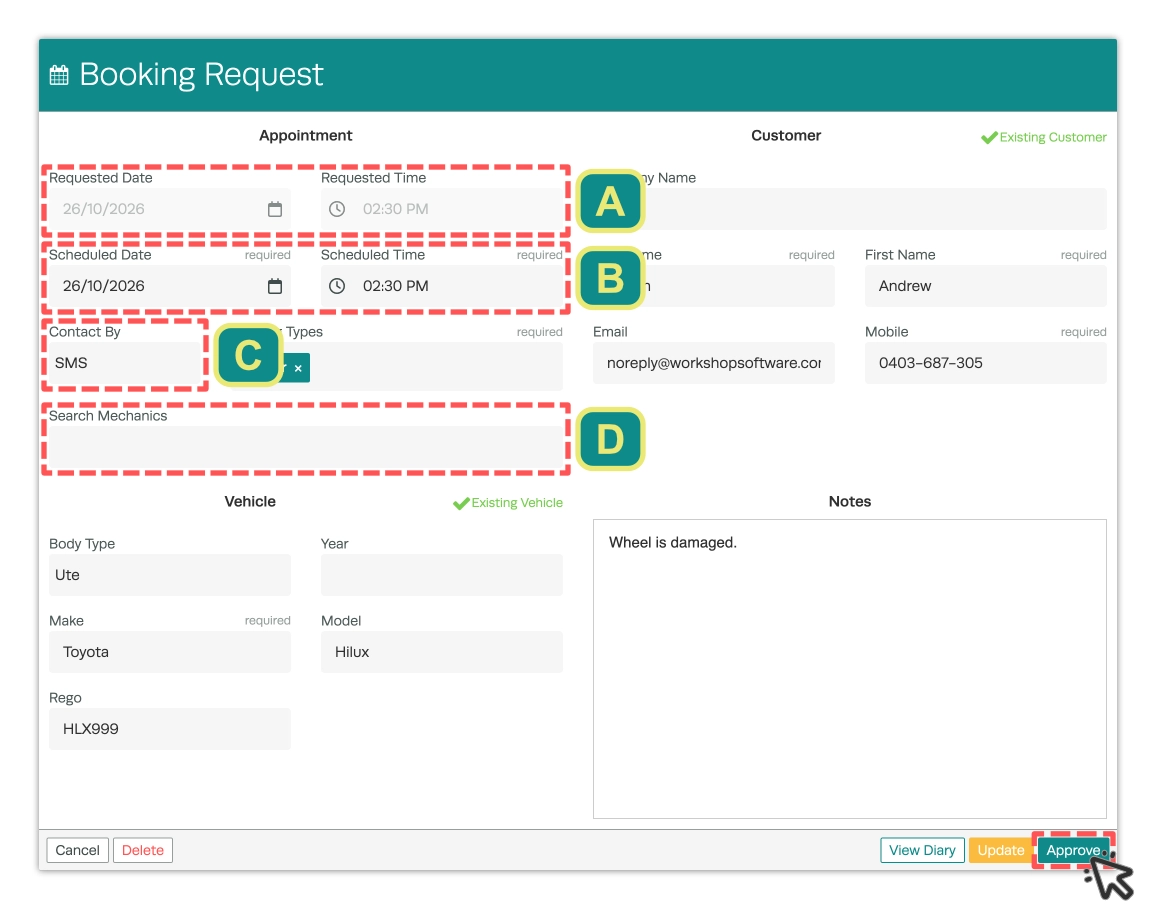
Please Note: Clicking Approve with anything missing highlights it in red with a Please fix errors message.
Customer Matching
New Customer appears when no information on the booking request matches any Customer in your records, a new customer will be created when the Booking is approved.
Existing Customer appears when only one existing Customer matches the booking requests information and is already selected when the surname agrees or they own the vehicle.
Multiple Matches means you may pick the correct contact from the Customer drop down menu, or leave it untouched to create a new Customer. Selecting a Customer fills the contact information from their records.
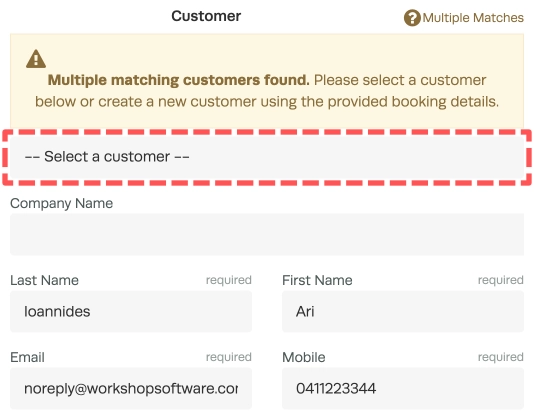
- After confirming your booking's details click the Approve button, then elect to Send the message or Approve Without Send in the pop up window that appears.
Good to Know
- The customer's time is a preference. You set the final times and mechanic before you approve the booking request.
Frequently Asked Questions
Do I need a Platinum subscription for the new wizard?
No. Every workshop with a public booking link gets the wizard. The Public Booking settings screen is on Gold and Platinum.
Do my customers need a new link?
No. Your public URL has not changed.
Why does a day show Fully booked when my diary still has room?
Availability is worked out from the total estimated hours of every Booking Type your customer selected, against your Booking Diary Full At Percent or Set Booking Schedule Hours settings. Three services together can fill a day that one service would not.
Why can't my customer continue past Your details?
The Mobile number has to match the mobile format for your country. A landline or a partial number shows Invalid mobile number. Ask them to enter their mobile.
My customer sent the same request twice. Why did I only get one?
A second identical request within a day shows It looks like you have already requested this booking. We have kept your original request, and is not sent again.
Why did approving a request create a new Customer?
If the request matched one or more Customers and the list was left on Select A Customer, Workshop Software creates a new Customer from the request. Pick the matching Customer before you approve to create the booking for them.
What does my customer see if the booking page will not load?
The message We couldn't load the booking page. Please check your connection and try again. with a Retry button. Ask them to check their connection and press Retry.