Skip to content

This article describes an upcoming Workshop Software feature, we will remove this notice and change the location of this article to it's final category when the feature is released.
This article explains how to start a free Workshop Software trial straight from the mobile app, how the app shows the days left in your trial and how to subscribe when you are ready. It is for workshops that do not have a Workshop Software login yet.
Please note: If your workshop already uses Workshop Software, sign in to the app with your normal Web App email and password instead.
Starting Your Free Trial
- Download the Workshop Software app from the App Store or Google Play and open it.
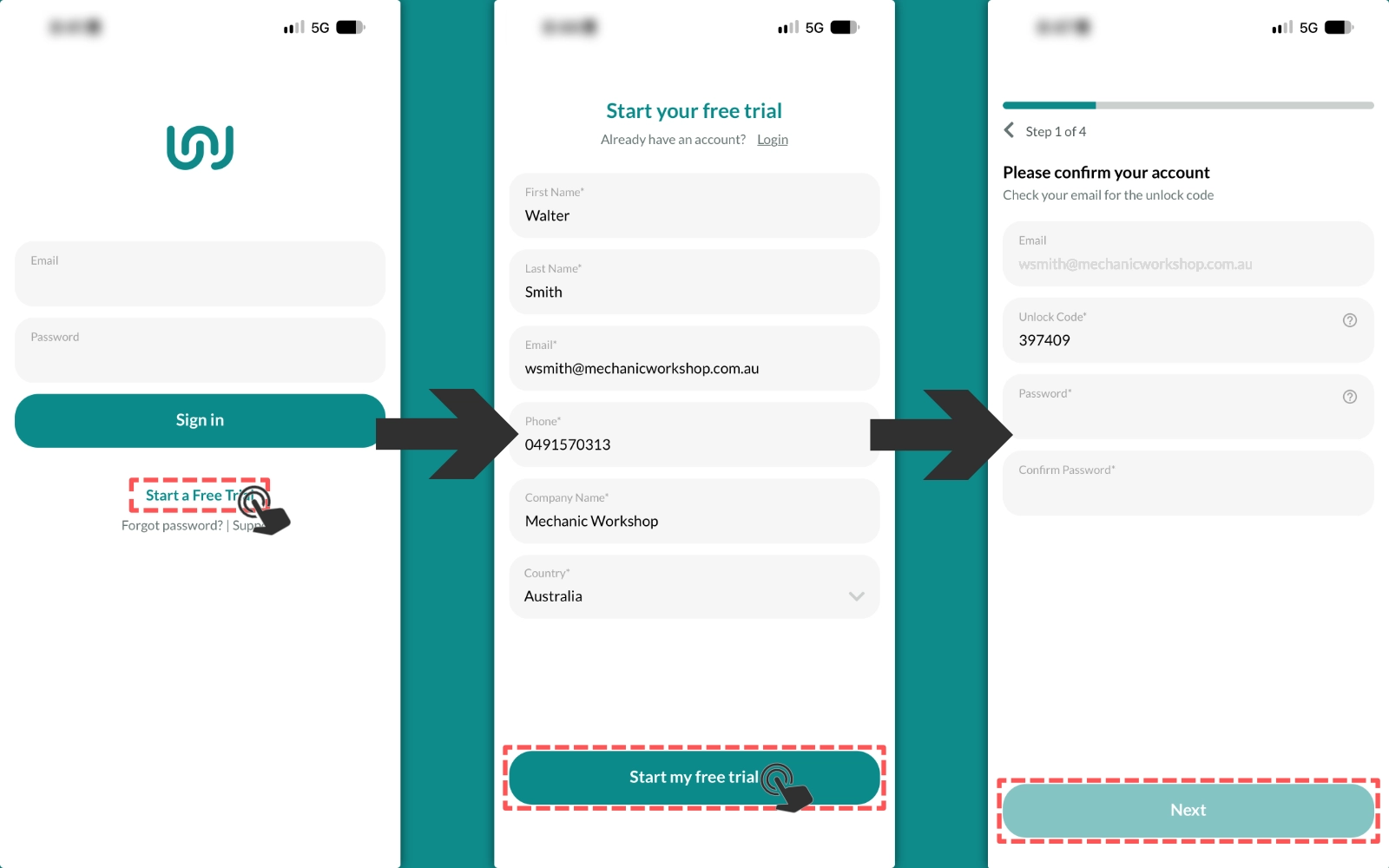
- On the login screen, tap Start a Free Trial.
- Enter your First Name, Last Name, Email, Phone and Company Name, check Country is where your workshop is, then tap Start my free trial.
- We email you an unlock code. Enter it in Unlock Code, choose a Password (at least 8 characters with a capital letter), type it again in Confirm Password and tap Next.
- Check your workshop details. Your Company Name and Admin Email are already filled in. Add your Street and Suburb if you like, pick your State, enter your Postcode and tap Next.
- Pick your Workshop Type and tap Next.
- Check your Time Zone, set Shop Opens and Shop Closes times, then tap Done.
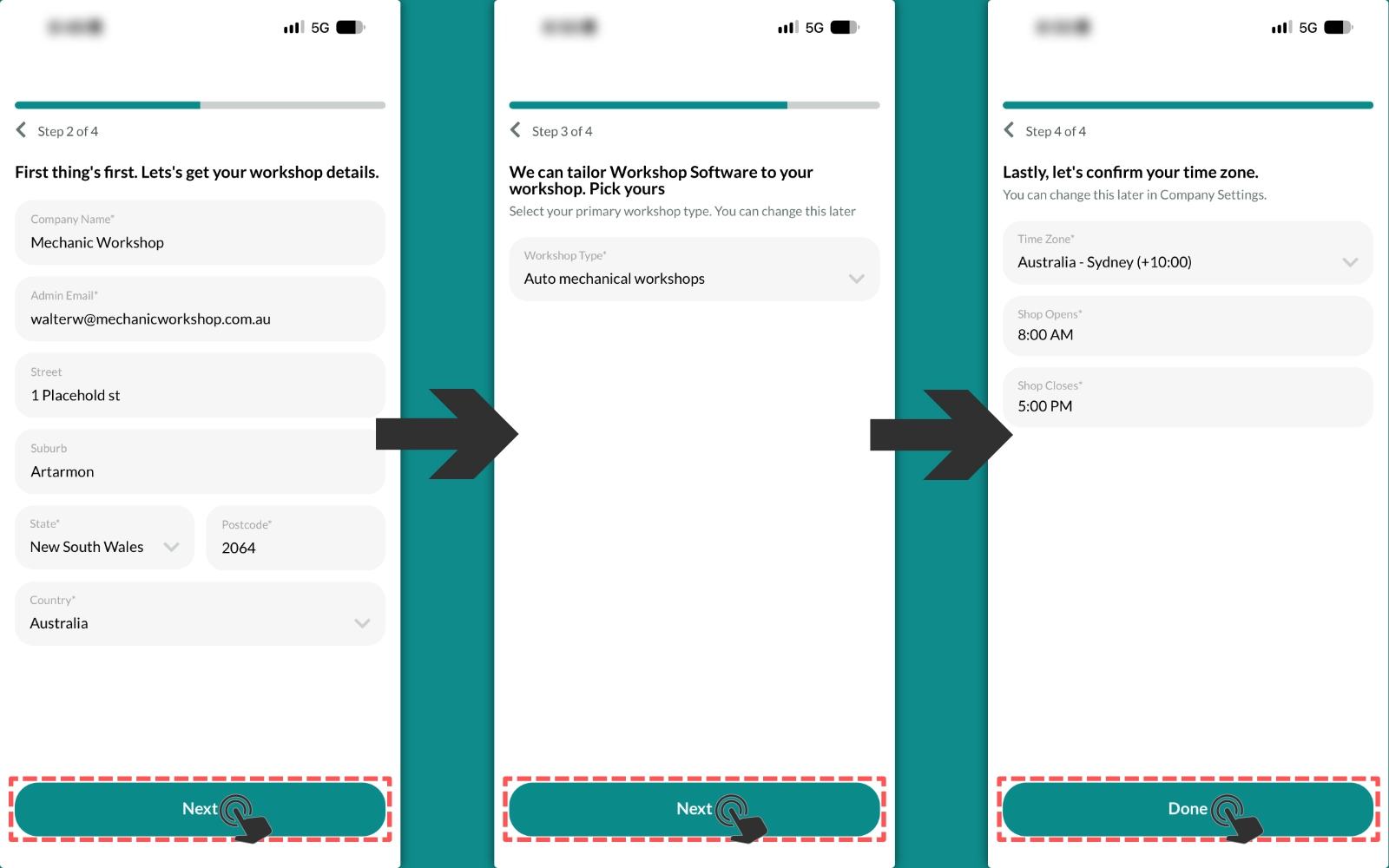
You are now signed in to the app, you may use same email and password to sign in to the Web App on your computer.
Please Note: Once you tap Start my free trial your trial is created. If you go back to the login screen after the unlock code step, you cannot return to finish setup in the app. Sign in with your email and password instead, and finish updating your Company Settings in the Web App.
Your Trial Reminder
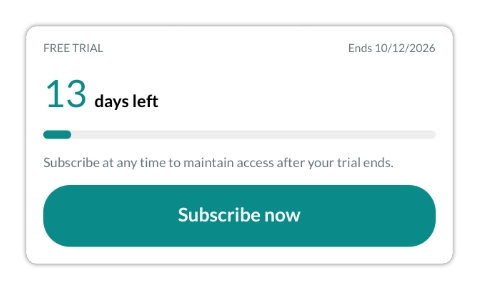
Once a day, when you open the app, a FREE TRIAL reminder shows the date your trial ends and how many days you have left. The number turns yellow when 7 days or fewer remain and red at 3 days or fewer. Tap anywhere outside the reminder to close it until tomorrow.
Subscribing When You Are Ready
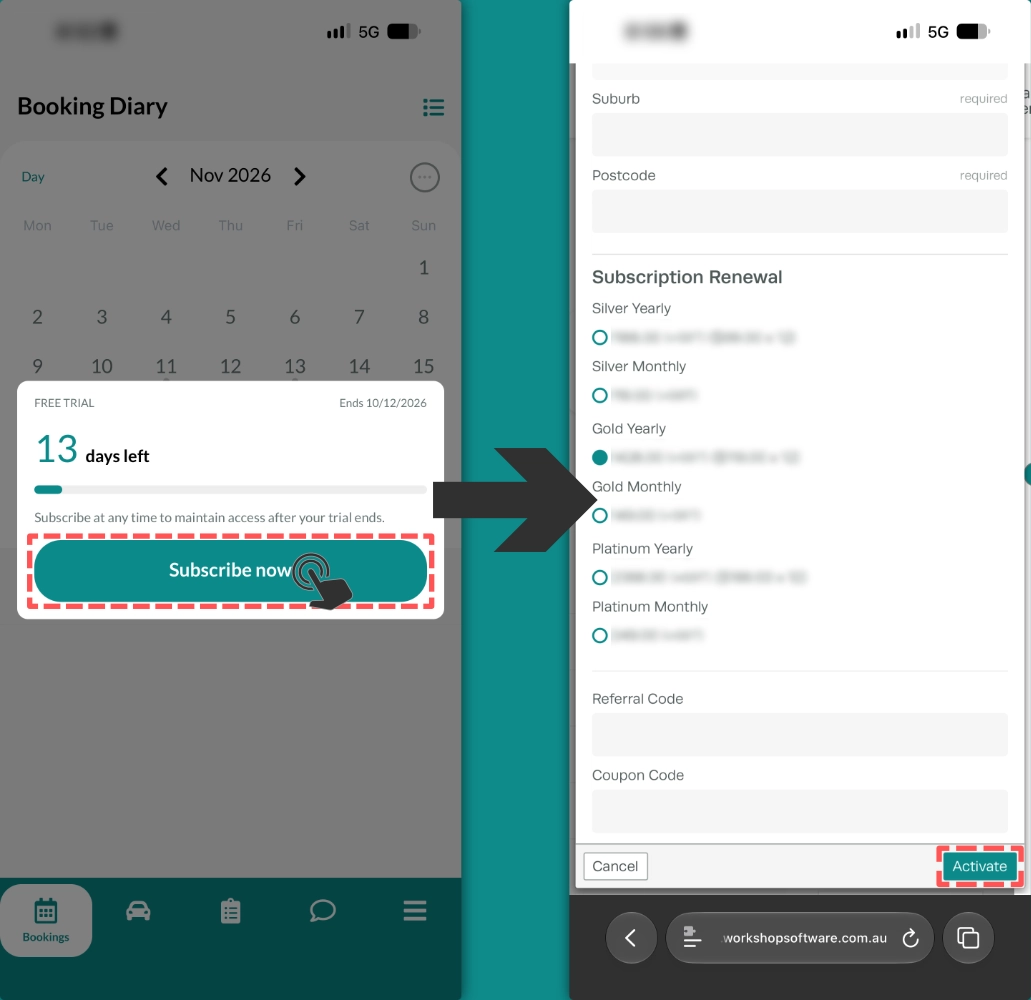
- In the trial reminder tap Subscribe now. Workshop Software opens in your phone's web browser.
- Sign in if asked. The activation window opens by itself.
- Choose your subscription, enter your card details (or tap I'm A Capricorn Member) and your billing address, then tap Activate.
You can also subscribe from a computer at any time: sign in to the Web App and click Activate now on the trial banner on your Dashboard.
Good to Know
- Your trial includes Gold features, so you can try everything before you choose a plan.
- The app never asks for payment. Subscribing always happens in your web browser.
- If your trial has already ended, Subscribe now takes you to the account activation screen after you sign in, where you can subscribe in the same way.
Frequently Asked Questions
I did not get the unlock code email. What should I do?
Check your junk or spam folder first. The email comes from Workshop Software and usually arrives within a few minutes. If it has not arrived, contact support@workshopsoftware.com.
The app says it was unable to create my free trial. Why?
This usually means the email address already has a Workshop Software account. Try signing in instead, or use Forgot password? on the login screen.
Can I change my workshop type, time zone or shop hours later?
Yes. All of them can be changed in Company Settings in the Web App.
I closed the trial reminder. How do I subscribe now?
The reminder comes back the next day. You can also subscribe straight away from the Web App by clicking Activate now on the trial banner on your Dashboard.
Can my staff use the app during the trial?
Yes. Add them as users in the Web App and they sign in to the app with their own login.