 Skip to content
This article explains how to sign in to Workshop Software with your Google account instead of typing a username and password, link your Google account once then sign in with a click.
Even if Google Sign In is enabled it provides an optional sign in method, your username and password may be used for sign in as well.
Please note: You have to link your Google account before you can sign in with it. Signing in with Google never creates a new Workshop Software user account, it recognises and links with an existing user.
Link your Google account
Your google account is linked from the User Profile accessible inside your account, users must connect to Google and allow Workshop Software access to their Google Account information.
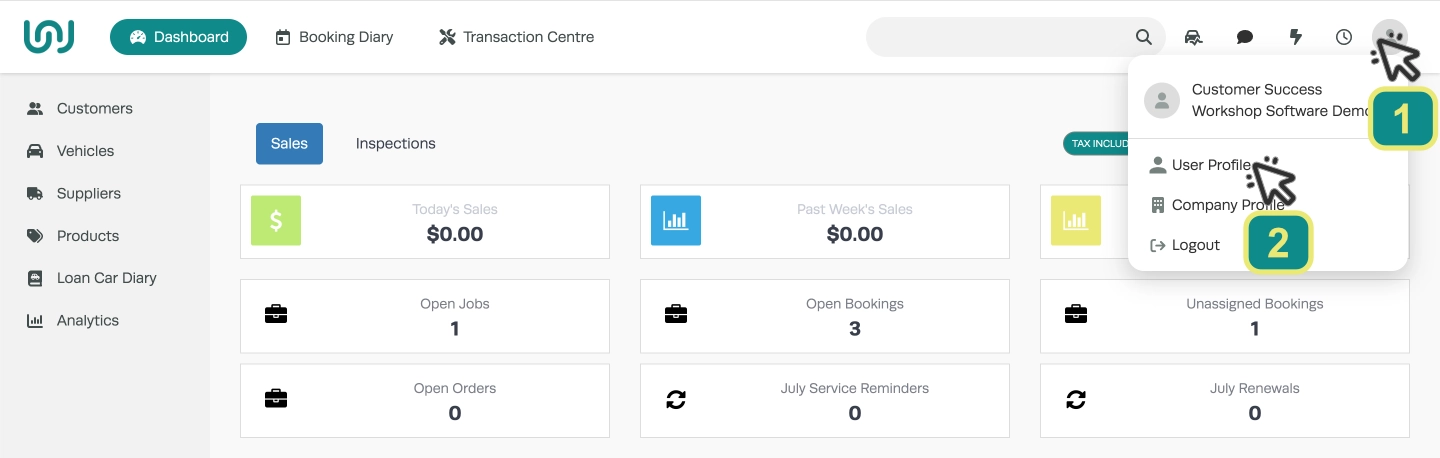
- Log in to Workshop Software with your username and password. Click the User icon (1) in the top-right corner and choose User Profile (2).
- Scroll down to the Google Sign-In card and click Link Google Account.

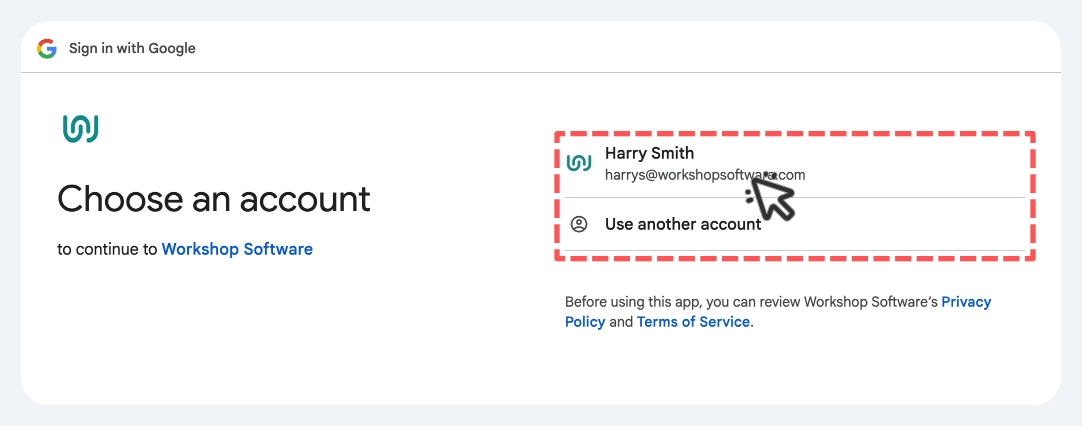
- Choose the Google account you wish to use or you may log in to an unlisted account.
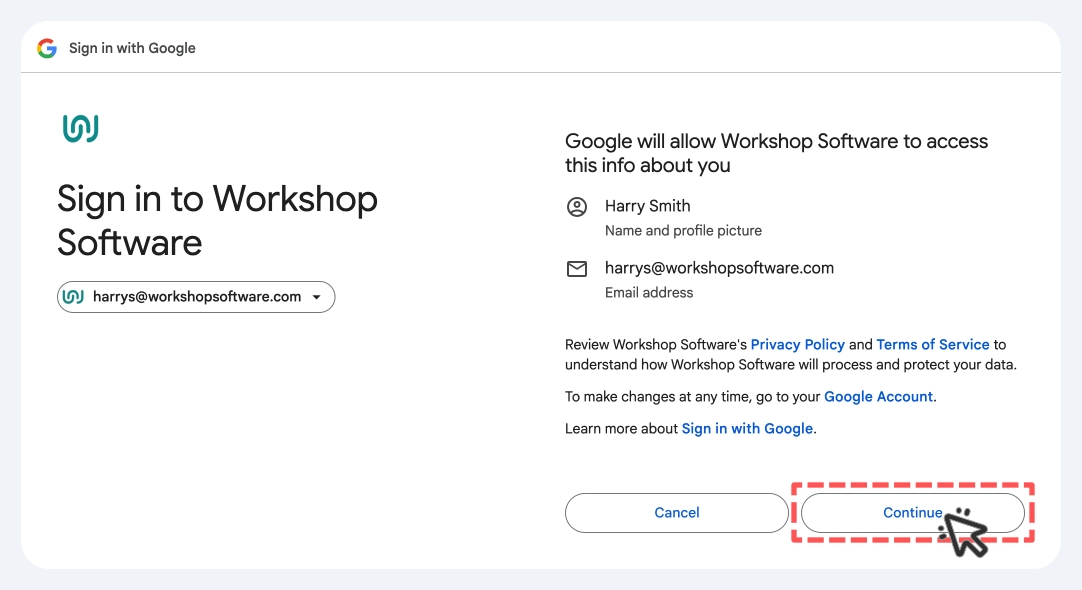
- When prompted confirm that Workshop Software may access you Google Account by clicking Continue.
- The status badge changes from a red dot and Inactive to a green dot and Active, you will see the message "Your google account has been linked."

Sign In with Google
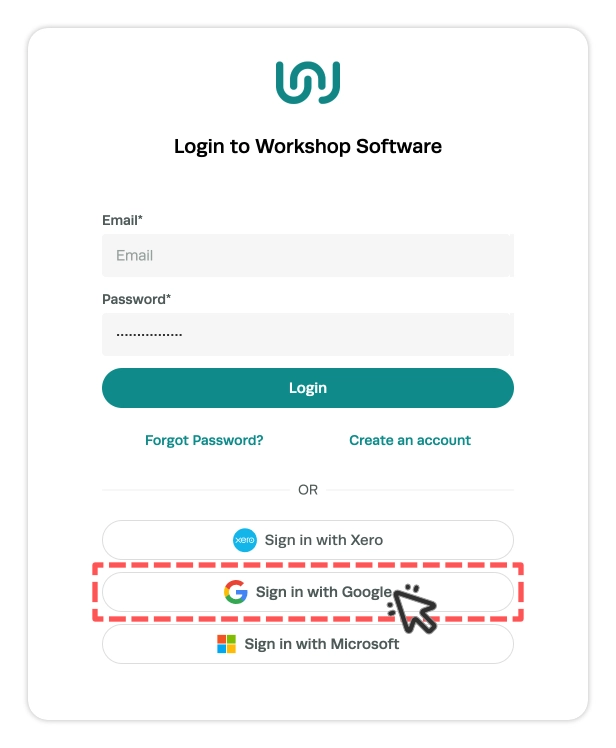
Next time you log in you may click the Sign in with Google button on the login page then choose your Google account. You will go straight to your dashboard, no password needed.
Sign in with Google One Tap
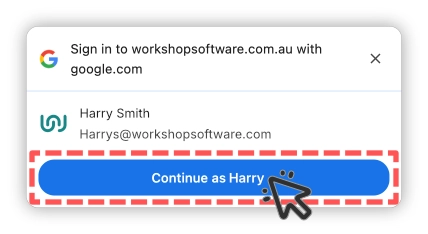
If you are already signed in to Google in the same browser the login page will also show a small Google prompt at the top allowing users to Sign in directly with their Google account. Tap the Continue as button and you're in.
Unlink your Google account
To stop using Google Sign-In, open User Settings, go to the Google Sign-In card, and click Unlink Google Account.

In the pop up confirm you would like to remove your link to Google with the Yes button.
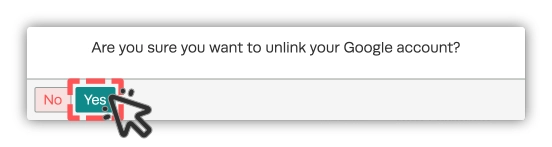
The badge will return to Inactive. With Google unlinked your username and password still work, unlinking never locks you out.
Good to Know
- Each Google account can be linked to only one Workshop Software user. If you try to link a Google account that's already linked elsewhere, you'll see "This Google account is already linked to another Workshop user. Please unlink it from the other account first."
- If someone clicks Sign in with Google before linking, they'll see "No Workshop user linked to this Google account. Please log in with your username and password, then link your Google account in User Settings."
- Workshop Software never sees your Google password, Google handles that. Workshop Software only remembers which user your Google account belongs to.
- You can still sign in with your username and password, Xero or Microsoft Account at any time. Linking Google adds another option; it does not remove the others.
- If you don't see the Google option on the login page, or there's no Google Sign-In card in your settings Google Sign-In is not switched on for your site yet. Contact support@workshopsoftware.com.
Frequently Asked Questions
Do I have to use Google Sign-In?
No. It's completely optional. Your username and password keep working and so does Sign in with Xero and Sign in with Microsoft. Link Google only if you'd prefer to sign in with a click.
Will linking Google change my password?
No. Your Workshop Software password is unchanged and keeps working. Linking Google simply adds another way to sign in.
I clicked Sign in with Google but got an error - what happened?
The most common reason is that your Google account isn't linked yet. Sign in with your username and password, go to User Settings, and link your Google account from the Google Sign-In card. Google Sign-In will then work next time.
Can I link the same Google account to two Workshop Software logins?
No. A Google account can be linked to only one Workshop Software user at a time. Unlink it from the first user before linking it to another.
What happens if I unlink Google?
Google Sign-In stops working for your login and the card shows Inactive. You may keep signing in with your username and password as normal, unlinking never locks you out.
