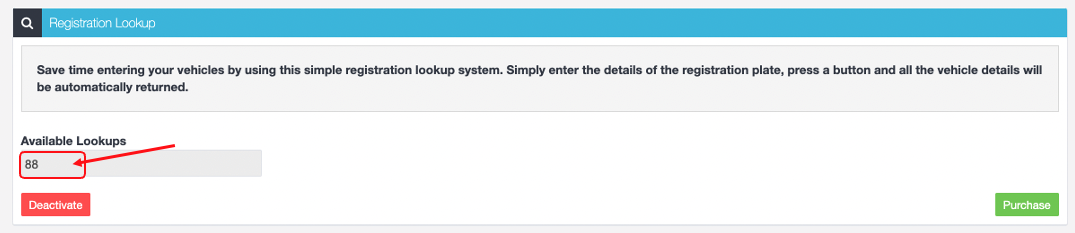
Registration Lookup fills in vehicle details from the rego number, giving you accurate and consistent vehicle data. This article shows New Zealand users how to activate it and pre-purchase lookups.
Want to get streamlined data that's accurate and consistent?
Then using Vehicle Lookup via Registration can help.
1. Using the left-hand navigation bar in Workshop Software, click on 'Integrations' > 'Automotive Integrations' > 'Registration Lookup'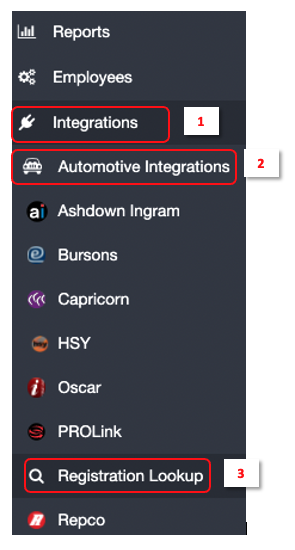 2. Click on the green 'Activate' button
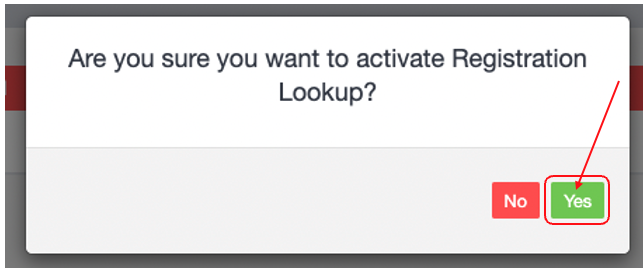
 3. A pop up box will appear asking are you sure you want to activate, to proceed click on the green 'Yes' button
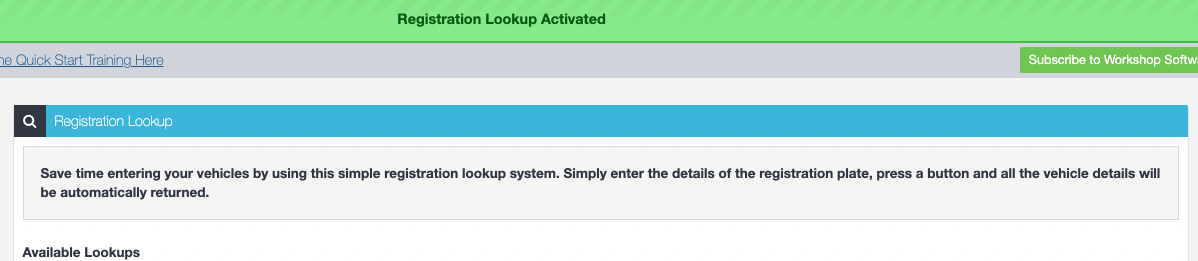
 4. A green banner will appear advising that the Registration Lookup account has been registered for your subscription.
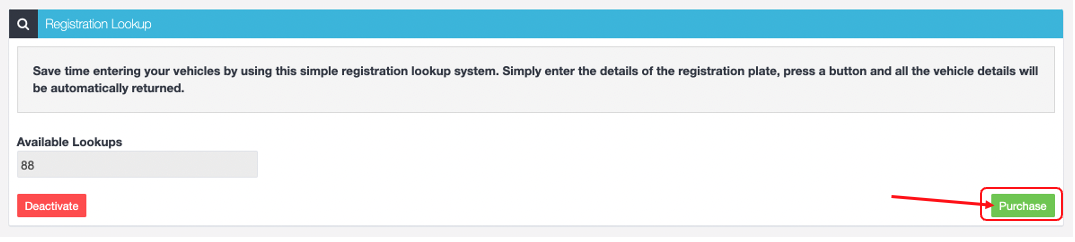
 5. Next you will need to pre-purchase your registration lookup's. The cost for each lookup is $0.59/lookup. To purchase them click on the green 'Purchase' button.
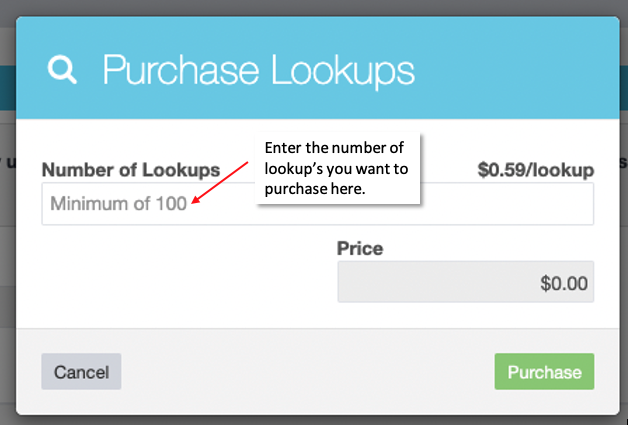
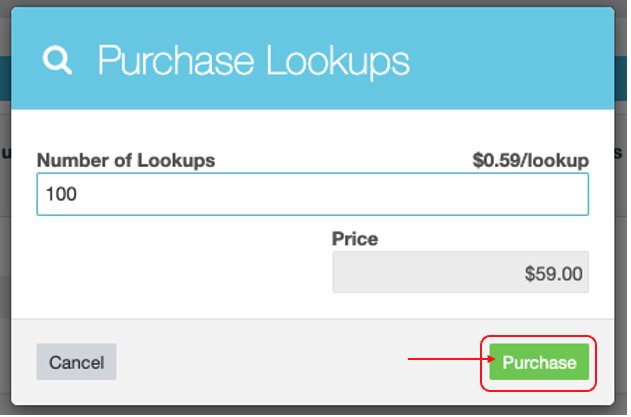
 6. A Pop up box will appear, enter in the number of lookup's you want to pre-purchase. The lookups will be charged to the same method in which you are paying for your Workshop Software Subscription (Credit card or via Capricorn). Once you are ready to purchase, click on the green 'Purchase' button.
 6. The 'Available Lookup's" field will show you have many lookups you have remaining.