Where do I enter my GST Number

SettingsUpdated 23 Sep 20261 min read

To enter your GST Number so that it appears on customer invoices you first need to ensure that you have New Zealand set as your Country Code.  To do this please see the guide titled How to Change Country Code.

Then to update or add your GST Number click on Settings (1) in the left hand sidebar menu and then click Company Settings (2). 
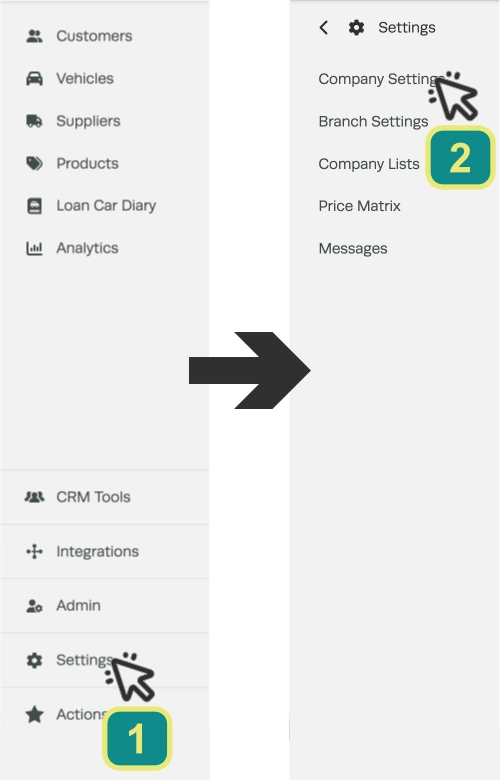
Two cropped screenshots of Workshop Software's Dashboard. A cursor numbered 1 indicates to click "Settings", an arrow indicates the second screenshot opens and a cursor numbered 2 indicates to click "Company Settings.

In the Company Settings section enter your GST Number in the GST Number field.
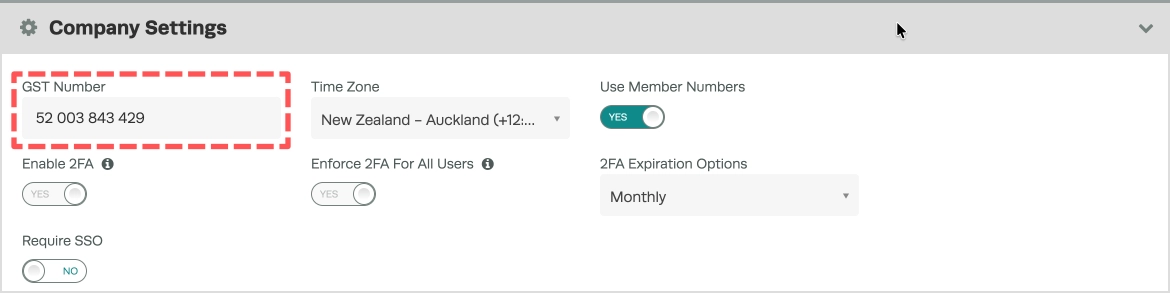
A cropped Screenshot of Workshop Software's Company Settings page. The GST Number Field is highlighted.

Scroll down to the bottom of the page and click the Save button in the lower right hand corner.  

A cropped screenshot of Workshop Software's Company Settings page, the Save button in the lower right corner is highlighted.

3. Your GST number will now show at the top of all customer invoices;
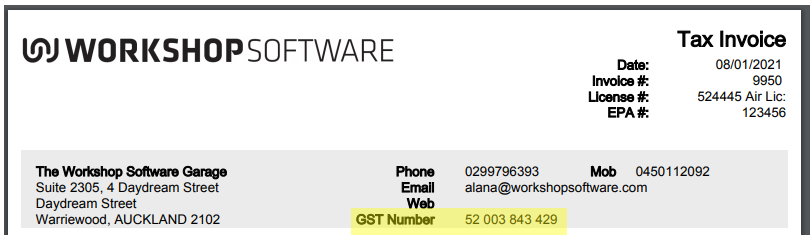
Workshop Software screen showing your gst number will now show at the top of all customer invoices

Also Explore

Was this article helpful?
