Skip to content
Having WorkshopData Electronics availability within the application is important because it enables the testing, diagnosis, repair, and maintenance of electronic equipment and systems from a single platform. Having all technical electronic information integrated into one application improves efficiency by allowing faults to be identified quickly and accurately, reducing downtime and repair costs. Direct integration within one system eliminates the need to switch between multiple subscriptions or applications, streamlining workflow, saving time, and providing technicians with immediate access to the information they need to complete repairs effectively.
Accessing WorkshopData Electronics
WorkshopData Electronics can be accessed either from the Vehicle section of the Workshop Software or directly from a Job Card, Booking, or Invoice.
Accessing WorkshopData from the Vehicle Section
- Navigate to the Vehicle tab.
- Search for the vehicle registration number using the filter/search field.
- Open the vehicle record.

- From the vehicle details page, click the Actions (star) button located on the right-hand side of the screen.
- Select WorkshopData from the dropdown menu.

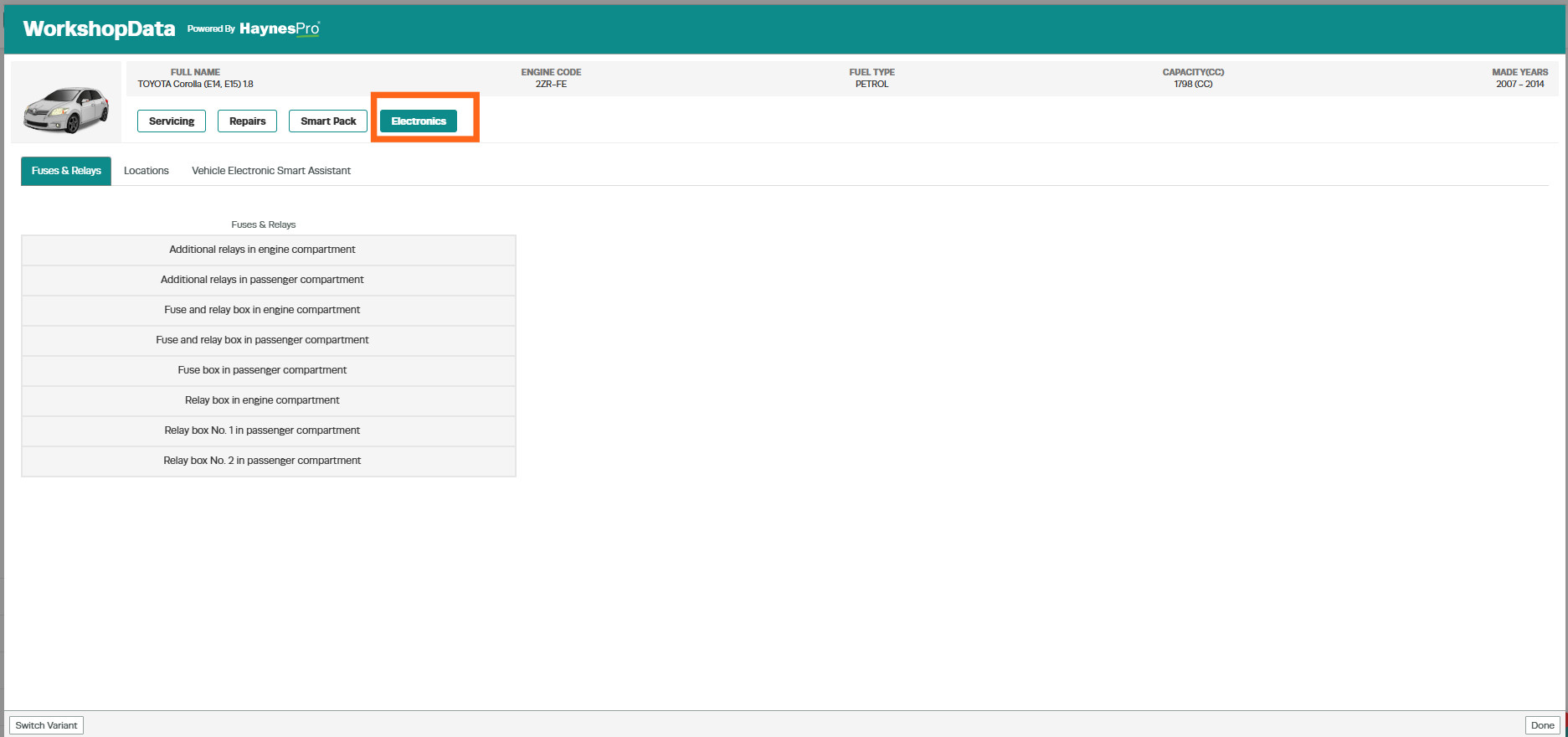
- The vehicle's technical information will open in WorkshopData.
Accessing WorkshopData from a Job Card, Booking, or Invoice
- Create a new Job Card Booking, or open an existing Job Card, Booking.
- Click the Actions (star) button.
- Select WorkshopData from the dropdown menu

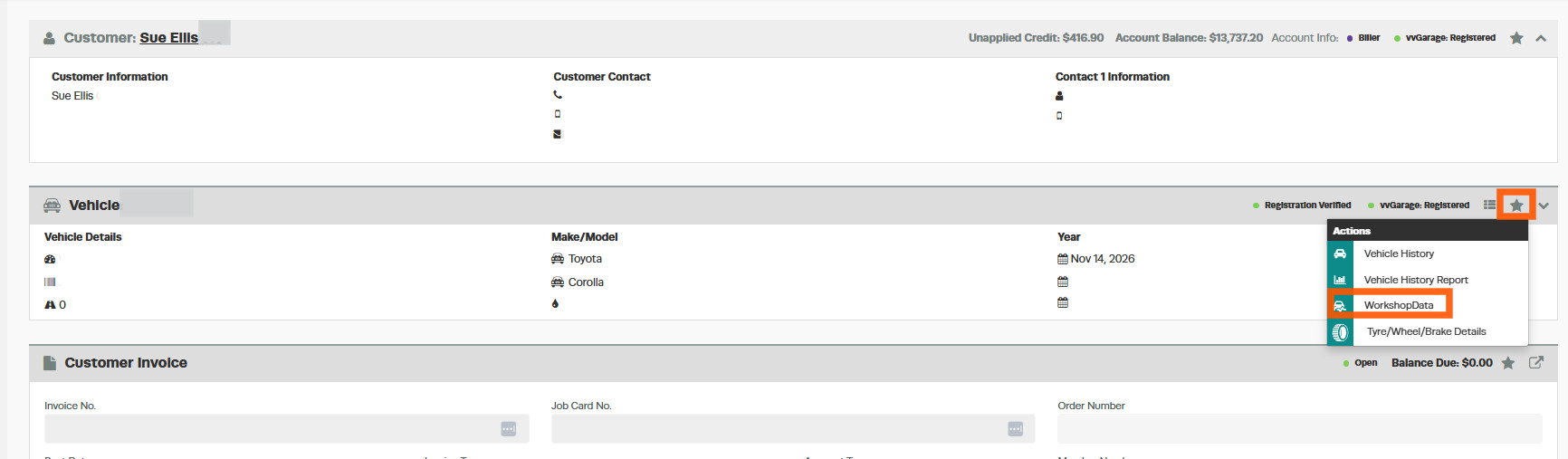
- The vehicle's technical information will open in WorkshopData.
WorkshopData Electronics User Guide
Electronics Tab
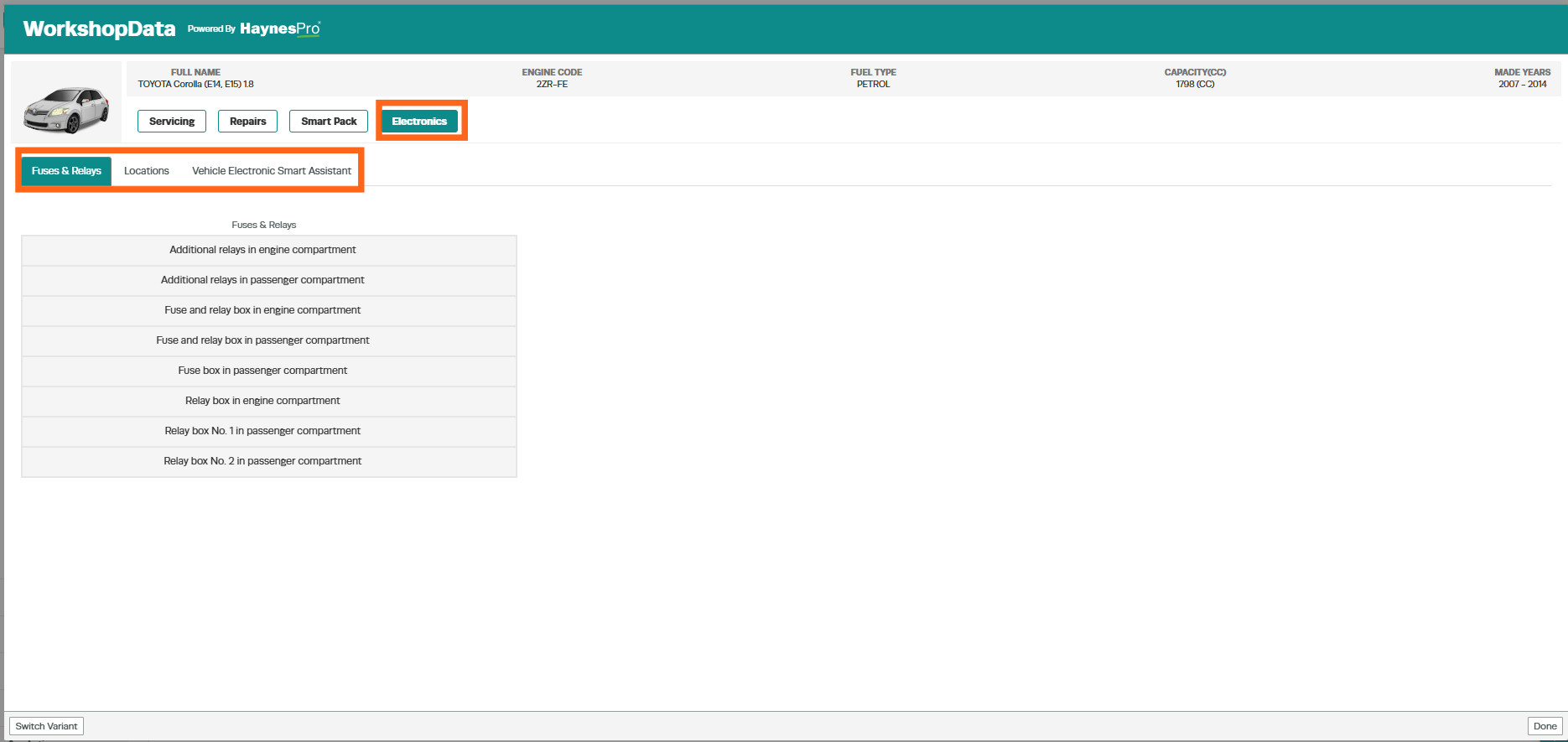
Within the WorkshopData interface, navigate to the Electronics tab. The following sections are available:
- Fuses & Relays
- Locations
- Vehicle Electronic Smart Assistance
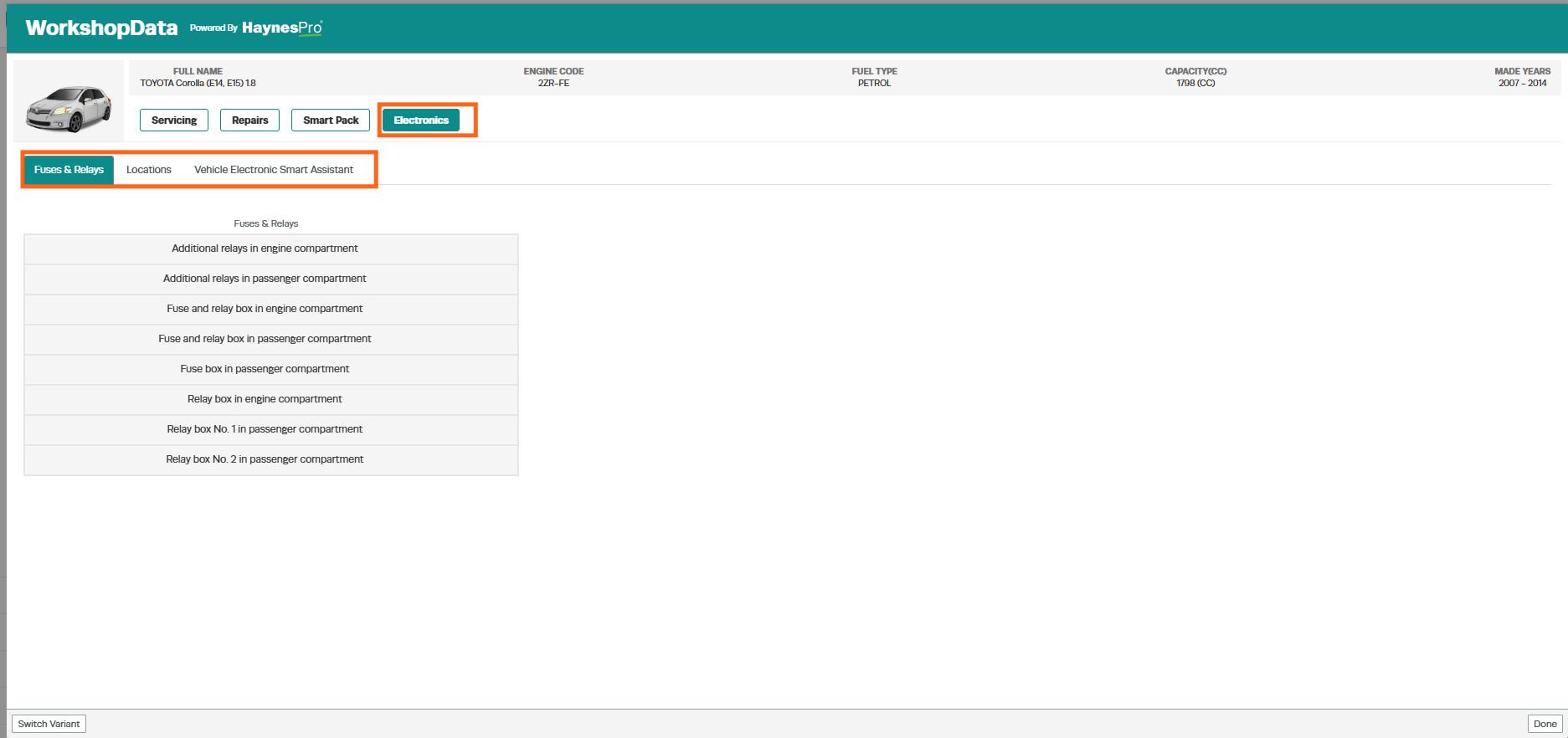
Fuses & Relays
The Fuses & Relays section displays all available fuses and relays for the selected vehicle, including their locations and functions.
How to Use
- Select the fuse or relay category you require information on.
- Example: Fuse Box in Passenger Compartment
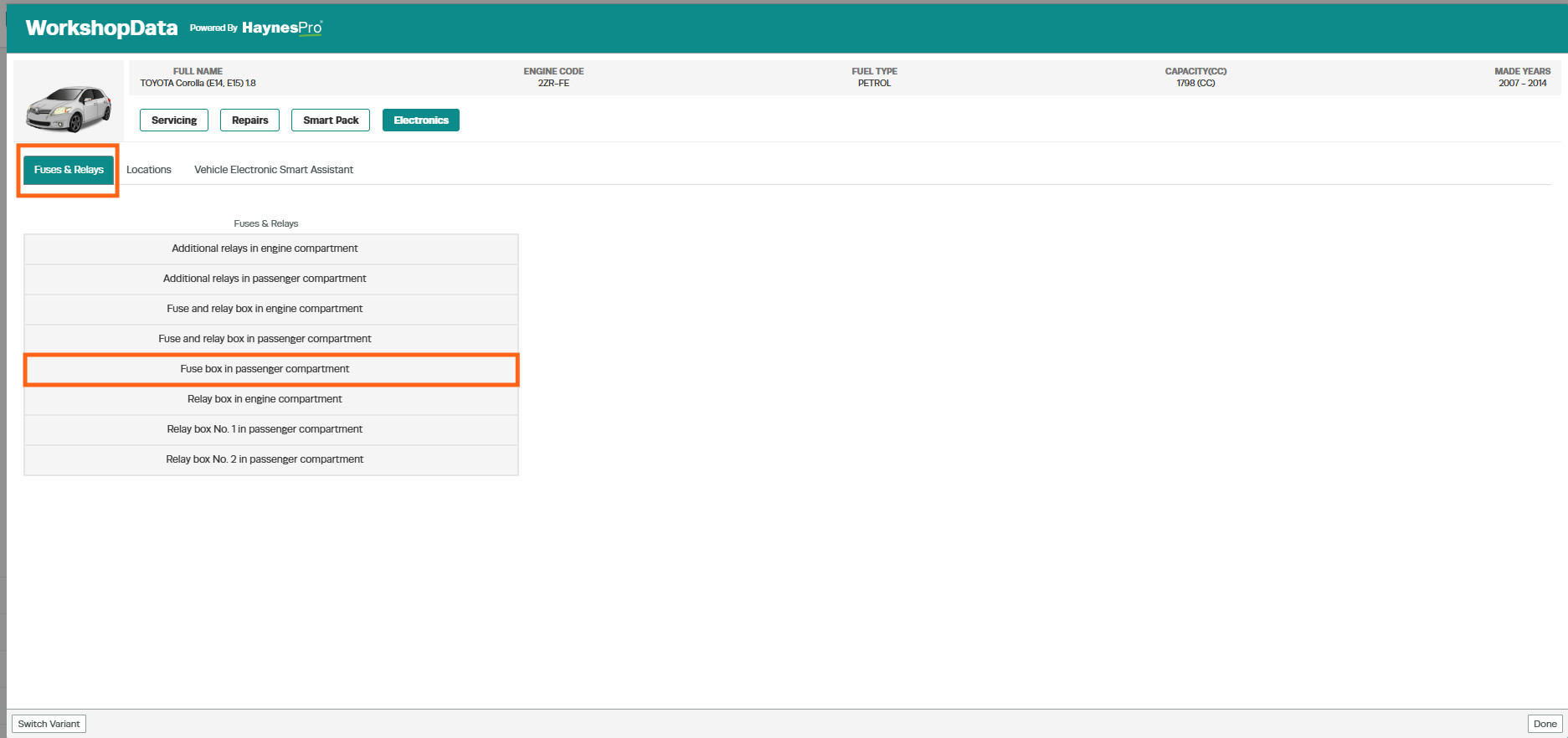
- The system will display:
- A diagram showing the physical location of the fuse box or relay.
- A list of the fuse or relay positions.
- The fuse size required.
- The systems and components affected by each fuse or relay.
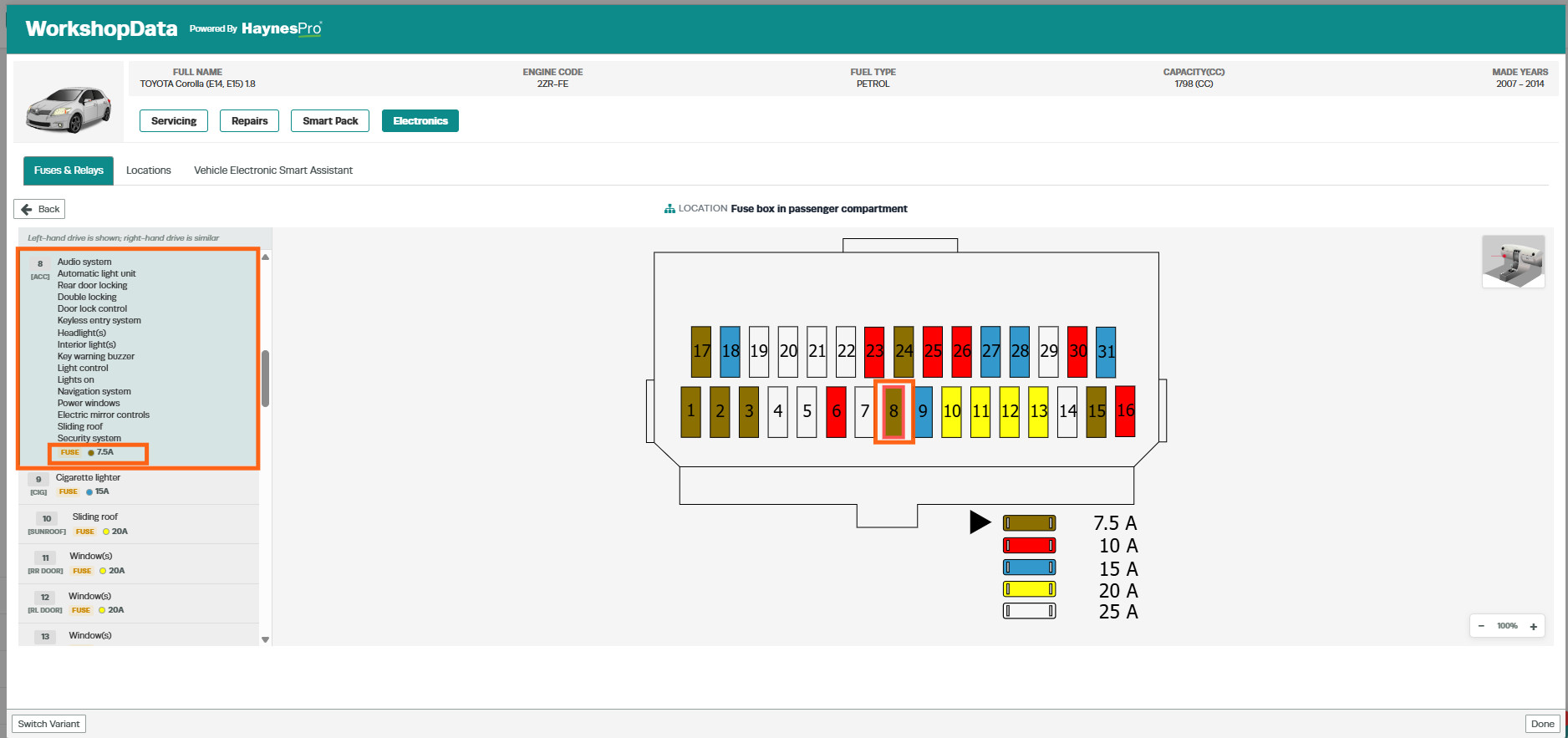
This information assists technicians in quickly locating and identifying the correct fuse or relay for diagnosis and repair.
Locations
The Locations tab provides diagrams and location information for various vehicle components.
Available Groups
Select the group you require information from:
- Fuses & Relays
- Diagnostic Connector
- Engine Management
- Control Units
- Grounding Points
- HVAC
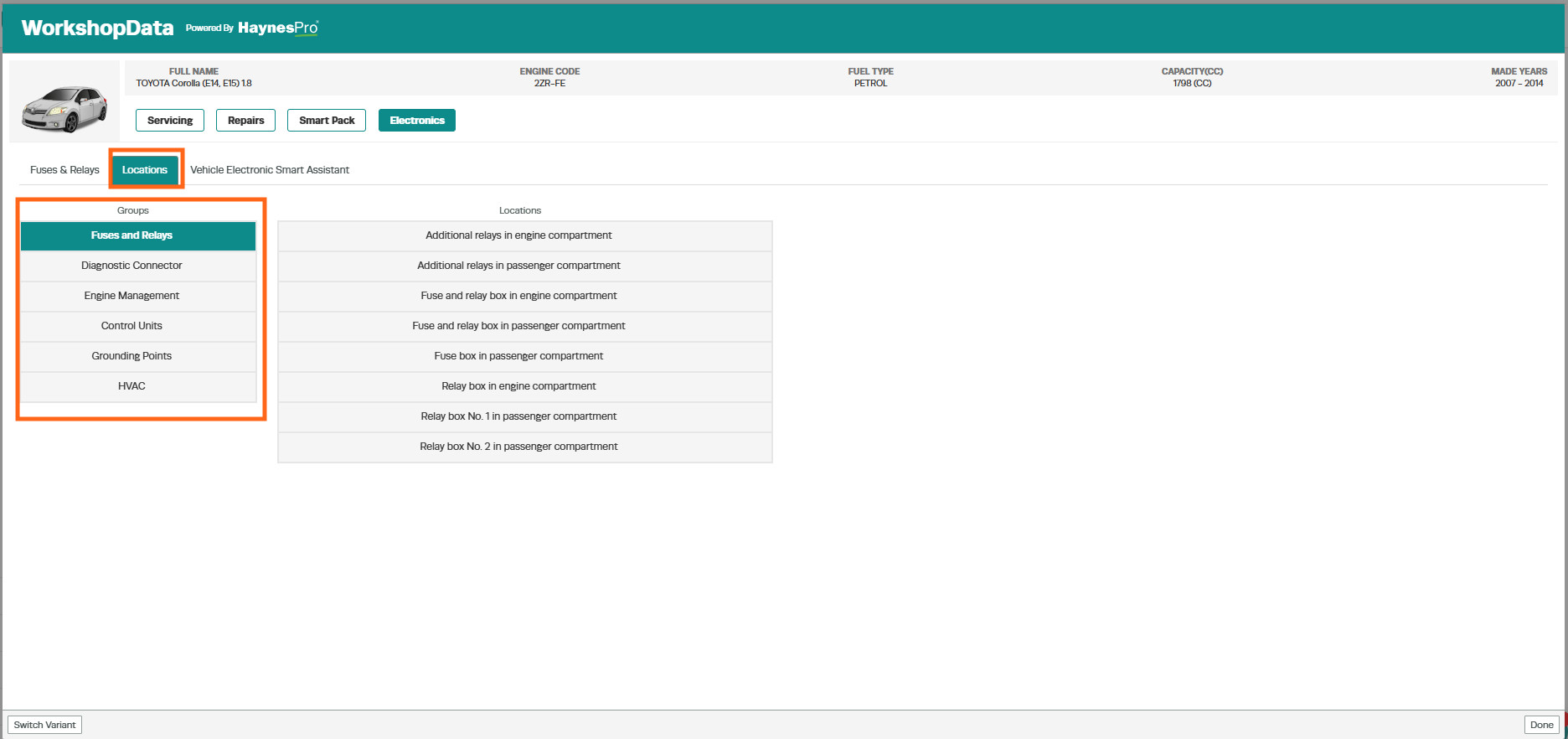
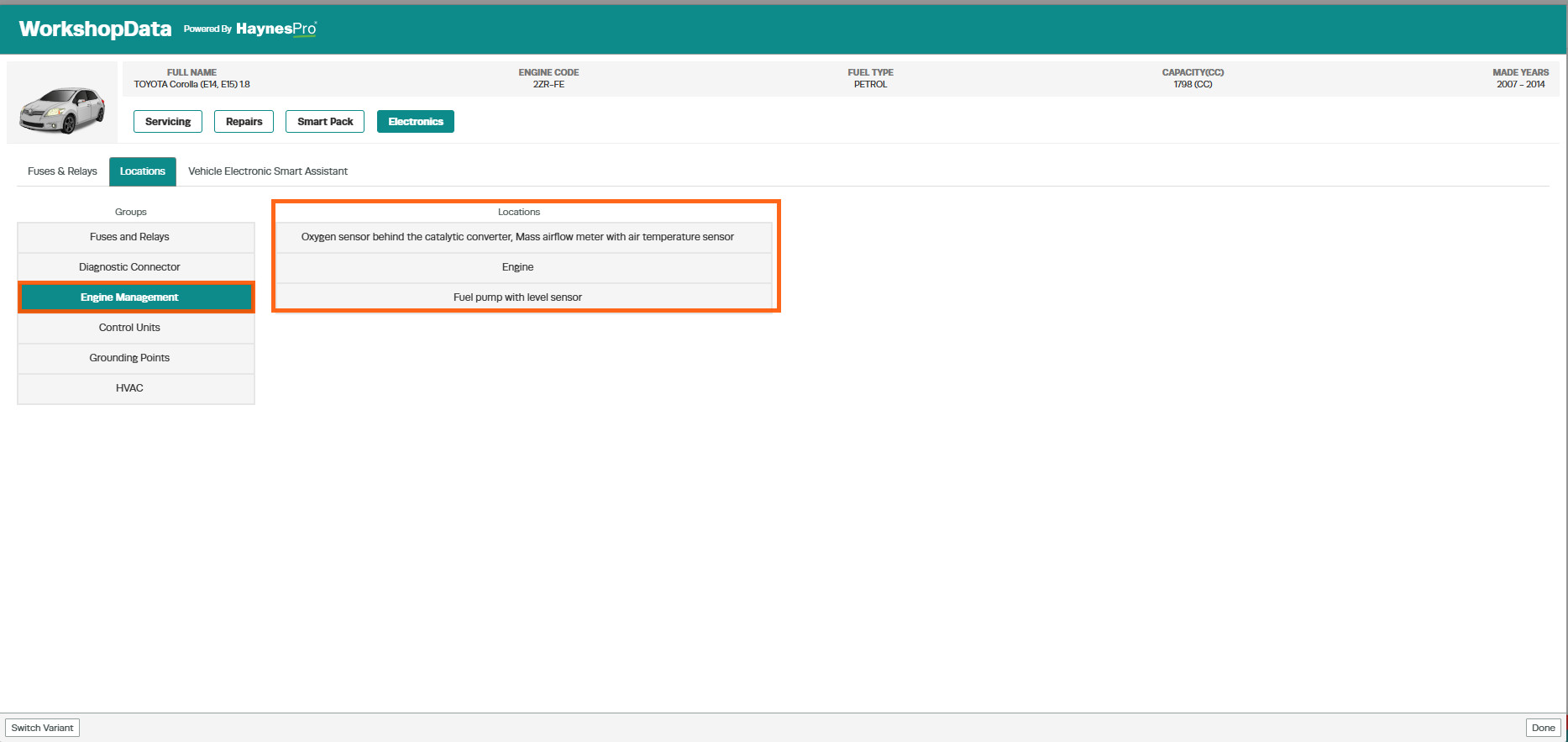
Example
- Select Engine Management as the group.
- Choose the component location you wish to view, such as:
- Oxygen Sensor Behind Catalytic Converter
- Mass Airflow Meter with Air Temperature Sensor
- Engine Control Unit
- Fuel Pump Level Sensor
- Select the required location.
The system will display a detailed location diagram showing all relevant components.
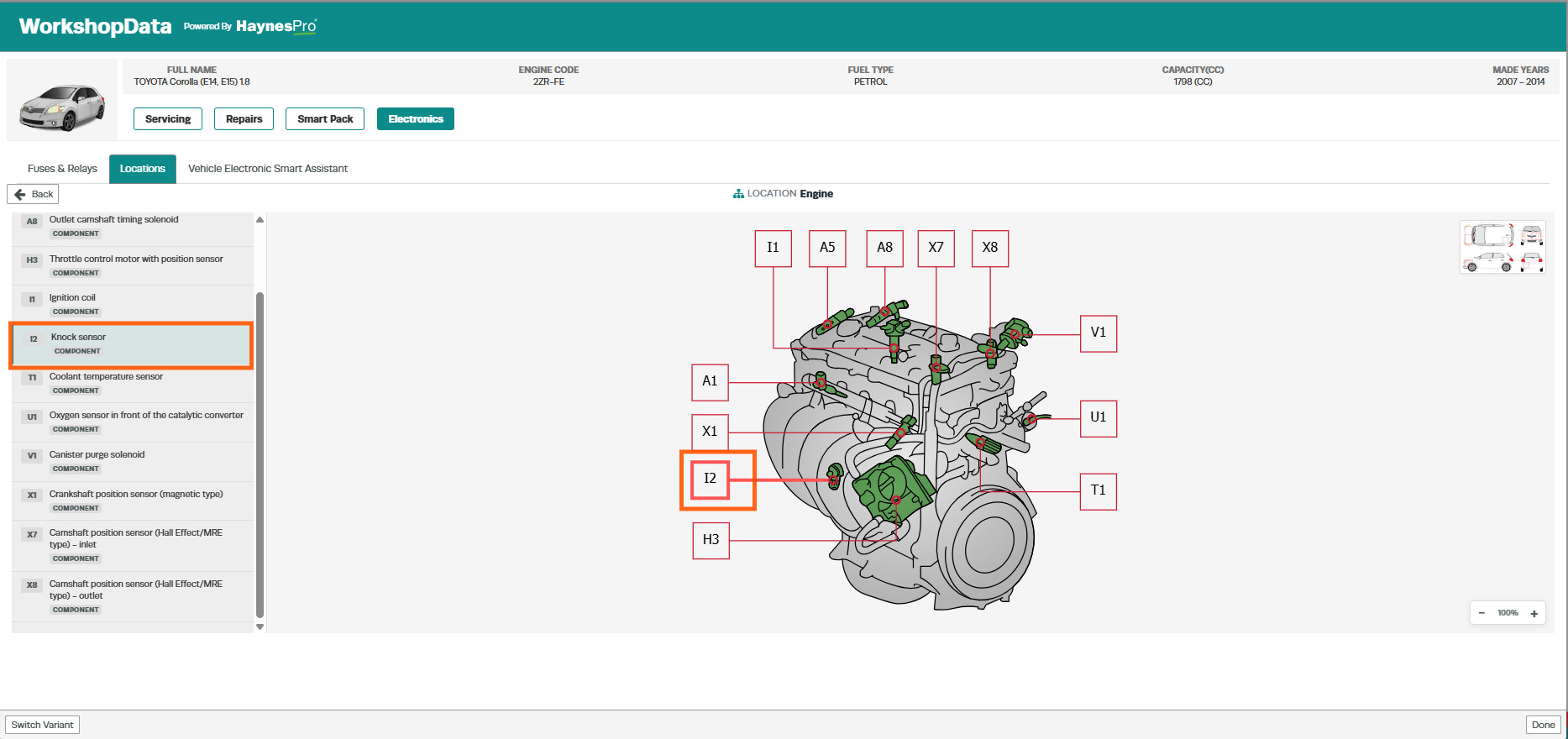
Component Identification
- Select a component from the diagram.
- The corresponding component name will be highlighted in the information panel.
- Example: Selecting I2 will highlight Knock Sensor on the left-hand side of the screen.
Vehicle Electronic Smart Assistance
The Vehicle Electronic Smart Assistance section provides guided diagnostic information and repair procedures.
Available Groups
The groups available will vary depending on the vehicle selected. Common groups include:
- Engine Management
- ABS & Stability Control
- Transmission
- Electric Power Steering
- Heating, Ventilation & Air Conditioning (HVAC)
- Fuel Burning Additional Heater
- Wash/Wipe System
- Supplemental Restraint System (SRS/Airbag)
- Central Locking
- Horn
- Power Windows
- Instrument Cluster
- Exterior Lights
- Starting & Charging
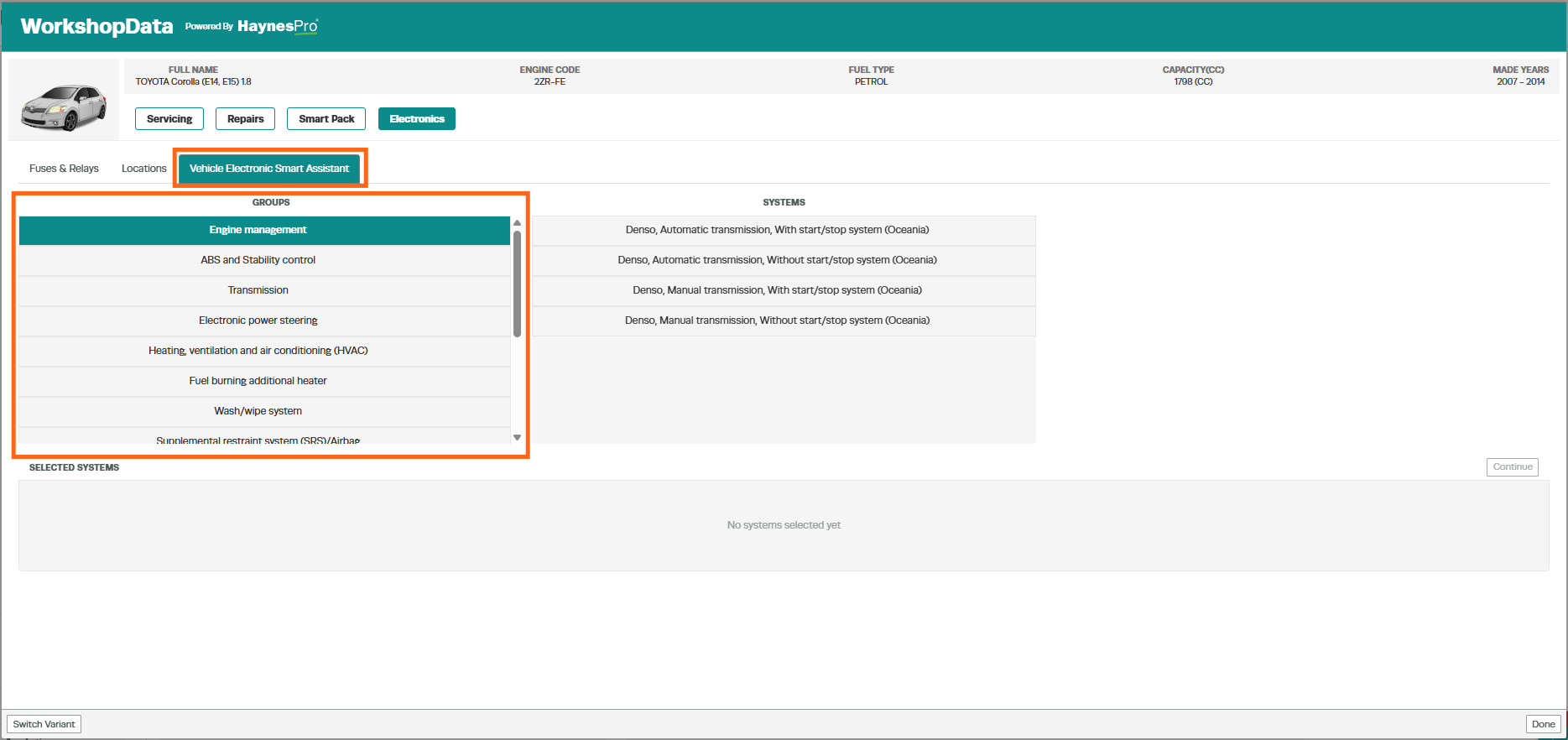
Selecting Systems
- Select the required group.
- Select one or more subgroups.
- Additional groups and subgroups can be selected as required.
- Click Continue.
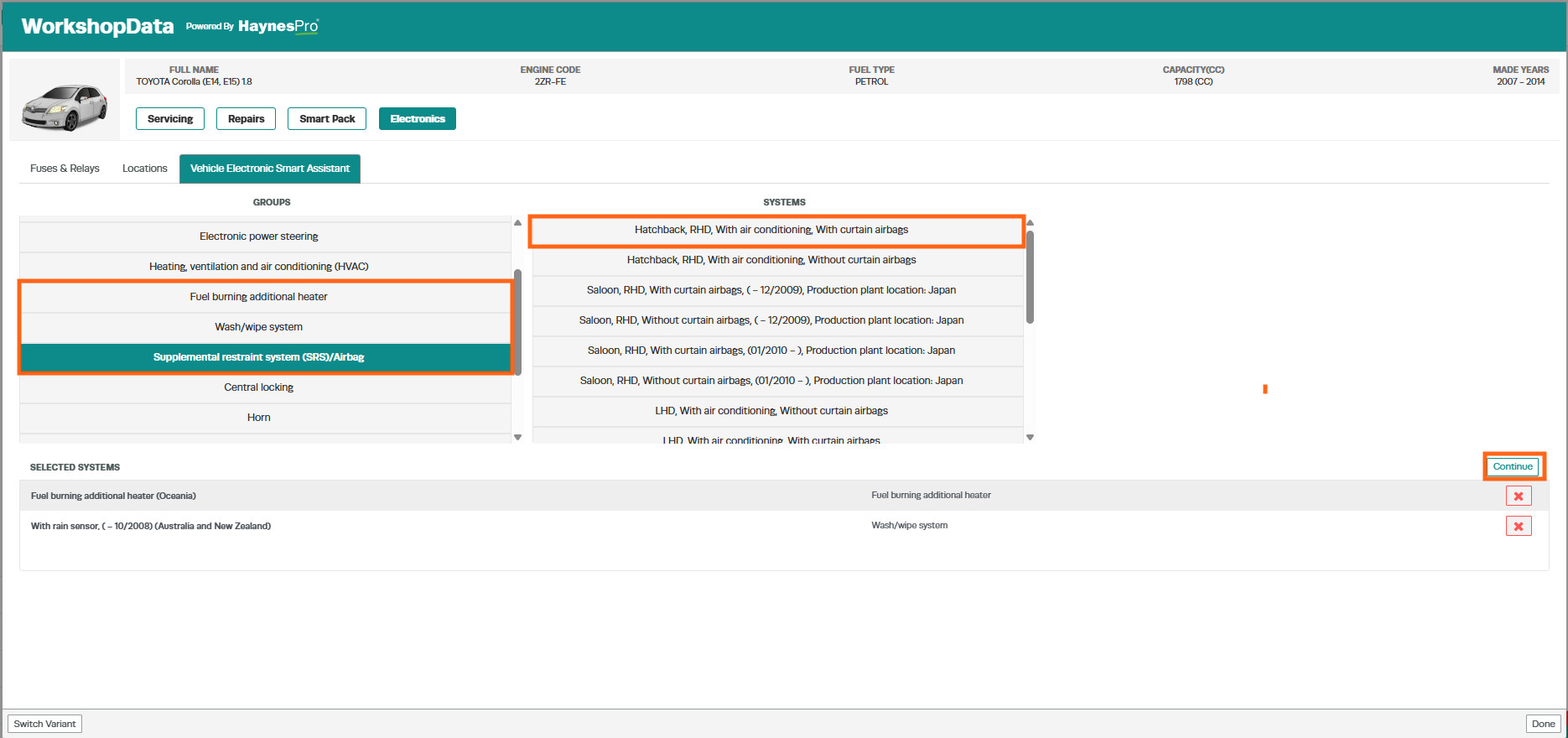
Diagnostic Information Screen
After selecting your systems, the following tabs may be available:
- Components
- CAN-Bus Overview
- Fault Codes
- Diagnoses
- Locations
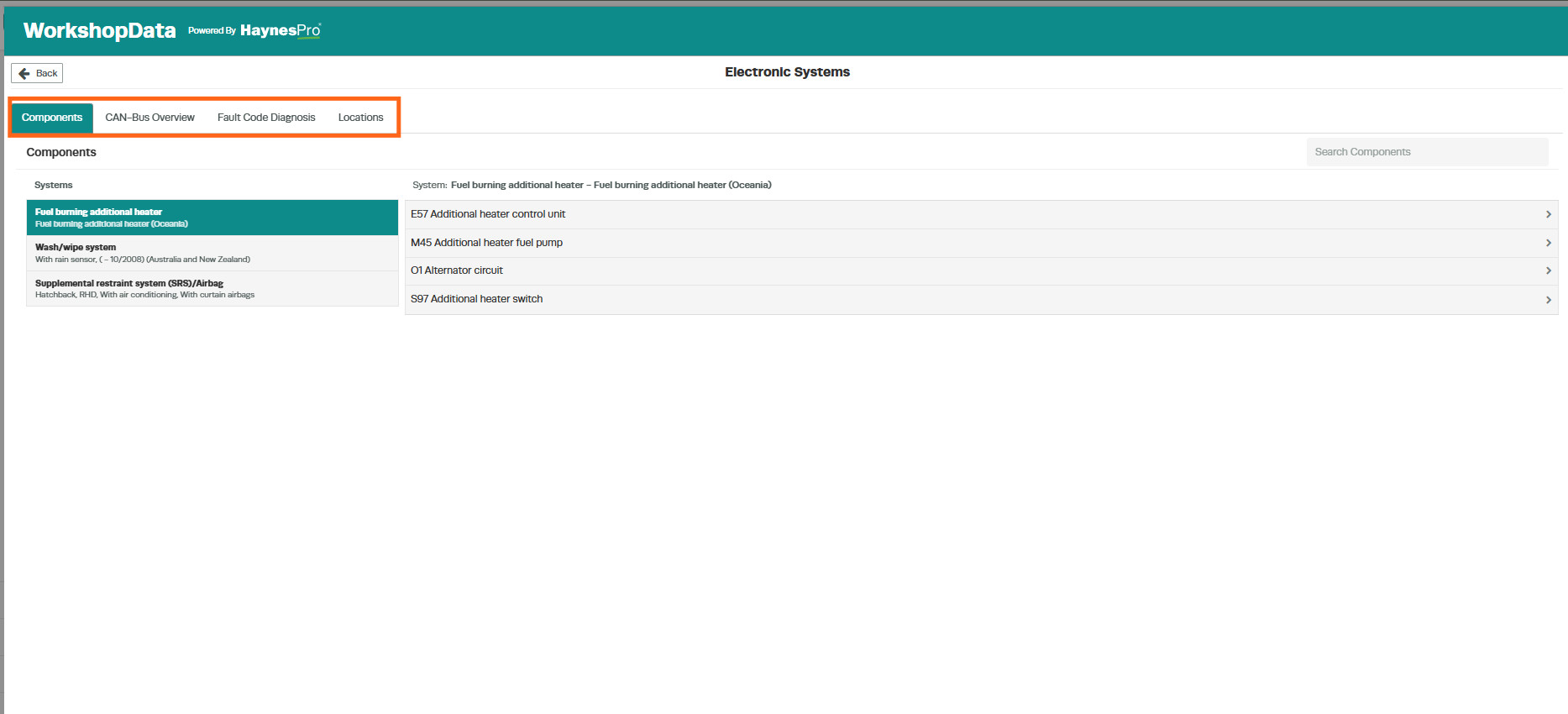
Components
The Components tab displays all selected systems.
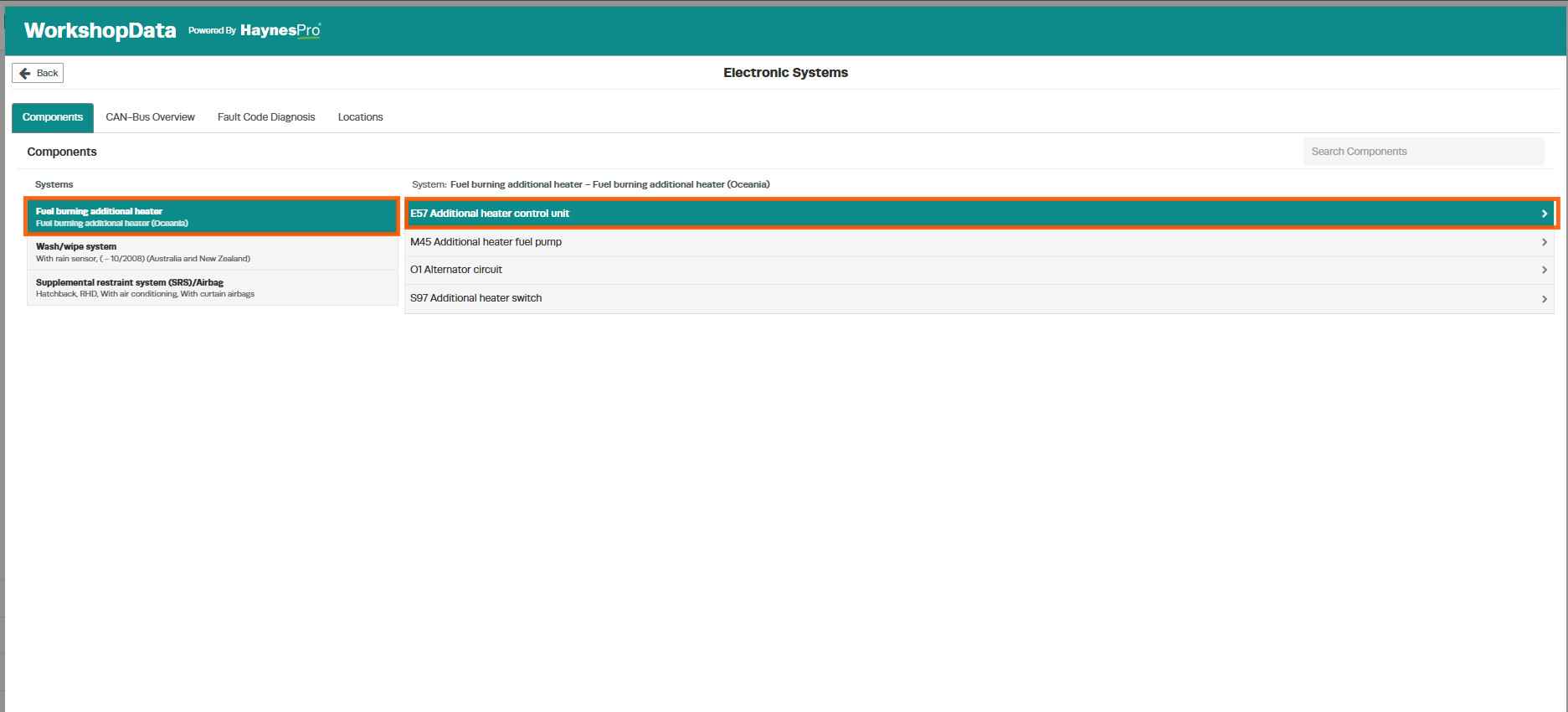
Selecting a component provides access to:
- Wiring Diagrams
- ECU Pinouts
- Connector Locations
- Related Parts
- Repair Manuals
- Component Information
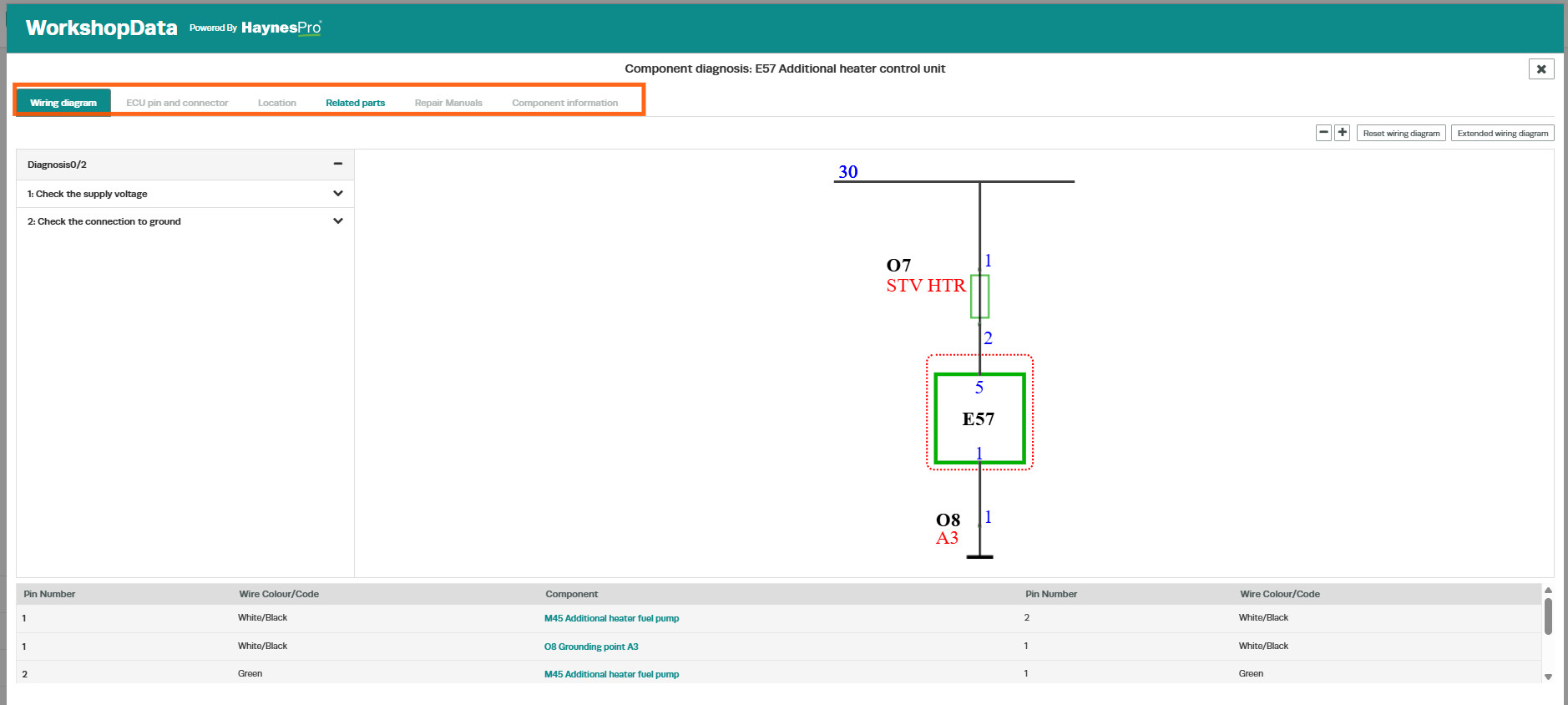
Note: If a heading is displayed in black rather than green, the information is not available from the manufacturer and no data will be displayed for that section.
Diagnoses
The Diagnoses tab provides guided fault-finding procedures.
For each diagnostic step, the system will display:
- The action to be performed.
- A Yes/No response option to record whether the test has been completed.
- Supporting diagrams and instructions where available.
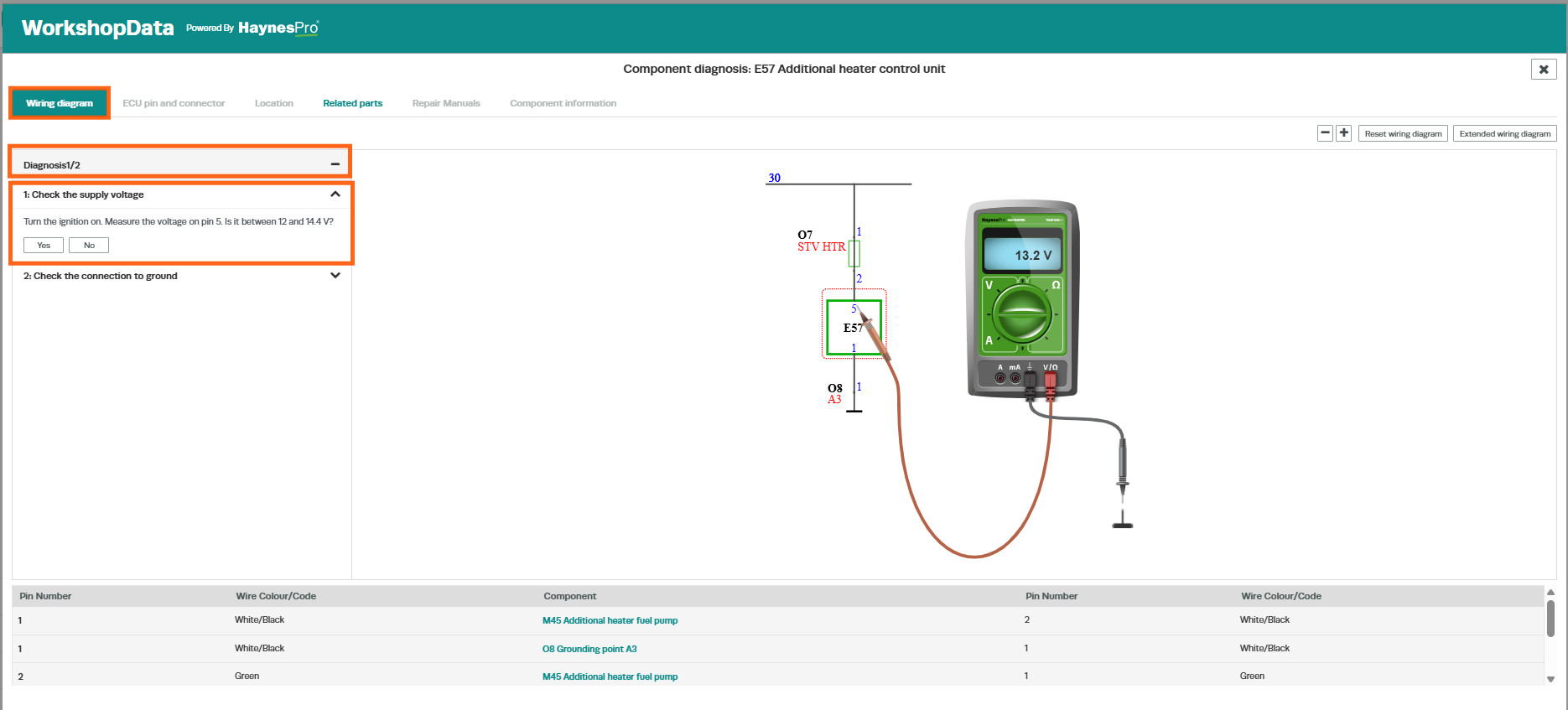
This assists technicians in following a structured diagnostic process.
Related Parts
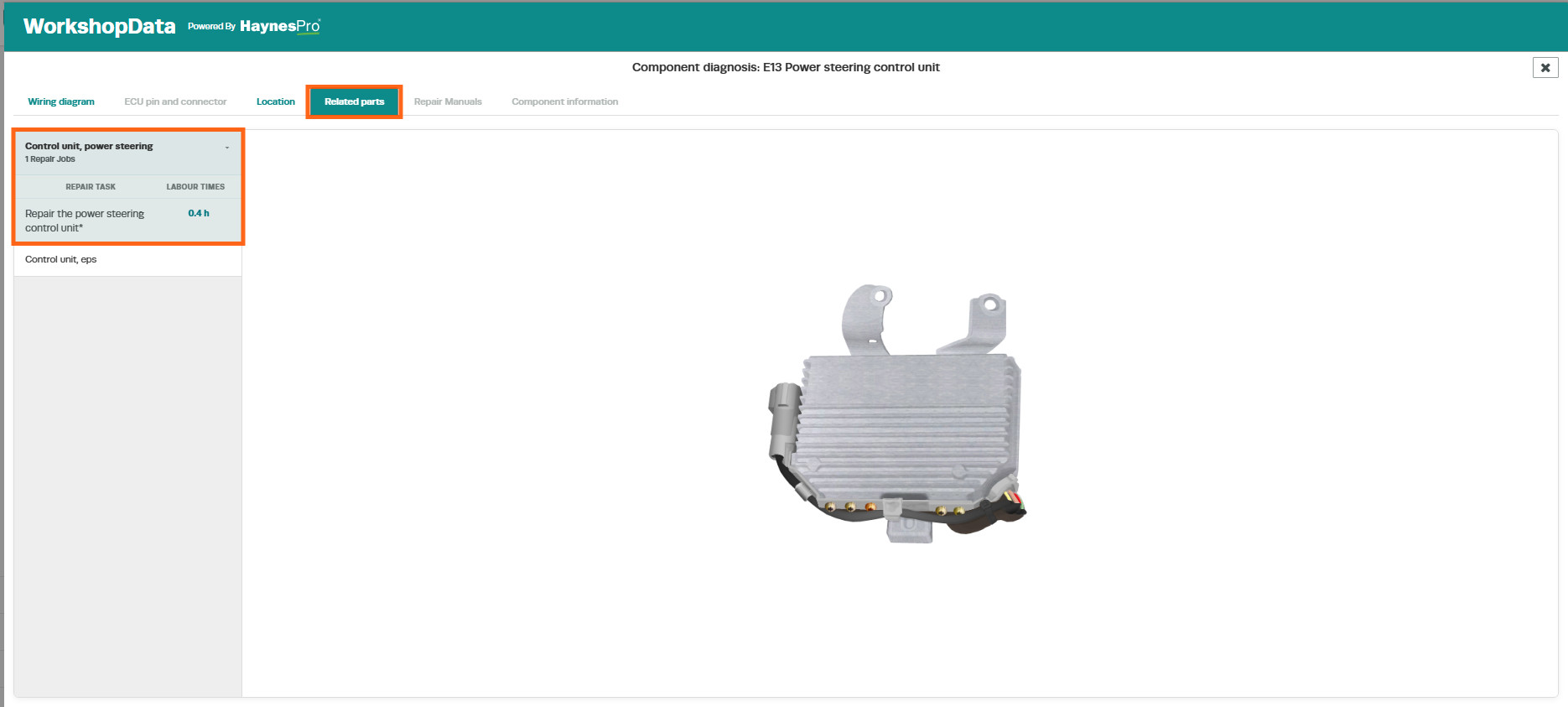
The Related Parts tab provides information relating to the selected component, including:
- Repair Task.
- Labour times for related repair tasks.
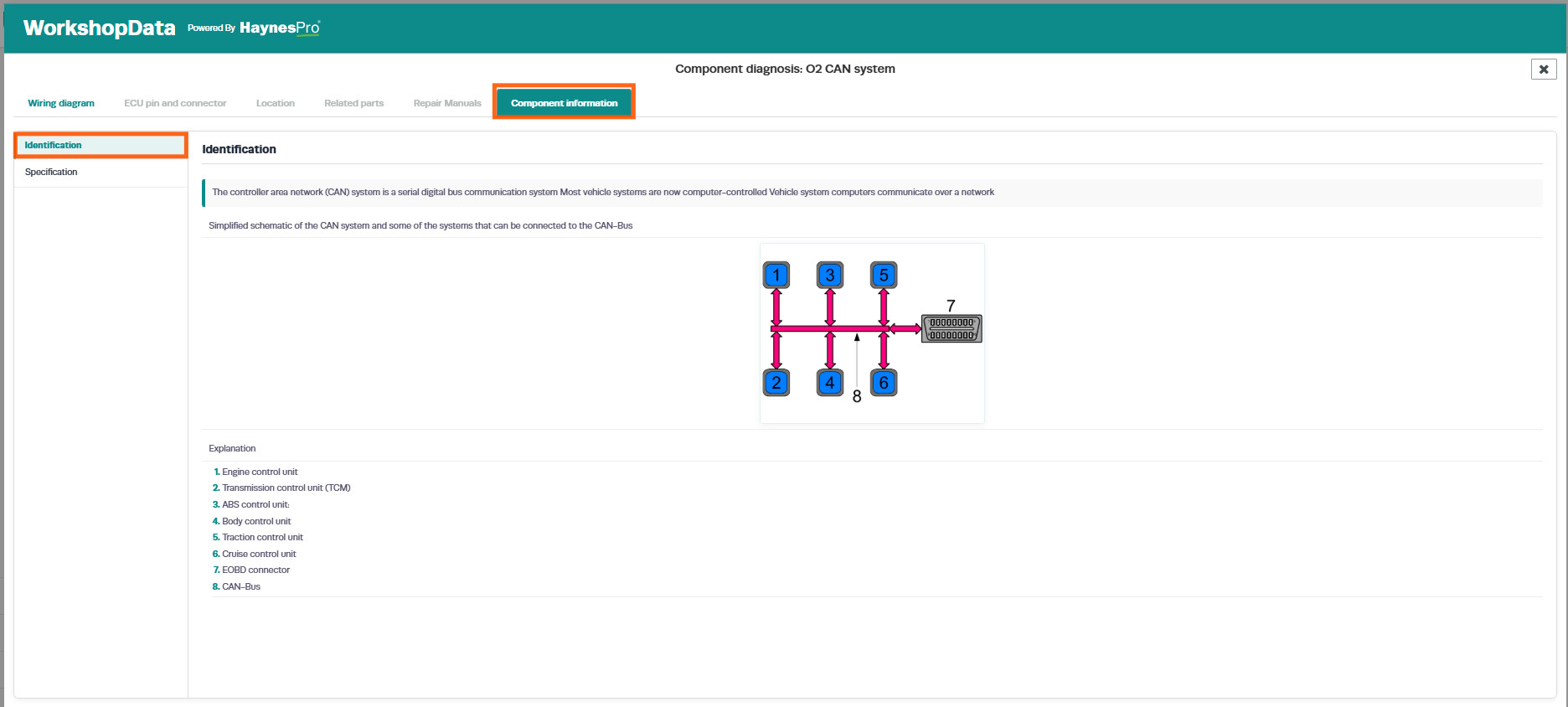
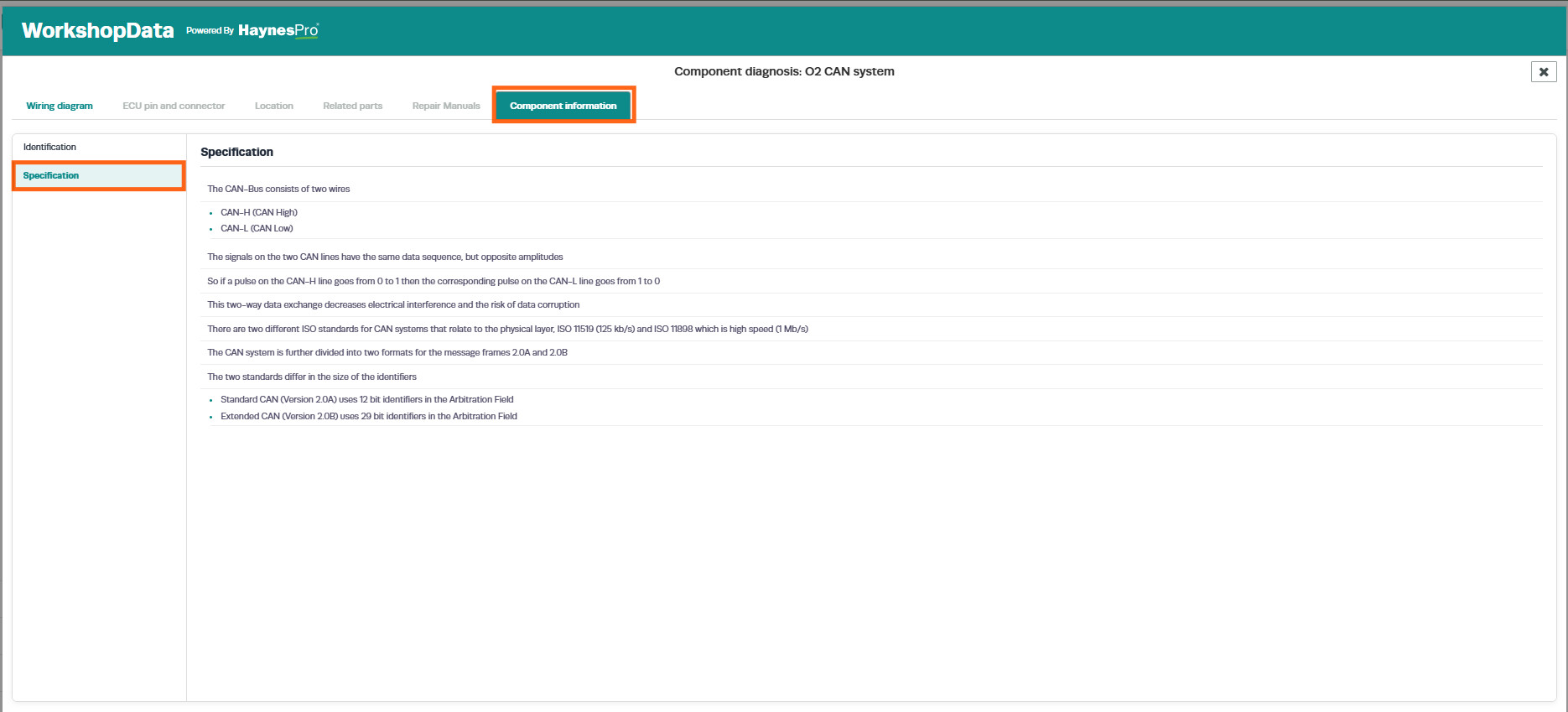
Component Information
The Component Information tab provides detailed information including:
- Component identification.
- Component function.
- System operation details.
- Technical specifications where available.
This section is useful for understanding how a component operates within the vehicle system and assists with diagnosis and repair.
Good to Know
- WorkshopData Electronics can be accessed directly from either the Vehicle Record or a Job Card, Booking, or Invoice, eliminating the need to switch between different systems.
- The information available will vary depending on the vehicle's make, model, and year.
- Not all manufacturers provide the same level of technical information. If a heading is displayed in black rather than green, information is not available for that section.
- Multiple systems and subgroups can be selected simultaneously within Vehicle Electronic Smart Assistance to broaden your diagnostic search.
- Location diagrams are interactive and allow components to be identified directly from the diagram.
- Fuse and relay information includes both the component location and the systems affected by each fuse or relay.
- Guided diagnostic procedures include step-by-step instructions and supporting diagrams where available.
- Related Parts can provide labour times and associated repair information to assist with quoting and repair planning.
- ECU pinouts, wiring diagrams, and connector locations are available for many vehicle systems to support advanced diagnostics.
Frequently Asked Questions (FAQ)
How do I access WorkshopData Electronics?
WorkshopData Electronics can be opened from either the Vehicle Record or directly from a Job Card, Booking, or Invoice by selecting the Actions (star) button and choosing WorkshopData.
Why can't I see certain information for a vehicle?
Information availability depends on the vehicle manufacturer. If a tab heading appears in black, the manufacturer has not supplied information for that section.
How do I locate a specific component?
Use the Electronics then Locations tab, select the relevant group, then choose the required component. An interactive diagram will display the component's location within the vehicle.
Can I identify a component directly from a diagram?
Yes. Selecting a reference number within the diagram will highlight and identify the corresponding component.
Where can I find fuse and relay information?
Navigate to Electronics > Fuses & Relays. This section provides fuse and relay locations, ratings, and the systems they protect.
Can I see what a fuse or relay controls?
Yes. Selecting a fuse or relay will display its rating and a list of the systems or components affected.
What is Vehicle Electronic Smart Assistance?
Vehicle Electronic Smart Assistance is a guided diagnostic tool that helps technicians identify faults by providing diagnostic procedures, wiring diagrams, fault codes, ECU information, and repair guidance.
Where can I find wiring diagrams?
Wiring diagrams are available within the Components section of Vehicle Electronic Smart Assistance after selecting the relevant system.
What are ECU Pinouts?
ECU Pinouts provide detailed information about ECU connectors, pin locations, and circuit connections to assist with electrical testing and diagnosis.
How do the Diagnoses screens work?
The Diagnoses section provides step-by-step testing procedures. Each step includes instructions and allows technicians to record a Yes or No response based on the test results.
Can I find labour times within WorkshopData Electronics?
Yes. Labour times may be available within the Related Parts section for applicable repair procedures.
Are fault codes available?
Yes. Fault code information is available within Vehicle Electronic Smart Assistance where supported by the manufacturer.
Can WorkshopData Electronics help with advanced electrical faults?
Yes. The combination of wiring diagrams, ECU pinouts, connector locations, grounding points, component locations, and guided diagnostics makes WorkshopData Electro